Tutorial: How to Use iSunshare AnyLoca to Modify iPhone/iPad Location
Can I change my location on iPhone? Yes, of course. As a matter of fact, it is not an easy task to change iPhone location as there are strict restrictions on iOS system. Generally, you need to jailbreak the iPhone for location change. However, with iSunshare AnyLoca, you can easily change iPhone location without jailbreak. Besides, it supports you to customize the routes and speeds to simulate GPS movement.
Part 1: Make Your iPhone Ready
Part 2: How to Modify GPS Location on iOS Devices
Part 3: How to Simulate Single-Spot Movement
Part 4: How to Simulate Multi-Spot Movement
Part 5: How to Simulate Jump Move Routes
Part 1: Make Your iPhone Ready
Step 1: Connect your iPhone to the computer and make it trust your computer.
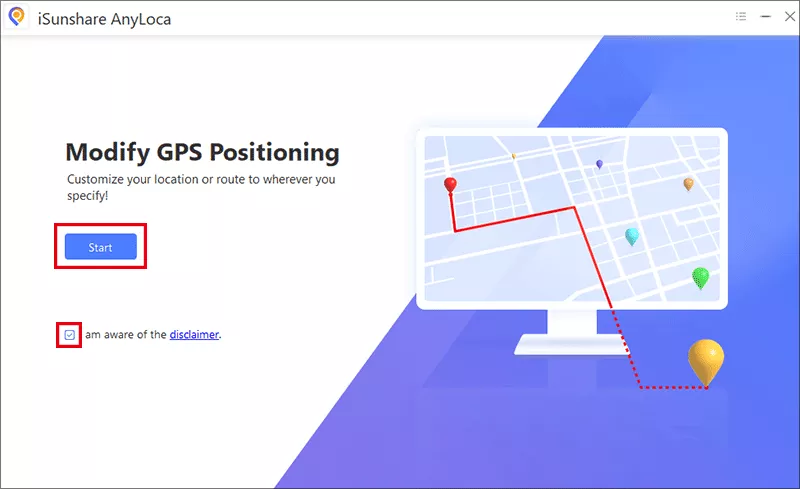
Step 2: Open AnyLoca, agree to the disclaimer, then click the Start button.
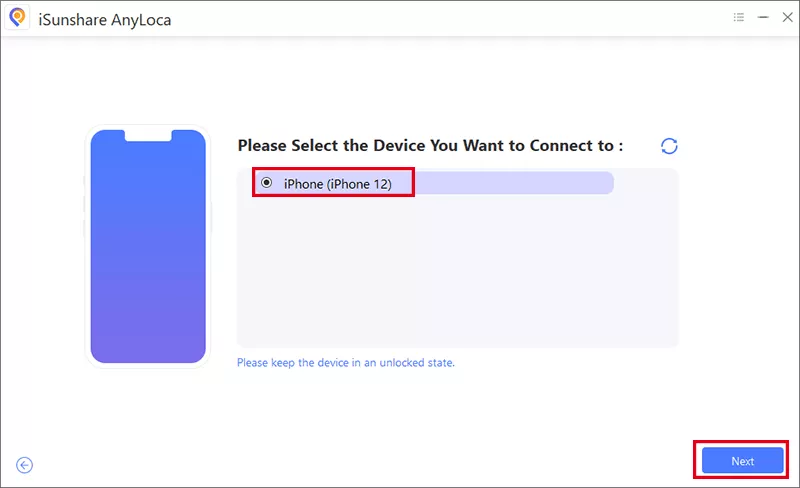
Step 3: Select your iPhone and hit the Next button.
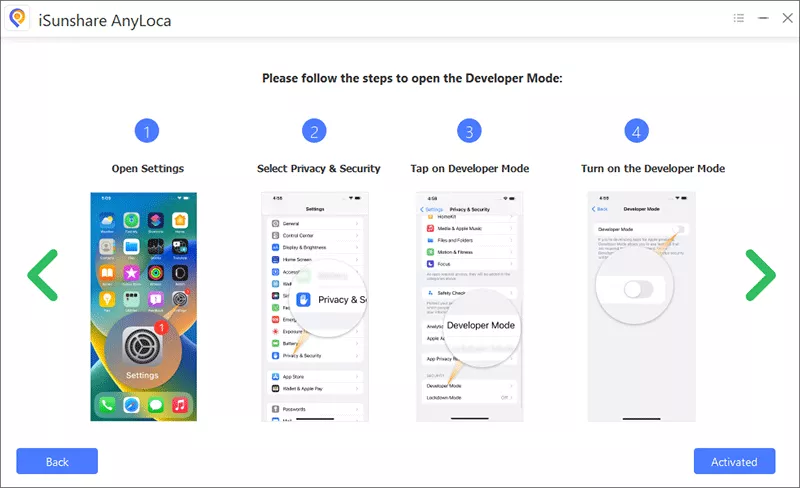
Step 4: Follow the instructions to enable developer mode on your iPhone.
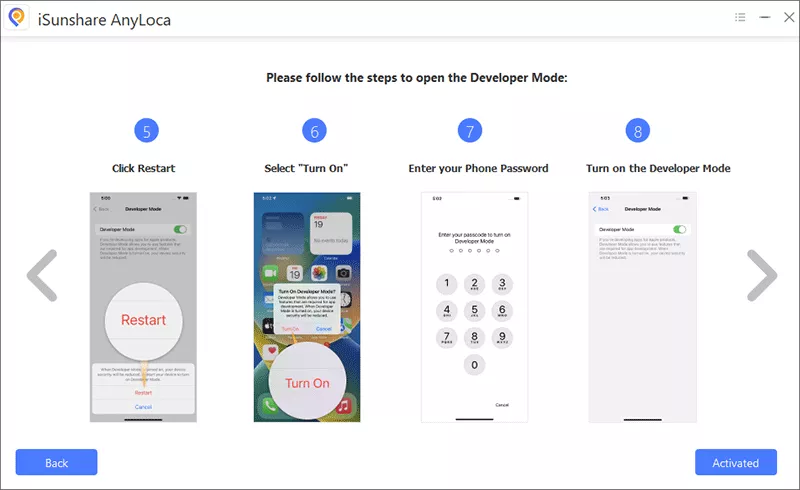
Part 2: How to Modify GPS Location on iOS Devices
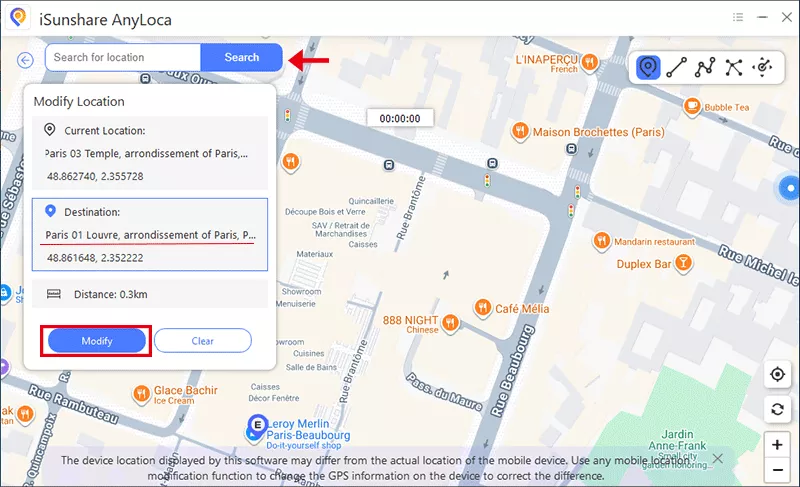
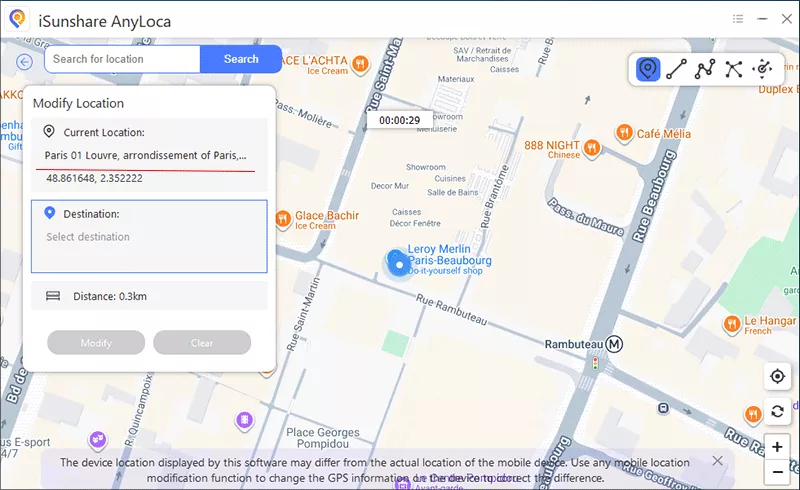
After entering the map, you are in the default mode—Modify Location. Here, you can easily spoof the location on your iOS devices.
Step 1: You can enter a specific address on the search box or click any spot on the map to choose your destination. After that, click the Modify button.
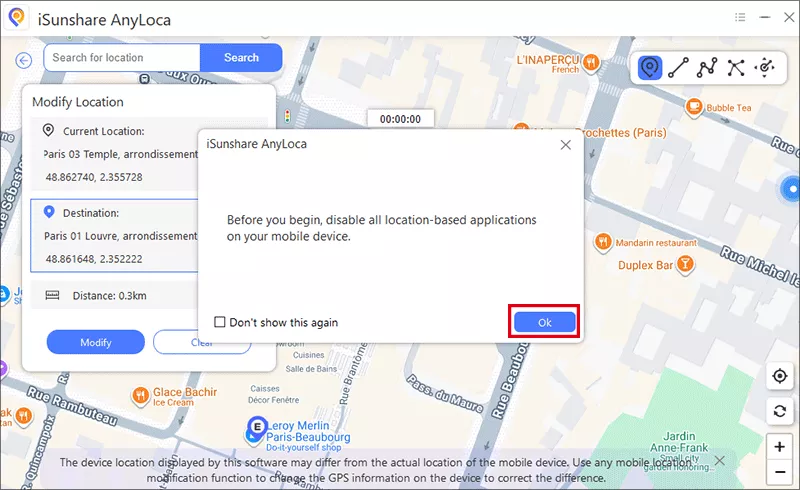
Step 2: It will remind you to disable all location-based apps on your iPhone befoere going ahead.
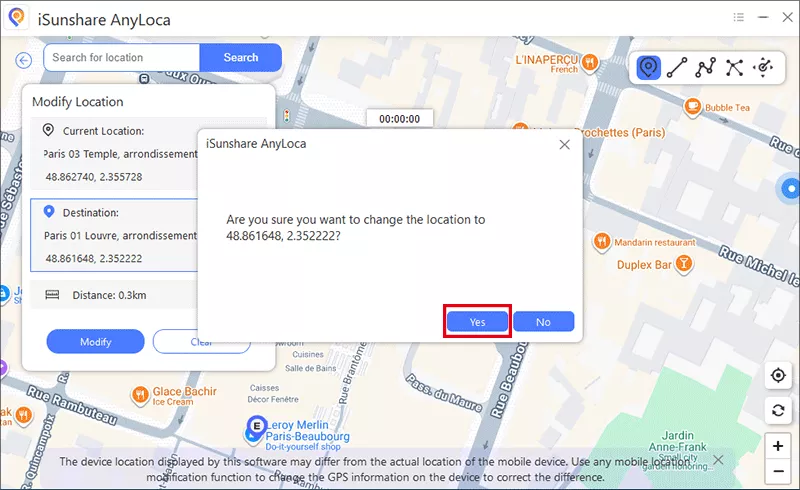
Step 3: Now confirm your action by clicking the Yes button.
Step 4: Soon, the GPS location on your iOS device is changed to the selected destination. Meanwhile, the virtual location will appear on all location-based apps on your device.
Part 3: How to Simulate Single-Spot Movement
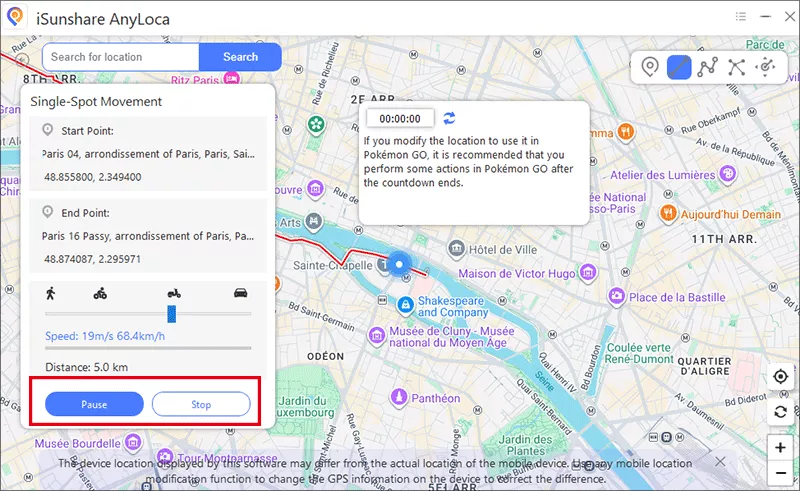
With iSunshare AnyLoca, you can simulate the GPS movement without walking or going outside. Under Single-Spot Movement mode, you can decide where to go and the speed of movement.
Step 1: In the map, select the Single-Spot Movement option on the top right-corner.
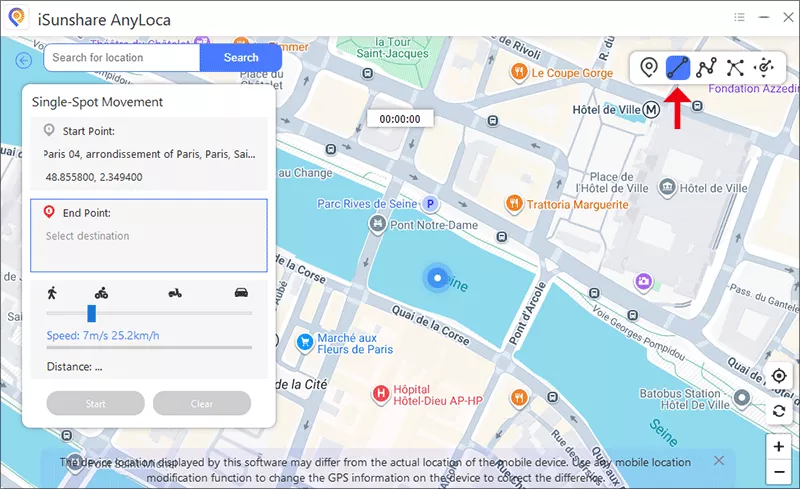
Step 2: Select the destination from the map. After that, you can adjust the speed in the Single-Spot Movement menu.
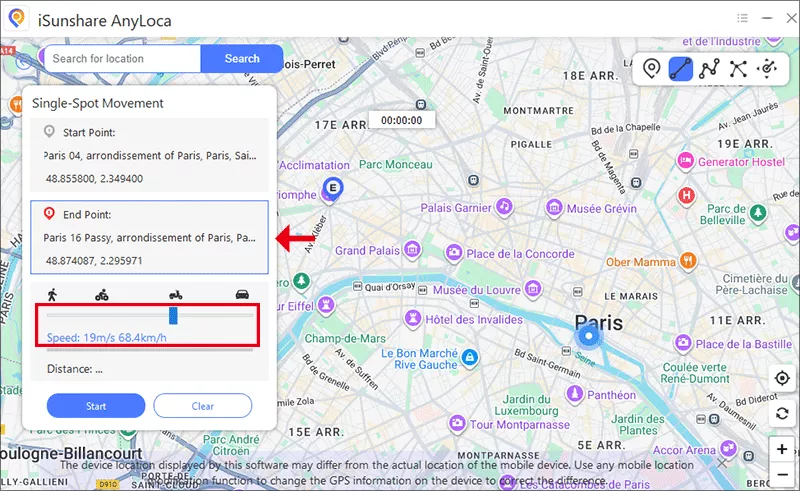
Step 3: Hit the Start button and then the Yes button to generate the route.
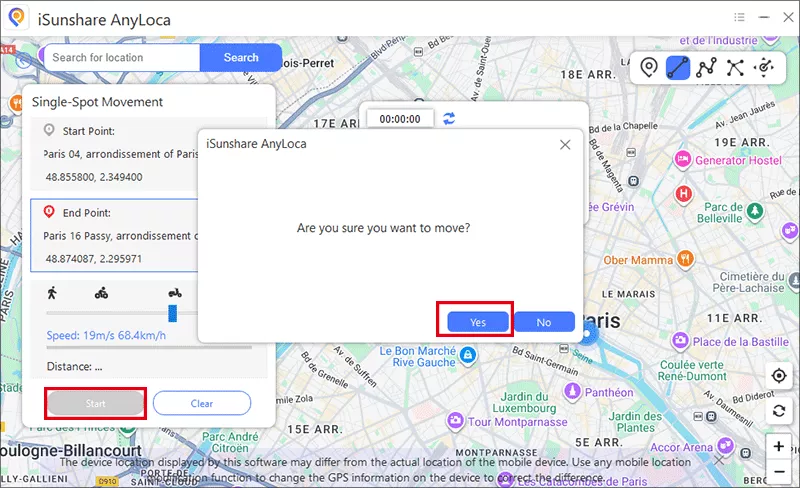
During this process, you can pause and continue the movement.
Part 4: How to Simulate Multi-Spot Movement
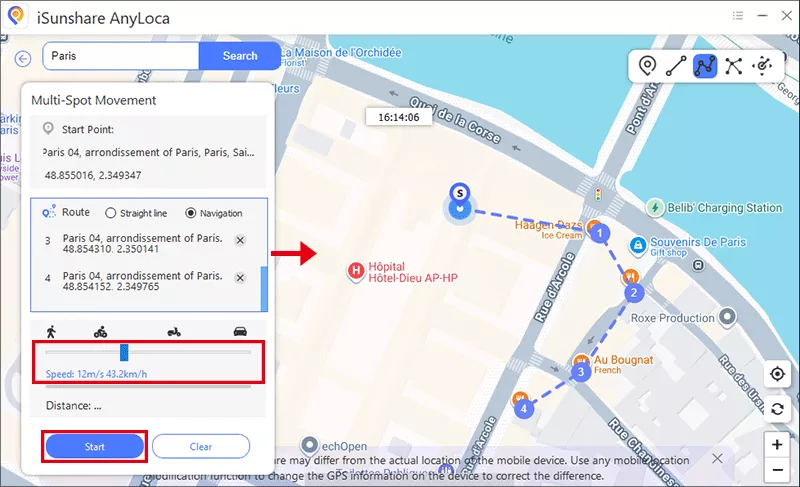
If you want to design a complex route which includes several spots during the process, you can choose the Multi-Spot Movement mode.
Step 1: Select Multi-Spot Movement from the map.
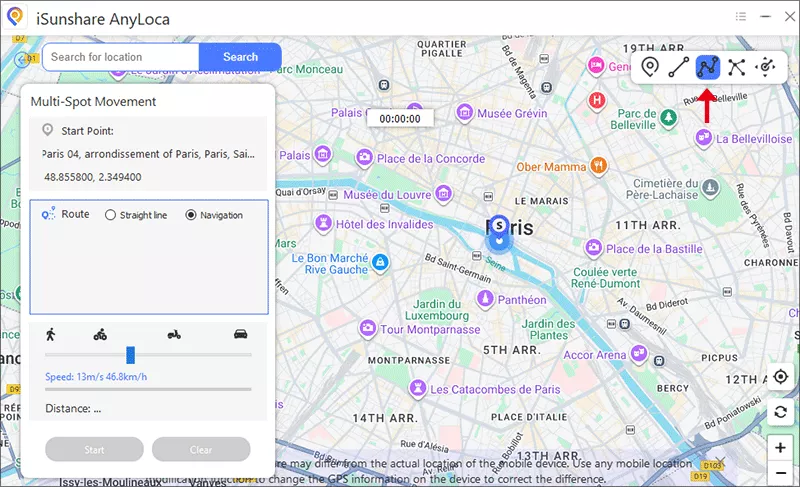
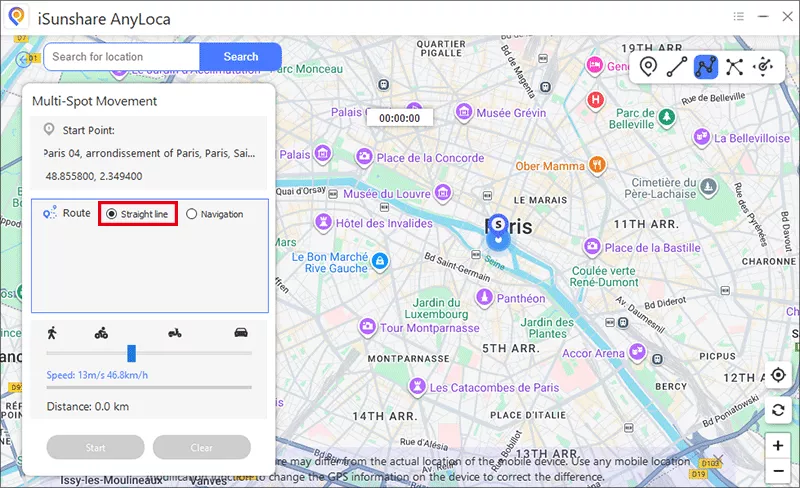
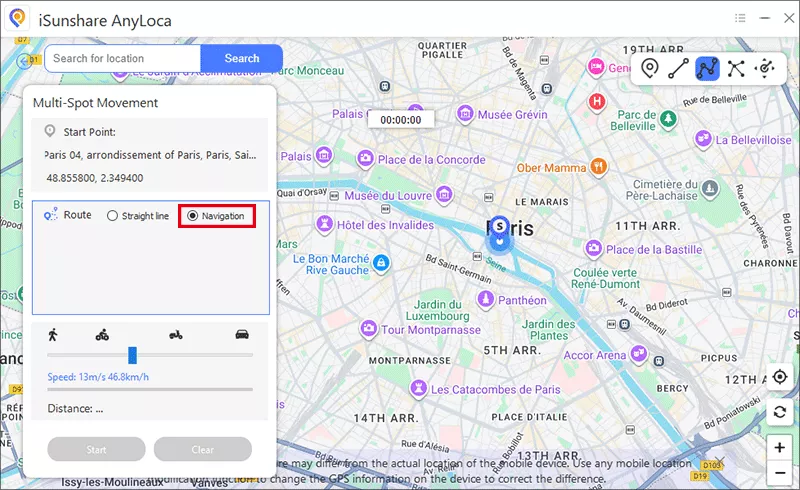
Step 2: Choose Straight line mode or Navigation mode.
For Straight line mode: Based on your route, the movement will go in a straight line. And there is no limitation on the number of route nodes.
For Navigation mode: By following the GPS navigation, the movement will go according to the road conditions, which will bring the more realistic experience. And this mode supports up to 24 route nodes.
Step 3: Customize your routes and adjust the speed. After that, click the Start button.
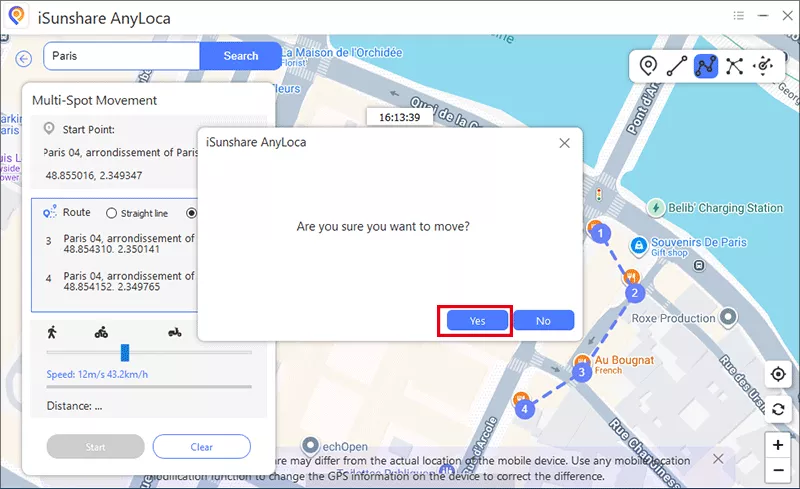
Step 4: Confirm to move. In no time, the software will run the routes automatically.
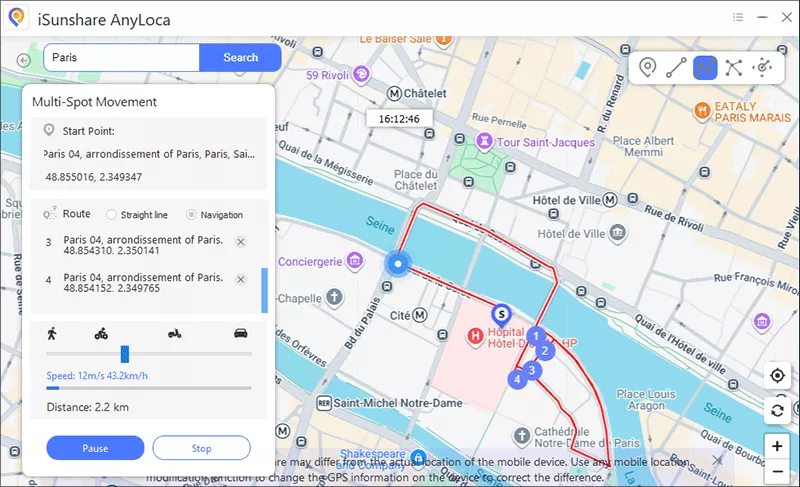
Now you can see the process on the map.
Part 5: How to Simulate Jump Move Routes
With Jump Move mode, you can define a sequence of locations on your iOS devices and then instantly teleport between them.
Step 1: Choose the Jump Move mode after entering the Map.
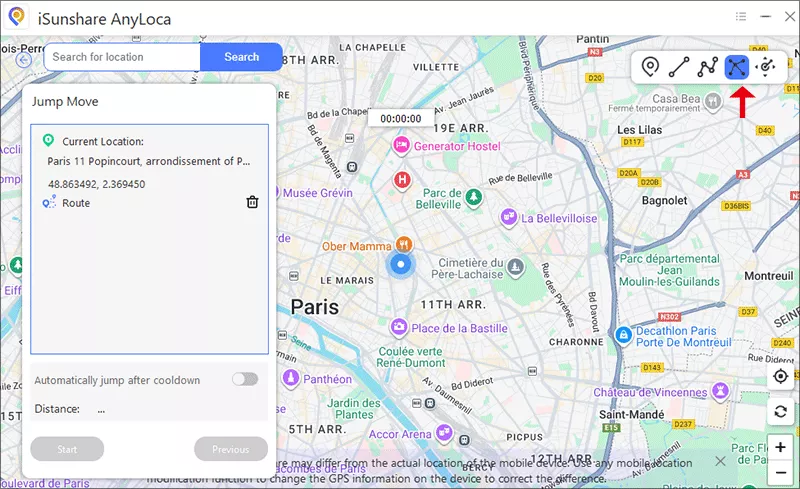
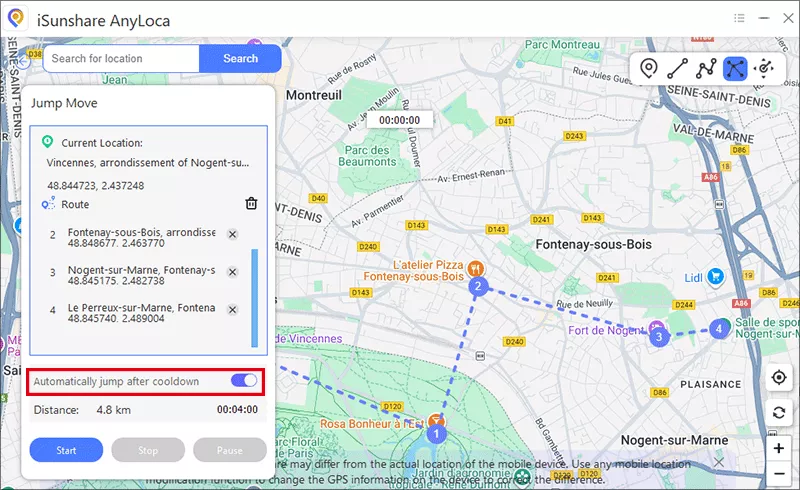
Step 2: Select multiple route nodes on the map to simulate your route. You can turn on the option—Automatically jump after cooldown. Otherwise, it needs to manually click to jump after cooldown.
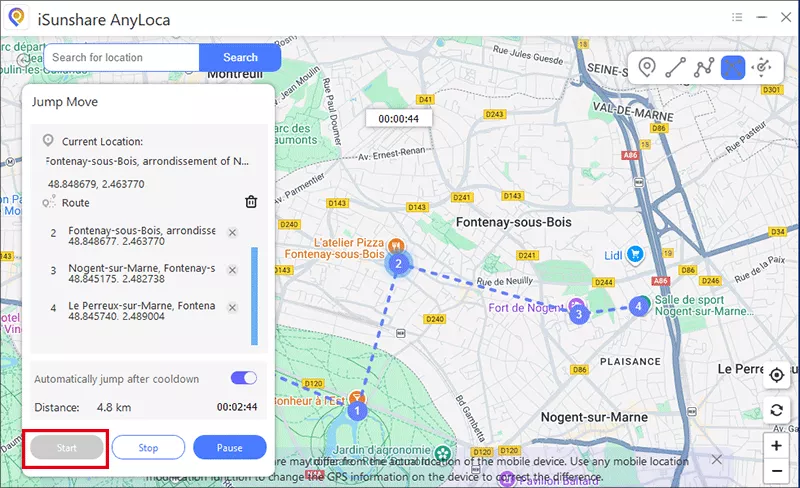
Step 3: Click the Start button to jump move according to the route. You can stop or pause the process at any time you like.
Part 6: How to Simulate Joystick Movement
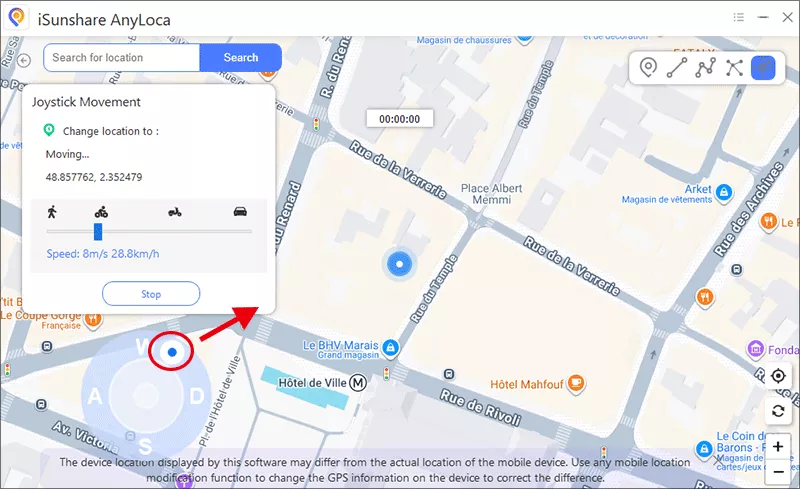
In the Joystick Movement mode, you can control your GPS location with a virtual joystick, which makes it extremely easy to change the direction.
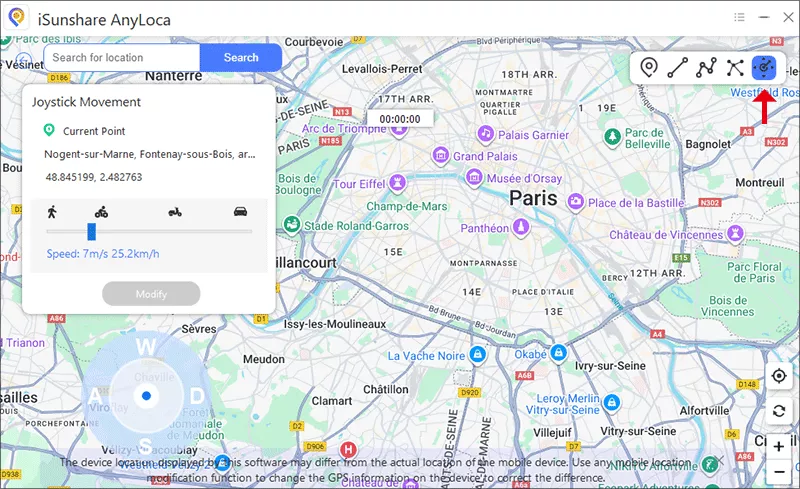
Step 1: Change to Joystick Movement mode after entering the map.
Step 2: Drag the slider to control the speed of your joystick movement.
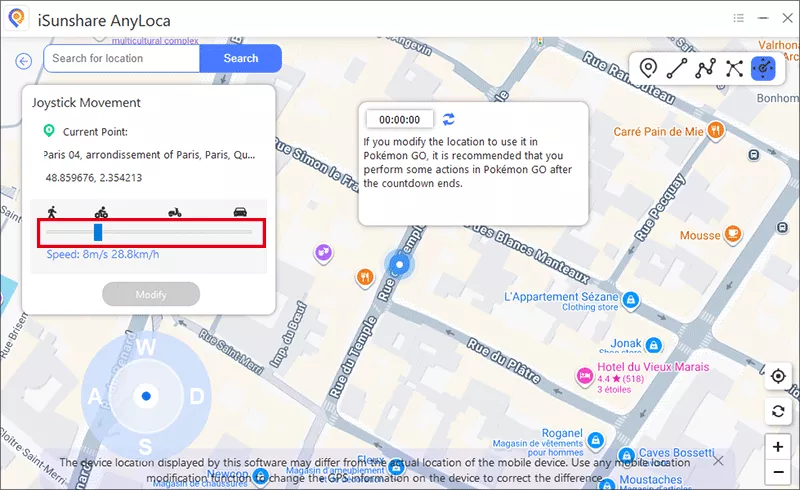
Step 3: Drag the center button onto the circle and release it. After that, the GPS will begin moving at the set speed. During movement, you can adjust the direction at any time by moving the position of the virtual joystick on the circle.
Note:
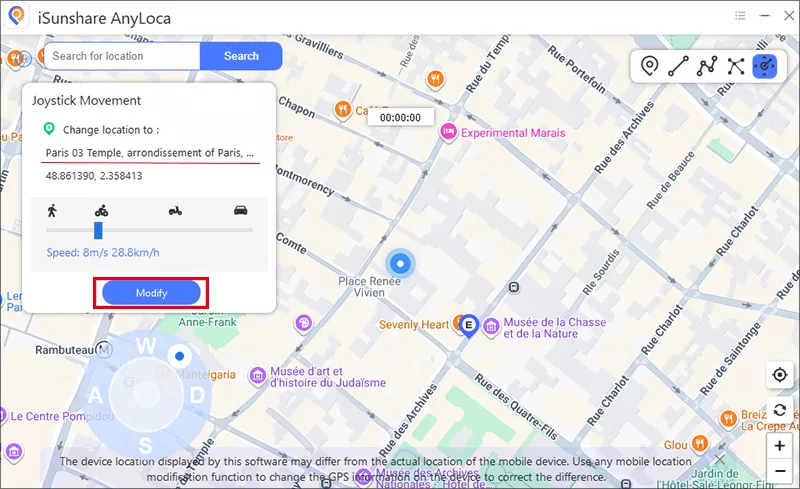
- You can also change the location of the iOS device in Joystick Movement mode: Select a location on the map and then click the Modify button.
Part 7: About Cooldown Time
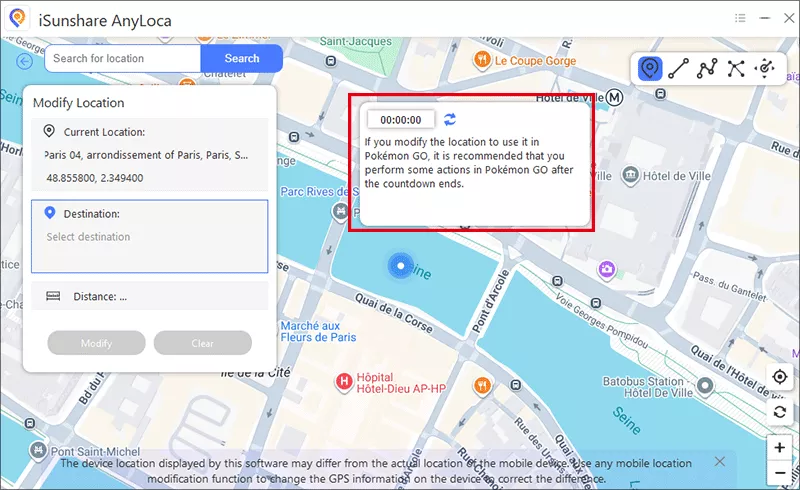
For the safety of your game account, the software designs the cooldown time function for Pokemon Go users, which prevents the players to change the GPS location frequently. The Cooldown time is set in all modes in AnyLoca.