We use cookies for personalizing content and ads and providing social media features. Your usage information on our website will be used for social media, advertising, and traffic analytics, or shared with our partners. Clicking "Accept" means you agree to use our cookies .
Most iPhone owners who update to iOS 27 and go looking for the new Siri AI run into the same wall: it isn't there. That's rarely a bug. Siri AI shipped alongside iOS 27, but Apple is rolling it out separately, gated behind device eligibility, language settings, region restrictions, and a waitlist. This guide walks through why Siri AI may be missing, then covers the genuine bugs beta testers have reported and how to work around them.
Why Siri AI Isn't Showing Up (Before You Troubleshoot)
Check these four gates in order. Most "Siri AI not working" reports are explained by one of them, not by anything broken on the device.
1. Device Compatibility
Siri AI is available on iPhones with Apple Intelligence: iPhone 15 Pro, iPhone 15 Pro Max, and all iPhone 16 models or newer. Older models — including the standard iPhone 15 and everything from the iPhone 11 through iPhone 14 — run iOS 27 normally but cannot access Siri AI regardless of settings or waitlist status.
2. Language Requirement
Siri AI is currently limited to devices set to English, for both the device language and the Siri language. Apple has indicated French, Japanese, Korean, Portuguese, and Spanish are expected to follow. If either language setting is anything other than English, Siri AI stays hidden.
3. Region Restriction
Siri AI is not available for iOS, iPadOS, or watchOS in the EU at launch, though EU users can access it on macOS 27 and visionOS 27 with an English-language setup.
4. Waitlist Approval
Even on a fully eligible device, Siri AI requires requesting access through a waitlist buried in Settings. Apple has not published a guaranteed timeframe for approval. Once approved on one device, Siri AI unlocks on every other compatible device tied to the same Apple Account.
How to Fix the Issue If You're Already Eligible
If the device qualifies, the language and region are correct, and the waitlist request has been approved, but Siri AI still isn't working properly, these are the fixes worth trying, roughly in order of how often they resolve the issue.
1. Confirm the device is on the latest available iOS 27 beta build — Apple has been shipping fixes with each release.
2. Restart the iPhone, or toggle Apple Intelligence off and back on in Settings, to refresh the service.
3. If Siri hangs or fails to generate a response, switch between Wi-Fi and cellular — some Siri AI requests rely on Apple's servers or Private Cloud Compute rather than running entirely on-device.
4. After first installing iOS 27, give the device time on power and Wi-Fi — it rebuilds search indexes for apps, emails, messages, notes, and photos, and Siri AI may struggle with personal-context requests until those finishes.
5. If nothing above resolves it, submit a report through the Feedback app with screenshots or a screen recording — this is still beta software, and Apple is actively refining it ahead of general release.
Tips: How to Fix Siri Stops Working after an iOS Update
If Siri stops working after an iOS 27 update, coming along with other system issues, such as iPhone makes no response, there could be a system error on your iPhone. In such situation, you can try to repair the iOS system. iSunshare iOS Repair Genius is the professional iOS system recovery software which can fix common system issues in simple clicks.
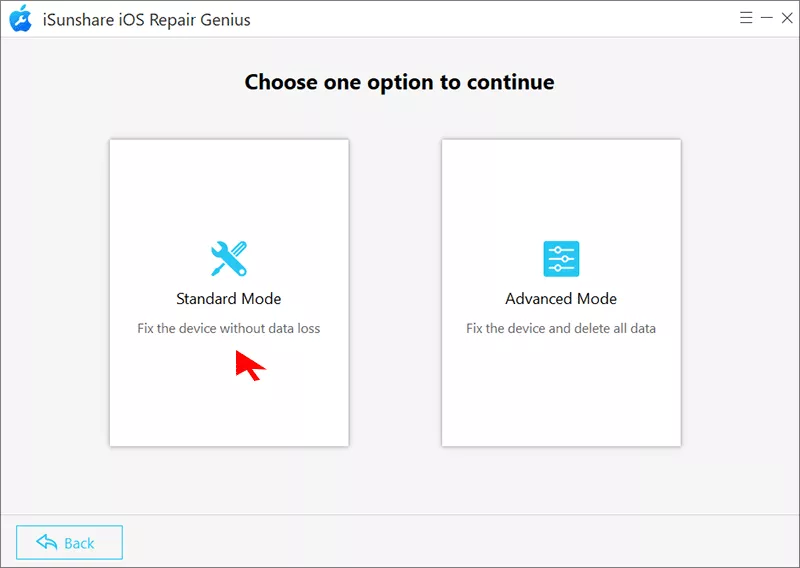
Step 1: Connect your iPhone to the computer and run iSunshare iOS Repair Genius. Then hit System Repair> Standard Mode to fix the issue.
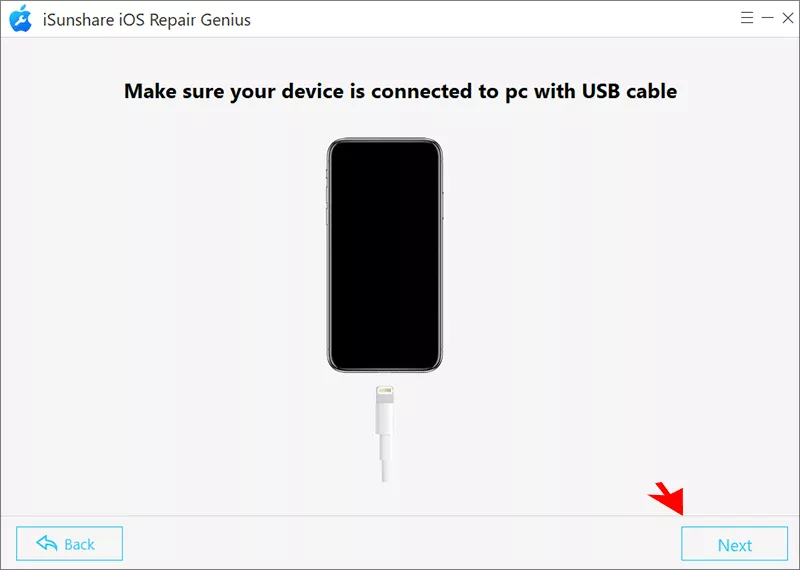
Step 2: Click the Start button and then the Next button to load your iPhone details.
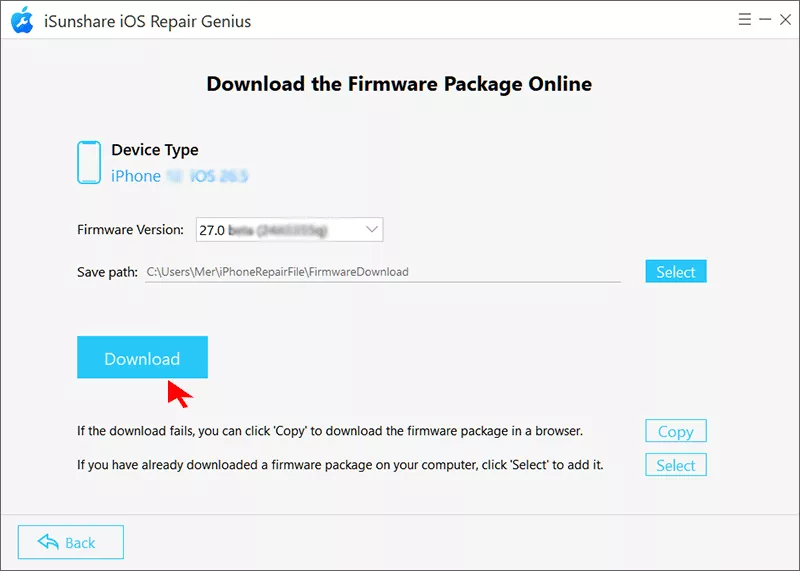
Step 3: Soon, iOS Repair Genius shows the matching firmware package for your iPhone. Hit the Download to continue.
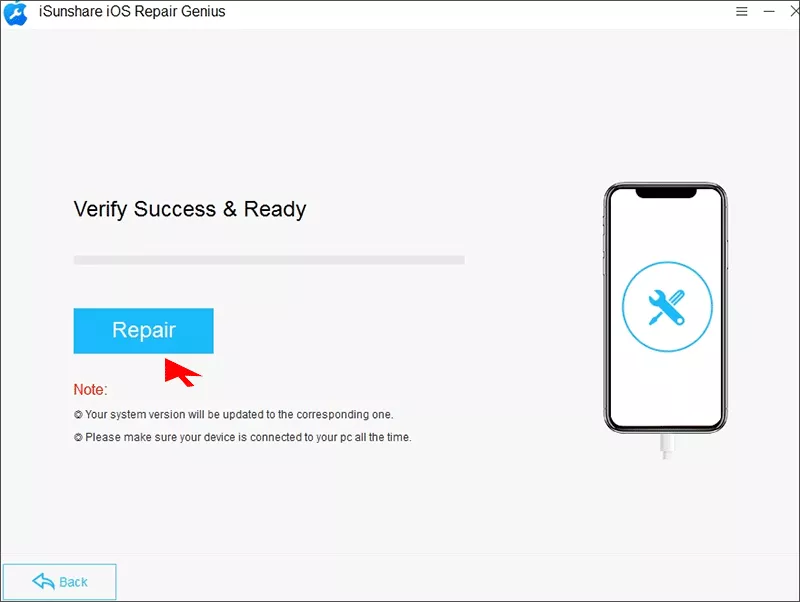
Step 4: Now, everything is ready. You can click the Repair button to fix the iOS system issues. After the iPhone restarts, you can check whether the Siri AI works normally or not.
Classic Siri vs. Siri AI: What Changed
Feature
Classic Siri
Siri AI (Beta)
Basic voice commands (timers, calls, messages)
Yes
Yes
Conversational, multi-step requests
No
Yes
Personal context search (emails, messages, notes)
Limited
Yes
Cross-app actions
Limited
Yes
Dedicated Siri app
No
Yes
Expressive/customizable voice
No
Yes
Writing Tools
N/A
Works without Siri AI
Visual Intelligence
N/A
Works without Siri AI
Requires waitlist approval
No
Yes, at launch
Common Siri AI Errors and Simple Fixes
Symptom
Likely Cause
Fix
Siri app or option missing entirely
Device unsupported, or waitlist not yet joined
Confirm device is iPhone 15 Pro/Pro Max or iPhone 16+; join the waitlist in Settings
Siri opens but doesn't respond
Beta bug or Apple Intelligence not finished enabling
Restart iPhone; toggle Apple Intelligence off/on in Settings
Can't find emails, messages, or notes via Siri
On-device search index still rebuilding after update
Leave device on Wi-Fi and power for a few hours after updating
Switch between Wi-Fi and cellular; retry the request
Feature disappeared after an update
Known beta regression
Update to the latest iOS 27 beta; file a report via the Feedback app
Stuck on waiting list with no movement
Apple has not published a fixed timeline
Keep the existing request active; rejoining repeatedly does not speed it up
FAQs on Siri AI not Working
1. Why don't I have Siri AI after updating to iOS 27?
Updating to iOS 27 doesn't grant Siri AI automatically. Access requires a compatible device (iPhone 15 Pro, iPhone 15 Pro Max, or iPhone 16 and later), an English device and Siri language setting, an eligible Apple Account region, and approval from Apple's beta waitlist in Settings.
2. Which iPhones support Siri AI?
Older models, including the standard iPhone 15 and iPhone 11 through 14, can run iOS 27 but cannot access Siri AI. Siri AI works on iPhone 15 Pro/ Pro Mac or any iPhone 16 and newer iPhone models.
3. How long is the Siri AI waitlist?
Apple has not published a fixed timeframe. Once approved on one device, Siri AI becomes available on every compatible device tied to the same Apple Account, so there's no need to join separately on each one.
4. Does leaving and rejoining the waitlist speed things up?
No. Repeatedly leaving and rejoining the queue does not provide a shortcut. It's better to keep an existing request active unless Apple specifically prompts further action.
Conclusion
Most "Siri AI not working" reports on iOS 27 trace back to eligibility, not a bug: an unsupported device, a non-English language setting, a restricted region, or an unapproved waitlist request. Working through those four gates first will resolve the majority of cases.
If Siri AI is confirmed eligible and still misbehaving, the fixes above — restarting, toggling Apple Intelligence, switching networks, letting the index finish rebuilding, or filing a Feedback report — cover the genuine beta issues users have run into. Since iOS 27 and Siri AI are both still evolving through beta releases, expect some of this to change as Apple continues rolling it out; check back for updates as new builds land.