We use cookies for personalizing content and ads and providing social media features. Your usage information on our website will be used for social media, advertising, and traffic analytics, or shared with our partners. Clicking "Accept" means you agree to use our cookies .
Mobile Device Management (MDM) is commonly used by schools, businesses, and organizations to manage iPads remotely: configure devices, install apps, and enforce security policies. Is there any way to remove MDM without erasing their photos, documents, apps, or personal settings?
The good news is that, depending on your situation, removing MDM without data loss may be possible. This guide explains what MDM is, when it can be removed, and the safest methods to do so while keeping your existing data intact.
Mobile Device Management is a system that allows an organization to manage Apple devices remotely, which is widely used by schools, universities, business, government agencies and healthcare organizations. After enrolling an iPad in MDM, administrators can:
Configure Wi-Fi and email settings
Install or remove applications
Restrict certain features
Enforce passcode requirements
Lock or erase the device remotely
Monitor device compliance
Can You Remove MDM Without Losing Data?
Yes—but only under certain circumstances. Whether your data remains intact depends on how the iPad is enrolled and the method used to remove management.
Generally speaking:
Removing a removable MDM profile usually does not erase personal files.
Removing a supervised MDM profile often requires more advanced methods.
Performing a factory reset will erase all data unless you restore from a backup.
For this reason, creating a backup before making any changes is strongly recommended.
Method 1: Remove MDM from Settings
This is the simplest solution if the management profile is removable.
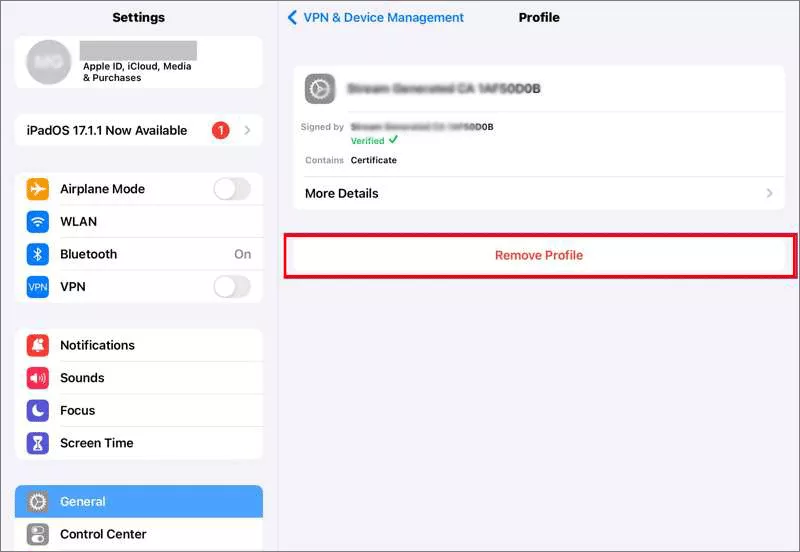
Step 1:Unlock your iPad and open Settings, go to General and tap VPN & Device Management.
Step 2: Select the management profile and tap Remove Profile. After that, enter the administrator password if requested.
If the Remove Management option is available, your personal files and installed apps usually remain untouched. If there is no Remove Profile option, just contact the administrator or use third-party tool to remove it.
Method 2: Contact the Organization
If the iPad was previously issued by your employer or school and has now been transferred to you, ask the IT department to remove the device from Apple Business Manager or Apple School Manager.
After the administrator removes the enrollment, the iPad can operate like a normal personal device without affecting your existing files. This is the safest and most reliable solution.
Method 3: Use a Professional MDM Removal Tool
Sometimes the Remove Management button is missing or requires credentials you no longer have. In these situations, dedicated MDM removal software may help remove the management profile while preserving user data on supported devices.
If you need an easy-to-use MDM removal solution, iSunshare iPhone Passcode Genius offers a practical option for users who want to regain control of their iPads with minimal hassle. This software features an intuitive interface, making it suitable for both beginners and experienced users to bypass or remove MDM from iPad without credentials.
iSunshare Reliable iPad MDM Removal Software
Remove MDM from supported iPads in just a few steps
User-friendly interface with no technical expertise required/li>
Supports a wide range of iPad models and iPadOS versions
How to Remove MDM Using iSunshare iPhone Passcode Genius
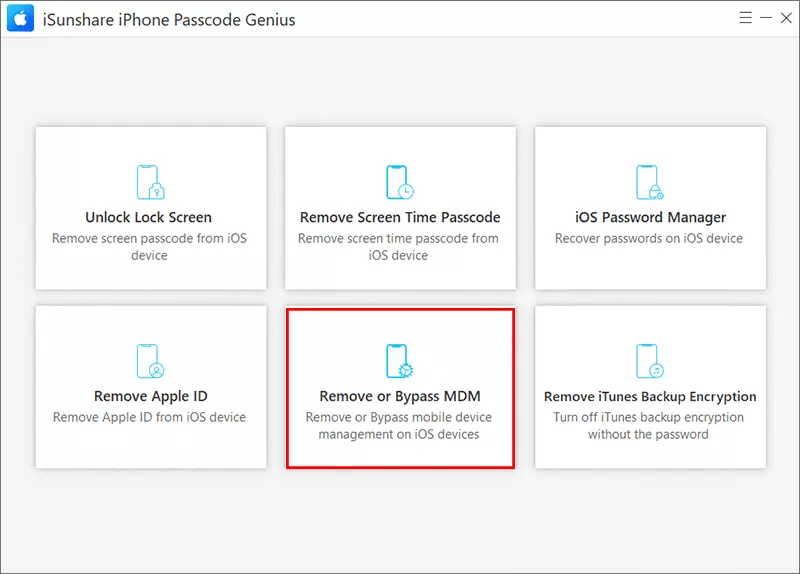
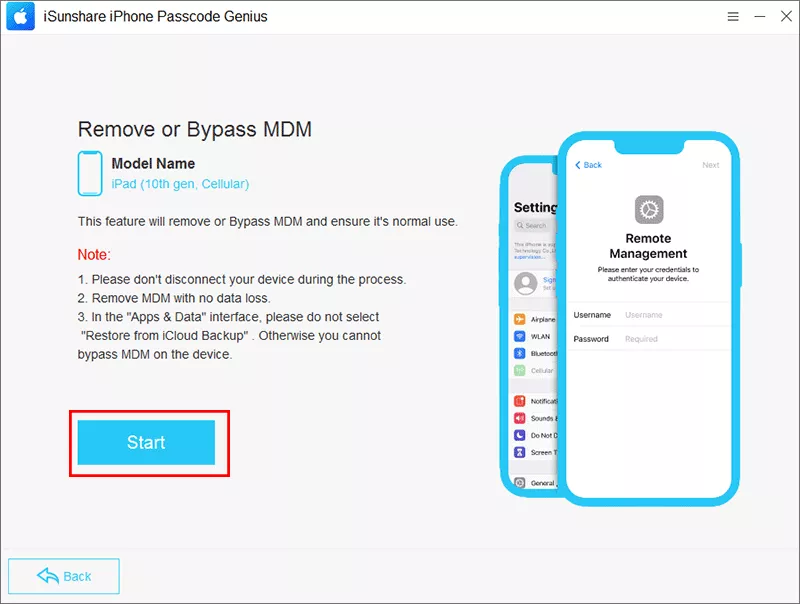
Step 1: Launch iPhone Passcode Genius and connect your iPad. Then, select the Remove or Bypass MDM option from the main interface.
Step 2: Hit the Start button to begin the process. You should make sure Find My iPad function is off.
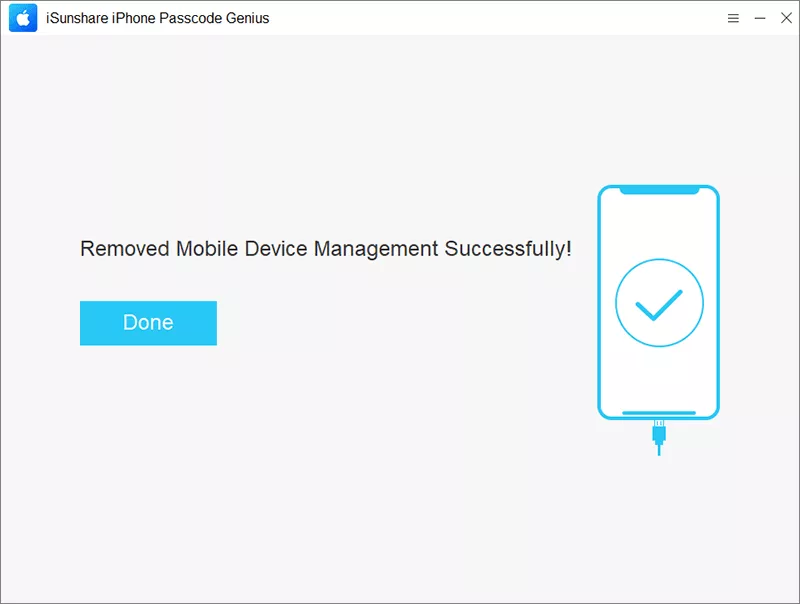
Step 3: Minutes later, you will see the notification that the MDM is removed successfully. Meanwhile, the iPad restarts and you can have a full control of the iPad.
Tips Before Removing MDM
To improve your chances of a successful removal:
1. Charge the iPad above 50%.
2. Disable automatic updates during the process.
3. Back up important files.
4. Use a stable USB connection if a computer is required.
5. Do not disconnect the device until the process finishes.
FAQs on iPad MDM Removal
Q1: Can I remove MDM without the administrator password?
It depends on how the device was enrolled. Some removable profiles can be deleted directly, while supervised devices generally require administrator approval or compatible removal software.
Q2: Does removing MDM unlock Activation Lock?
No. Activation Lock and MDM are separate security features. Removing one does not remove the other.
Q3: Will a factory reset remove MDM permanently?
Not always. If the iPad remains enrolled in Apple Business Manager or Apple School Manager, Remote Management may return during setup.
Q4: Will Removing MDM Delete My Photos and Apps?
In many cases, no. Removing the management profile itself usually leaves personal content unchanged. However, there are exceptions. You may lose: organization-installed applications, managed email accounts, corporate certificates, VPN configurations and company Wi-Fi profiles.
Conclusion
If your iPad is locked with employer/school MDM, you can regain full device access without erasing personal data via removable profiles or reliable MDM removal tools.
Back up data, check your device’s enrollment type and pick a fitting method beforehand—these steps secure your files and boost successful MDM removal odds.