We use cookies for personalizing content and ads and providing social media features. Your usage information on our website will be used for social media, advertising, and traffic analytics, or shared with our partners. Clicking "Accept" means you agree to use our cookies .
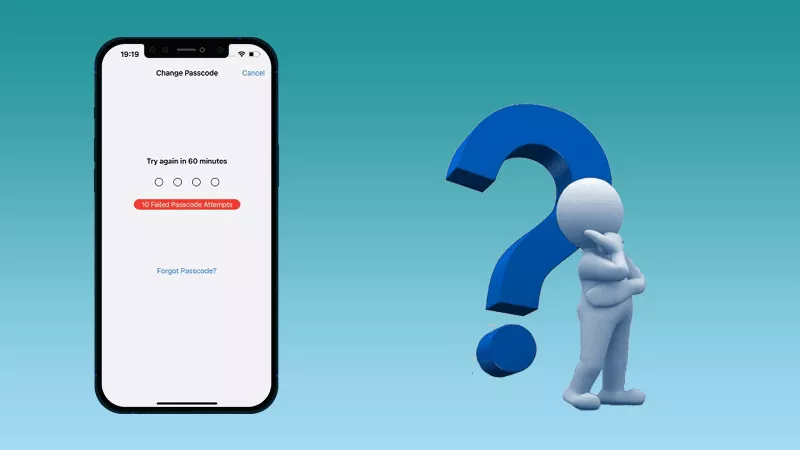
Apple's Screen Time feature is a powerful tool for limiting app usage, setting downtime, and controlling device access — but what if you forget your Screen Time passcode? Many iPhone users wonder: What happens if you enter the wrong Screen Time passcode 10 times in a row? The answer might surprise you, and knowing it can help you avoid unnecessary headaches. In this article, you can also learn how to reset screen time passcode after failed attempts.
The Screen Time passcode is separate from your iPhone's lock screen passcode. While the lock screen protects your entire device, the Screen Time passcode specifically restricts access to apps, websites, and content settings.
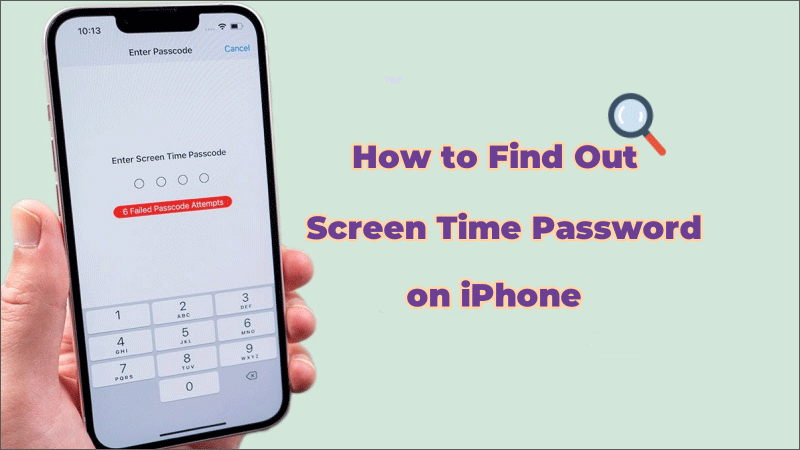
When you enter the wrong Screen Time passcode, iOS doesn't lock you out immediately. Alternatively, you will see the cooldown timer which allows you to try again later. This makes it harder for someone to guess your code through brute force.
Part 2: What Happens with Multiple Wrong Attempts
Here's the breakdown of what you can expect if you keep entering the wrong Screen Time passcode:
First 5 Attempts – You can try entering different passcodes with no major wait time between attempts.
After 6th Failed Attempt – iOS introduces a 1-minute delay before you can try again.
After 7th Failed Attempt – The delay increases to 5 minutes.
After 8th Failed Attempt –Try again after 15 minutes.
After 9th Failed Attempt – Wait for 1 hour to try again.
After 10th Failed Attempt – You face another 1-hour lockout before you can try again.
Note:
Unlike the lock screen passcode, there is no automatic data wipe after 10 failed Screen Time passcode attempts. However, repeated failures can make it extremely time-consuming to regain access.
Part 3: How to Get Rid of Failed Passcode Attempts on Screen Time
If you've forgotten your screen time passcode entirely, is there any way to bypass or reset the screen time passcode? Yes, of course. There are several methods to get rid of failed passcode attempts on screen time.
Method 1: Bypass Screen Time Passcode on iPhone/iPad via iSunshare iPhone Passcode Genius
As the professional iOS passcode unlocker, iSunshare iPhone Passcode Genius offers a quick and safe way to bypass the screen time passcode if you forgot it and failed many attempts. It is easy to remove the screen time restriction with iPhone Passcode Genius. What's more, there will not be any data loss in the whole process.
iSunshare Reliable iPhone iPad Unlocker
Simple to remove screen time passcode in clicks.
Bypass screen time restriction without erasing any data.
No tech skills are required, easy to handle for everyone.
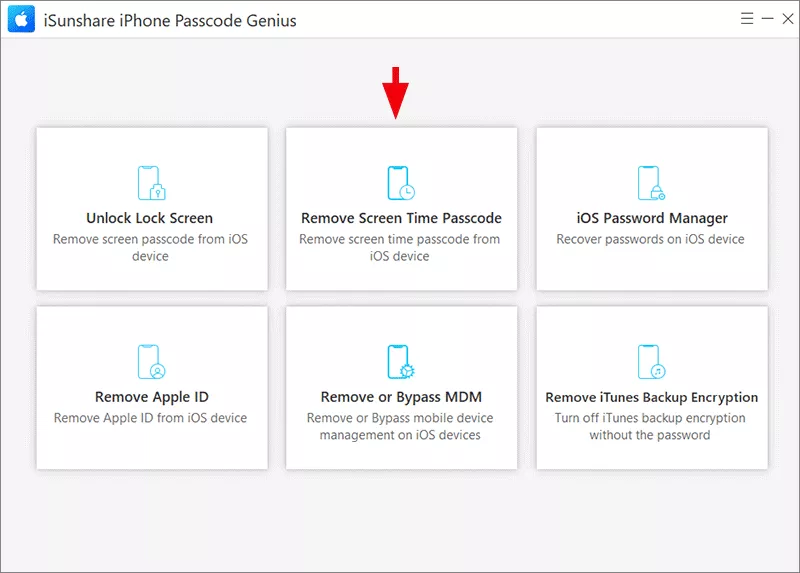
Step 1: Run iSunshare iPhone Passcode Genius. Connect your iPhone and unlock it. After that, select Remove Screen Time Passcode option from the main interface.
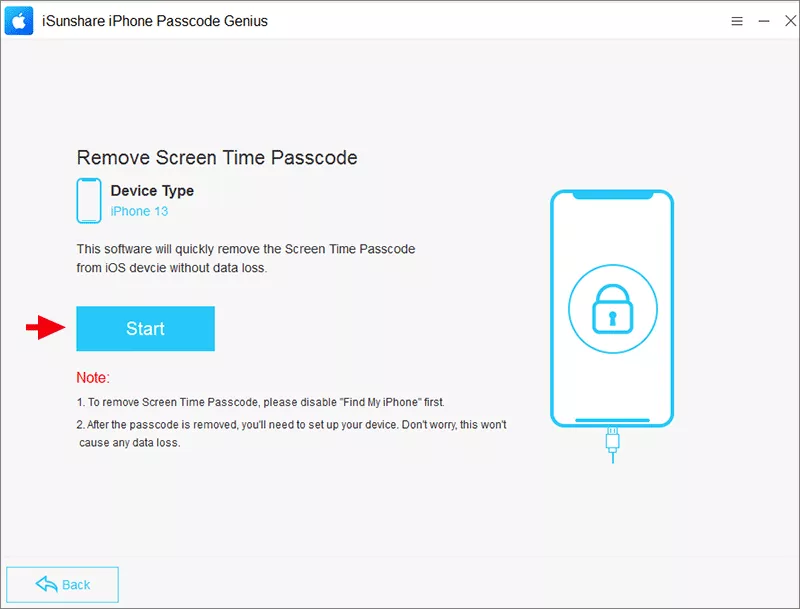
Step 2: Soon, your iPhone is recognized by the software. Hit the Start button to begin the passcode removing process.
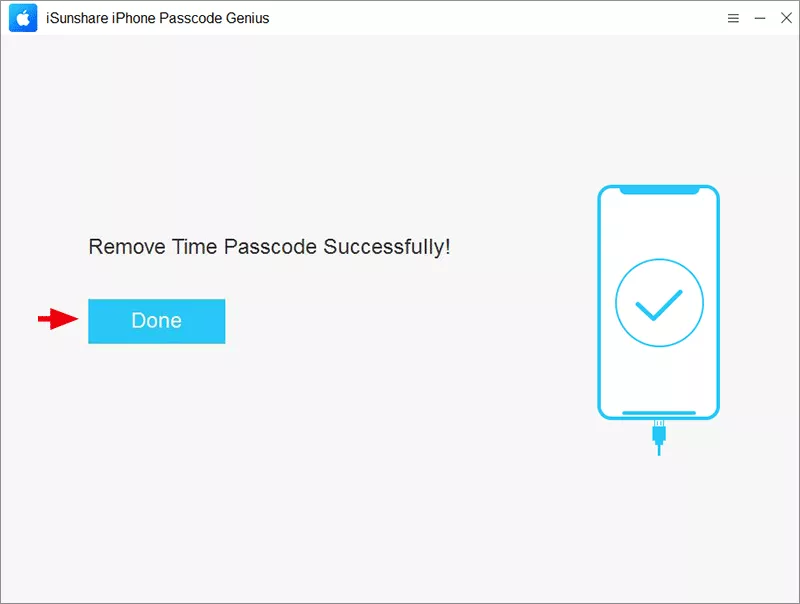
Step 3: Then removing process is ongoing. Minutes later, you can see the successful message on the software interface. Now there is no screen restriction on your iPhone.
Method 2: Reset Screen Time Passcode with Apple ID
On iOS 13.4 and later, you can reset the screen time passcode using your Apple ID credentials.
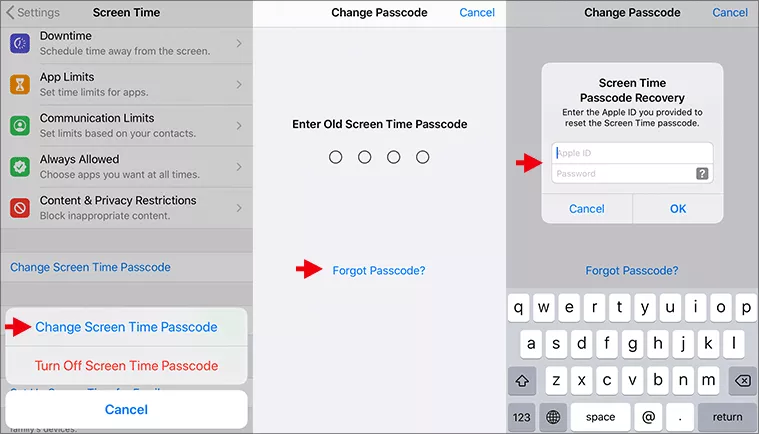
Step 1: Unlock your iPhone and tap Settings> Screen Time.
Step 2: Scroll down and tap Change Screen Time Passcode option. On the prompt, tap Change Screen Time Passcode again.
Step 3: Tap Forgot Passcode? option and enter your Apple ID credentials.
Step 4: Set the new screen time passcode and confirm it.
Method 3: Erase and Restore iPhone to Factory Settings
As a last resort, you can reset your device to factory settings and set it up as new. But this will erase all iPhone data. There are several tools which can help you reset iPhone without screen time passcode, such as iTunes and iCloud.
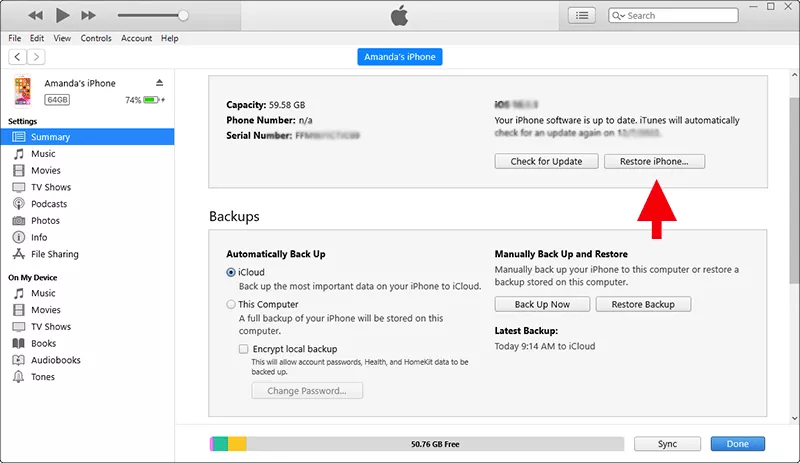
Just take iTunes as an example. Connect iPhone to your computer and launch iTunes. After that, locate your iPhone. Hit the Summary option on the sidebar. You can view the iPhone details on the right panel. Finally, click the Restore iPhone button and the Restore button to erase your iPhone.
FAQs About Failed Screen Time Passcode Attempts
1. Will my iPhone erase all data after 10 failed Screen Time passcode attempts?
No. Data wipe is only linked to the lock screen passcode (if enabled). Screen Time failures do not erase your iPhone.
2. How long is the lockout after 10 failed attempts?
After 10 wrong entries, you'll be locked out for 1 hour before you can try again.
3. Can I reset the Screen Time passcode without my Apple ID?
Not officially. Apple requires your Apple ID credentials to reset Screen Time in newer iOS versions for security reasons.
4. Does the lockout time keep increasing after 10 failed attempts?
No. Once you hit the 1-hour delay, it stays at that length for further wrong attempts.
Summary
After 10 failed Screen Time passcode attempts on an iPhone, you won't lose your data, but you will face increasingly longer lockout periods. Apple designed this system to protect your settings from unauthorized changes while still giving you a chance to recover access if you genuinely forget your code. Besides, you can also learn methods to bypass or reset screen time passcode after the failed attempts.