Windows 10 Check Installed Programs in Windows 10

Check Installed Programs in Windows 10

By Jennifer | Last Updated

Whether you're troubleshooting, managing storage, or keeping inventory, here are four reliable ways to see every program—desktop or modern app—installed on your Windows 10 PC.

Method 1: Check Installed Programs in Windows 10 via Control Panel

Step 1: Start Control Panel.

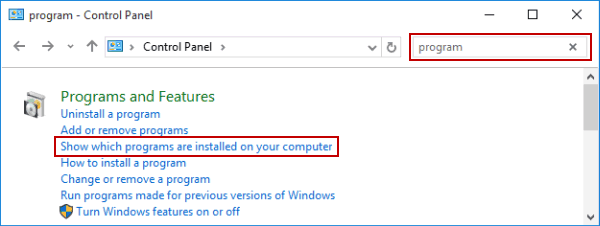
Step 2: Enter program in the upper-right box, and then click Show which programs are installed on your computer from the search result.

check installed programs

When finishing these steps, you can check your installed apps.

Method 2: View Installed Programs in Windows 10 via Settings

Step 1: Click the Start icon on desktop and choose Settings to open.

Step 2: Choose Apps > Apps & Features.

After that, you can scroll through the list—it includes both desktop apps and Microsoft Store (UWP) apps in one place. Besides, you can click Sort by and select Install date to see newly added apps first. You can also search or filter by drive to find specific items.

check installed programs from Settings

Method 3: Run a Command to List All Installed Programs

You can run the Command Prompt as administrator and then execute the command line: wmic product get name,version to list installed MSI-based desktop applications.

check installed programs via CMD

Related Articles: