By Jennifer | Last Updated
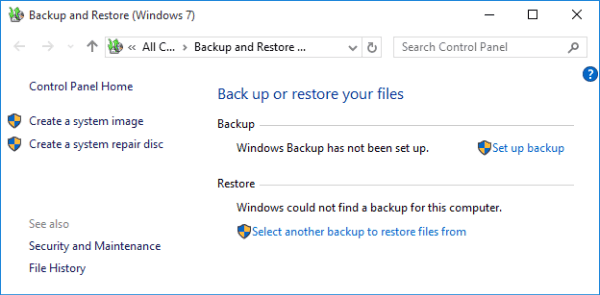
To open Backup and Restore (see the following picture) on Windows 10 computer at the top speed, you can create a shortcut for it according to the guidance below.

Video guide on how to create Backup and Restore shortcut in Windows 10:
Step 1: Right-tap blank space, point at New on the menu and select Shortcut from the sub-items.
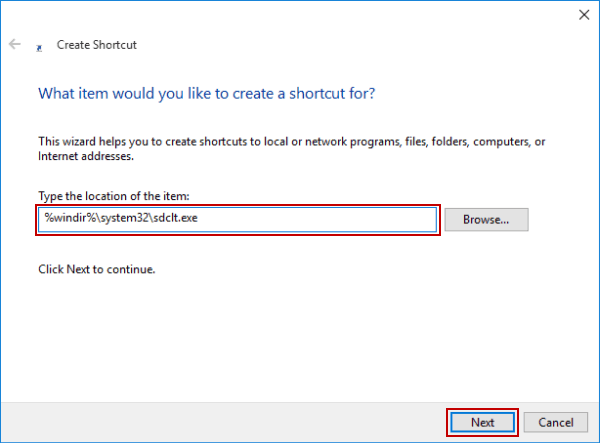
Step 2: Enter %windir%\system32\sdclt.exe and click Next.

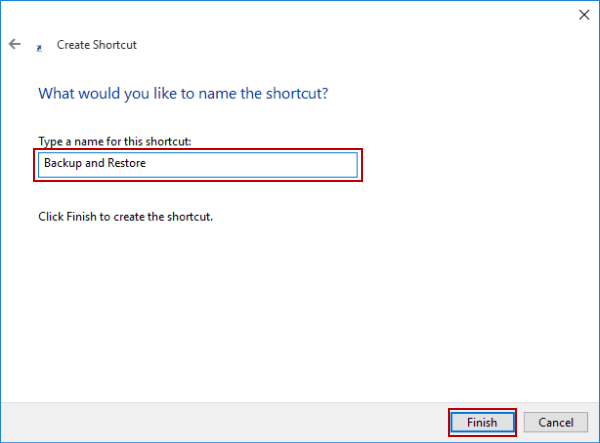
Step 3: Input Backup and Restore to name the shortcut and hit Finish to create it.

FYI, the shortcut created is shown in the following screen shot.

Related Articles:
How to Reset Windows 10 Forgotten Password
How to Bypass Windows 10 Password Login with/without Password
Easy Guide to Reset Windows 10 Admin Password Like an Expert
4 Tips to Change Windows 10 Password without Knowing Current Password
Can't Sign into Microsoft Account Windows 10 | Account Locked/Blocked