We use cookies for personalizing content and ads and providing social media features. Your usage information on our website will be used for social media, advertising, and traffic analytics, or shared with our partners. Clicking "Accept" means you agree to use our cookies .
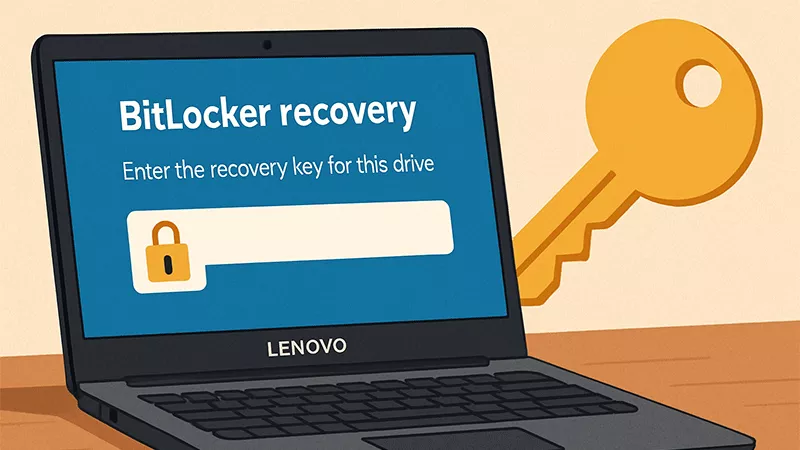
It is really frustrating when you see the BitLocker Recovery screen on your Lenovo laptop—especially if you never knowing set it up. Why it needs the BitLocker recovery key to login and what to do? Don't worry, in this article explains why your Lenovo laptop is asking for a BitLocker recovery key and walks you through the steps to find or bypass the recovery screen and regain access.
Why My Lenovo Laptop is Asking for the BitLocker Key
BitLocker is a built-in encryption feature in Windows (especially Pro and Enterprise editions) that protects your data by encrypting the drive. If the system detects any hardware or firmware change—or if it believes the system might be under attack—it will require the BitLocker Recovery Key as a safeguard.
Common triggers for BitLocker on Lenovo laptops include:
BIOS/UEFI update or reset
Motherboard changes
Switching between Secure Boot or Legacy Boot
TPM (Trusted Platform Module) changes
Moving the hard drive to another computer
Windows updates, especially major ones
How to Find the BitLocker Recovery Key for Your Lenovo Laptop
Here's how to locate your BitLocker recovery key depending on where it was saved.
Option 1: Check Your Microsoft Account
Most commonly, BitLocker automatically backs up the recovery key to your Microsoft account if you enabled it during setup.
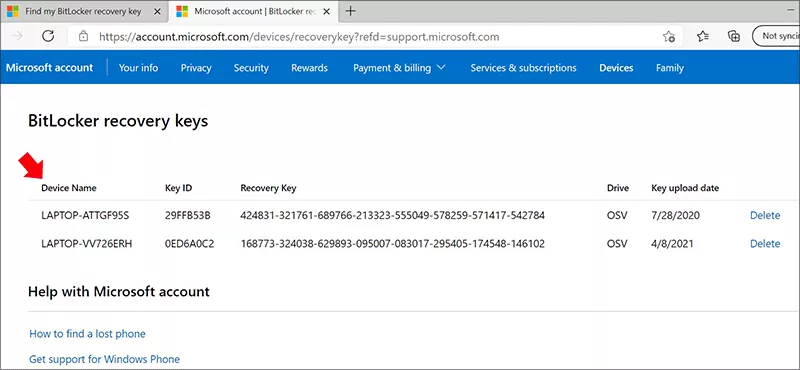
Step 1: Get another accessible computer or mobile phone, navigate to https://account.microsoft.com/devices/recoverykey.
Step 2: Sign in using the same Microsoft account used on the locked Lenovo laptop.
Step 3: In no time, you can see the BitLocker recovery keys for your devices. Check your Lenovo laptop and then write down the 48-digit keys.
Step 4: Get back to your Lenovo BitLocker Recovery screen and enter the recovery key to access your laptop.
Option 2: Check Another Location If Using a Work or School Device
Sometimes, the BitLocker recovery key can be saved in other location if you are using a business, school or organization laptop. Without Microsoft account, you can check:
Azure Active Directory account (admin access required)
IT department records
USB drive (if you manually saved it)
Printed document (if you printed the key during setup)
What to Do If You Can't Find the Key
If you fail to find down the correct BitLocker recovery key, and want to access the Lenovo laptop, you can reset the laptop and reinstall Windows.
Step 1: At the BitLocker screen, click the option—Skip this drive. Or you can directly boot from a Windows installation USB.
Step 2: Choose Repair your computer > Troubleshoot > Reset this PC.
Step 3: Select Remove everything to fully reset and reinstall Windows. After that, follow the instructions to get fresh-new Windows OS installed.
FAQs on Lenovo Laptop Asking for BitLocker Recovery Key
Q1: Why did BitLocker suddenly activate on my Lenovo laptop?
BitLocker may have been enabled by default during setup or after a Windows update. System changes or firmware updates can also trigger the recovery screen.
Q2: Can you bypass BitLocker Recovery Screen without data loss?
There is no method to bypass BitLocker encryption without the recovery key. If you cannot find the recovery key, the only way is to reinstall Windows and erase all data.
Q3: Is it possible to get back my photos in the Lenovo laptop without recovery key?
It depends. If your Lenovo laptop has only one drive, it is difficult to get your photos when you can not find the BitLocker recovery key. But if there are two disks and your photos are saved in the non-system disk, you can create a WinPE with iSunshare CloneGo and boot the Lenovo laptop into PE mode to back up the photos to external hard drive.
How to Prevent BitLocker Recovery Prompt in the Future
Once you're back in Windows, here are a few tips to avoid future BitLocker issues:
Back up your recovery key to a safe place
Keep your BIOS and drivers updated properly
Avoid changing boot settings or hardware without suspending BitLocker first
Turn off BitLocker temporarily before system changes: Go to Control Panel > BitLocker Drive Encryption, then choose Suspend Protection.
Conclusion
If your Lenovo laptop is asking for the BitLocker recovery key, don't panic. It's doing its job—protecting your data. With the steps outlined above, you can quickly locate your recovery key, understand why it was triggered, and safely regain access to your system. Just make sure to back up your key going forward to avoid future surprises.