We use cookies for personalizing content and ads and providing social media features. Your usage information on our website will be used for social media, advertising, and traffic analytics, or shared with our partners. Clicking "Accept" means you agree to use our cookies .
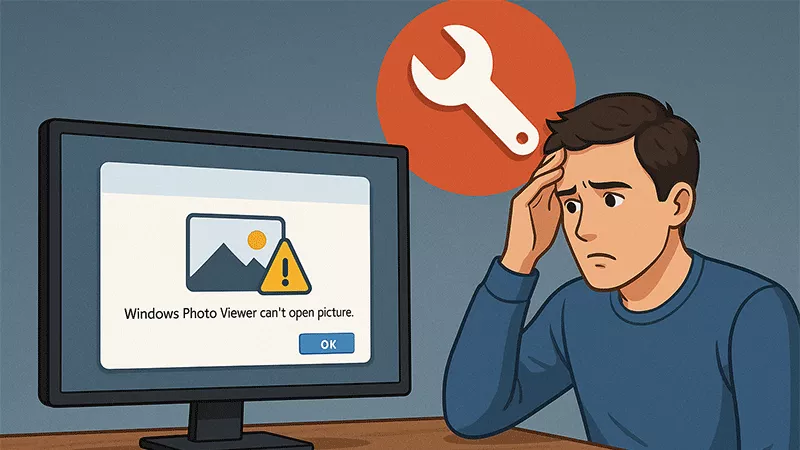
Trying to open an image in Windows Photo Viewer but getting the dreaded message: Windows Photo Viewer can't open this picture because the file appears to be damaged, corrupted or is too large. Don't worry—this error is more common than you think, and in most cases, it can be resolved without losing the image.
In this guide, you can learn the top reasons this error appears and how to fix it step by step on Windows 7/8/10/11.
Why Windows Photo Viewer Fail to Open Your Picture
Here are the most common causes:
The image file is corrupted or partially downloaded
The file format is unsupported (e.g., HEIC, RAW)
The image is too large or damaged
There are permissions issues
Your image viewer lacks proper codecs or updates
Solution 1. Choose Another Program to Open the Picture
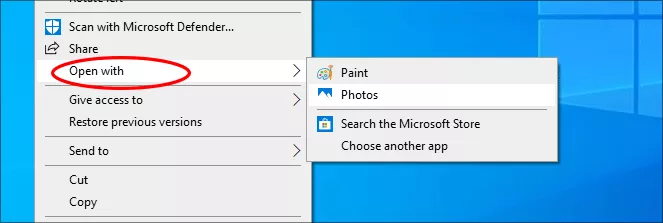
Before anything, you can try to open the image in another viewer to check whether the issue lies in the picture or the photo viewer. Just right-click the picture and choose Open with. Then you can choose another app, such as Paint, Paint 3D, and IrfanView, to open the picture. If another viewer opens the image successfully, the issue is with the Windows Photo Viewer—not the file.
Solution 2. Convert the Image to Another Format
If the file type is not supported, like HEIC or WebP, Windows Photo Viewer might not open it. You can use an online converter or software like Convertio.co to convert the file to a more common format, such as JPG and PNG. After that, try to open the image again.
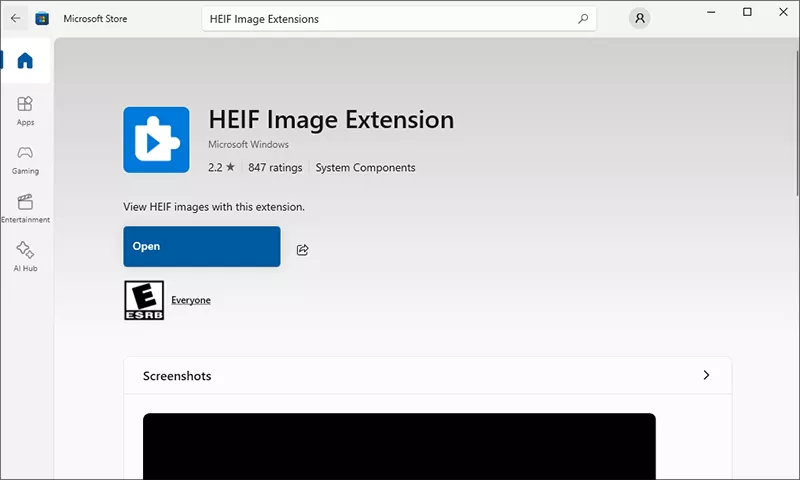
Sometimes, you may be missing the proper codec to open an image file. For example, additional codecs are needed to install to open HEIC images. You can download and install HEIF Image Extensions from the Microsoft Store to fix the HEIC image cannot be opened issue. Or you can convert HEIC image to JPG/PNG with the free HEIC converter.
Solution 4. Check File Permissions
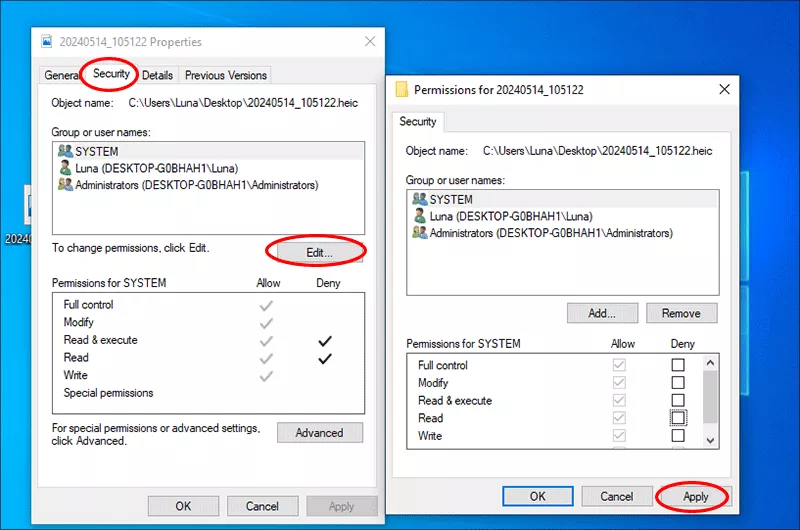
A locked or restricted file can prevent you from viewing it. You can right-click the image file and choose Properties. Then under the Security tab, check your user permissions. If needed, click the Edit button to grant full read access.
Solution 5. Repair the Windows Photo Viewer
If this error is caused by the Windows Photo Viewer itself, it is recommended to repair the app with Windows built-in function.
Note:
Windows Photo Viewer is hidden by default in Windows 11 and 10, but you can still re-enable it using registry tweaks or third-party tools. Alternatively, use the built-in Photos app.
Step 1: Go to the Windows start icon and find the Photos program.
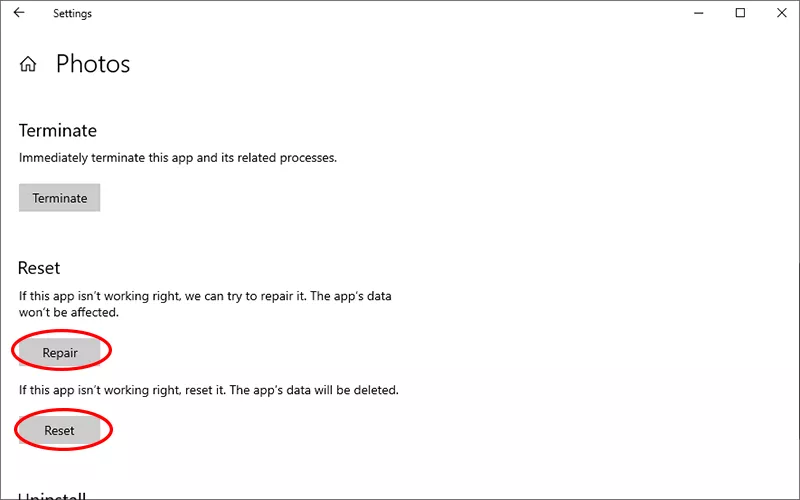
Step 2: Right-click the Photos app and choose More> App Settings.
Step 3: Go down to the Reset section. Here, you can choose to click the Repair button to fix the Windows Photo Viewer without data loss. Or click the Reset button to wipe all data on the app.
Solution 6. Repair the Corrupted Image File
If the image file is corrupted, Windows Photo Viewer cannot open it. How to identify the picture is corrupted or not. You can try to get the same file to another computer and open it. If the file still doesn't open anywhere, it's likely damaged. Or you get the error message like this: Windows Photo Viewer cannot open this picture because the file appears to be damaged.
Now you need the professional help- the image repair tool to fix the corrupted image files. iSunshare XRepair Genius is useful when it comes to repair various types of data corruption.
iSunshare Reliable Video Repair Software
Repair multiple corrupted pictures at once.
Two Modes are offered to fix the corrupted images.
Support various image file formats, such as JPG/PNG.
Three simple steps to get the corrupted image back to normal.
Follow the steps to fix the corrupted picture with iSunshare XRepair Genius.
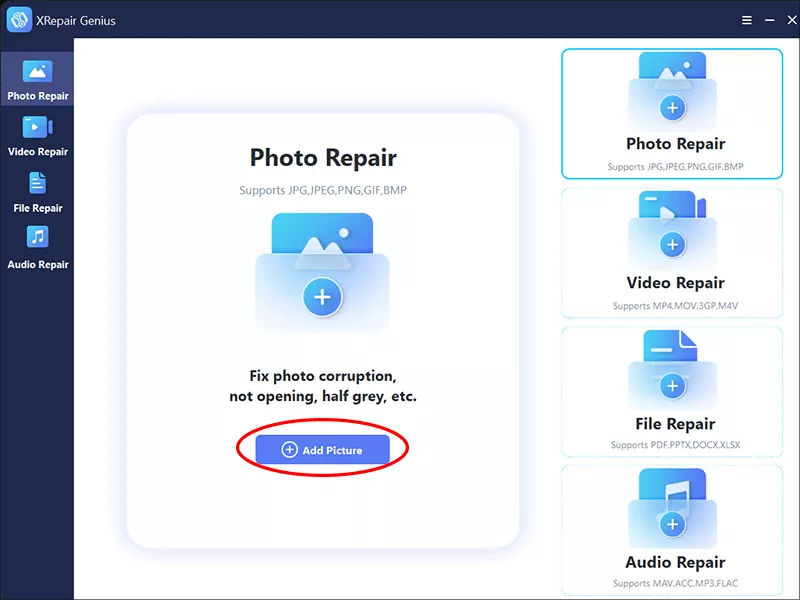
Step 1: Install XRepair Genius on your PC and open it. Then choose Photo Repair > Add Picture to import the corrupted images.
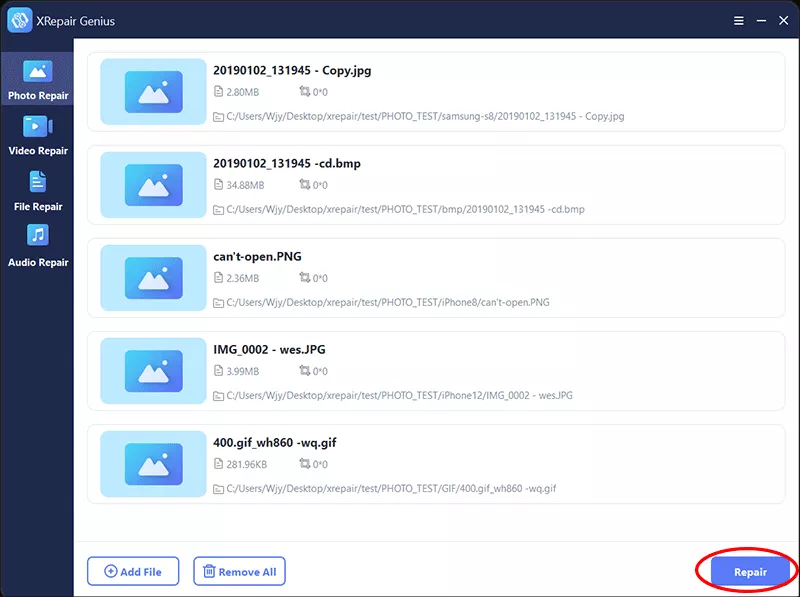
Step 2: When all corrupted images/pictures are added, click the Repair button on the bottom-right corner. Soon, the software starts repairing the photos.
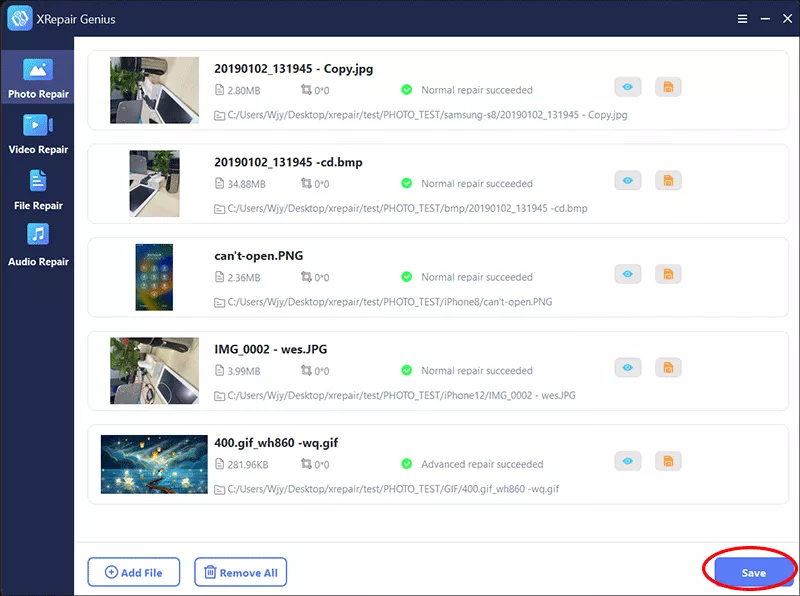
Step 3: After the process ends, you can hit the Save button to keep the pictures locally.
Conclusion
It is frustrating when you encounter the Windows Photo View cannot open this picture error. Just take it easy, this error is usually fixable. By following the steps above, you will quickly find out what the problem is caused by and how to fix it. Hope this article can help you.