We use cookies for personalizing content and ads and providing social media features. Your usage information on our website will be used for social media, advertising, and traffic analytics, or shared with our partners. Clicking "Accept" means you agree to use our cookies .
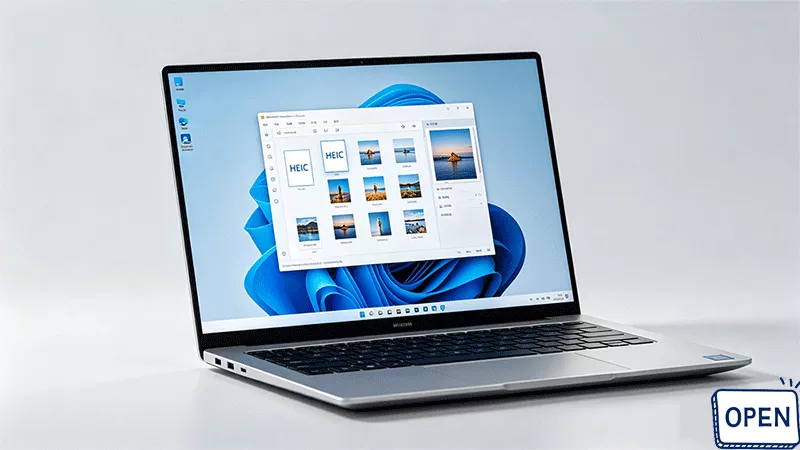
HEIC (High Efficiency Image Coding) is a modern image format designed to save storage space while maintaining high quality—but it’s not always compatible with all apps on Windows. If you’re using Windows 11 and need a quick way to convert HEIC to JPG, this guide will walk you through several easy, effective methods.
HEIC is an image format introduced by Apple. It allows photos to take up less space without sacrificing quality. While this is great for storage, it can cause compatibility issues on non-Apple devices. Windows 11 doesn’t fully support it by default, so you may need to install HEIF Image Extensions to open it.
JPG (or JPEG), on the other hand, is widely supported across all platforms, apps, and websites—making it the preferred format for everyday use.
Why Convert HEIC to JPG on Windows 11?
Here are a few common reasons:
JPG files are universally supported
Easier to upload to websites and social media
Compatible with most editing software
Simplifies file sharing
Method 1: Use the Built-in Photos App (Quick & Easy)
Windows 11 allows you to open HEIC files with the right extension installed.
Step 1: Open the HEIC file using the Photos app.
Step 2: Click the three-dot menu (•••) in the top-right corner.
Step 3: Select Save As and choose JPG as the format. After that, hit the Save button.
Note:
If there is no HEIF Image Extensions installed, you will fail to view the HEIC images and this method makes no sense.
Method 2: Use an Online HEIC to JPG Converter (Batch Conversion)
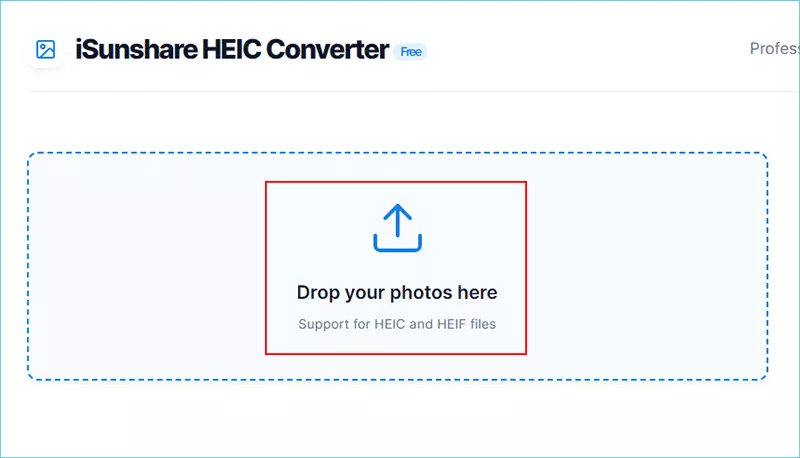
If you need to convert multiple HEIC images to JPG, the online HEIC converter can be a great option. iSunshare HEIC converter is the free online HEIC to JPG converter which enables users to convert HEIC files to JPG without extensions. You can easily get the JPG files within simple clicks.
iSunshare HEIC to JPG Converter
Quicky convert HEIC into JPG or PNG.
You can perform conversion one by one or in bulk.
No register, no license code, and totally free.
Maintain high quality for your image after conversion.
Step 2: Click the upload icon to upload your HEIC file.
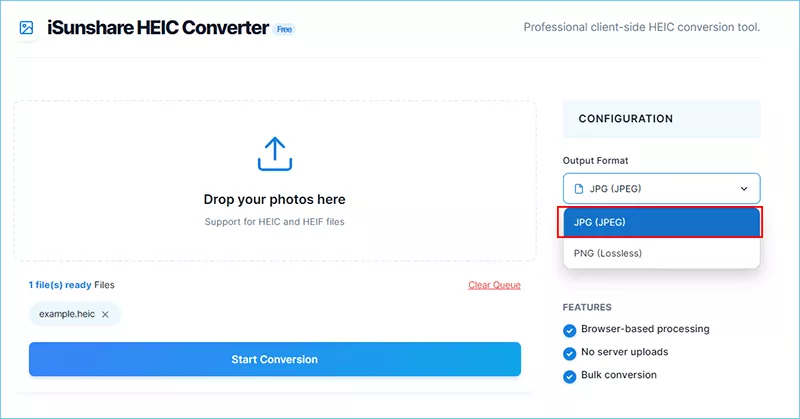
Step 3: Choose JPG as the output format from the right side.
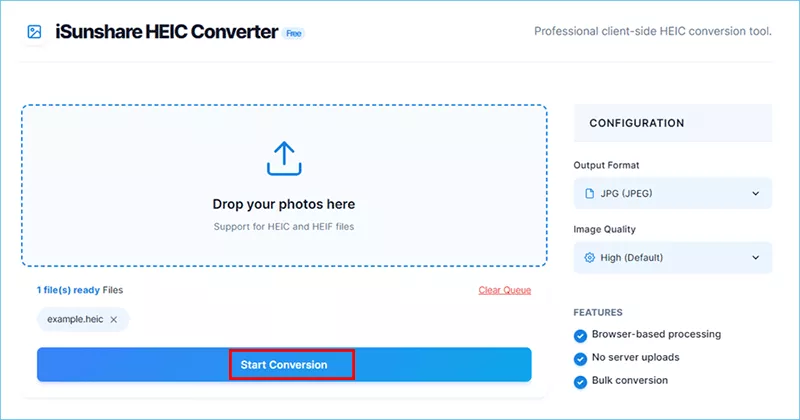
Step 4: Click Start Conversion button.
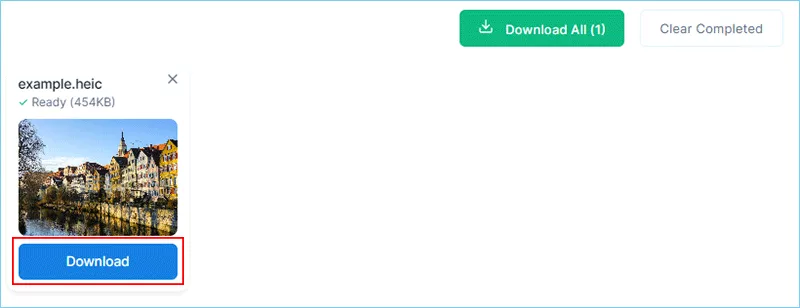
Step 5: Click the Download button to get the JPG file.
Method 3: Use Third-Party Software
If you have many files to convert, third-party apps are more efficient. Here the ImageMagick is set as an example to convert HEIC files to JPG.
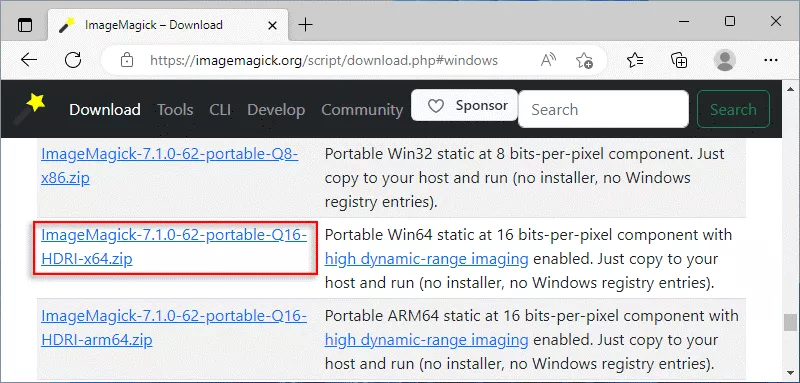
Step 1: Download ImageMagick program from its official website: https://imagemagick.org/script/download.php#windows.
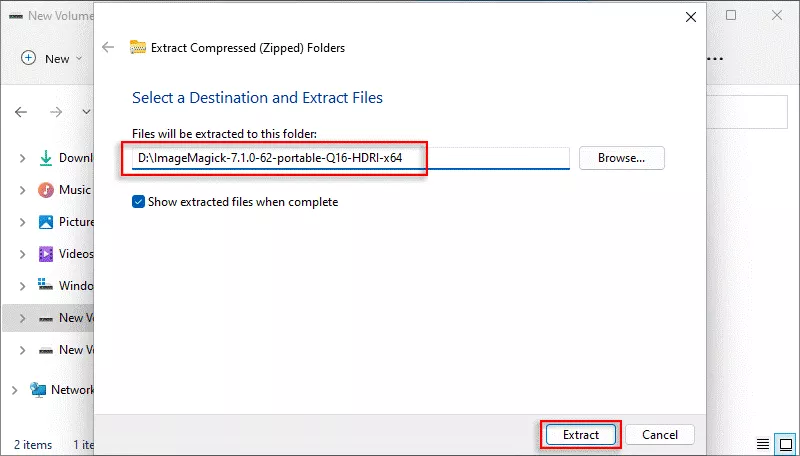
Step 2: Extract the downloaded ImageMagick ZIP file to a define destination. Here the D drive is selected.
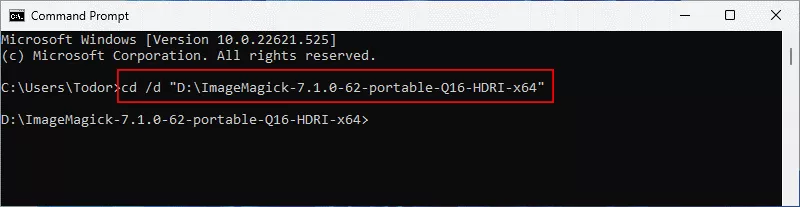
Step 3: Open Command Prompt and execute the command line: cd /d "D:\ImageMagick-7.1.0-62-portable-Q16-HDRI-x64". You can replace D:\ImageMagick-7.1.0-62-portable-Q16-HDRI-x64 with the define destination which is set in Step 2.
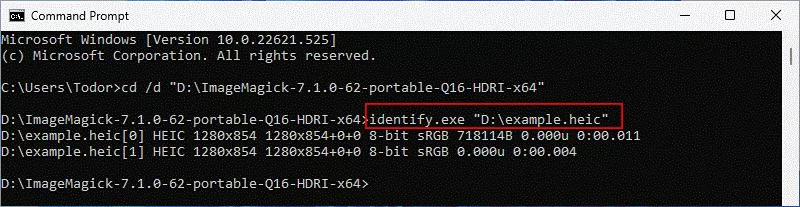
Step 4: Run the command line: identify.exe "D:\example.heic" to get the information of your HEIC file. You can replace D:\example.heic with the location of your HEIC file.
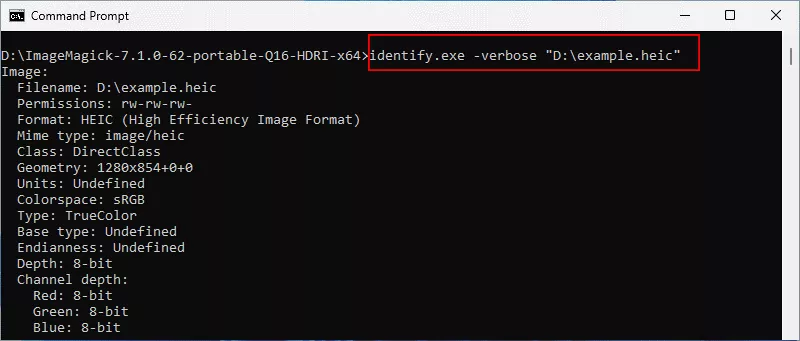
Step 5: Run the command line: identify.exe -verbose "D:\example.heic" to view HEIC file details.
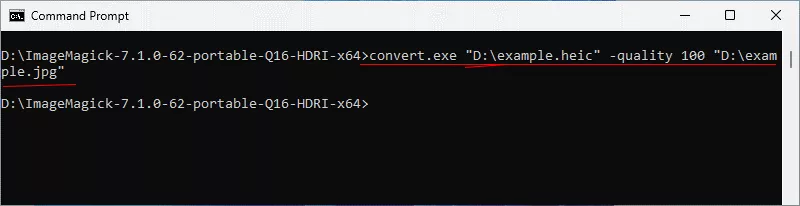
Step 6: Execute the below command line to convert HEIC to JPG: convert.exe "D:\example.heic" -quality 100 "D:\example.jpg".
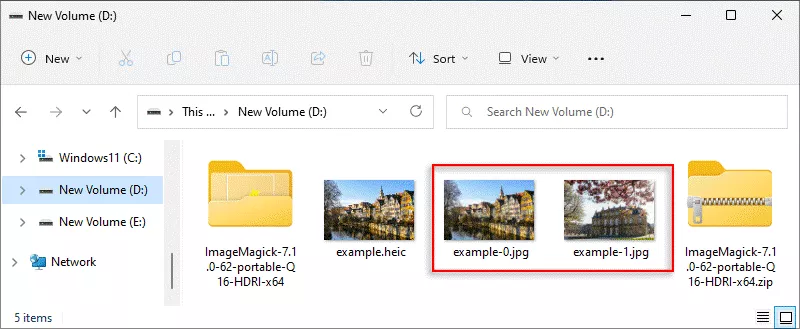
Step 7: Open the folder to check the JPG file.
FAQs on HEIC to JPG Converting in Windows 11
1. Can I convert HEIC to JPG on Windows 11 for free?
You can convert HEIC to JPG for free using built-in apps like Photos with the pre-installed extension, or by using free online converters without installing software.
2. Can I batch convert HEIC to JPG on Windows 11?
Yes, you can use online HEIC converter to convert multiple HEIC files to JPG at once.
3. Will converting HEIC to JPG reduce image quality?
There may be a slight loss in quality because JPG uses compression, but in most cases, the difference is not noticeable.
4. How can I stop my iPhone from saving photos as HEIC?
Go to your iPhone settings, tap Camera > Formats, and select “Most Compatible” to save future photos as JPG instead of HEIC.
Conclusion
Converting HEIC to JPG on Windows 11 is simple once you know the right tools. Whether you use the built-in Photos app, or an online converter, each method offers a quick solution depending on your needs.