We use cookies for personalizing content and ads and providing social media features. Your usage information on our website will be used for social media, advertising, and traffic analytics, or shared with our partners. Clicking "Accept" means you agree to use our cookies .
Keeping your iPhone/iPad updated is one of the simplest ways to improve security, fix bugs, and enjoy Apple's newest features. Whether you're installing iOS 26/iPadOS 26 for the first time or updating from an older version, there are several ways to complete the upgrade safely.
In this guide, you'll learn how to update your iPhone/iPad using Settings, Finder/iTunes, and other methods. We'll also explain what to do if your iPhone/iPad won't update.
For most users, it is the fastest and easiest way to update to iOS 26. Go to Settings> General> Software Update >Download and Install. After that, enter your passcode if prompted. Then the new update is in process.
Before Updating Your iPhone/iPad
Before installing a major iOS/iPadOS upgrade, it's a good idea to prepare your device.
Check Device Compatibility
Not every iPhone/iPad supports the newest version. Check whether the newest iOS/iPadOS is compatible with your iPhone/iPad or not. You can go to Apple official website to check the OS compatibility.
Although iOS updates usually don't erase data, creating a backup adds an extra layer of protection. You can back up your iPhone using: iCloud, Finder (Mac), iTunes (Windows).
Connect to Power
Apple recommends keeping your iPhone connected to a charger during the update process.
How to Update iPhone Automatically
If the Automatic Updates is enabled on your iPhone/iPad, your device will automatically update to the latest version when it is connected with stable Wi-Fi network if there is a new update available. If you do not turn on Automatic Updates, you can enable it quickly: Go to Settings> General> Software Update > Automatic Updates; then turn on Download iOS Updates (Download iPadOS Updates) and Install iOS Updates (Install iPadOS Updates).
How to Update iPhone Manually
It is the official method recommended by Apple, which is safe and simple to upgrade iPhone/iPad with no computer needed while preserves all data. Just tap Settings> General > Software Update. Then you can check the current version of iOS/iPadOS. If there is a new version available, you can see it below and click to download and install.
How to Update iPhone with Finder on Mac
If your iPhone cannot update wirelessly, Finder offers another reliable option. Finder downloads the latest iOS package directly from Apple and installs it on your device. But you need a Mac and USB-cable.
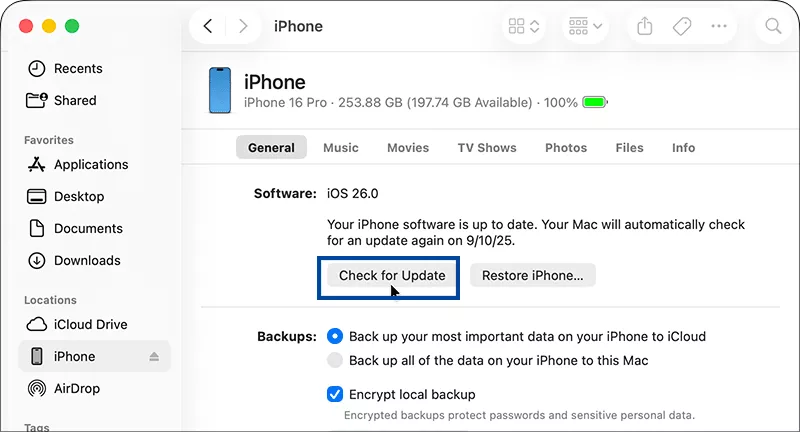
Step 1: Connect your iPhone to your Mac. And open Finder.
Step 2: Select your iPhone from the sidebar and click General.
Step 3: Choose Check for Update. Then click Download and Update.
How to Update iPhone with iTunes/Apple Devices on Windows
Step 1: Install the latest version of iTunes. For Windows 11 version 26100.0 or higher computer, download and install Apple Devices from Microsoft store.
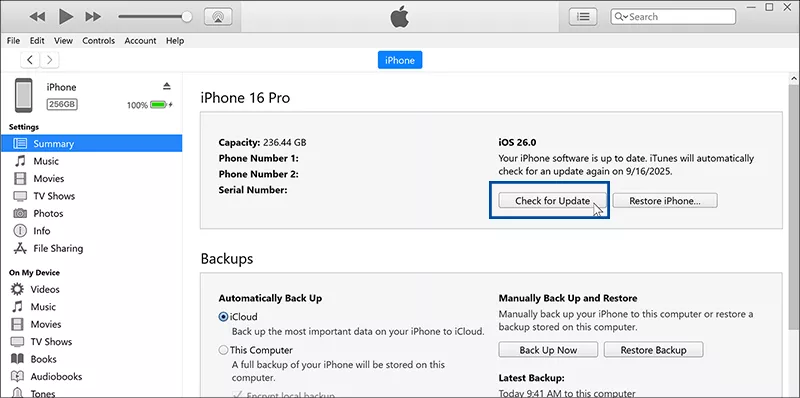
Step 2: Connect your iPhone to your PC. And launch iTunes/ Apple Devices.
Step 3: Click the device icon. Select Summary (General in Apple Devices), and click Check for Update.
Step 4: Choose Download and Update. The update will be installed automatically.
How to Update iPhone with iOS Repair Genius
When there is an unknown error pops out during the iTunes update process, how can you finish the update of your iPhone/iPad? You can use iSunshare iOS Repair Genius to download and install the newest iOS/iPadOS version for your device without using iTunes. This software can help to upgrade or downgrade the iOS/iPadOS on your iPhone/iPad. Now you can update the iPhone to iOS 26 version.
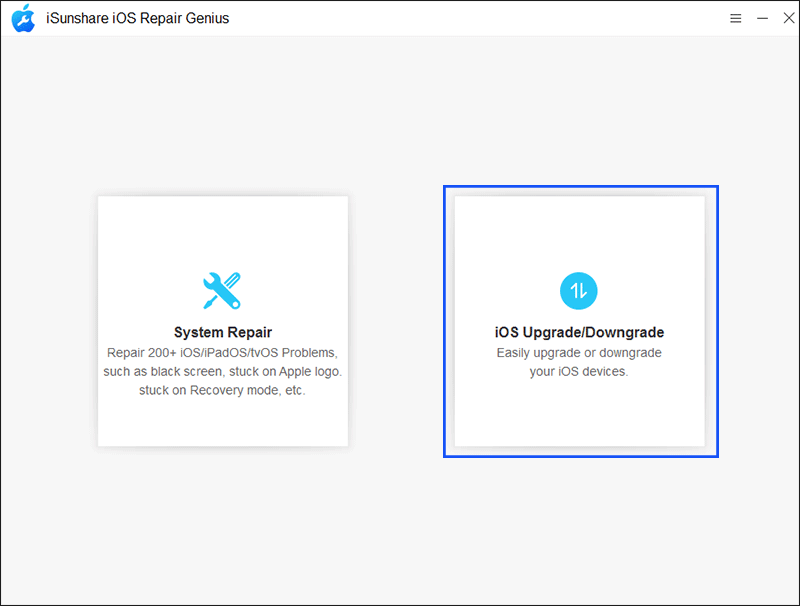
Step 1: Open iSunshare iOS Repair Genius on your computer. Select System Repair > iOS Upgrade/Downgrade from the home interface.
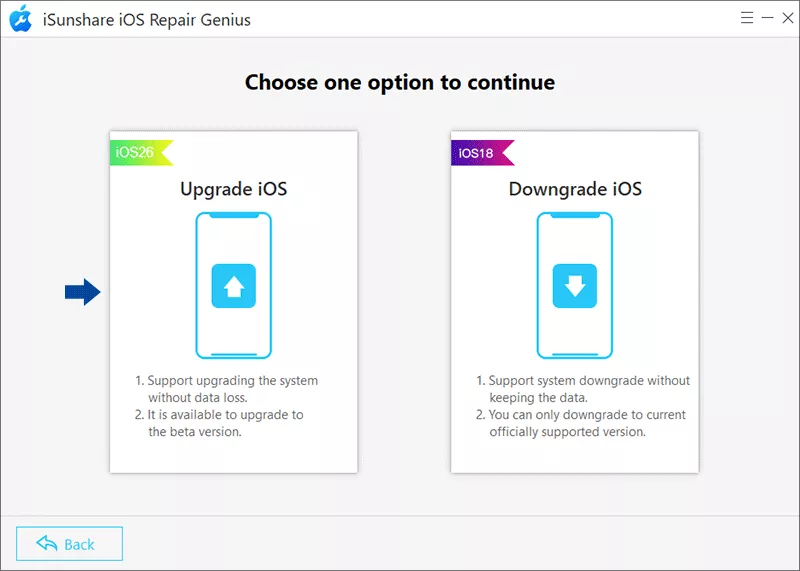
Step 2: Then choose Upgrade iOS to proceed. It supports you to update the iOS to newest iOS version.
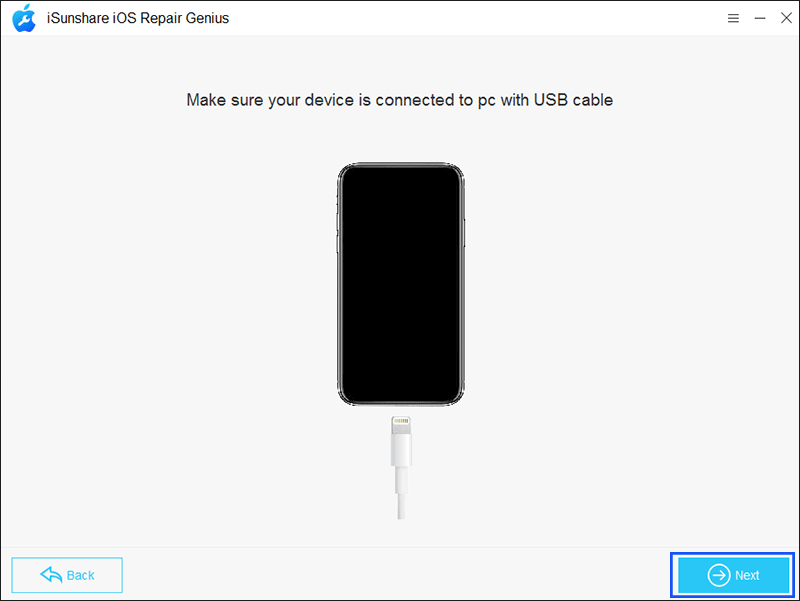
Step 3: Connect the iPhone or iPad to your computer. It may pop out the Trust prompt so that you need to tap Trust and enter the device password to confirm.
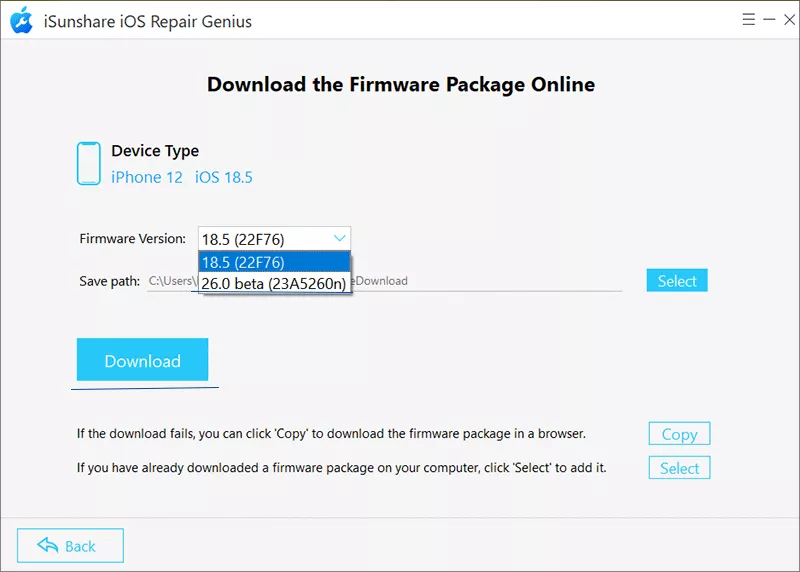
Step 4: Now you can select the iOS/iPadOS version to upgrade. Besides, you can change the save path by clicking the Select button behind Save path section. After that, click the Download button to get the signed IPSW files for your device update.
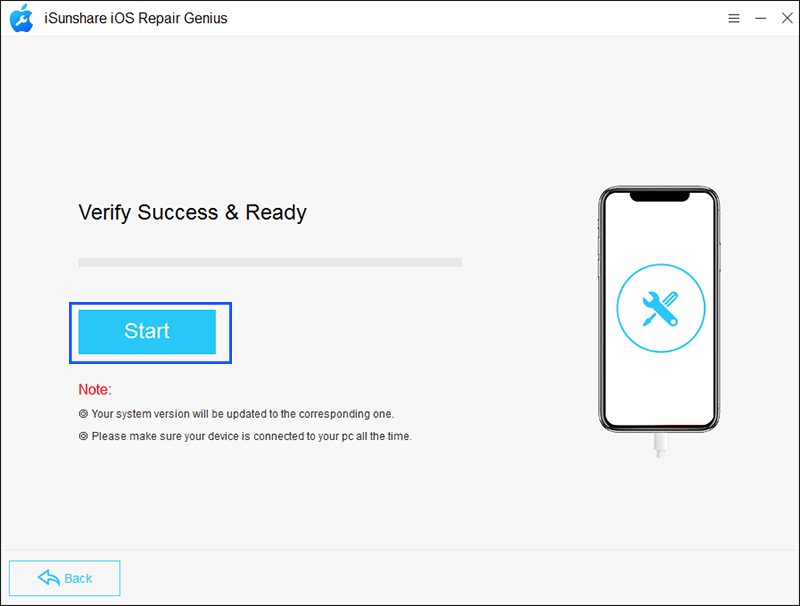
Step 5: Minutes later, you can see Verify Success & Ready message on the software screen. Now you can click the Start button to update the iOS/iPadOS.
In no time, the software starts upgrading your devices. When it finishes, your devices restarts. All data and settings remain unchanged.
What to Do If Your iPhone Won't Update
If the update button doesn't appear or the installation repeatedly fails, try these fixes.
Restart Your iPhone: A simple reboot often resolves temporary update bugs.
Check Apple's Servers: Sometimes Apple experiences temporary server outages during major releases.
Delete the Existing Update File: Go to Settings > General > iPhone Storage, locate the iOS update package and delete it. Then download the update again.
Verify Available Storage: Low storage is one of the most common reasons iOS updates fail.
Reset Network Settings: Access Settings > General > Transfer or Reset iPhone > Reset > Reset Network Settings
FAQs on iPhone/iPad Update
1. How long does it take to upgrade iOS or iPadOS?
The time it takes to upgrade depends on the size of the update and your internet connection speed. Typically, the process can take anywhere from 20 minutes to over an hour.
2. Can I upgrade iOS or iPadOS without Wi-Fi?
It's highly recommended to use Wi-Fi for software updates due to the large file size. If you don't have access to Wi-Fi, you may be able to use iTunes or Finder or iOS Repair Genius to update via a computer.
3. What if my iPhone/iPad won't update?
If your iPhone/iPad won't update, ensure that there's enough storage space, your device is connected to a stable Wi-Fi network, and your battery is charged. Try restarting your device and attempt the update again.
4. Can I downgrade after updating iOS?
Only while Apple is still signing the previous iOS version. Once signing stops, downgrading is usually impossible.
This often happens because of insufficient storage, poor internet connectivity, or corrupted update files.
Conclusions
Updating your iPhone to the latest iOS version is important for security, stability, and access to new features. Most users can complete the process directly from the Settings app, while Finder, iTunes, and Apple Devices provide alternative solutions when standard updates fail.
If your iPhone won't update normally, troubleshooting the issue or using a dedicated iOS repair solution can help get the installation completed successfully.