We use cookies for personalizing content and ads and providing social media features. Your usage information on our website will be used for social media, advertising, and traffic analytics, or shared with our partners. Clicking "Accept" means you agree to use our cookies .
Microsoft Office 365 (now commonly known as Microsoft 365) has become one of the most widely used productivity suites for both personal and business users. However, many people still search for their Office 365 product key when reinstalling Office, moving to a new computer, or troubleshooting activation issues.
If you're wondering how to find your Office 365 product key, this guide explains what you need to know and the different methods available.
Unlike older versions of Microsoft Office, Microsoft 365 is primarily subscription-based. In most cases, your subscription is linked directly to your Microsoft account rather than a traditional 25-character product key. When you sign in with the Microsoft account used to purchase the subscription, Office automatically verifies your license and activates the software.
However, there are situations where a product key may still be involved:
You purchased a retail card from a store.
You received Office with a new PC.
You bought a volume license edition.
You redeemed a Microsoft 365 subscription using a product key.
How to Find Product Key for Microsoft 365
Method 1: Check Your Microsoft Account
The easiest way to verify your Office 365 license is through your Microsoft account.
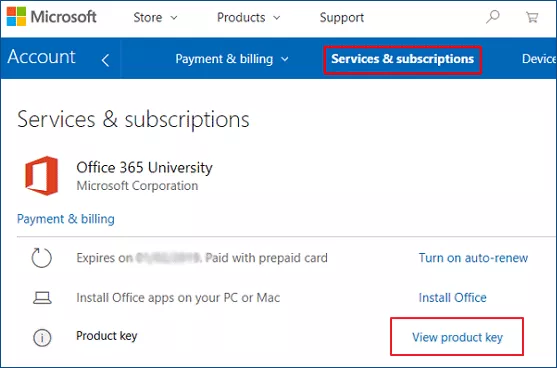
Step 1: Open your web browser and visit Microsoft's account services page.
Step 2: Sign in with the Microsoft account associated with your Office purchase.
Step 3: Navigate to the Services & Subscriptions section and look for your Microsoft 365 subscription. If your subscription appears there, you usually don't need a product key because your license is already linked to your account. Or you can hit View product key to check the Office 365 product key.
Method 2: Search Your Email Inbox
If you purchased Microsoft 365 online, the product key or redemption code may have been delivered by email. You can search your inbox for terms such as: Microsoft 365, Office 365, Product Key, Order Confirmation or Activation Code.
Be sure to check spam and archived folders if you can't find the original message.
Method 3: Check the Retail Packaging
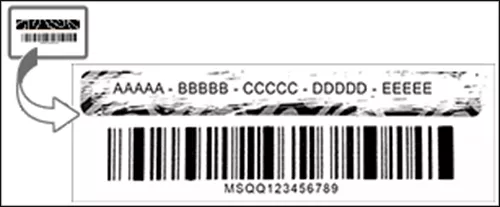
For users who purchased a physical copy, the product key may be located on a card inside the package, a sticker attached to the packaging, or in the activation instructions included with the product. Keep in mind that many newer Office packages contain a redemption code instead of a reusable product key.
Method 4: Use a Product Key Recovery Tool
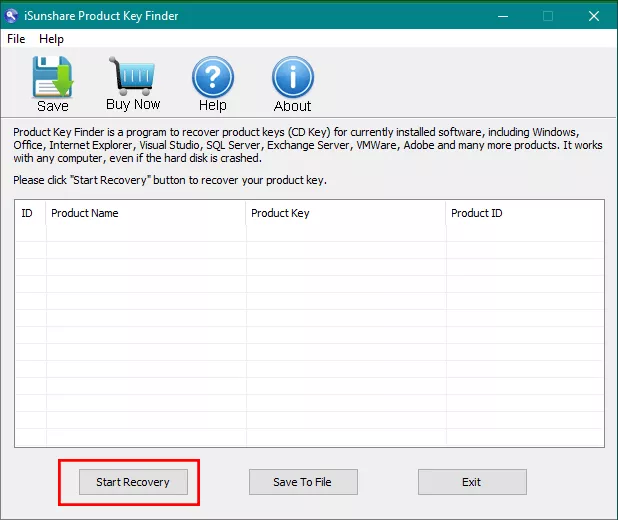
If you have an older perpetual version of Microsoft Office installed on your computer, a product key recovery tool may be able to retrieve the stored license information. iSunshare Product Key Finder is a good choice, which can scan your system and display product keys associated with installed Microsoft software.
If you activate Microsoft 365 with the product key, iSunshare Product Key Finder can help you get the product key with a click. Just open the software and click the Start Recovery button. In no time, you will see all applications with the product key listed on the software.
FAQs on Microsoft 365 Product Key
Q1: Why You May Not Be Able to Find the Full Product Key
Microsoft intentionally hides most of the product key after activation for security reasons. In many cases, only the last five characters are visible. For Microsoft 365 subscribers, the actual activation process relies on account verification rather than a full product key, making key recovery unnecessary.
Q2: What to Do If Office Isn't Activated
If Microsoft Office shows activation errors, you can confirm that you're signed in with the correct Microsoft account. Then go to verify that your subscription is active. After that, check your internet connection and update Office to the latest version. Finally, you can run Microsoft's activation troubleshooter. If the issue persists, contact Microsoft Support for assistance.
Q3: Where can I find product key for Microsoft office?
It varies by purchase type. Old retail editions use a 25-character key, while modern Microsoft 365 subscriptions tie directly to your Microsoft account with no manual key needed.
Check your Microsoft account, order emails or original packaging if you lose the key. Simply sign in to your linked account to reinstall Office. Secure your account and purchase details for hassle-free future activation.
Conclusions
Finding an Office 365 product key is not always possible because Microsoft 365 primarily uses account-based activation instead of traditional license keys. The best place to start is your Microsoft account, purchase confirmation emails, and original packaging. In most situations, signing in with the correct Microsoft account is all that's needed to reactivate Office and regain access to your subscription.