We use cookies for personalizing content and ads and providing social media features. Your usage information on our website will be used for social media, advertising, and traffic analytics, or shared with our partners. Clicking "Accept" means you agree to use our cookies .
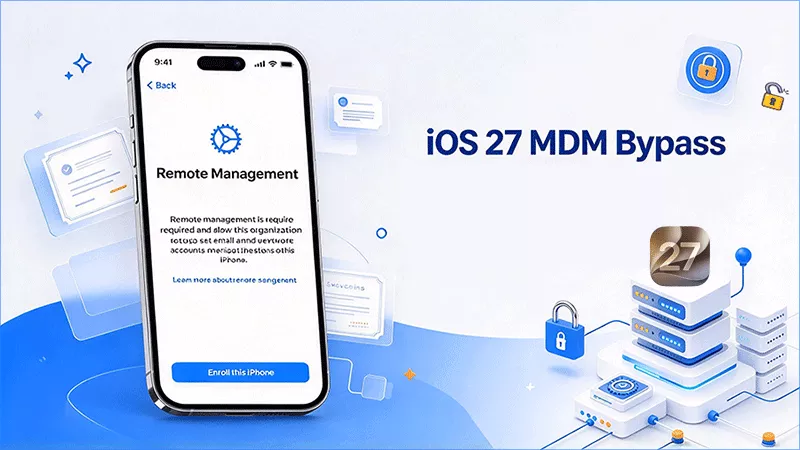
Seeing “Remote Management” during setup, or “This iPhone is managed by an organization” in Settings, can stop you cold after an iOS 27 update or a factory reset. Mobile Device Management (MDM) is the system schools and companies use to control iPhones and iPads remotely, and it does not disappear just because you erased the device.
This guide walks through the options in the safest order: confirm what type of management you have, try the non-destructive fixes first, and only then use a bypass tool.
The right fix depends on where the management shows up.
Where You See It
What It Means
Best Route
Settings > General > VPN & Device Management shows a profile
A configuration profile was installed on a set-up device
Method 1: remove it in Settings, or Method 2: ask the administrator
“Remote Management” screen during setup
The device is enrolled at the organization level and re-contacts the server after every erase
Method 2: release by the administrator, or Method 3: bypass tool
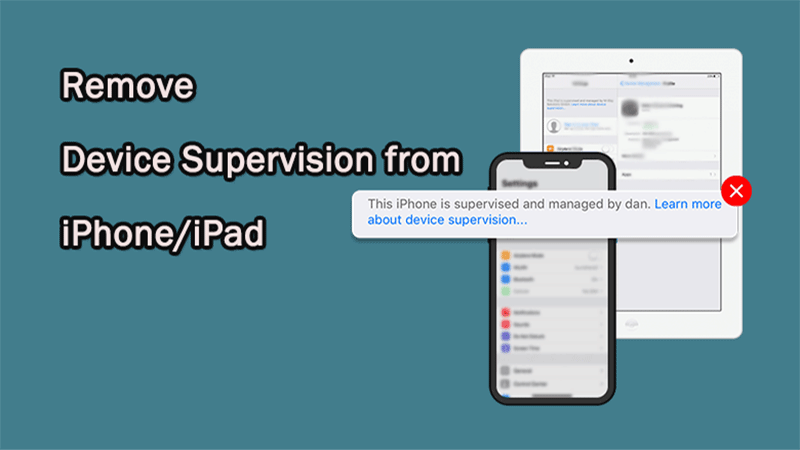
“Supervised” label under your Apple Account
The device is supervised, which allows deeper control than a plain profile
Method 2 or Method 3
Method 1: Remove the Profile in Settings
If you know the profile passcode, or the profile was installed with no passcode, this is the cleanest fix and takes under a minute.
Step 1: Open Settings and tap General.
Step 2: Tap VPN & Device Management. On some builds this appears as Profiles or Device Management.
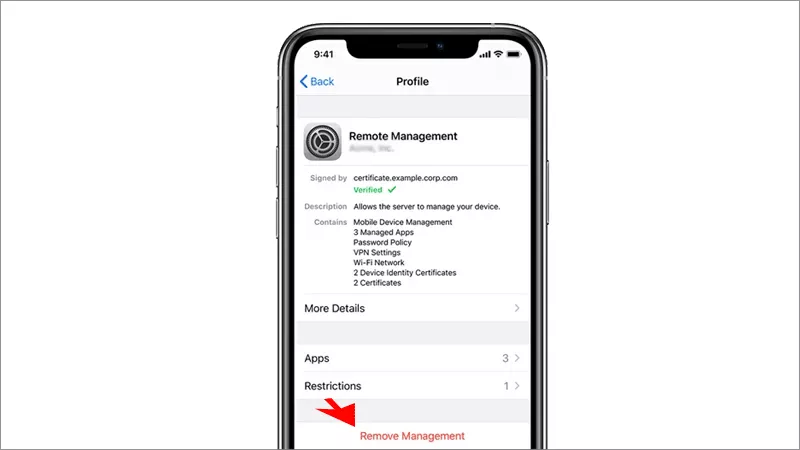
Step 3: Select the management profile.
Step 4: Tap Remove Management and input the passcode if asked. After that, restart the iPhone and check that the managed-by message is gone.
Note:
If there is no Remove Management button, the profile is locked by the administrator.
Method 2: Request the Administrator to Remove
For devices enrolled via Apple Business Manager or Apple School Manager, this is the permanent solution.
Current or former employer or school: ask IT to remove the device from MDM and release it from their Apple deployment account.
When buying second-hand: contact the seller and ask them to get their organization to release the device. Keep proof of purchase.
Lost login details: ask the administrator for the profile passcode, or for the management account to be reset.
Once the device is released, erase it and set it up again. The Remote Management screen should no longer appear.
Method 3: Use iPhone Passcode Genius to Bypass MDM
If the administrator cannot be reached, a bypass tool can skip the Remote Management screen without the MDM username or password. iSunshare iPhone Passcode Genius is one option on Windows and Mac, which makes it easily to remove the MDM lock from iPhone in various iOS versions.
iSunshare Reliable iPhone Unlocker
Bypass the Remote Management screen without credentials.
Unlock an unavailable iPhone without passcode.
Remove the forgotten screen time passcode without data loss.
Supports all iOS versions, including the newest iOS 27.
Step 1: Get iSunshare iPhone Passcode Genius on your computer. Also, connect the device to your computer with the original USB cable.
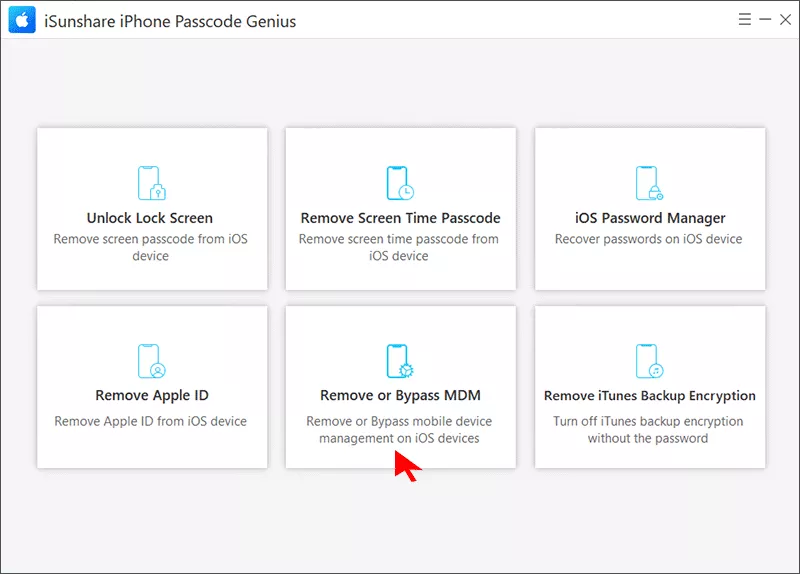
Step 2:Open iSunshare iPhone Passcode Genius and choose the function—Remove or Bypass MDM.
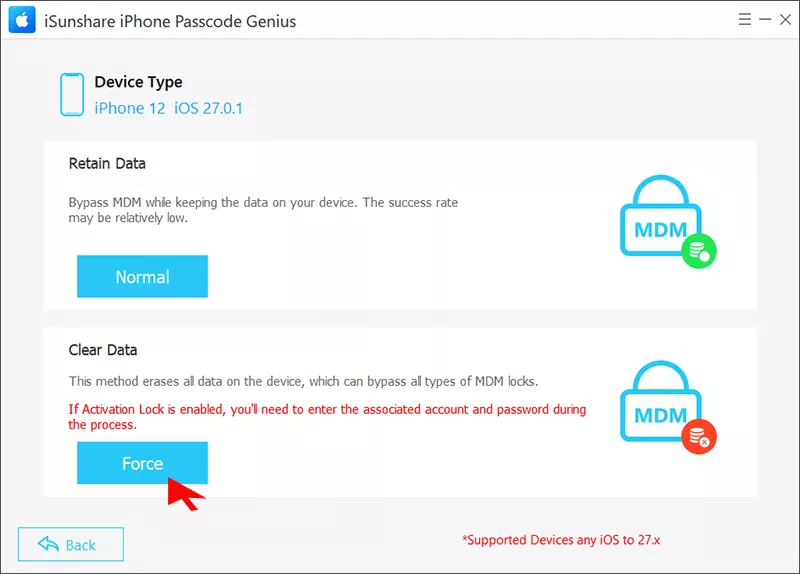
Step 3: Choose the option to bypass MDM. Here, the Force mode is selected as it is with high success rate.
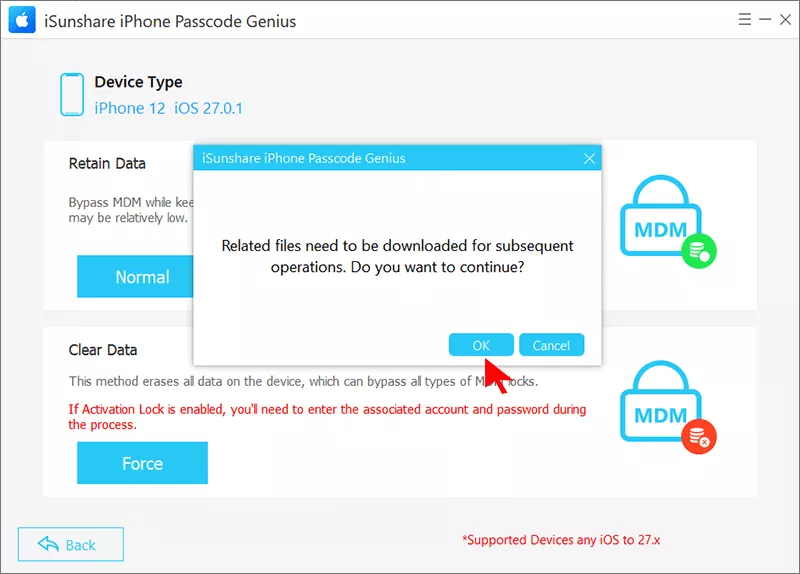
Step 4: A prompt comes to tell you that related files need to be downloaded. Click OK to continue.
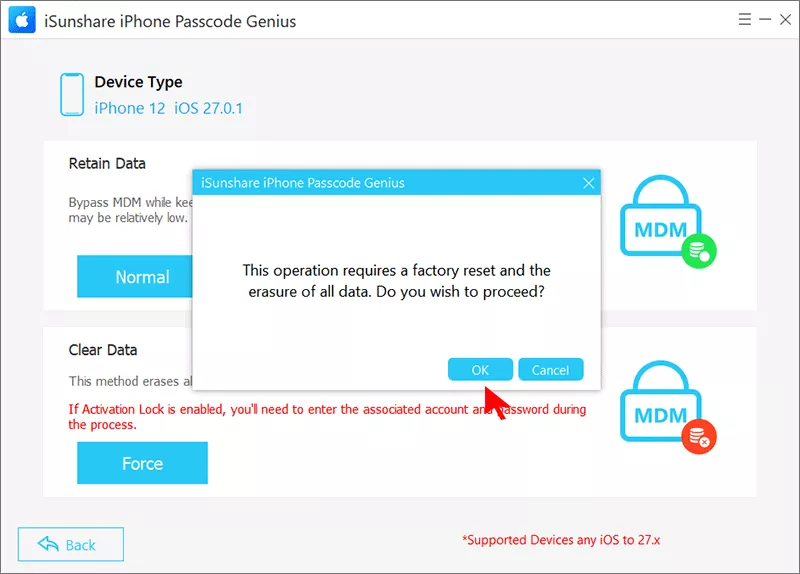
Step 5: After the downloading, you can see the prompt that says this operation requires a factory reset and the erasure of all data. Click OK to proceed.
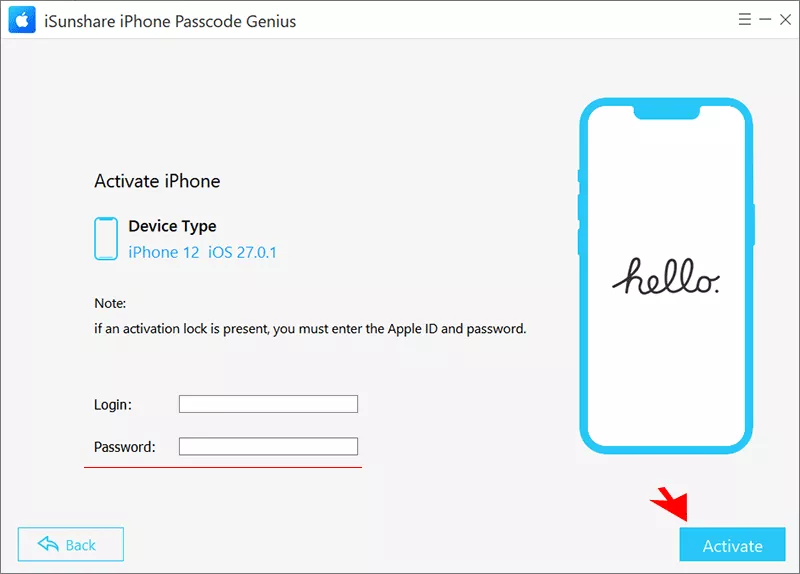
Step 6: If there is activation lock on your iPhone, just input the Apple ID details and click the Activate button.
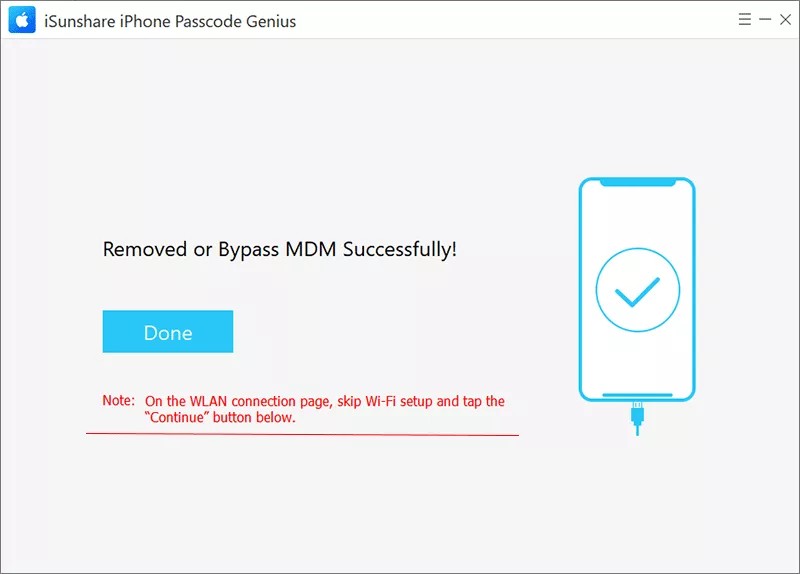
Step 7: The MDM lock is removed successfully. Restart the device and finish Setup Assistant: Skip the Wi-Fi setup and tap the Continue button.
FAQs on Bypassing iPhone MDM
Q1: Will bypassing MDM erase my data?
It depends on which method you use. If you are using iSunshare iPhone Passcode Genius and choose the Force mode, all your iPhone data will be removed.
Q2: Can the MDM lock come back after a bypass?
It can. A bypass does not change the device's enrollment record on Apple's servers, so a later factory reset or update may bring the Remote Management screen back. Asking the previous owner or organization to release the device is the only permanent fix.
Q3: Does bypassing MDM remove Activation Lock?
No. Activation Lock is tied to an Apple Account and is a separate protection. MDM bypass does not affect it.
Q4: Do older tools like MDM Patcher work on iOS 27?
Compatibility is unconfirmed. Tools built for earlier versions often fail on a new iOS release, so check the tool's current supported-version list before you rely on it.
Conclusion
Start with non-destructive methods: delete the profile in Settings, or ask the administrator to release the device. If neither is possible, a tool such as iPhone Passcode Genius can get you past the Remote Management screen on iOS 27, with the caveat that the enrollment may return after a future reset.