We use cookies for personalizing content and ads and providing social media features. Your usage information on our website will be used for social media, advertising, and traffic analytics, or shared with our partners. Clicking "Accept" means you agree to use our cookies .
"My daughter can spend hours in YouTube videos by using the one more minute feature. The screen time limit turns to be useless. Is there any way to remove the One more minute feature?"
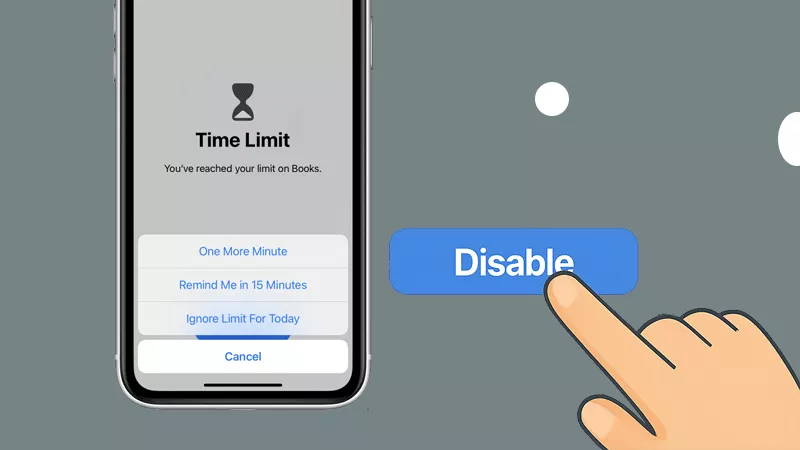
Many iPhone users have complained that even they set the app limit, their children can bypass the limit and extend the app usage by tapping One More Minute option. It seems that this feature can be abused. Thus, is there any way to disable One More Minute on iPhone or iPad? The answer is yes—with the right setup. This guide will show you exactly how to remove the loophole and make your screen time restrictions more effective.
When you use an app and reach its limit, the One More Minute option can come out to rescue you from the current activity. It gives users a last 60 seconds to finish what they're doing before the app is locked.
While convenient for adults, it can easily become a habit—especially for kids trying to squeeze in extra screen time. If you're using Screen Time for parental control or personal discipline, it is necessary to remove this feature.
How to Disable One More Minute in Screen Time
You can't turn off "One More Minute" directly with a single switch, but you can prevent it by adjusting Screen Time permissions and restrictions.
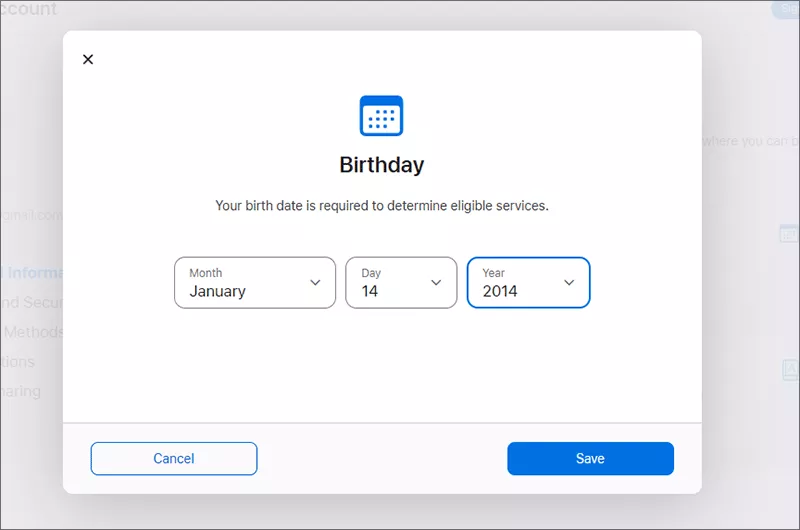
Only the children whose age are above 13 can get the One More Minute option when they reach the time limit. Thus, you can change your child's age to 12 or below. In this way, the One More Minute feature is unavailable on the iPhone or iPad.
Step 1: Get any available device and log in applied.apple.com with your kid's Apple ID.
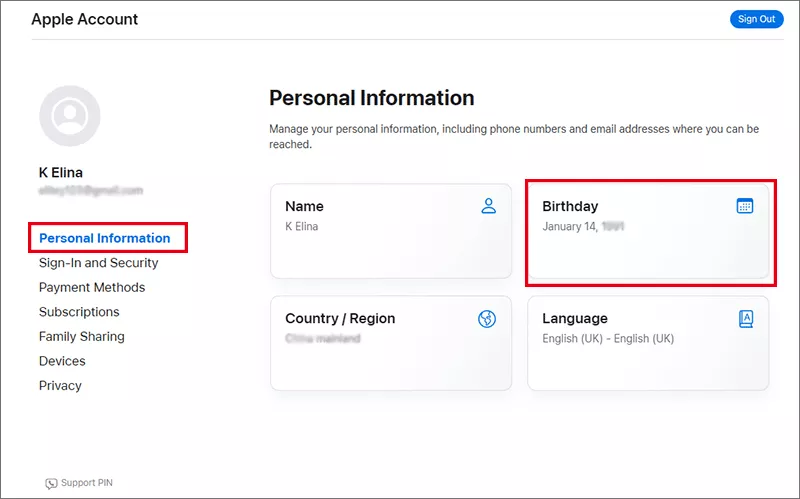
Step 2: On the Apple ID account, click the Personal Information option on the sidebar.
Step 3: Hit the Birthday section on the right panel.
Step 4: Set the birth date for Child to make its age below 13. And you should make sure the account is a member of your Family Sharing group. Follow the onscreen steps to verify it.
Method 2: Set a Screen Time Passcode
You can set a screen time passcode to stop others from overriding limits or requesting more time without the passcode. Thus, the passcode should not be known by your child.
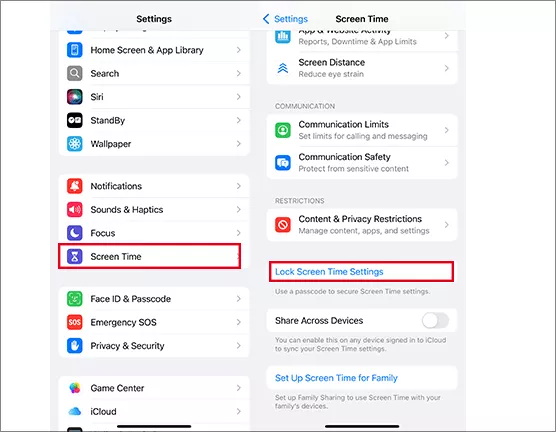
Step 1: Unlock the iPhone and tap Settings > Screen Time.
Step 2: Scroll down and choose Lock Screen Time Settings.
Step 3: Set the passcode you would like to use it and confirm.
Step 4: After that, it requires you to enter the Apple ID account and password for screen time passcode recovery. Finally, the screen time passcode is made.
Method 3: Enable Block at End of Limit
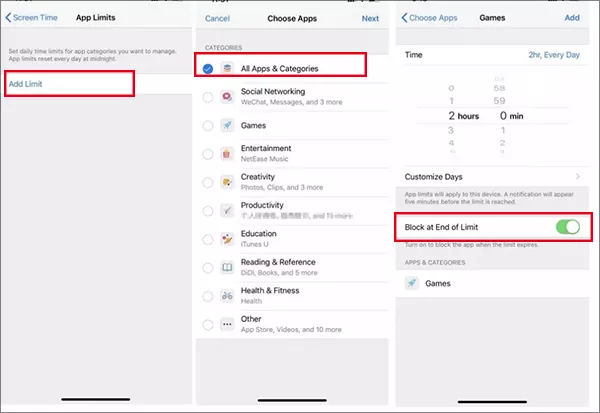
If you enable the Block at End of Limit feature, this blocks access completely when time runs out. Thus, there is no option for One More Minute, Ignore Limit, or Ask for More Time.
Step 1: Navigate to Settings > Screen Time > App Limits.
Step 2: Tap the app or app category you have set up the app limitation.
Step 3: Go down and toggle on Block at End of Limit.
Method 4: Turn on Downtime on Your iPhone/iPad
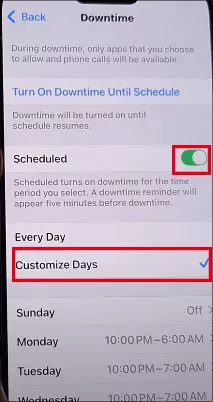
Once the Downtime is enabled, your child can only access specific apps which you set in the scheduled time. In this way, the One More Minute option will not appear when the time limit is over.
Step 1: Tap the Settings app on your iPhone and then choose Screen Time option.
Step 2: Tap the Downtime option. After that, toggle on Scheduled. Now you can customize the time period your child can spend on the app.
Bonus Tips: Disable Screen Time Restriction on iPhone/iPad without Passcode
If you want to get rid of the screen time restriction but forgot the screen time passcode, or you want to fully control the iPhone/iPad and access the app without time limitation, how can you do? You can turn off the screen time restriction with iSunshare iPhone Passcode Genius without data loss. This iPhone unlocker allows you to delete the screen time restriction without passcode. Also, there is no data loss during the whole process.
iSunshare Reliable iPhone/iPad Unlocker
Click-to-go process to unlock the screen time restriction.
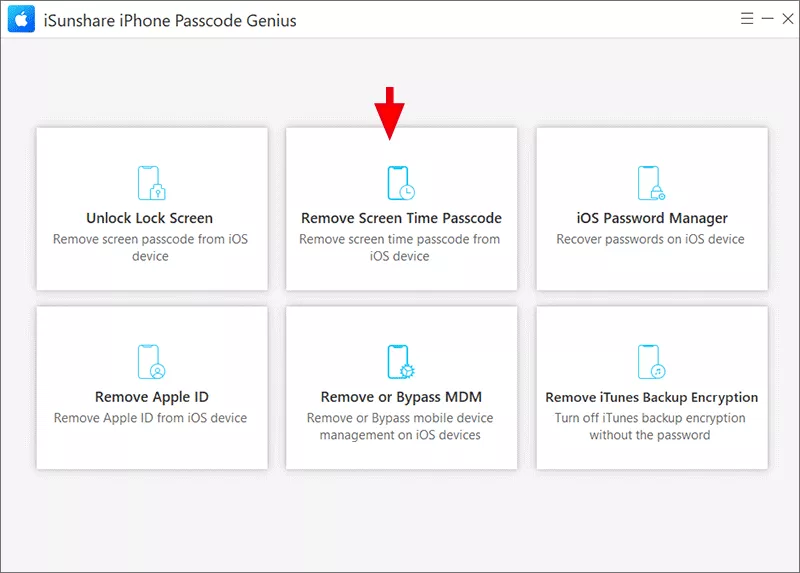
Step 1: Connect your iOS device to the computer and open iSunshare iPhone Passcode Genius. Then click the Remove Screen Time Passcode option.
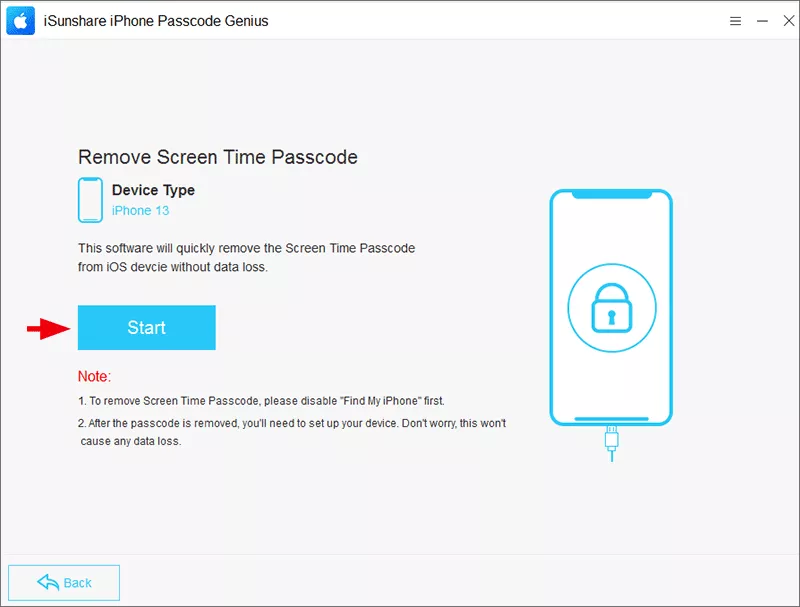
Step 2: Disable the Find My function on your device. After that, hit the Start button to remove the screen time restriction.
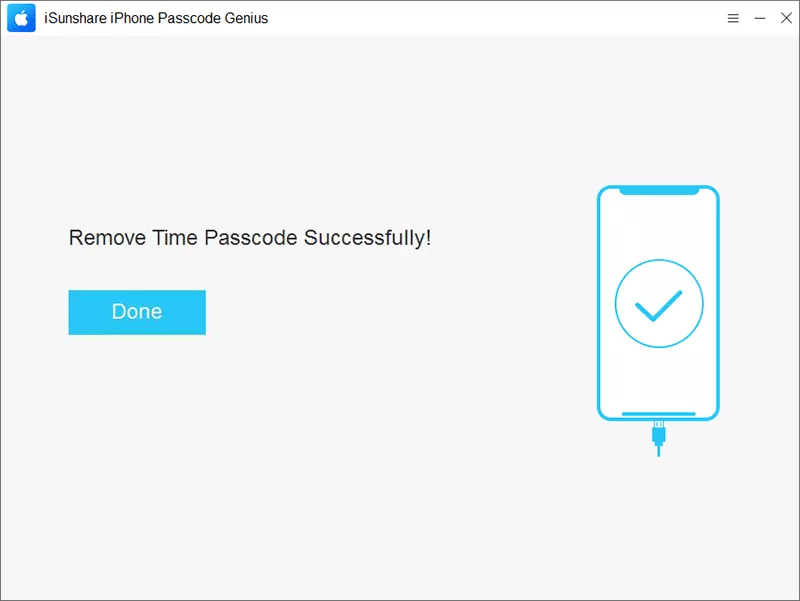
Step 3: In no time, the screen time passcode is removed successfully.
FAQs on Screen Time One More Minute Glitch
Q1: How many times can you ask for one more minute on iPhone?
By default, you can only ask for one more minute one time for per app. After that, you can no longer get One More Minute option and the app will be locked.
Q2: Why does the "One More Minute" option appear after app limits?
Apple includes this feature to give users a final chance to wrap up what they're doing before the app locks. It's helpful for adults, but often misused by children to prolong screen time.
Q3: What's the difference between "Ask For More Time" and "One More Minute"?
"One More Minute" is a self-approved, 60-second extension. "Ask For More Time" sends a request to the parent or passcode holder for additional access.
Summary
Looking for ways to disable One More Minute in Screen Time for iPhone/iPad? This article is perfect for you to solve the issue. With the mentioned methods, it is impossible to extend the screen time without your approval, which keeps the screen time meaningful.