We use cookies for personalizing content and ads and providing social media features. Your usage information on our website will be used for social media, advertising, and traffic analytics, or shared with our partners. Clicking "Accept" means you agree to use our cookies .
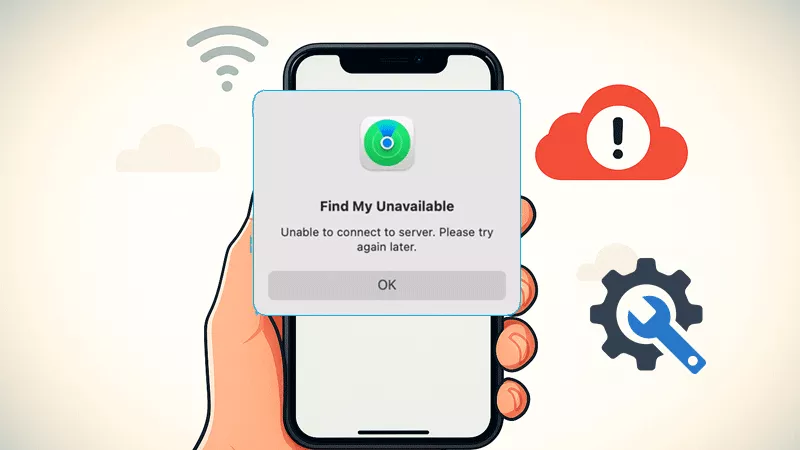
If you've recently encountered the message "Find My Unavailable: Unable to connect to server, please try again later" on your iPhone, you know how inconvenient it can be. This error prevents you from locating your device or family members through Apple's Find My service, which can be worrisome. But don't worry—there are straightforward steps you can take to resolve this problem. This guide walks you through practical solutions to get the Find My feature back online quickly.
This error often happens when your iPhone cannot establish a stable connection with Apple's servers. Common reasons include:
Problems with your internet connection
Temporary downtime on Apple's end
Errors in your Apple ID or iCloud settings
Software bugs due to outdated iOS
Incorrect device date and time settings
Restrictions affecting location services
Understanding what's causing the problem helps you pick the right fix.
Fix 1: Confirm Your Internet Connection
The Find My app requires internet access to communicate with servers. First, you should check if your Wi-Fi or cellular data is active and stable. Then, switch between Wi-Fi and cellular data to check whether the error is solved. Of course, if your Wi-Fi network is slow, reset the Wi-Fi network or change to another WLAN network. Finally, you can try to reset network settings to solve the error.
Fix 2: Verify Apple's System Status
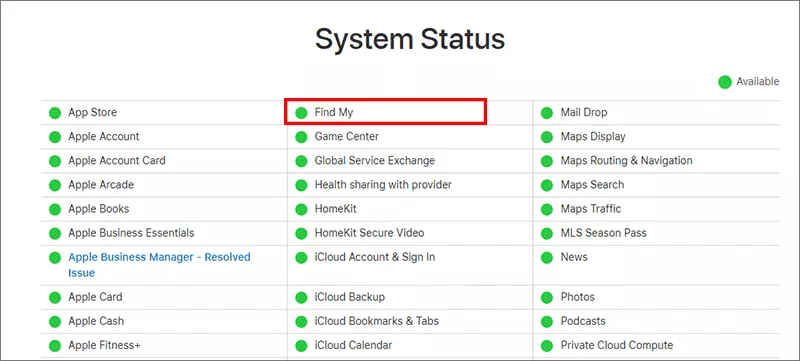
Apple's Find My service may occasionally face outages. You can visit Apple's System Status page online. Then look for the status of "Find My" and check if any issues are reported. If Apple is experiencing problems, you'll need to wait until they fix them.
Fix 3: Log Out and Back into Cloud
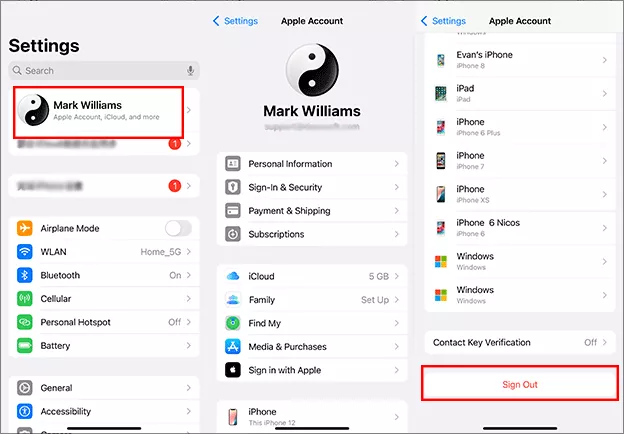
Refreshing your iCloud connection can fix syncing problems. You can sign out the iCloud and then sign in again to test whether there are issues in iCloud settings.
Step 1: Tap Settings and choose your iCloud account at the top.
Step 2: Scroll down and select Sign out. Just follow the on-screen steps to sign out. After that, reboot your iPhone.
Step 3: Tap Settings again and sign back into your Apple ID with the password.
Fix 4: Enable Location Services
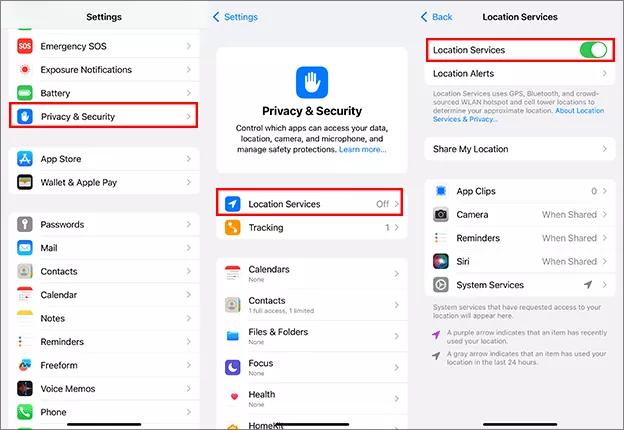
The Location Services plays an essential role in Find My feature. If it is disabled, your iPhone will fail to share its location, which might cause the Find My unavailable error. Thus, you need to make sure Find My can access your location.
Step 1: Tap Settings> Privacy & Security > Location Services.
Step 2: Toggle on the Location Service.
Step 3: Go down and make sure Find My is set to use your location while using.
Fix 5: Set Date and Time Automatically
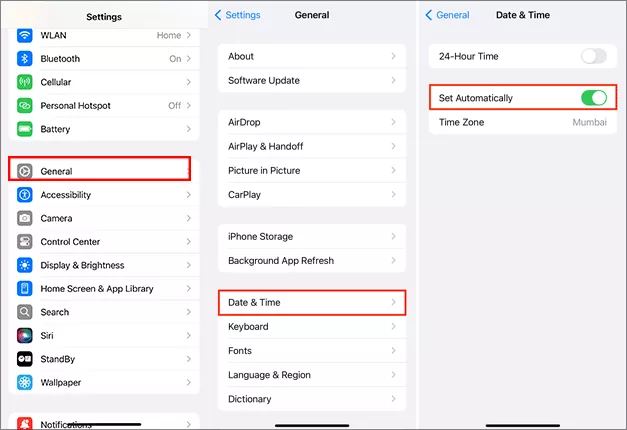
Incorrect time settings can interfere with server connections. If the date and time is incorrect, your iPhone might fail to connect to server. Therefore, set your iPhone date and time automatically: Tap Settings> General > Date & Time and then toggle on Set Automatically.
Fix 6: Disable Screen Time Restrictions Temporarily
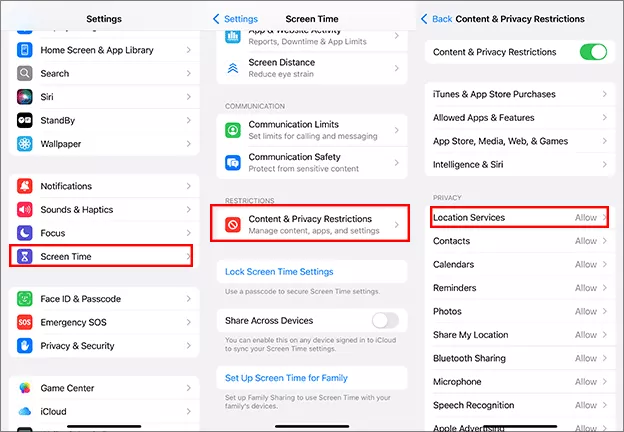
Restrictions may block Find My from working correctly. If your Find My function is restricted, it might unable to connect to server. Just go to Settings> Screen Time > Content & Privacy Restrictions to disable the restrictions related to location and account changes.
Fix 7: Use iSunshare iOS Repair Genius to Fix the Error
If there are the system errors in your iPhone, you will also get the Find My unavailable unable to connect to server prompt. Thus, you can use the iOS system repair software, such as iSunshare iOS Repair Genius, to fix the system errors on your iPhone and get Find My back to normal.
iSunshare Reliable iOS System Repair Software
Fix iOS system issues and iTunes errors in simple clicks.
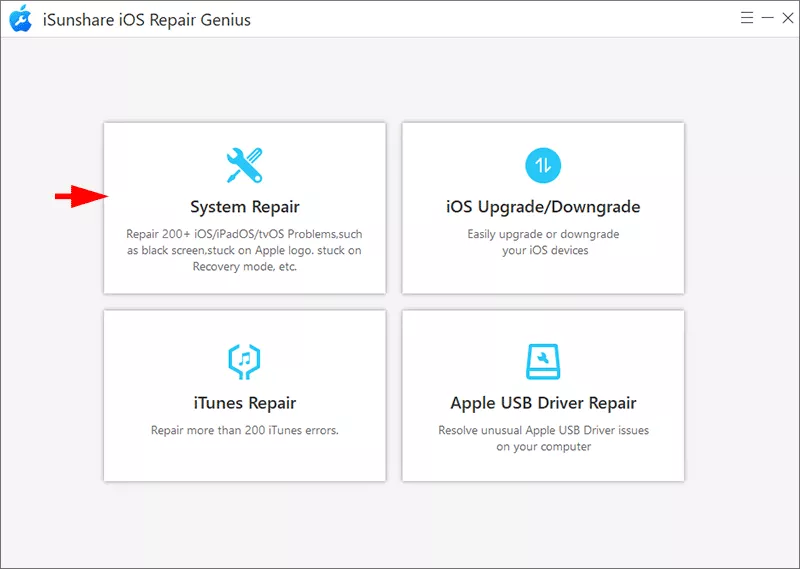
Step 1: Connect your iPhone to the computer and open the software. Then hit the System Repair feature on the main interface.
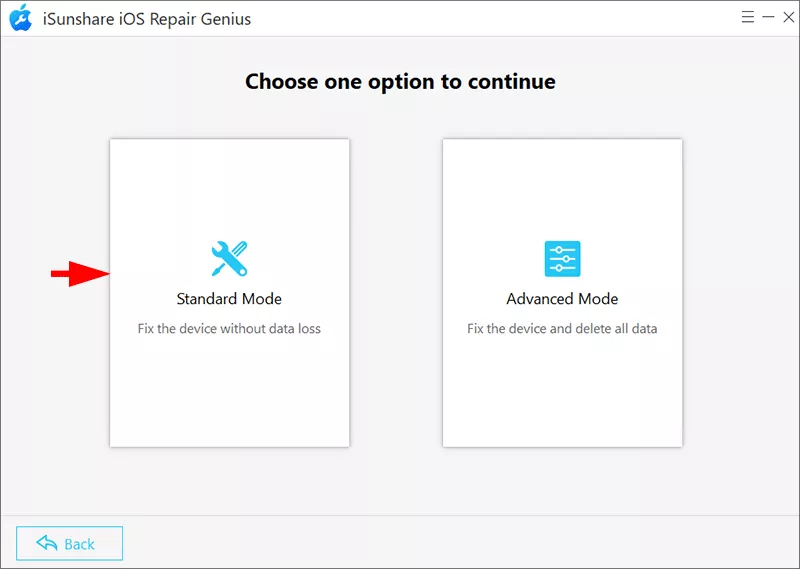
Step 2: Now you are able to select the repair mode for the iPhone repairing. Two modes are offered here. You can select the Standard Mode to fix the error without data loss. Then hit the Start button and Next button to proceed.
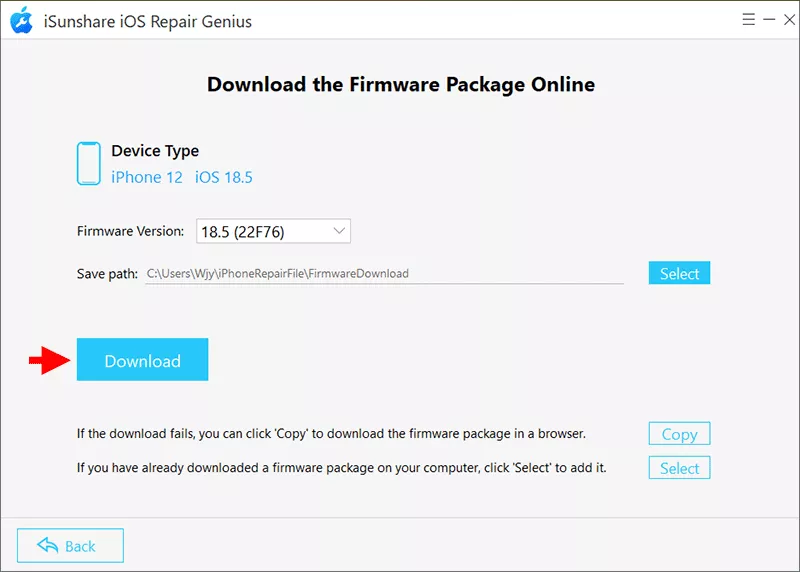
Step 3: Soon, the software will detect your iPhone model and load the details. If it fails, just make your iPhone enter recovery mode. After that, click the Download button to get the firmware package.
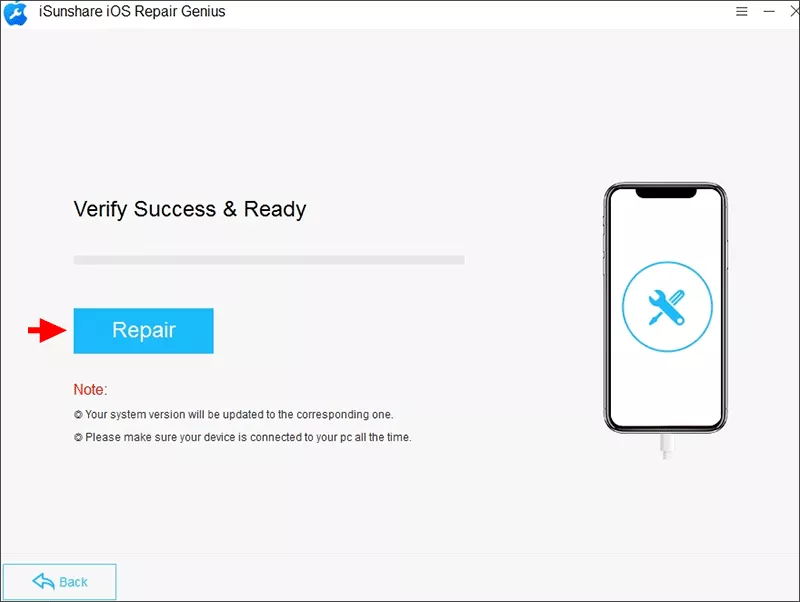
Step 4: After the verification ends, you can hit the Repair button to fix the iPhone system error. When the process ends, you can open Find My to connect to server again.
Conclusions
The "Find My Unavailable: Unable to connect to server" error typically points to connection or configuration issues. By following these steps—from checking your network to repair iOS system —you can usually fix the problem quickly. If all else fails, contacting Apple Support is your best option.