We use cookies for personalizing content and ads and providing social media features. Your usage information on our website will be used for social media, advertising, and traffic analytics, or shared with our partners. Clicking "Accept" means you agree to use our cookies .
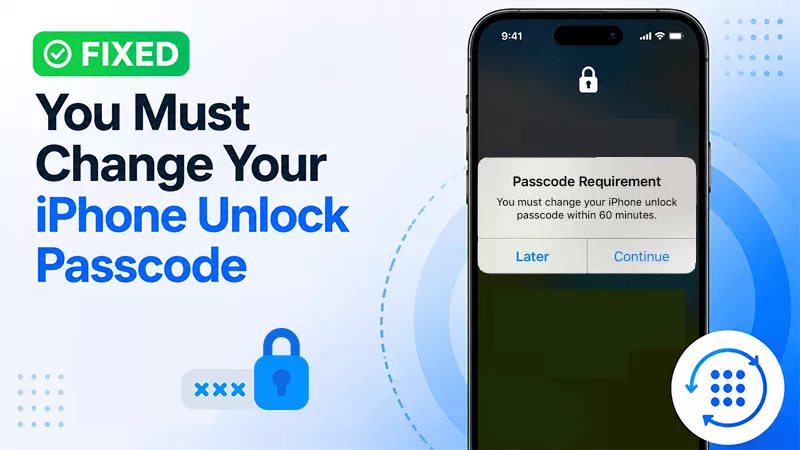
If you’ve ever tried to unlock your iPhone and suddenly saw the message “You must change your iPhone unlock passcode within 60 minutes”, it can be confusing—and sometimes alarming. This notification is not a bug; it’s iOS prompting you to improve your device’s security.
Apple enforces passcode updates under certain conditions, and understanding why it appears can save you time and frustration. In this guide, we’ll cover why this message appears and provide easy fixes to resolve the requirement quickly.
iOS may prompt you to change your passcode due to:
Safari History Issue
Parts of your Safari browser history can make your iPhone deem your current unlock passcode unsafe. This issue is mostly triggered by previously accessed links.
Weak or Reused Passcode
If your current passcode is considered easy to guess (like 1234 or 0000), iOS may require you to create a stronger one.
Device Restart or Update
After updating iOS or restarting your iPhone, Apple sometimes prompts a passcode update to ensure enhanced security features work correctly.
Unauthorized Access Alerts
If someone tried to unlock your iPhone unsuccessfully multiple times, iOS may request a new passcode to protect your data.
Security Policy Updates
Some iPhones, especially corporate or work-managed devices, enforce passcode updates to comply with organizational security policies.
Easy Fixes to Remove the Passcode Requirement
Here are the simplest ways to resolve the “You must change your iPhone unlock passcode” prompt:
1. Change Your Passcode as It Required
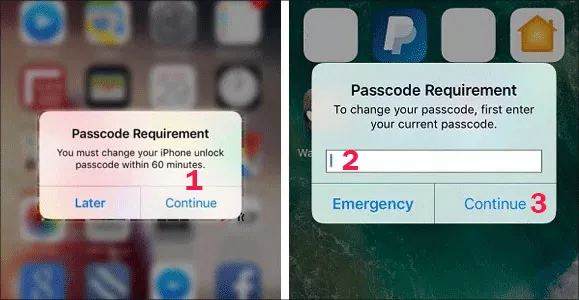
This is the fastest and most reliable fix. On the Passcode Requirement message box, tap the Continue option. Then input your current passcode and tap the Continue. After that, set a new iPhone unlock passcode and tap Continue option to save the change. Once updated, the prompt will disappear immediately.
Note:
1. 6-digit numeric code instead of 4 digits.
2. Avoiding birthdays, repeated numbers, or simple patterns.
3. For a maximum protection, use a custom alphanumeric passcode.
2. Remove Safari Browsing History
Most of the Passcode Requirement Issues are due to the Safari browsing history. Thus, you can remove the Safari browsing history to fix the issue.
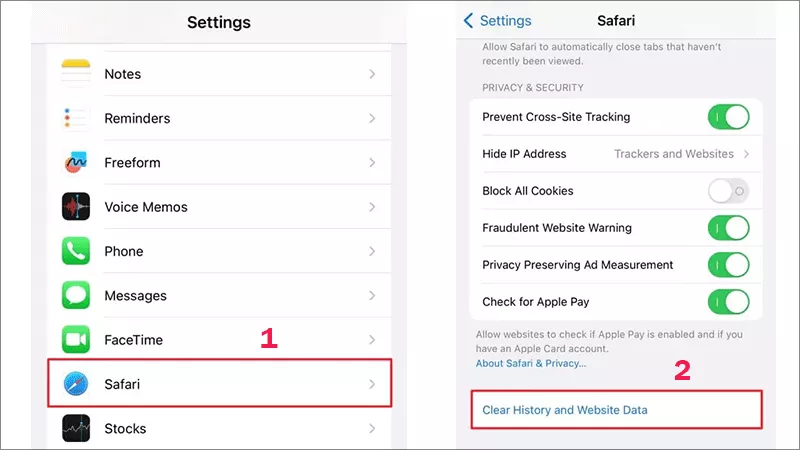
Step 1: Tap Later on the Passcode Requirement to change pop-up. Then tap Settings and choose Safari to move forward.
Step 2: Go down and choose the option—Clear History and Website Data.
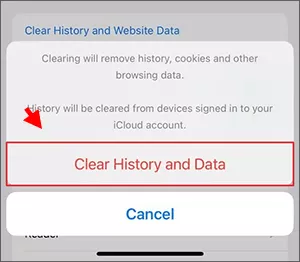
Step 3: Tap Clear History and Data to confirm your operation.
3. Remove and Reinsert Your SIM Card
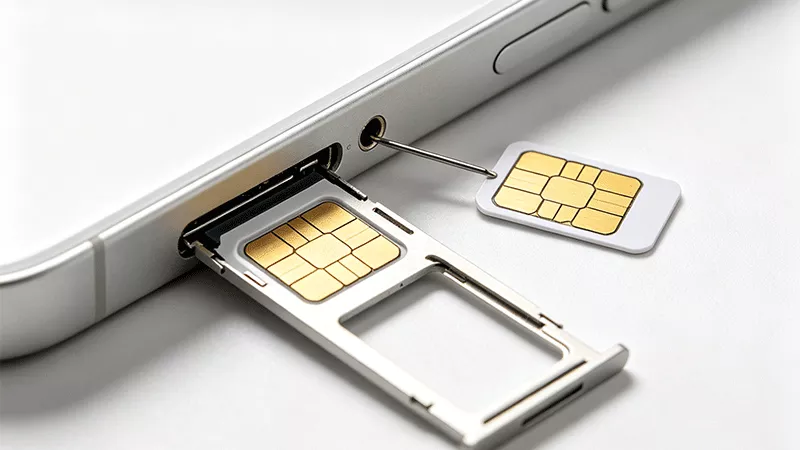
Here is another effective troubleshooting method to fix the issue where your iPhone keeps prompting you to change the unlock passcode: simply take out your SIM card and re-seat it properly.
Step 1: Find the SIM card tray on the side of your iPhone device.
Step 2: Gently insert the SIM eject tool or a thin paper clip into the small pinhole next to the tray to pop the slot open, then take the SIM card out carefully.
4. Check Device Management Settings
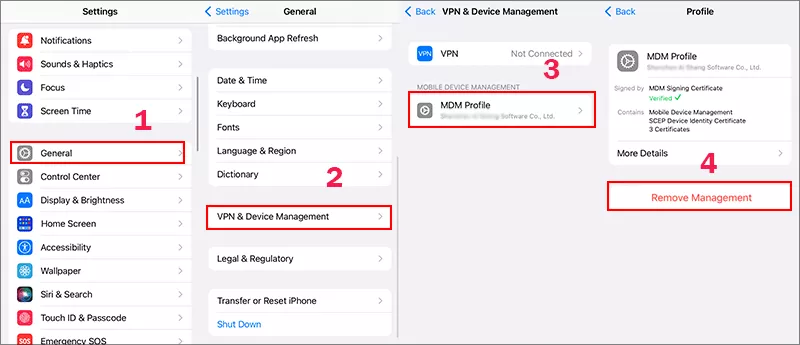
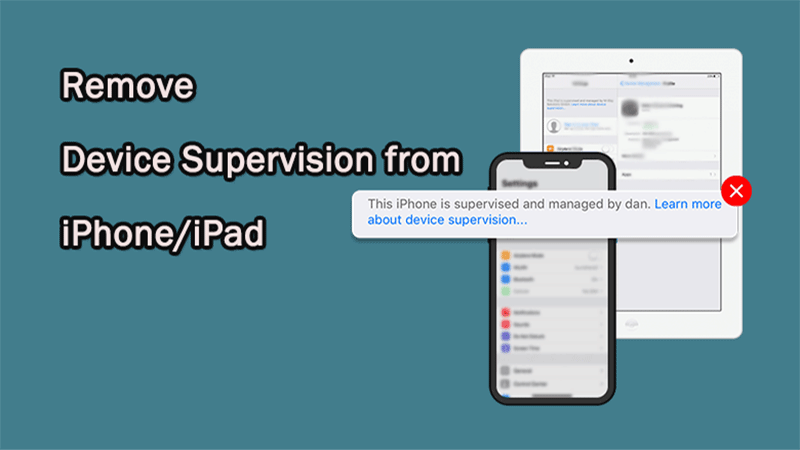
If your iPhone is managed by your workplace or school, your passcode may be enforced by a Mobile Device Management (MDM) profile.
Step 1: Open Settings and choose General. Then choose the option: VPN & Device Management.
Step 2: Check for an active profile.
Step 3: If a profile enforces passcode rules, click Remove Management option and enter the passcode if asked.
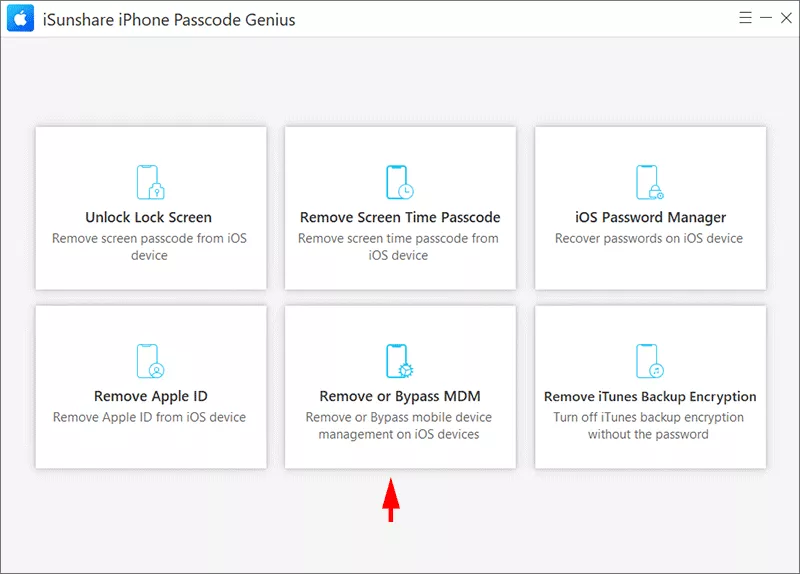
What if there is no Remove option in the settings? How can you solve the passcode requirement to change issue without passcode? Here, iSunshare iPhone Passcode Genius can help to get rid of the MDM restrictions without the help of your IT admin.
Step 1: Open iSunshare iPhone Passcode Genius and connect your iPhone to the computer. Then select Remove or Bypass MDM from the main interface.
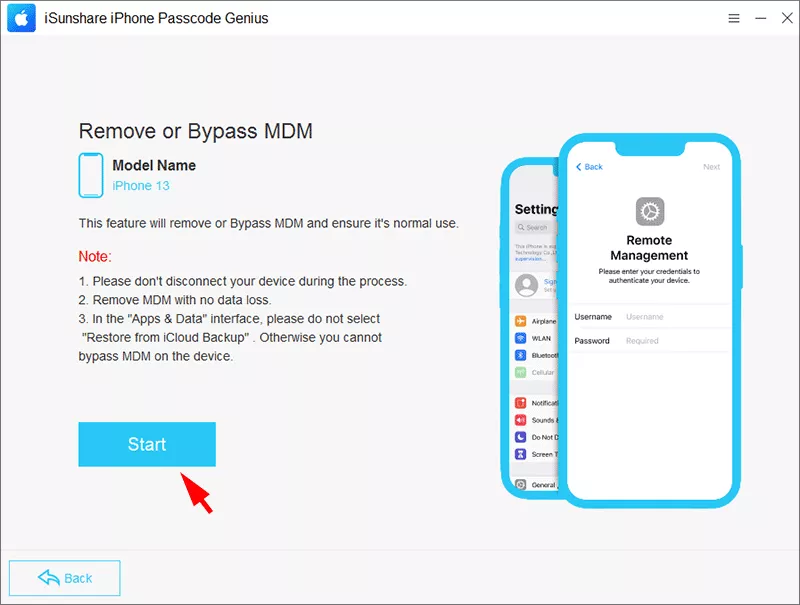
Step 2: Click the Start button to remove mobile device management.
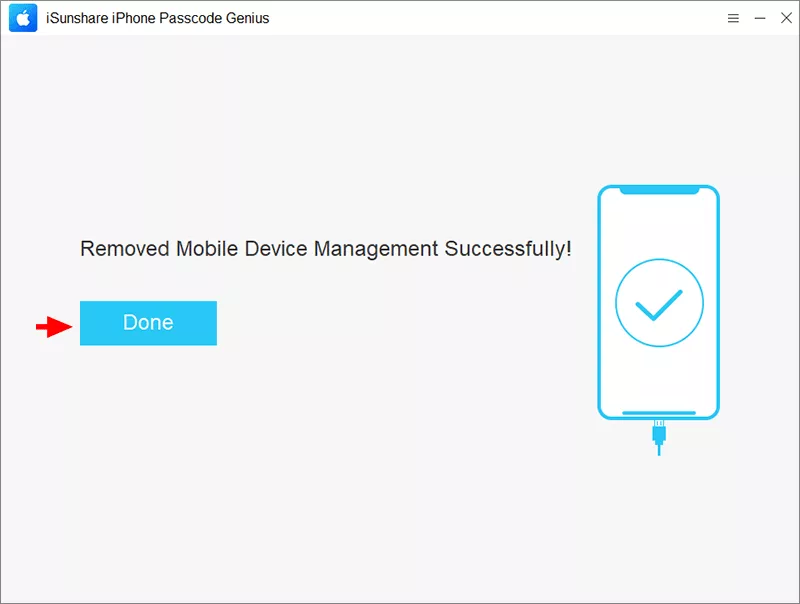
Step 3: Minutes later, the MDM lock is removed from your iPhone successfully.
Tips to Avoid Passcode Prompts in the Future
Set up a complex and secure unlock passcode, and update it on a regular basis.
Do not reuse previous passwords or commonly used simple passcodes.
Turn on Face ID or Touch ID to unlock your iPhone conveniently.
Always keep your iOS system upgraded to the latest official version.
Refrain from downloading and installing any untrusted third-party device profiles.
FAQs on You Must Change Your iPhone Unlock Passcode
Q1: Is it possible to bypass the “You must change your passcode” message?
No, Apple requires a passcode change for security reasons. Bypassing it is not recommended and may put your data at risk.
Q2: Will changing my passcode delete my data?
No. Changing your passcode does not erase any data. Only a full reset or restore can delete data.
Q3: How often should I change my iPhone passcode?
Every 3–6 months is recommended, especially if you handle sensitive information or work on a corporate device.
Conclusion
The “You must change your iPhone unlock passcode” message may seem inconvenient, but it’s a crucial security measure. By following the easy fixes above, you can quickly update your passcode, strengthen your iPhone’s security, and prevent unauthorized access.
Remember: a strong, regularly updated passcode is your first line of defense against hackers and privacy breaches.