We use cookies for personalizing content and ads and providing social media features. Your usage information on our website will be used for social media, advertising, and traffic analytics, or shared with our partners. Clicking "Accept" means you agree to use our cookies .
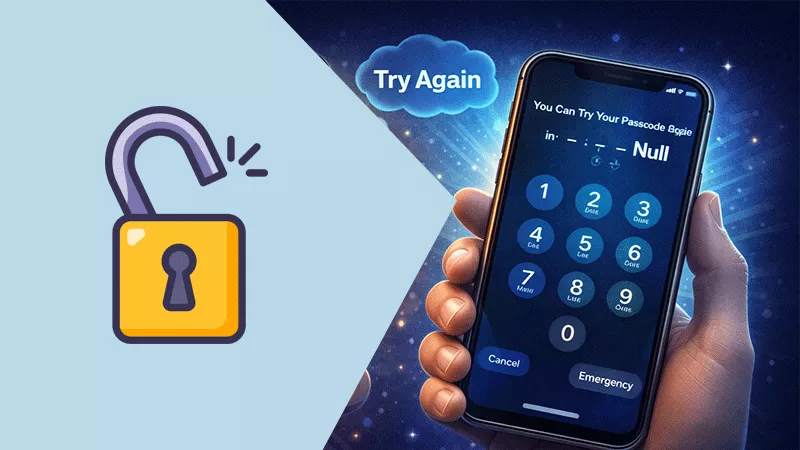
What to do if you forgot the iPhone passcode and the iPhone is locked? Is it possible to unlock your iPhone from the emergency call screen? Does the emergency code work to unlock iPhone? Here you can know the answer.
Many people doubt the methods online which shows the steps to successfully unlock iPhone from the emergency call screen. Here you can have a check. The tested iPhone model is iPhone 12 in iOS 26.1.
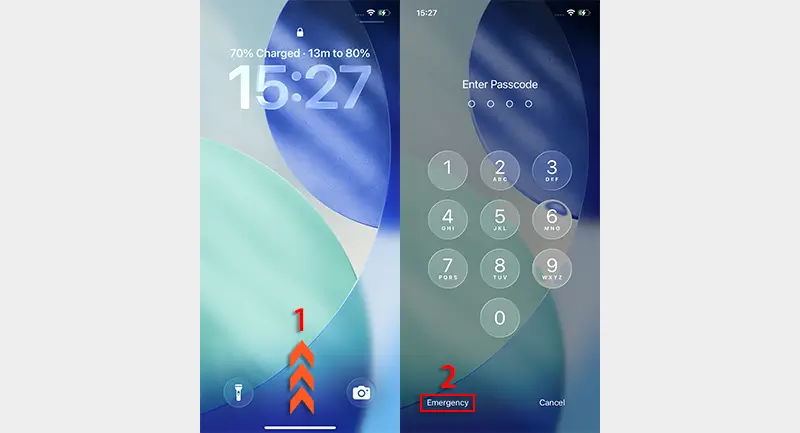
Step 1: Swipe up from the lock screen. In seconds, you are in the Enter Passcode screen. Then tap Emergency option in the bottom right corner.
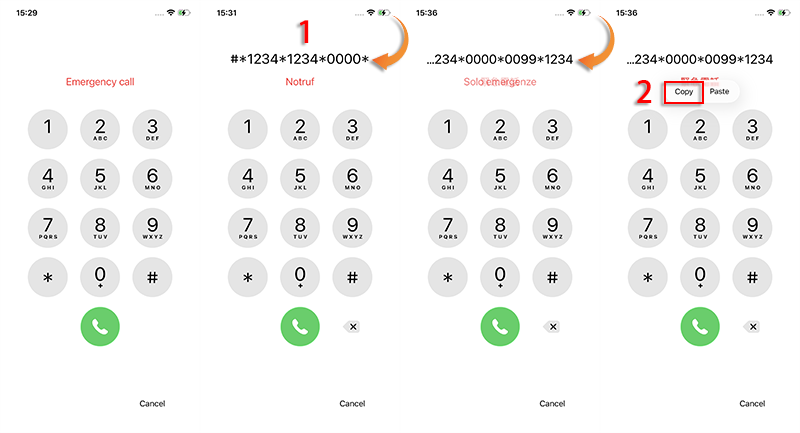
Step 2: Enter the emergency code: #*1234*1234*0000*0099*1234*0000*0099*1234 and then tap the Copy option from the pop-up menu.
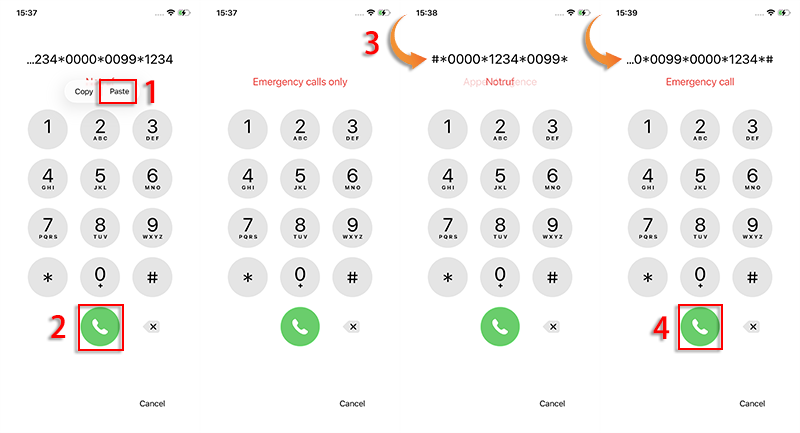
Step 3: Repeat the above operations and choose the Paste option to continue. After that, tap the Call button. Now enter #*0000*1234*0099*1234*0000*0099*0000*1234*# and tap the Call button.
Step 4: Now you can in the Enter Passcode screen. You can try to enter the passcode 4072 to unlock the iPhone. Unfortunately, it does not unlock the iPhone. In other words, there is no emergency code to unlock the locked iPhone.
A Quick Way to Unlock iPhone Forgot Passcode
Now you know that it is impossible to unlock iPhone with the emergency code. Is there any way to unlock iPhone when you forgot the passcode? Yes, the iPhone unlocker can be helpful. You can try iSunshare iPhone Passcode Genius to unlock iPhone in any model.
iSunshare iPhone Passcode Genius is the professional iPhone unlocker which can help to remove iPhone screen lock, MDM lock, and iTunes backup encryption in minutes. You can also utilize it to check all saved passwords on your iPhone.
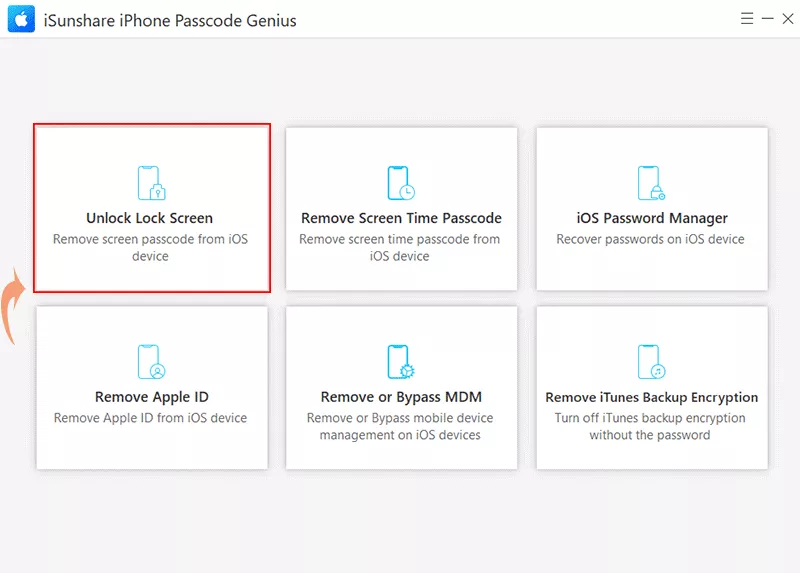
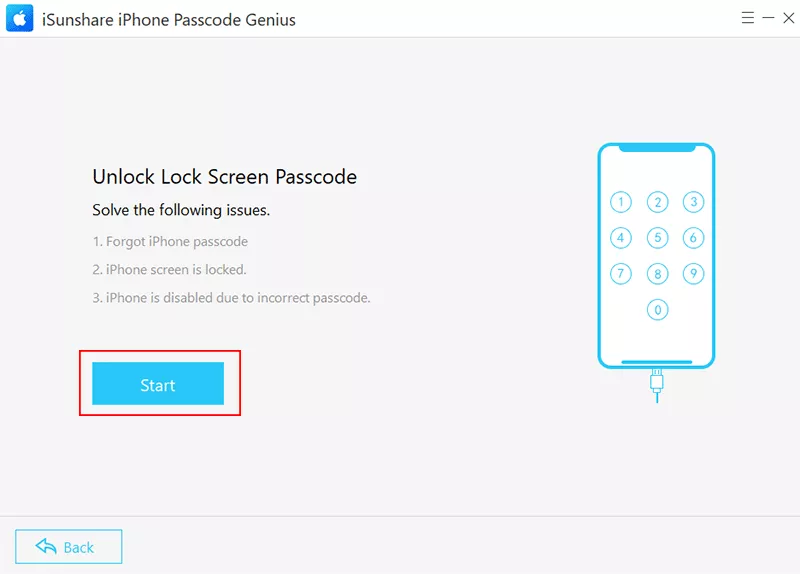
Step 1: Open iSunshare iPhone Passcode Genius and select Unlock Lock Screen option.
Step 2: Click the Start button and make your iPhone connected to your computer. After that, click the Next button to go on.
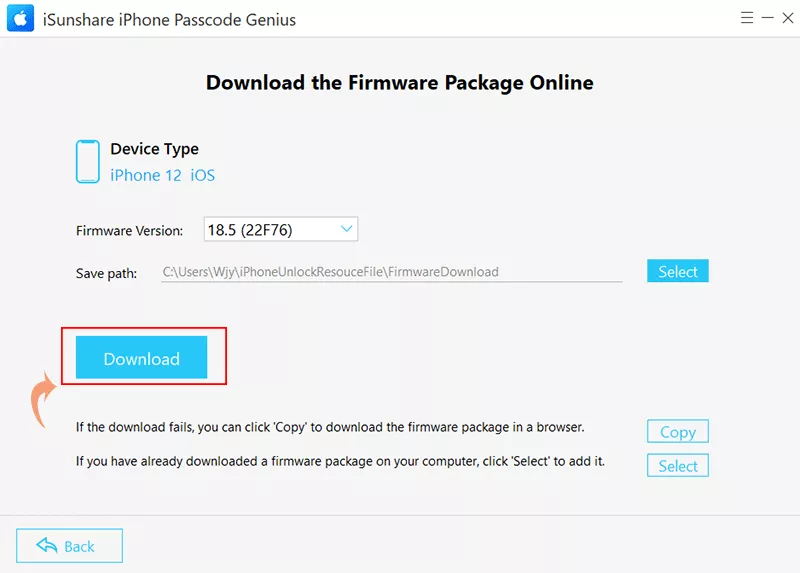
Step 3: Here you can view the iPhone model and then click the Download button to get the latest version of firmware for your iPhone.
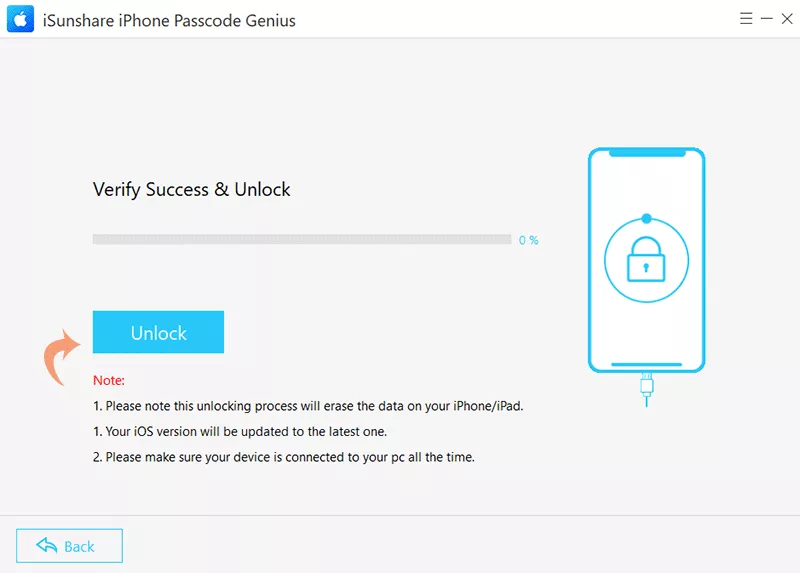
Step 4: Minutes later, click the Unlock button to remove your screen lock. Afterward, you will get a fresh iPhone in the Hello screen.
FAQs about Emergency Code to Unlock iPhone
1. Can you really unlock an iPhone using the Emergency Call screen?
No. The Emergency Call feature is designed strictly for contacting emergency services or accessing emergency information. It cannot be used to bypass Apple's security system or unlock an iPhone.
2. Is there any emergency code to unlock iPhone?
There is no emergency code to successfully unlock the iPhone. If you forgot the iPhone passcode, you can try the universal passcode, such as 000000,123456, and 111111.
3. What should I do if I forgot my iPhone passcode?
If you've forgotten your passcode, you can reset your device using official methods provided by Apple Inc:
Use Recovery Mode with a Mac or PC
Use Finder (macOS Catalina or later)
Use iTunes (Windows or older macOS versions)
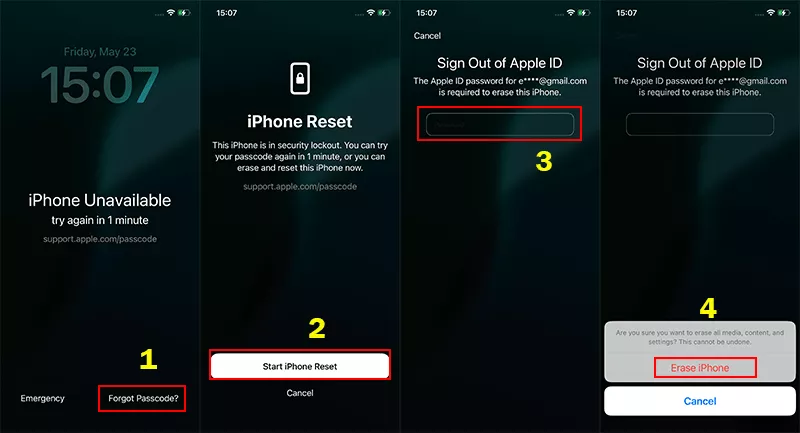
Use the "Erase iPhone" option (available on iOS 15.2 or later after multiple failed attempts)
Note: Resetting will erase your data unless you have a backup.
Conclusion
Is it possible to unlock iPhone with emergency call screen without passcode? No, there is no such emergency code. But you can unlock the locked iPhone with iPhone unlocker, such as iSunshare iPhone Passcode Genius.