By Achilles Hill | Last Updated
By turning on system protection for drives, you can cancel unwanted changes through reverting your PC to a previous restore point. For your convenience, the article respectively illustrates how to turn on and turn off system protection in Windows 8/10/11 computer.

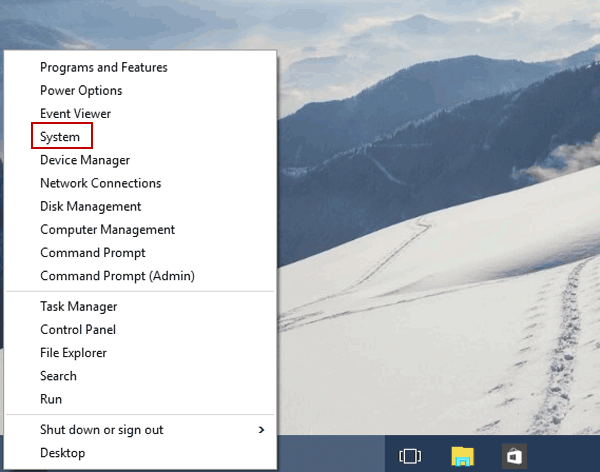
Step 1: Right-click the lower-left corner and open System in the Quick Access Menu.

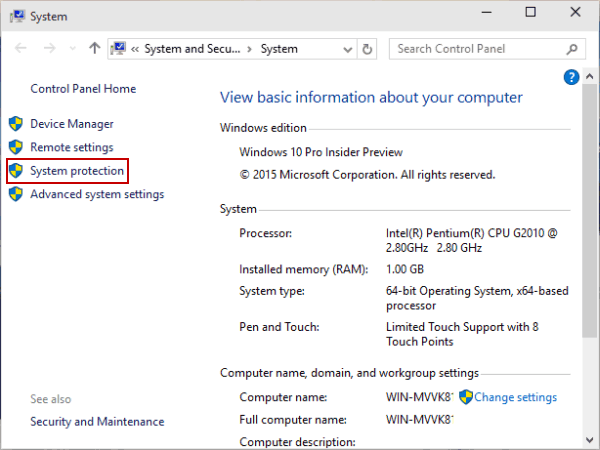
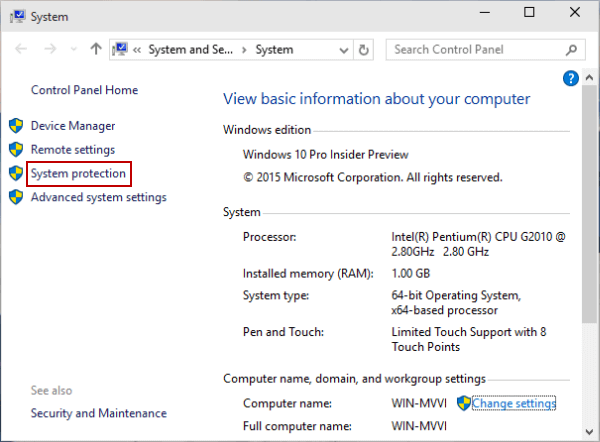
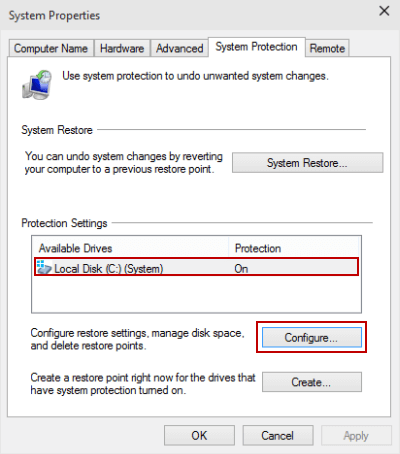
Step 2: Choose System protection on the left.

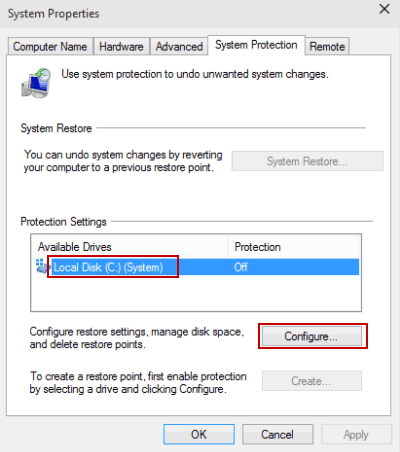
Step 3: Select a hard disk and tap Configure to move on.

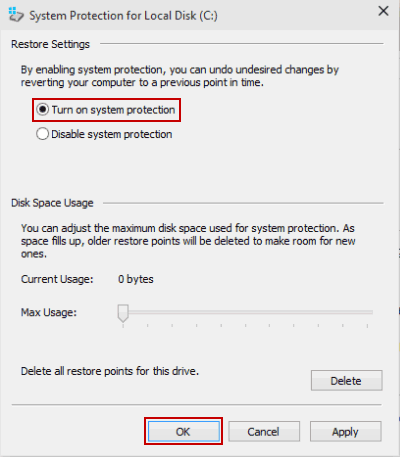
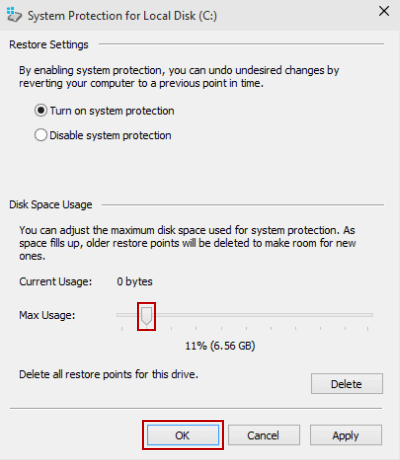
Step 4: Choose Turn on system protection and hit OK.

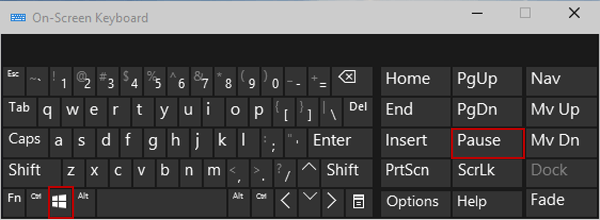
Step 1: Open System by Windows+Pause Break and tap System protection.
Step 2: Choose a hard drive and click Configure.
Tip: For illustration of these two procedures, please refer to the pictures of the 2nd and 3rd steps in Part 1.
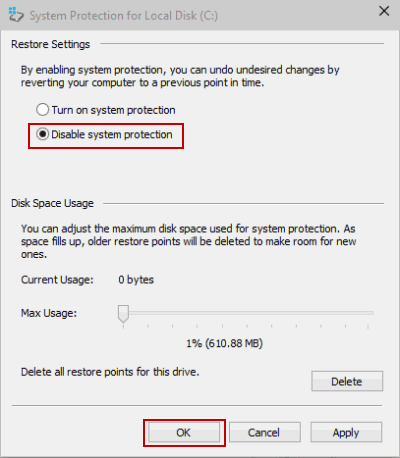
Step 3: Select Disable system protection and hit OK.

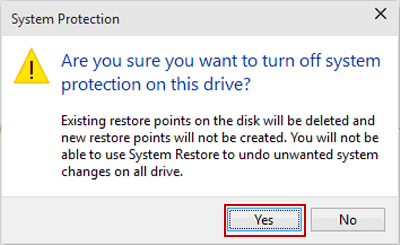
Step 4: Choose Yes to have system protection disabled.

Step 1: Press Windows+Pause Break on the keyboard to open System.

Step 2: Choose System protection in the System window.

Step 3: Select a hard disk whose system protection is on and tap Configure to continue.

Step 4: Under Disk Space Usage, move the slider to adjust the max usage according to your need, and then hit OK.

Related Articles:
How to Reset Windows 10 Forgotten Password
How to Bypass Windows 10 Password Login with/without Password
Easy Guide to Reset Windows 10 Admin Password Like an Expert
4 Tips to Change Windows 10 Password without Knowing Current Password
Can't Sign into Microsoft Account Windows 10 | Account Locked/Blocked