We use cookies for personalizing content and ads and providing social media features. Your usage information on our website will be used for social media, advertising, and traffic analytics, or shared with our partners. Clicking "Accept" means you agree to use our cookies .
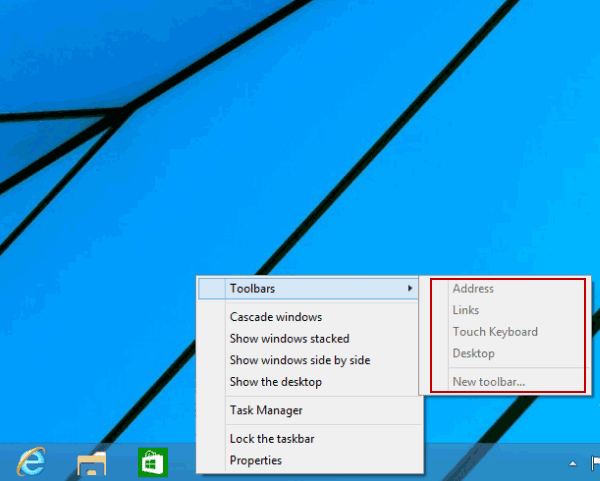
"Hi, there. I am unable to add toolbars to the taskbar on a Windows 10 computer because they can't be edited in the taskbar's right-click menu, as shown in the following photo. So, what can I do to solve the problem?"
If you're unable to add or remove toolbars on the Windows 10 taskbar—or the Toolbars option is missing or greyed out—this guide provides step-by-step fixes to regain control.
Why Is Toolbar Management Disabled?
These issues typically arise due to:
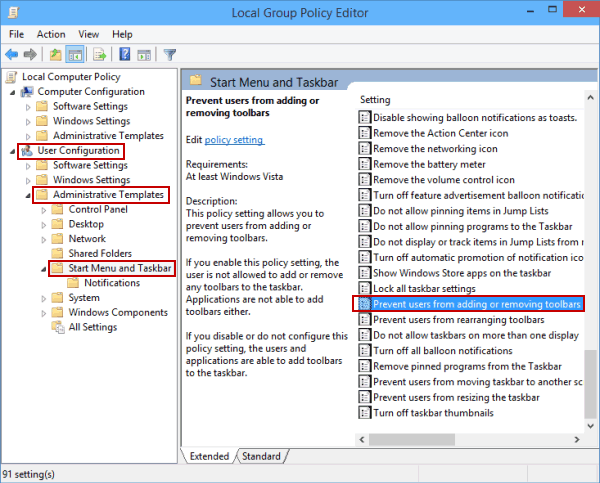
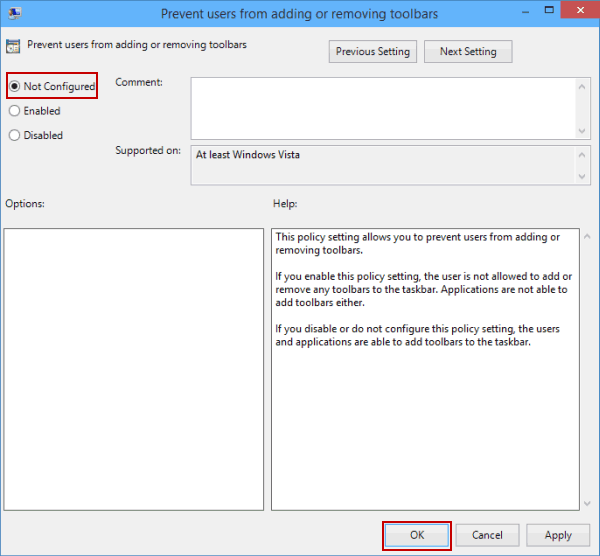
Group Policy restrictions blocking toolbar functionality
Taskbar settings locked due to "Lock the taskbar" policy