By Hally | Last Updated
Supposing that you want to change the order of day, month and year in the date, or would like to change the format of hour and minute in the time which is displayed on the bottom-right corner in your Windows 10 computer, you can achieve your goal by changing date and time formats. As for how to do that, two practical ways are introduced below.

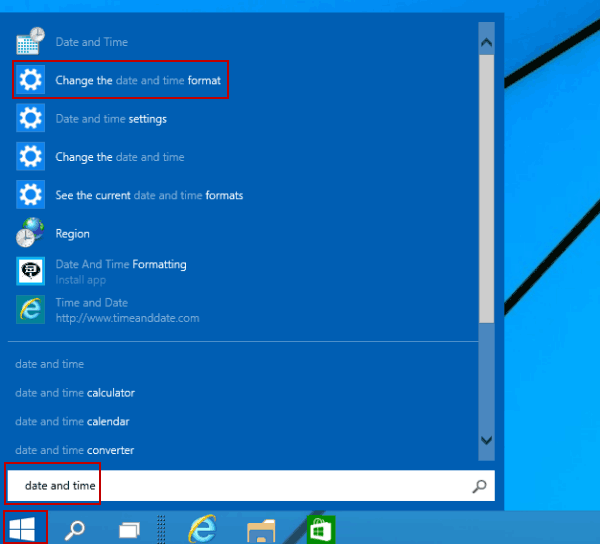
Step 1: Click the lower-left Start button, type date and time in the Start Menu's search box, and tap Change the date and time format in the results.

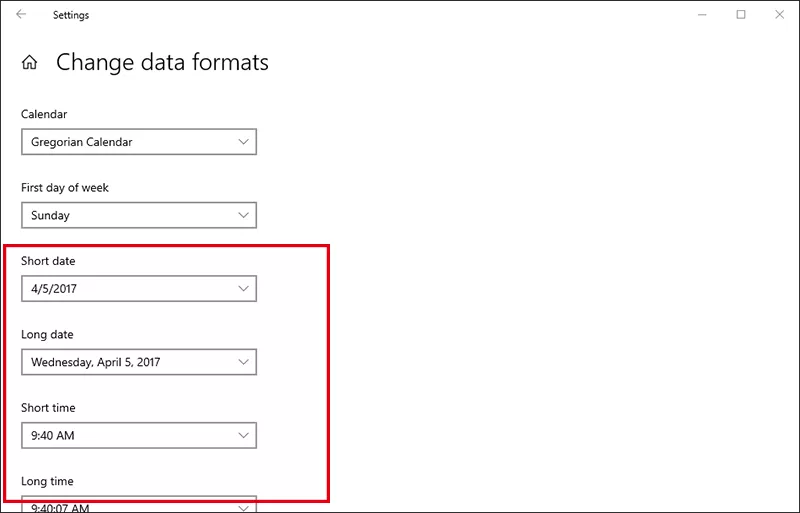
Step 2: In the Change data formats settings, select the date format and the time format you like.

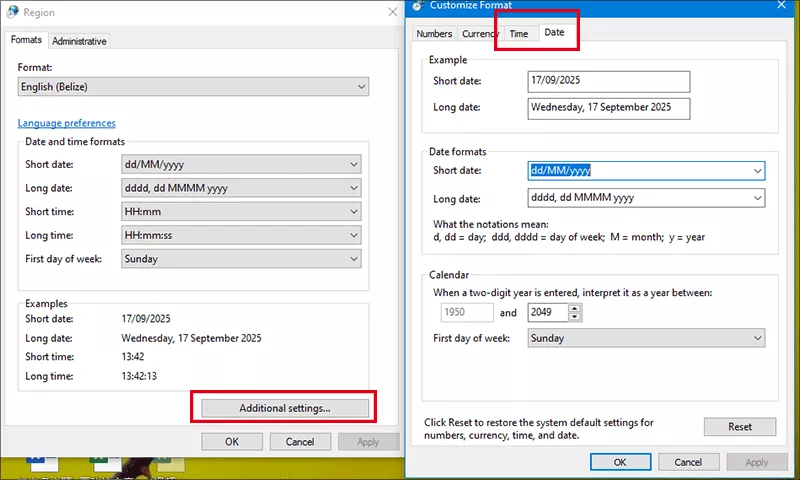
Step 1: Open Control Panel > Clock and Region. Then click Change date, time, or number formats.

Step 2: Customize the date and time formats.
1. In date formats, the meaning of the notifications is as follows.
d, dd=day; dddd=day of week; M=month; y=year.
2. In time formats, the meaning of the notifications is as below.
h=hour; m=minute; s=second; tt=AM or PM; h/H=12/24 hours; hh, mm, ss=display leading zero; h, m, s=do not display leading zero.

Step 3: Besides, you can click Additional settings button to define the date and time format separately.

Step 4: If you want to restore the default settings of the date and time, just hit the Reset button in Customize Format window.

Related Articles:
How to Reset Windows 10 Forgotten Password
How to Bypass Windows 10 Password Login with/without Password
Easy Guide to Reset Windows 10 Admin Password Like an Expert
4 Tips to Change Windows 10 Password without Knowing Current Password
Can't Sign into Microsoft Account Windows 10 | Account Locked/Blocked