We use cookies for personalizing content and ads and providing social media features. Your usage information on our website will be used for social media, advertising, and traffic analytics, or shared with our partners. Clicking "Accept" means you agree to use our cookies .
Windows 10 can better understand non‑native accents if you enable a specific setting—ideal for English learners or users with regional accents. The article illustrates how to let the system recognize non-native accents for the language you choose to speak with your device on Windows 10 computer.
Why Enable This Settings?
Speech recognition often struggles with accents that differ from native pronunciation. Enabling "Recognize non‑native accents" activates a specialized language model designed to improve understanding of foreign speakers, boosting recognition accuracy significantly.
Steps to enable Recognize non-native accents for this language in Win 10:
Step 1: Enter Settings.
Step 2: Open Time & Language .
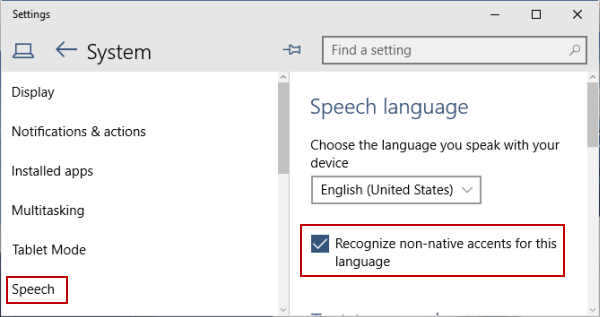
Step 3: Click Speech and choose Recognize non-native accents for this language.
Troubleshooting Common Errors
Error 1: "Recognizer language must match UI": Ensure both the display language and speech recognition language pack match. If not, download and install the correct one, then set it under Settings > Speech
Error 2: If recognition still fails, follow these steps (worked for many users):
1. Install then uninstall conflicting language packs (e.g., En US, En UK).
2. Enable the non‑native accents setting.
3. Restart Windows Speech Recognition
Error 3: If the option is missing, confirm you're using a supported speech language (currently only English variants).