We use cookies for personalizing content and ads and providing social media features. Your usage information on our website will be used for social media, advertising, and traffic analytics, or shared with our partners. Clicking "Accept" means you agree to use our cookies .
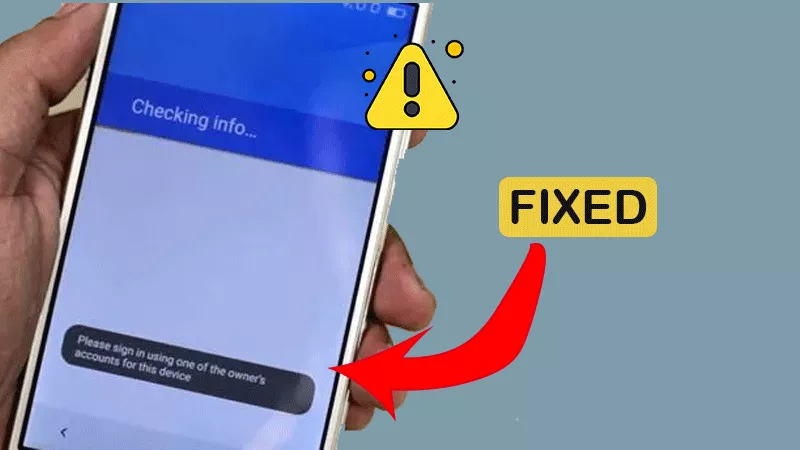
If you've factory reset your Android phone or tablet and now see the message "Please sign in with one of the owner's accounts for this device," you've run into Google's Factory Reset Protection (FRP).
This is a security feature designed to protect your data and make stolen devices harder to use — but if you've legitimately forgotten your Google account credentials, it can also lock you out of your own device. In this article, you can learn the easy solutions to bypass this error message.
When the Android phone has linked to a Google account and you factor reset it without signing out, this message will come to protect your data. Or you enable the FRP on the Android phone. If the original Google account credentials are not entered during setup, you will also encounter this message. This message is triggered by the Google lock, which ensures that even if someone resets your phone, they cannot access it without the linked Google account.
Fixed—Please Sign in with One of the Owner's Accounts
Solution 1: Sign in with the Original Google Account
If you have the Google account email and password which is used on the device, just go to enter the correct account name and password. What if you forgot the password? You can reset the Google account password with another accessible device.
Solution 2: Bypass This Message with FRP Unlock Tool
If you got a second-hand Android phone with the FRP lock, how can you bypass the Please sign in one of the Owner/s accounts for this device screen? iSunshare Android Password Genius is the professional FRP unlock tool which can remove FRP lock without a password. With this software, you can easily bypass the screen "device was reset sign in with Google account" or "Please sign in one of the owner's accounts for this device".
iSunshare Reliable Android Unlocker
Unlock FRP lock without the Google account credentials.
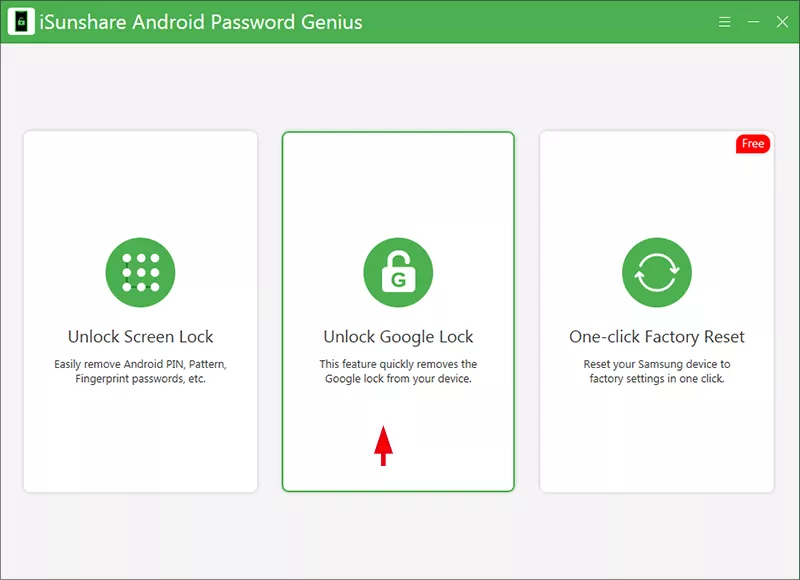
Step 1: After iSunshare Android Password Genius is installed on your computer, connect your phone to the computer and click "Unlock Google Lock" option from the main screen.
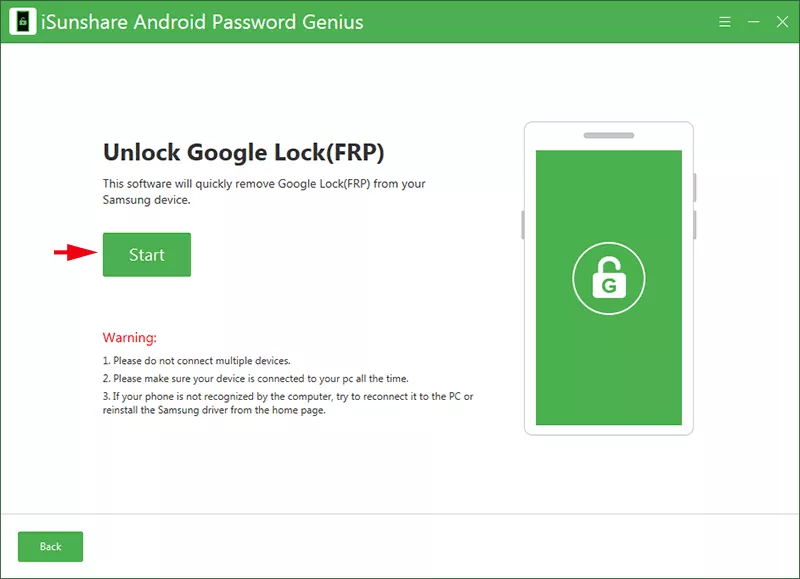
Then select the phone brand and click the Start button on the coming screen. Here, the Samsung brand is set as an example.
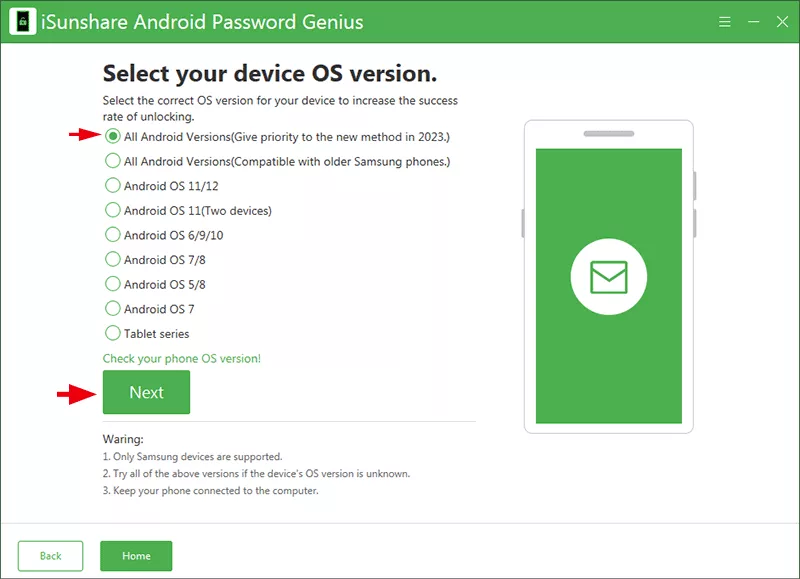
Step 2: Choose the Android OS version and hit the Next button. Generally, the first option is checked by most people.
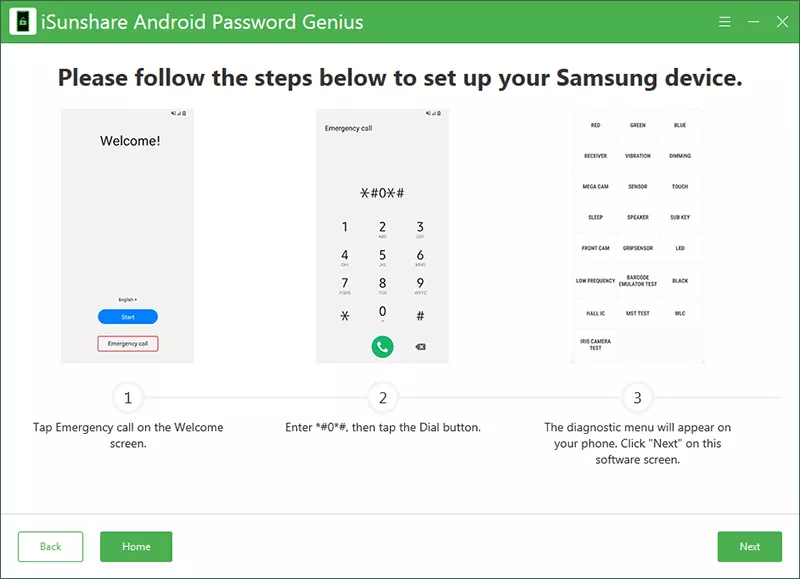
Step 3: Follow the on-screen instructions to set up your Samsung phone.
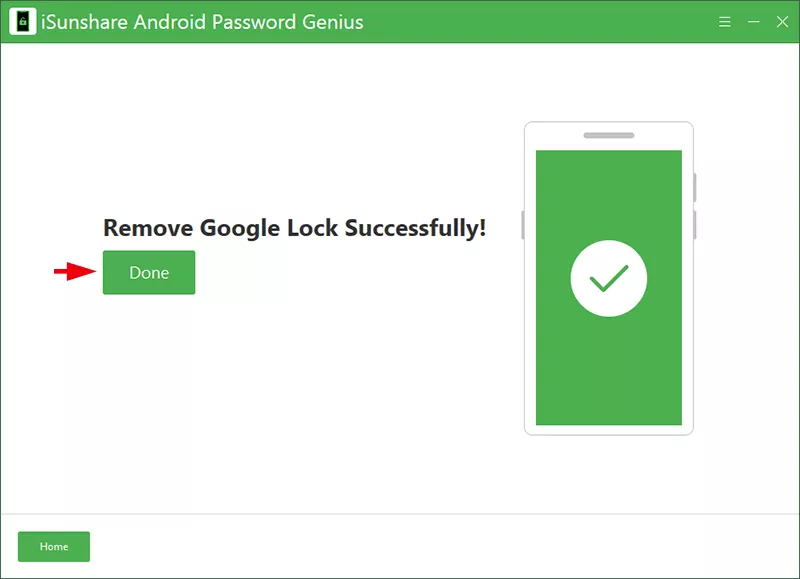
Step 4: The FRP lock is removed successfully. And your phone restarts and directly bypass the FRP lock screen.
How to Prevent This in the Future
Remove Google account before factory resetting your phone.
Keep your Google account credentials stored securely.
For the second-hand phone, make sure all related accounts are removed before payment.
Conclusion
Your phone shows the message—Please sign in with one of the owner's accounts for this device? Don't worry, you can fix this issue by signing in with the correct Google account or working with the professional FRP unlock tool. After that, you can regain access to the phone without requiring the credentials.