We use cookies for personalizing content and ads and providing social media features. Your usage information on our website will be used for social media, advertising, and traffic analytics, or shared with our partners. Clicking "Accept" means you agree to use our cookies .
You just received a bunch of photos from an iPhone user, or you transferred images from an Apple device — and now your Android phone can't open them. The files end in. heic, and nothing on your device seems to know what to do with them.
This is a frustratingly common problem. Since iOS 11, Apple has used HEIC as the default photo format. It saves half the storage space of JPEG at the same quality, yet fails to work well on Android devices. Luckily, it is easy to convert HEIC to JPG on Android phone if you know the right approach. In the below guide, you can learn step-by-step guide to solve this issue.
Android does not natively support the HEIC format. iPhones can automatically convert HEIC to JPEG when sharing files with non-Apple devices, yet Android lacks any built-in tool to view or convert this format.
When you try to open an heic file on Android, you typically see one of these prompts:
The file appears as a blank thumbnail or a generic icon
Your gallery app skips it entirely
A "file format not supported" error appears
Why this happens? The root cause is explained below. HEIC is based on the HEIF standard, which relies on a dedicated codec. Android vendors are not mandated to preinstall this component. While the latest Samsung and Google Pixel phones offer partial HEIF compatibility, support varies greatly across Android versions and brands. The most reliable fix is to convert HEIC to JPG. As a universal format, JPG works seamlessly on all Android devices, apps and platforms.
Method 1: Use an Online HEIC Converter (No App Required)
The fastest solution, especially for occasional conversions, is a browser-based converter. You don't need to install anything, and it works on any Android device regardless of the OS version.
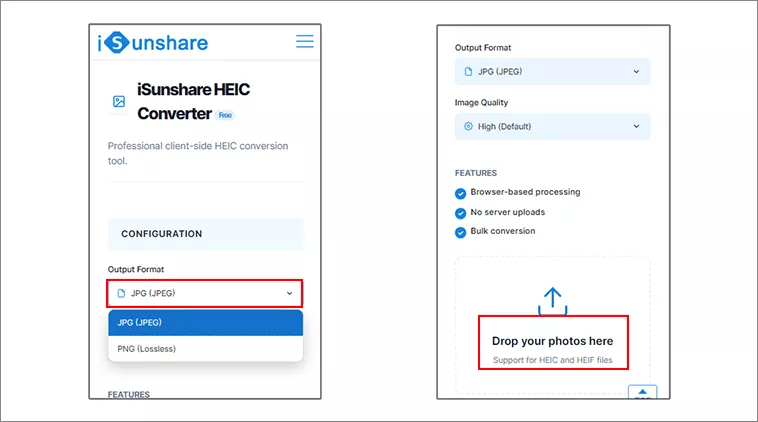
iSunshare HEIC Converter is a reliable online HEIC converter that handles both single files and bulk conversions directly in your mobile browser. This free HEIC converter enables users to transfer unlimited HEIC files to JPG/PNG files. It is best for one-off conversions, a handful of photos, or when you don't want to install an app.
Features
No installation needed
Supports batch conversion (multiple files at once)
Step 2: Choose JPG as the output format from the configuration section.
Step 3: Tap the upload area to select your HEIC file. It supports to add one file or multiple files at once.
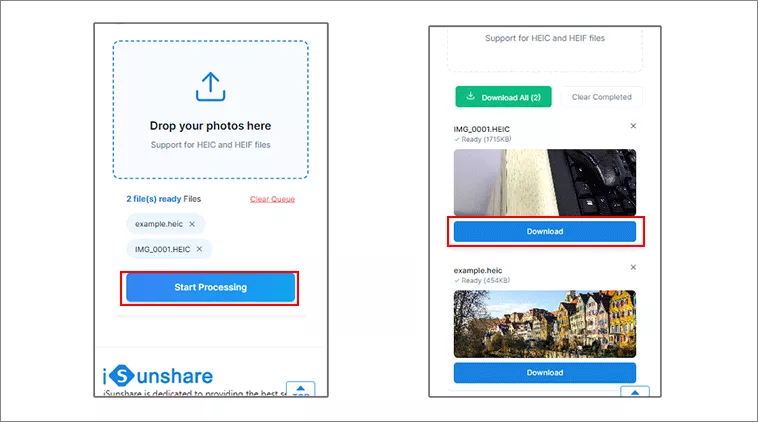
Step 4: Tap Start Processing and wait a few seconds.
Step 5: Tap Download or Download All to save the converted JPG file to your device.
Method 2: Convert HEIC to JPG Using a Dedicated Android App
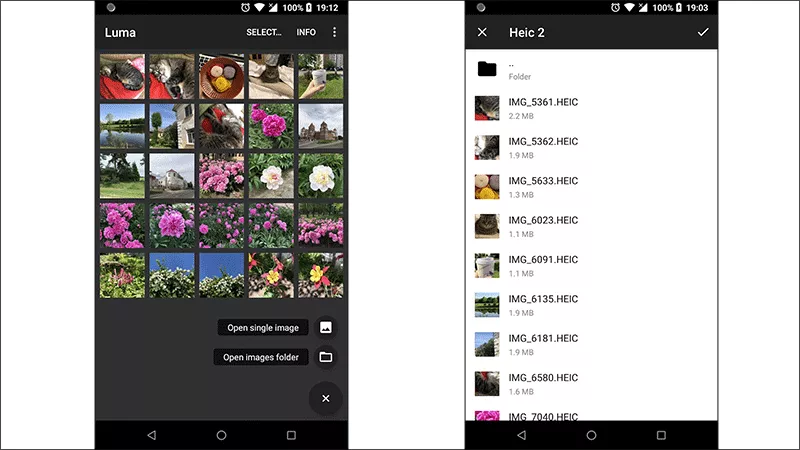
If you regularly receive HEIC files, a dedicated converter app gives you a faster, offline workflow directly from your gallery. Several lightweight converter apps on Google Play focus specifically on HEIC-to-JPG conversion. Look for apps with recent updates and positive reviews that clearly list HEIC/HEIF as a supported input format. Here, Luma is chosen as an example.
Step 1: Download and install Luma from Google Play.
Step 2: Run the app and choose HEIC to JPG option.
Step 3: Tap Select Files or Add Images and navigate to your HEIC files. Select the HEIC files to convert.
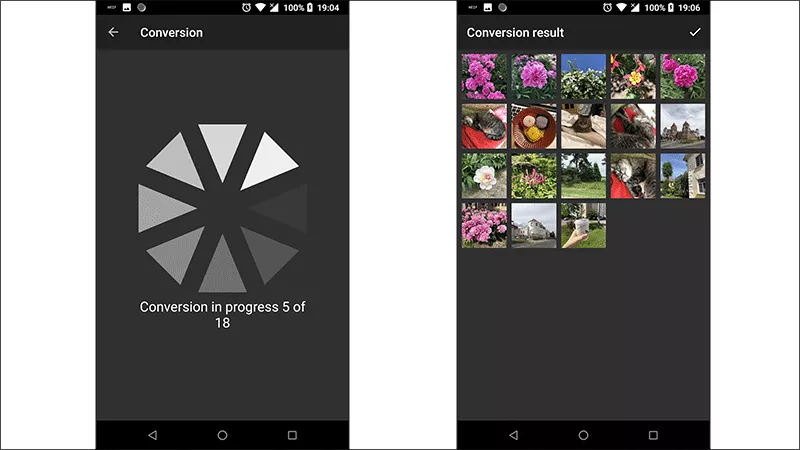
Step 4: Tap Save and choose a save location. Then the conversion will be in progress. When the process ends, you can check the conversion result in the app.
Method 3: Convert Using a File Manager App
Some advanced file manager apps on Android include built-in image conversion tools. This method is useful if you already use a file manager like Solid Explorer, MiXplorer, or Total Commander with image plugins. Here, MiXplorer is chosen as an example.
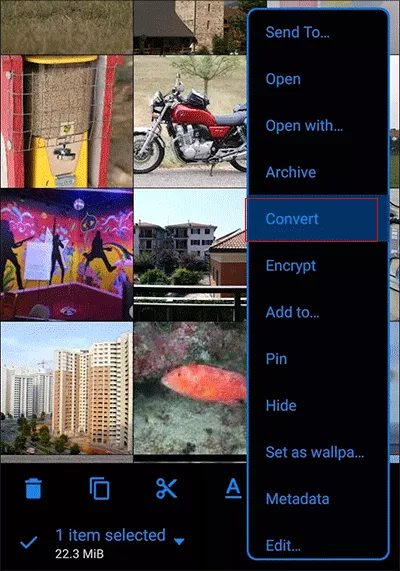
Step 1: Open MiXplorer and navigate to the folder containing your HEIC files.
Step 2: Long-press on a HEIC file to select it (tap additional files to add more to the selection).
Step 3: Tap the menu icon (three dots or overflow menu) and look for Convert option. Select JPG as the target format and confirm.
Note:
Not all file managers support this natively. If yours does not, you will need to install a plugin or use one of the other methods in this guide.
Method 4: Enable Automatic HEIC-to-JPEG Conversion on the Sending iPhone
This approach won’t convert HEIC files already stored on your Android, but it can stop this compatibility issue from recurring. If the iPhone user who is sending you photos adjusts one setting, all photos they share will automatically arrive as JPEG instead of HEIC.
Tell the iPhone user to do the following:
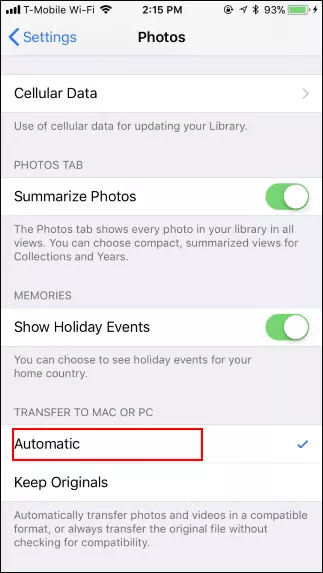
Step 1: Open Settings on their iPhone.
Step 2: Scroll down and tap Photos.
Step 3: Under the Transfer to Mac or PC section, select Automatic instead of Keep Originals. When Automatic is enabled, iOS will automatically convert photos to JPEG during transfer if the recipient’s device cannot read HEIC. Your original HEIC files remain untouched on the iPhone — only the shared copies get converted.
Note:
This feature works for AirDrop, Messages, email and wired transfers to PC. However, it may not take effect in third-party apps such as WhatsApp and Telegram, as these apps use their own independent compression mechanisms.
Does Converting HEIC to JPG Reduce Image Quality?
Yes, but in practice the difference is negligible for everyday use. Here is what actually happens:
HEIC uses HEVC (H.265) compression, which is mathematically more efficient than JPEG's older DCT-based algorithm. When you convert HEIC to JPG at high quality (85–95%), the resulting file is visually indistinguishable from the original for most viewing purposes.
The converted JPG file will be larger than the HEIC original — typically 1.5x to 2x the file size for equivalent quality. If you plan to print the photos professionally or edit them heavily, consider keeping the original HEIC files in addition to the converted JPGs. For sharing on social media, sending via messaging apps, or standard viewing and printing, JPG at 85%+ quality is more than sufficient.
FAQs on HEIC to JPG Conversion on Android
Q1: Can I open HEIC files on Android without converting them?
On most Android devices, no. A few apps — including some versions of Samsung Gallery on newer Galaxy devices — can display HEIC files.
Q2: Can I convert HEIC to JPG on Android for free?
Yes. The online method (iSunshare HEIC Converter) is completely free with no registration. Most basic converter apps on Google Play also offer free core functionality.
Q3: How do I convert a large batch of HEIC files on Android?
The online converter and most dedicated apps support batch conversion — select all your HEIC files at once rather than converting one by one. For very large batches (hundreds of files), a PC-based solution like ImageMagick or a desktop HEIC converter may be faster.
Q4: How to choose a good HEIC converter app for Android?
You can select the Android app from the these aspects:
Offline functionality (no internet required after install)
Batch processing support
Ability to choose output quality
Option to keep or strip EXIF metadata (location, camera settings)
Conclusion
HEIC is an Apple-exclusive format, and Android offers no native support for it. For most users, an online converter is the easiest solution. Simply open iSunshare HEIC Free Converter in your Android browser, upload your images, and you’ll get JPG files in seconds.
If you need to convert HEIC files frequently, a dedicated offline Android app is well worth installing. If you keep receiving incompatible files from iPhone users, ask them to set iOS photo transfer to Automatic. This is the most reliable long-term fix.