We use cookies for personalizing content and ads and providing social media features. Your usage information on our website will be used for social media, advertising, and traffic analytics, or shared with our partners. Clicking "Accept" means you agree to use our cookies .
Getting locked out of your Samsung Galaxy S25 Ultra can be stressful—especially if you can't recall your PIN, password, or pattern. Whether you've just changed your lock code or haven't used the device in a while, don't worry. You're not alone, and there are multiple ways to regain access to your phone. In this article, we'll walk you through several effective solutions to unlock your Galaxy S25 Ultra—even if you forgot the password.
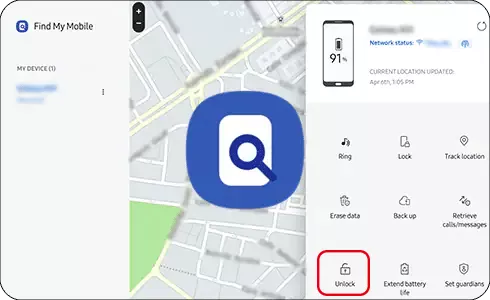
Step 2: Log in with your Samsung account. And select your Galaxy S25 Ultra from the list of devices.
Step 3: Click on Unlock, then follow the prompts. Soon, you can access Samsung S25 again.
Method 2: Unlock via Google's Smart Lock (If Enabled)
Google Smart Lock can keep your phone unlocked under certain conditions—such as when it's connected to a trusted device or location.
If you've set up Smart Lock to keep your phone unlocked at home or near a trusted Bluetooth device, try moving to that location or activating the paired device.
Method 3: Use Android Device Manager (Google's Find My Device)
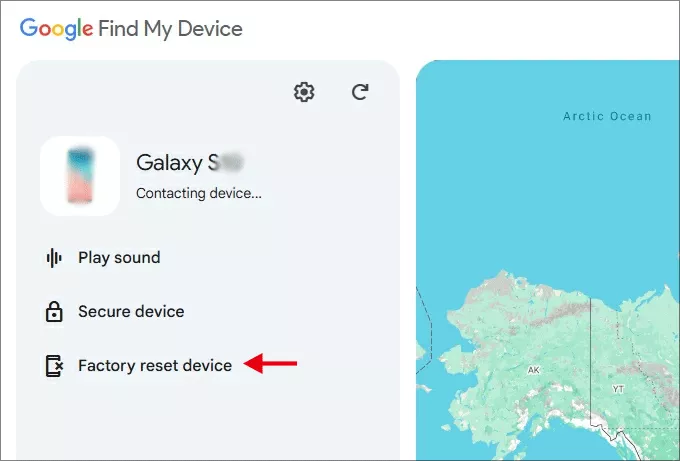
Google's Find My Device doesn't unlock your phone directly, but if you're planning to wipe and start fresh, it's an option.
Step 3: Select Factory reset device. This will factory reset your device and remove the lock screen.
Method 4: Fix Locked Samsung S25 with a Professional Unlock Tool
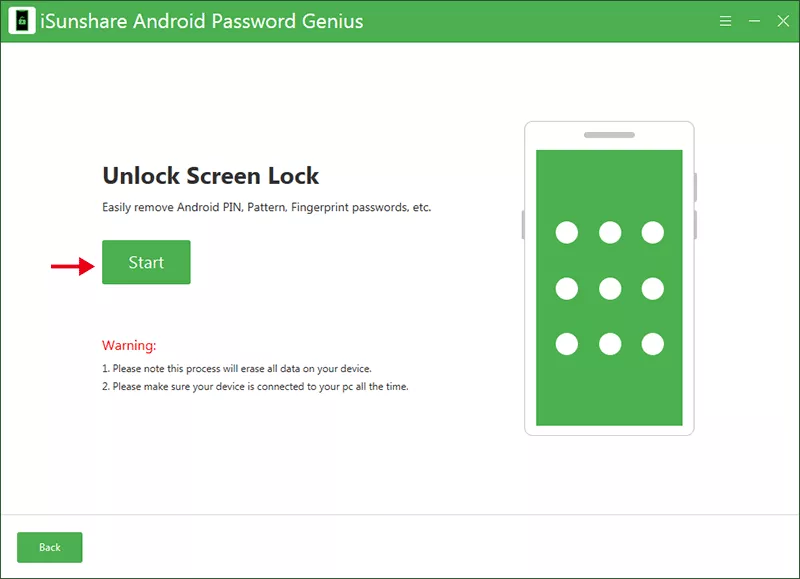
Some trusted third-party tools can help unlock your Samsung device, such as iSunshare Android Password Genius. This Android phone unlocker is designed to delete various screen locks on Samsung phone, such as PIN, password and Touch ID. It simplifies the process to bypass the screen lock on Samsung S-series, including but not limited to S25/24/23/22.
iSunshare Reliable Android Unlocker
Unlock Samsung phone without password in minutes.
Remove FRP lock from Samsung phone after factory reset.
Step 1: Run iSunshare Android Password Genius on your computer and opt for the Unlock Lock Screen option. After that, link your Samsung S25 Ultra to the computer.
Step 2: Click the Start button and choose Samsung on the following screen when asked for device brand.
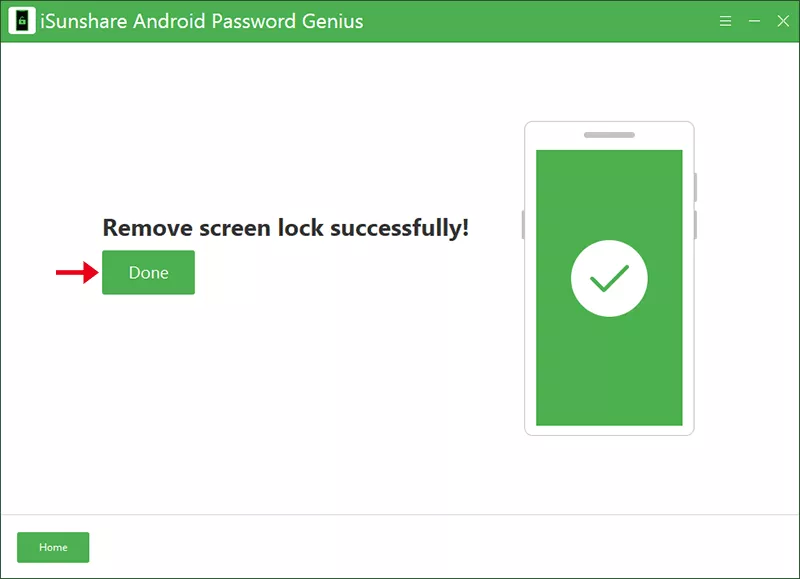
Step 3: Follow the on-screen instructions to put your phone into required mode. After that, the screen unlocking process will start. Minutes later, your Samsung phone will be unlocked.
FAQs on Samsung S25 Ultra Unlocking
Q1: What should I do if I forget the password on my Samsung Galaxy S25 Ultra?
You can unlock your S25 Ultra using Samsung Find My Mobile, Google Smart Lock, or unlocking with third-party tool. Each method has different requirements, such as prior account setup or internet connection.
Q2: Can I unlock my Galaxy S25 Ultra without erasing data?
Yes, if yo've previously enabled Samsung Find My Mobile and set up Remote Unlock, you can unlock the phone remotely without deleting your personal data. Or you can use the screen lock recovery option to unlock Samsung Galaxy S25 with the previous PIN.
Q3: What is Factory Reset Protection (FRP), and how does it affect unlocking?
FRP is a security feature that requires your Google or Samsung account credentials after a reset. If your Samsung S25 is erased, be sure you remember your account login—otherwise, you'll be locked out even after wiping the phone.
Q4: Is it possible to unlock Samsung S25 Ultra without a computer?
Yes, of course. If the screen lock is changed within 72 hours, there is a “Forgot PIN/Password/Pattern” option on the lock screen after 5 failed attempts. You can follow the instructions to unlock Samsung phone and set a new PIN/password/pattern.
Conclusion
Being locked out of your Samsung Galaxy S25 Ultra may feel overwhelming, but with the right tools and methods—like Samsung Find My Mobile, Google Smart Lock, or Android Password Genius—you can get back in and use your phone again.