We use cookies for personalizing content and ads and providing social media features. Your usage information on our website will be used for social media, advertising, and traffic analytics, or shared with our partners. Clicking "Accept" means you agree to use our cookies .
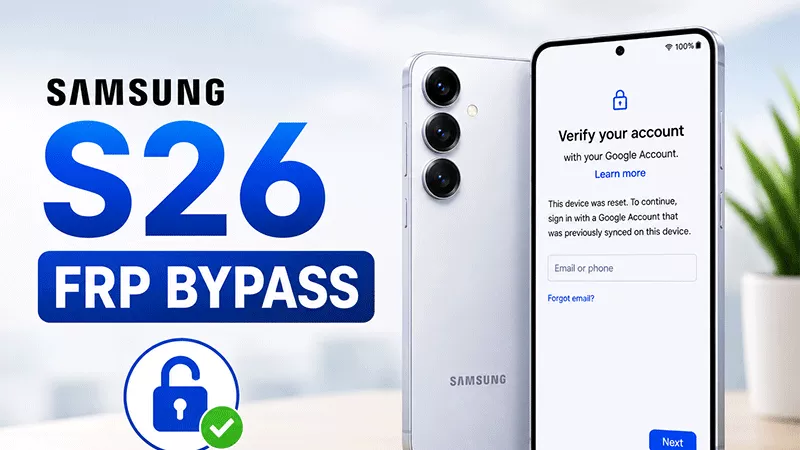
Stuck on Samsung Galaxy S26 Google Account Verification screen? You're not alone. This guide walks through Samsung S26 FRP bypass step by step — starting with the official, no-risk options, then moving to a dedicated FRP removal tool if those don't work.
What Is FRP, and Why Does It Lock You Out of the Samsung S26?
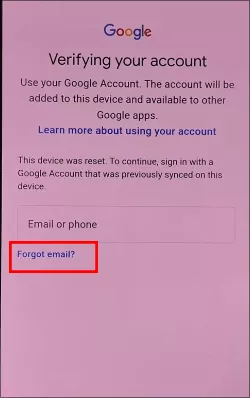
Factory Reset Protection (FRP) is a Google security feature built into every Android device, including the Galaxy S26, S26+, and S26 Ultra. It activates automatically the moment you sign into a Google account on the phone. If the device is later factory reset, Android will demand the previously linked Google username and password before letting anyone past the setup screen.
This is exactly the kind of Samsung S26 FRP lock bypass situation people run into after:
Buying a second-hand Galaxy S26 where the previous owner didn't remove their Google account
Forgetting their own Google account password after a reset
Inheriting or receiving a Galaxy S26 as a gift, with no login details supplied
A company-issued S26 being returned without the employee removing their personal account
Whatever the cause, the phone becomes unusable until the FRP screen is removed.
Method 1: Recover Your Google Account (No Data Loss)
If there's any chance you remember the account — even partially — start here. It's the only route that keeps your data intact.
Step 1: On the FRP verification screen, connect to Wi-Fi.
For situations where account recovery isn't possible, iSunshare Android Password Genius is a Windows-based tool built specifically to remove Google FRP locks on Samsung devices without needing the original account or password.
iSunshare Android Password Genius is a reliable Samsung FRP unlock tool that has a boasting compatibility with the widest range of Samsung Galaxy devices — including the all-new S26 series.
iSunshare Reliable Samsung FRP Bypass Software
Easily bypass Samsung FRP lock without Google account credentials.
Unlock the various screen locks on your Samsung phone.
Works on all Android OS and Samsung models.
No tech skills are required, easy to use for every beginner.
Step 1: Get iSunshare Android Password Genius on your computer.
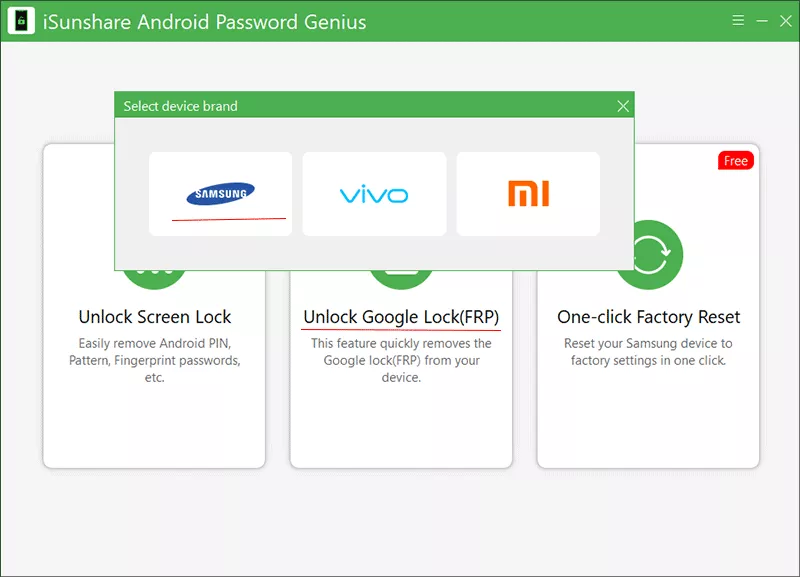
Step 2: Launch the program and select Unlock Google Lock (FRP). Then choose the Samsung brand.
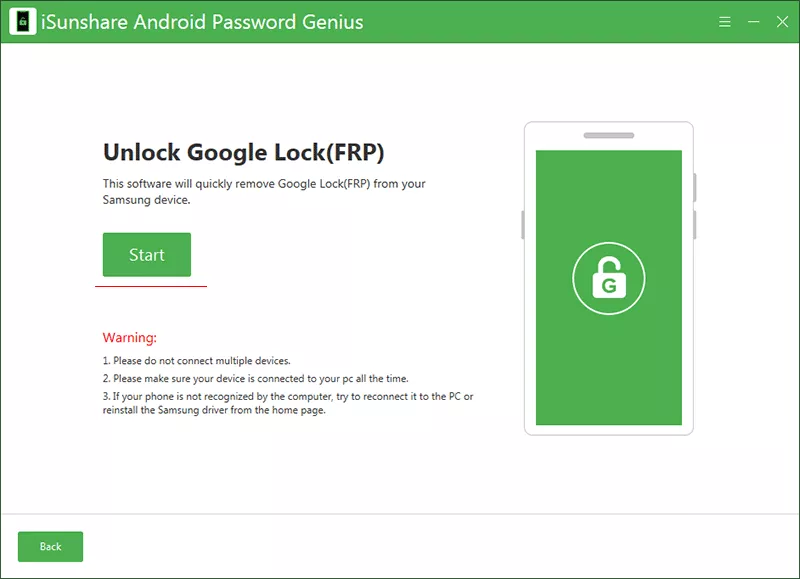
Step 3: Connect your Samsung Galaxy S26 to the computer via USB cable and keep it connected throughout. Then hit the Start button on the software interface.
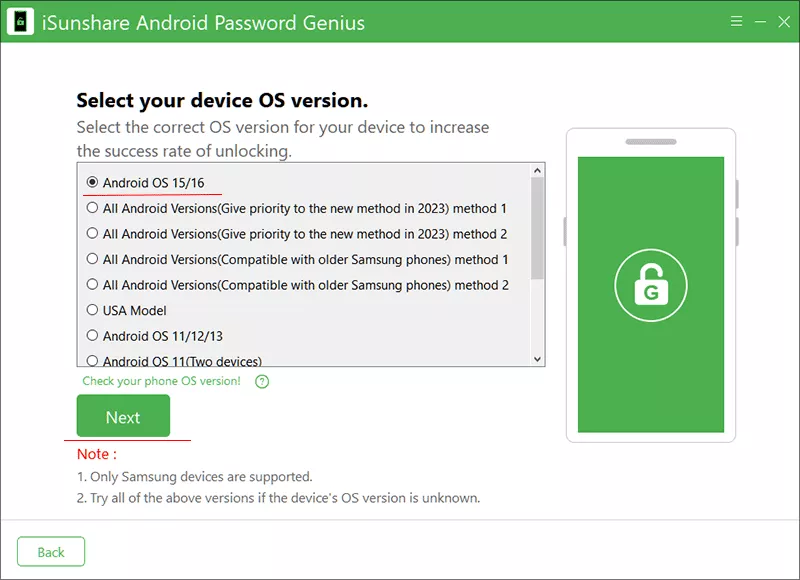
Step 4: Choose the matching option for your device's security patch. For Samsung S26, you can choose the first option and click the Next button.
Step 5: Follow the on-screen instructions to bypass the FRP.
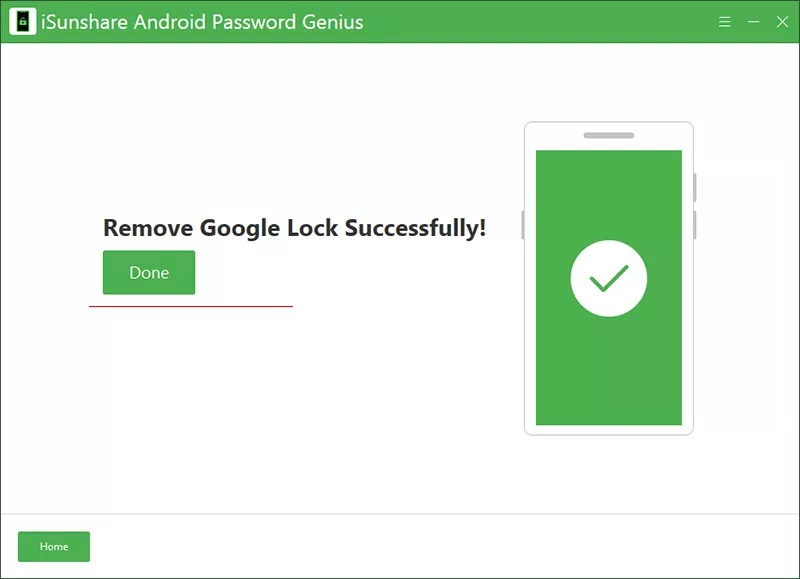
Step 6: The software is removing the Google account verification from your Samsung phone. Once finished, your S26 will restart FRP-free and ready to set up with any Google account.
FAQs on Samsung S26 FRP Bypass
Q1: Can I bypass Samsung S26 FRP with no PC?
Some free, manual tricks claim to work without a computer, but they're increasingly unreliable on newer Android security patches and carry a higher risk of failure or incomplete removal. A PC-based tool gives a more dependable result for current devices like the S26.
Q2: What is the best Samsung FRP bypass software?
You can try iSunshare Android Password Genius to bypass Samsung FRP lock on your phone. This Samsung FRP bypass software is compatible to all Samsung models and newest Android version.
Q3: Can Factory Reset Samsung S26 Unlock FRP Lock?
People expect it to help, but it won’t. Because the Google account is still linked in the background, the FRP screen will reappear immediately after setup. Use this method only in combination with Method 2, not as a standalone fix.
Q4: Does this work on the Samsung S26 Plus and S26 Ultra too?
Yes — the same FRP removal process applies across the S26, S26 Plus, and S26 Ultra, since all three share the same underlying Samsung/Android security architecture.
Conclusion
A Samsung S26 FRP bypass is very achievable for the owners locked out after a reset — you just need to match the right method to your situation. Try Google's own account recovery first since it's the only data-safe option, and fall back to a dedicated tool like iSunshare Android Password Genius when the account itself is out of reach. If the first attempt doesn't complete on the newest security patch, switching to the older-patch-compatible option inside the tool is usually all it takes to finish the job.