We use cookies for personalizing content and ads and providing social media features. Your usage information on our website will be used for social media, advertising, and traffic analytics, or shared with our partners. Clicking "Accept" means you agree to use our cookies .
Face recognition is the fastest way to unlock a Samsung Galaxy phone, so it is frustrating when it suddenly stops recognizing you, shows "Face recognition is not available," or only works some of the time. The good news is that Samsung face recognition not working rarely means the phone is broken. In most cases the cause is something simple: a covered camera, poor lighting, outdated face data, or a software glitch after an update.
This guide explains why Samsung face unlock fails and walks you through 10 fixes, starting with quick, non-destructive checks and ending with a system repair tool for stubborn software problems. The steps apply to Galaxy S, Note, Z, and A series phones, including recent models such as the S26, S25, S24, and A-series devices.
Before you start changing settings, it helps to know what usually goes wrong. The table below lists the most common causes and the section that fixes each one.
Cause
What You Notice
Go To
Covered or dirty front camera
Recognition fails often, especially with a new screen protector or case
Method 1
Face partly covered (mask, sunglasses, hat, thick glasses)
Works without the accessory, but fails with it
Methods 1 and 4
Low light or bad scanning angle
Fails at night or when the phone is held too far or too low
Methods 1 and 3
First unlock after restart
Phone asks for PIN, pattern, or password instead of your face
Method 2 (expected behavior)
Outdated or poor face data
Worked before, then became unreliable
Methods 4 and 5
Software bug after an update
Stopped working right after a One UI or security update
Methods 6 and 10
Third-party app conflict
Problems began after installing a new app
Method 8
Corrupted settings or system files
Option is greyed out or will not toggle
Methods 9 and 10
Hardware fault
Front camera is cracked, blocked, or fails other camera tests
Method 7 and Samsung support
Keep in mind that some reported faults are simply design limits. Samsung notes that face recognition is less secure than a PIN, pattern, or fingerprint, and that masks, sunglasses, hats, makeup, bangs, and beards can all affect recognition.
Method 1: Clear Obstructions and Scan Correctly
Face recognition relies on the front camera and sensors seeing your eyes, nose, and mouth clearly. Start with the basics:
Wipe the front camera and the area around it with a soft, clean cloth.
Remove anything added since you registered your face, such as a new screen protector, a thick case, or a camera-area sticker.
Take off sunglasses, a mask, a hat, or other items that cover your face.
Hold the phone in portrait orientation at about arm's length and look straight at the screen.
Make sure you are not in extremely dim or harsh backlit lighting.
A screen protector is a surprisingly frequent cause. If recognition stopped right after you applied one, remove it, test again, and then re-register your face (Method 5) once you reapply a protector that does not cover the sensor area.
Method 2: Restart Your Phone and Know the Restart Rule
A simple restart clears temporary glitches. It also helps to know a built-in rule: after the phone powers on, Samsung requires your PIN, pattern, or password for the first unlock. Your face cannot be used for that first unlock, and this is normal, not a fault.
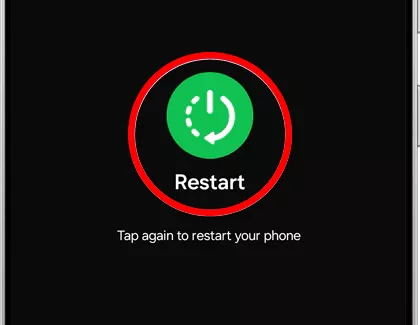
Press and hold the Side key and the Volume Down key, then tap Restart. When the phone starts, unlock it with your PIN, pattern, or password. Lock the screen and try face recognition again.
Method 3: Turn On Brighten Screen and Faster Recognition
In low light the camera may not see your face clearly. Samsung includes a setting that briefly brightens the display during scanning.
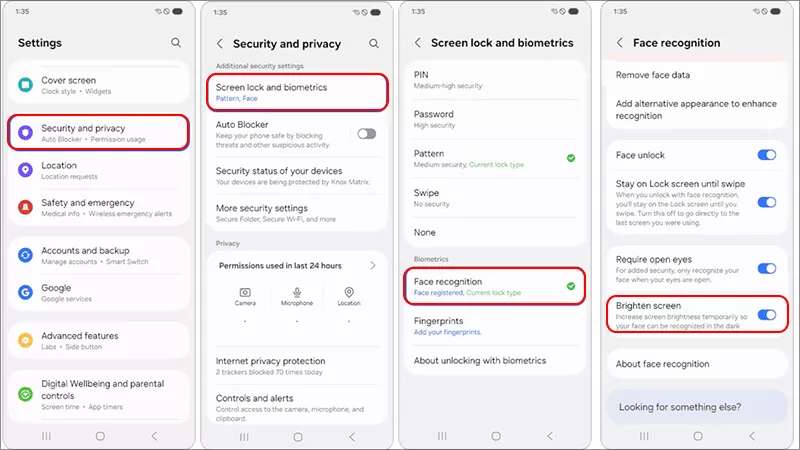
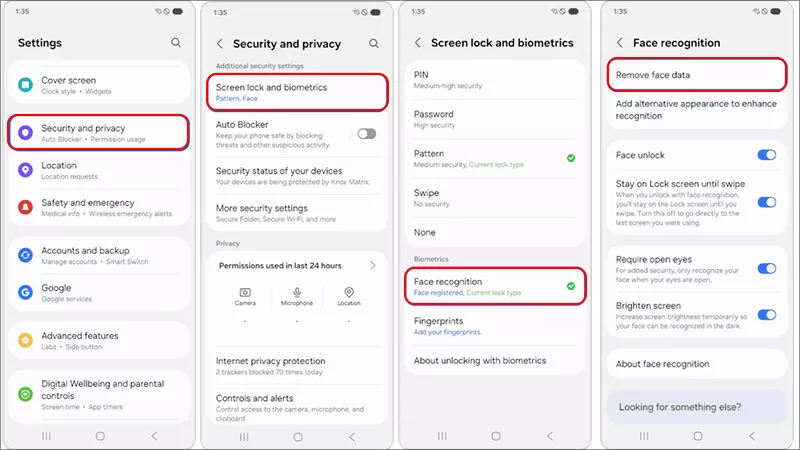
Step 1: Open Settings and tap Security and privacy > Screen Lock and Biometrics (on older One UI versions: Biometrics and security).
Step 2: Tap Face recognition and enter your PIN, pattern, or password. Turn on Brighten screen.
Step 3: If available on your model, you can also try the Faster recognition toggle, then test again. Faster recognition trades a little security for speed, so switch it back off if you notice more incorrect unlocks.
Menu names differ slightly between One UI versions and models, but the options are always under Face recognition.
Method 4: Add an Alternative Appearance
If you regularly wear glasses, grow a beard, or change your look, add a second appearance so the phone can match more than one version of your face.
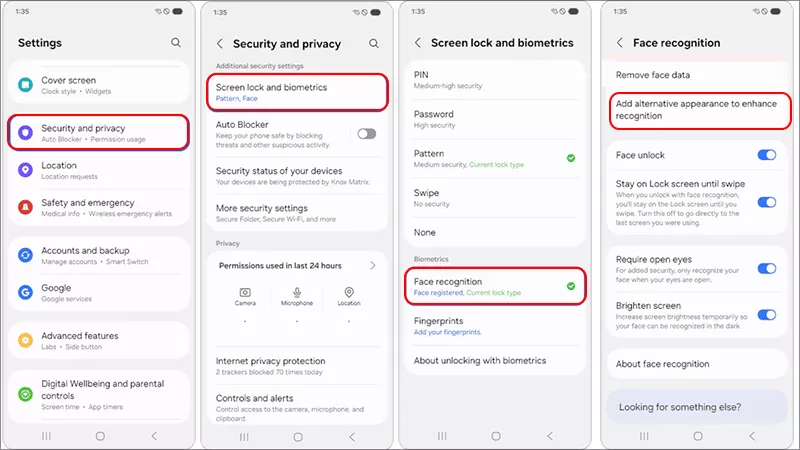
Step 1: Go to Settings > Security and privacy > Screen Lock and Biometrics > Face recognition and enter your credentials.
Step 2: Tap Add alternative appearance to enhance recognition (or a similarly named option).
Step 3: Follow the on-screen prompts while wearing the glasses or look that currently fails.
Method 5: Remove and Re-Register Your Face Data
Old or poorly captured face data is one of the most common reasons recognitions becomes unreliable. A fresh scan often fixes it.
Step 1: Open Settings > Security and privacy > Screen Lock and Biometrics > Face recognition and enter your credentials.
Step 2: Tap Remove face data and confirm.
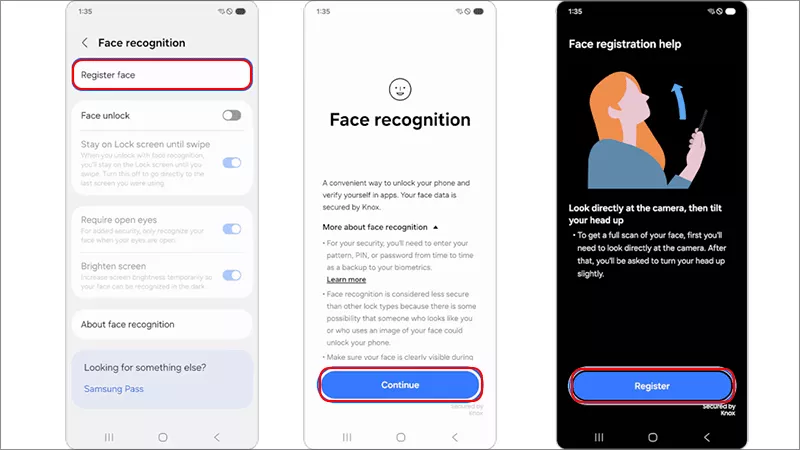
Step 3: Tap Register face and scan your face in a well-lit room. Face the camera directly, hold the phone steady, and gently tilt your head as prompted.
Step 4: Remove your sunglasses and any hat during registration, then lock the screen and test.
Note:
Register your face in the same kind of lighting where you usually unlock your phone, and avoid scanning in a dark room.
Method 6: Update One UI and Security Patches
If face recognition broke right after an update, the next release often carries the correction. If it broke because you have not updated for a while, installing the latest software can also help.
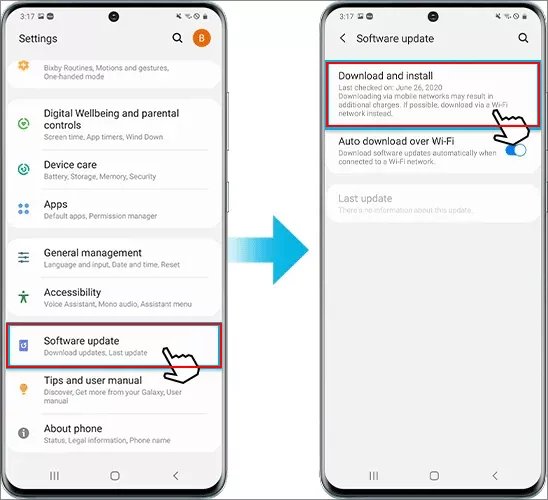
Step 1: Open Settings > Software update.
Step 2: Tap Download and install and wait for the update to finish.
Step 3: Restart the phone, then re-register your face (Method 5) because the update may have changed how face data is stored.
Method 7: Run Samsung Members Diagnostics
Samsung's own diagnostic tool can check whether the problem is software or hardware.
Step 1: Open the Samsung Members app (install it from Galaxy Store or Google Play if missing).
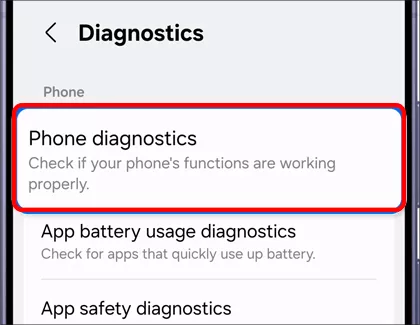
Step 2: Go to Support > Phone diagnostics.
Step 3: Run the face recognition and camera tests, and note any failures.
Step 4: If the front camera fails, the issue is likely hardware, and you should contact Samsung support or visit a service center.
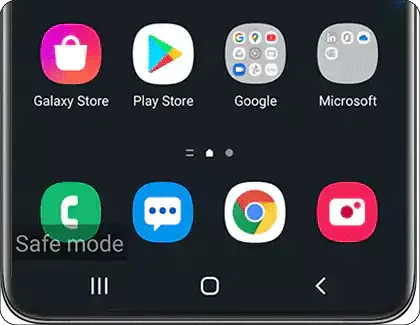
Method 8: Test in Safe Mode
A recently installed app can interfere with the lock screen or camera. When you are in the safe mode, those apps cannot work.
Step 1: Press and hold the Side key, then touch and hold Power off until Safe mode appears.
Step 2: Tap Safe mode and wait for the phone to restart.
Step 3: Test face recognition. If it is available to use, your third-party app is the cause. It is recommended to uninstall it.
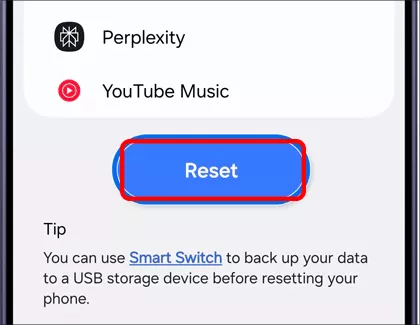
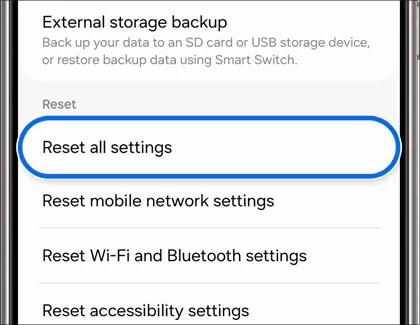
Method 9: Reset All Settings
If the Face recognition option is greyed out, will not toggle, or keeps failing after everything above, resetting settings can clear corrupted configuration without deleting your photos, apps, or files.
Step 1: Open Settings > General management > Reset.
Step 2: Tap Reset settings (on some versions Reset all settings) and confirm with your credentials.
Step 3: After the phone restarts, set up face recognition from scratch. This resets items such as Wi-Fi networks, Bluetooth pairings, and display preferences to defaults, so you will need to set those up again.
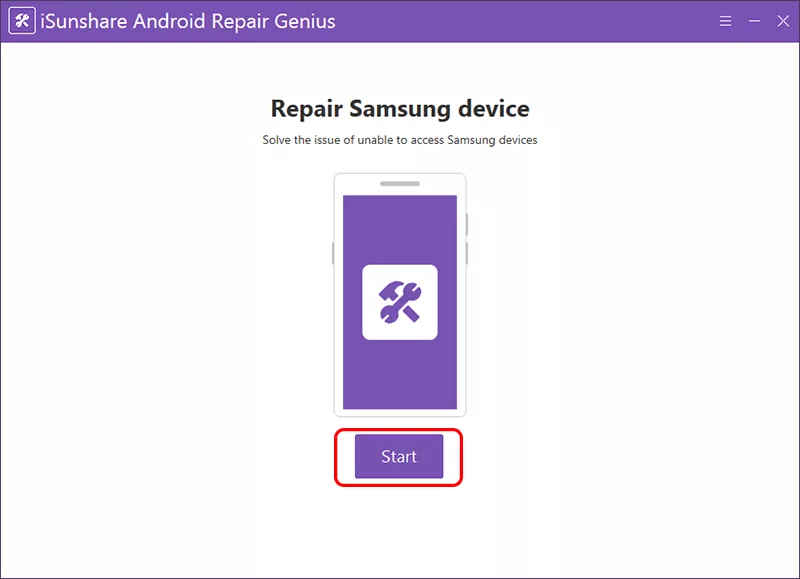
Method 10: Repair System Faults with Android Repair Genius
When face recognition still fails and the diagnostics do not point to a damaged camera, the cause may be a deeper Android system problem, such as corrupted system files after a failed update. A dedicated system repair tool can fix these faults without a full factory reset in many cases. iSunshare Android Repair Genius is designed for Samsung and other Android devices.
Back up important data first. Depending on the repair mode and the state of your phone, a system repair can erase data, so a current backup protects your photos, contacts, and files.
Use a reliable USB cable and make sure the phone has enough battery.
Step 1: Download and install Android Repair Genius on your Windows computer. Launch the program and connect your Samsung phone with a USB cable.
Step 2: Hit the Start button on the home interface.
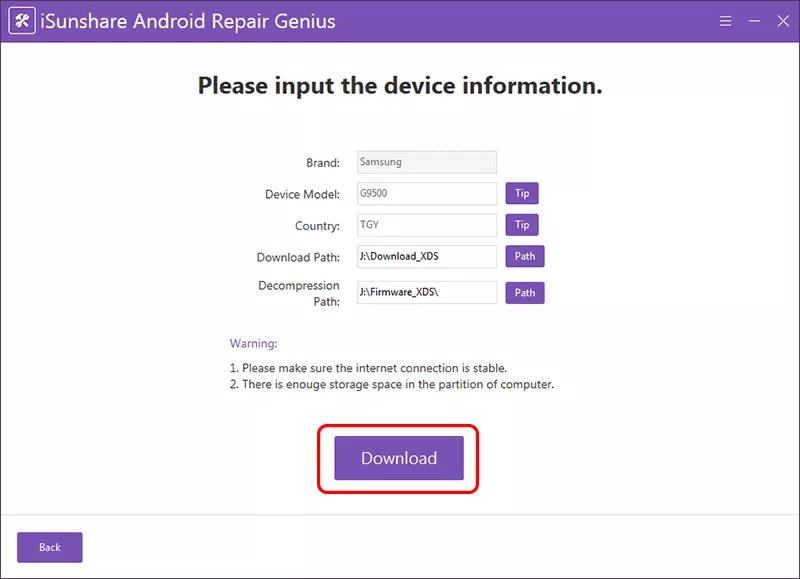
Step 3: Confirm your device details, such as model, and country or region. Afterward, click the Download button.
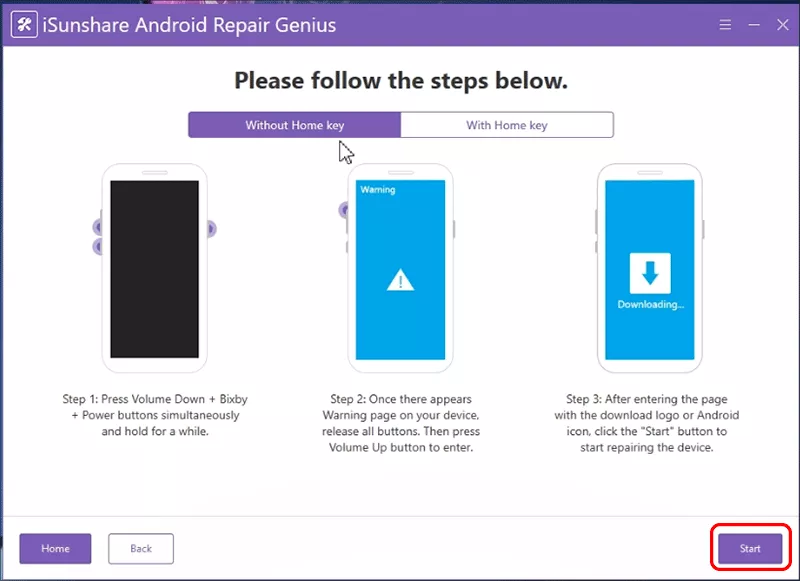
Step 4: Follow the on-screen instructions to put the phone into download mode, then let the program download the matching firmware package. Wait for the repair to finish and for the phone to restart.
Step 5: Set up face recognition again under Settings > Security and privacy > Biometrics > Face recognition.
Do not disconnect the phone or use it during the repair. If face recognition still fails afterward and the Samsung Members diagnostics reported a front camera error, the cause is almost certainly hardware and needs a professional inspection.
The same steps apply across Galaxy S-series, Note 20, and A-series models. Menu wording can vary a little by One UI version, but Face recognition always lives under the Biometrics section of Settings.
Forgot your PIN as well?
If face recognition fails and you cannot remember your PIN, pattern, or password, you cannot use the steps above because they require your credentials. If your phone is linked to a Samsung account with remote controls enabled, Samsung's Find My Mobile service can unlock it. Otherwise, contact Samsung support.
FAQs on Samsung Face Recognition not Working
Q1: Why does Samsung face recognition not work right after I restart my phone?
This is expected behavior. After the phone restarts, Samsung requires your PIN, pattern, or password for the first unlock. Face recognition works again from the second unlock onward.
Q2: Why did face unlock stop working after a software update?
An update can reset or disturb the stored face data, or introduce a bug that affects recognition. Re-registering your face is the quickest fix, and installing the next One UI update often resolves bug-related cases.
Q3: Does Samsung face recognition work in the dark or with sunglasses?
In low light it works better with the Brighten screen option turned on, which briefly lights the display. Sunglasses, masks, hats, and thick-rimmed glasses can interfere with recognition, so remove them or register an alternative appearance.
Conclusions:
Samsung face recognition not working is usually fixable in a few minutes. Start by clearing obstructions, restarting, and re-registering your face, then move on to software updates, diagnostics, and a settings reset if needed. If the problem remains and your camera passes the diagnostics, a system repair with Android Repair Genius can fix deeper software faults. If the front camera itself fails, contact Samsung for a hardware check. Whatever you choose, keep a strong PIN or pattern as your backup lock method.