We use cookies for personalizing content and ads and providing social media features. Your usage information on our website will be used for social media, advertising, and traffic analytics, or shared with our partners. Clicking "Accept" means you agree to use our cookies .
If your Samsung phone keeps restarting, you are not alone. Random reboots can strike in the middle of a call, while you charge overnight, or only when you open one particular app. The good news is that most cases come from software or settings, and you can fix them without a repair shop.
This guide explains why a Galaxy phone restarts by itself and walks through nine fixes, ordered from the safest to the most drastic. It also covers when the problem is really hardware, so you know when to stop troubleshooting.
A Galaxy phone can reboot for several different reasons. Knowing the likely cause saves time, because each cause points to a different fix:
Scheduled Auto restart: the Device care feature restarts the phone at set times to keep it running smoothly, which can look like a random reboot if you forgot you turned it on.
A faulty or incompatible app: a recently installed or outdated app can crash the system and force a restart.
Outdated or buggy software: a failed update or a bug in the current One UI version can cause repeated reboots.
Corrupted system cache: leftover cache data from an update can conflict with the system.
Low storage or overheating: a nearly full phone or a very hot one can become unstable.
Charging or battery faults: a bad cable, charger or aging battery can cut power suddenly.
Hardware damage: drops, water exposure or a failing motherboard component.
Method 1: Force Restart Your Samsung
A force restart clears temporary glitches and is the quickest thing to try. You can keep pressing the Volume Down button and Side button until the Samsung logo appears. Then wait for the Samsung phone to reboot. If your phone has a removable battery or you cannot see the logo, wait a minute and try again.
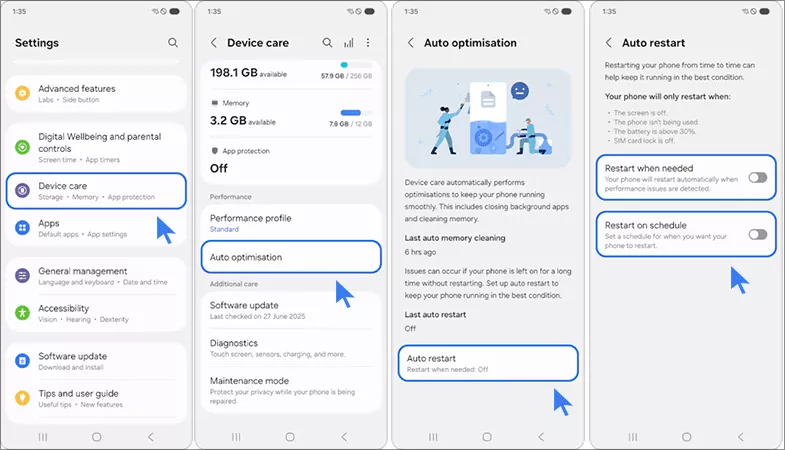
Method 2: Turn Off Auto Restart
If the phone restarts at about the same time every day or night, this is the first setting to check. Unlock your Samsung phone and tap Settings> Battery and device care, then choose Auto optimization. Finally, toggle off both Restart when needed and Restart on schedule options.
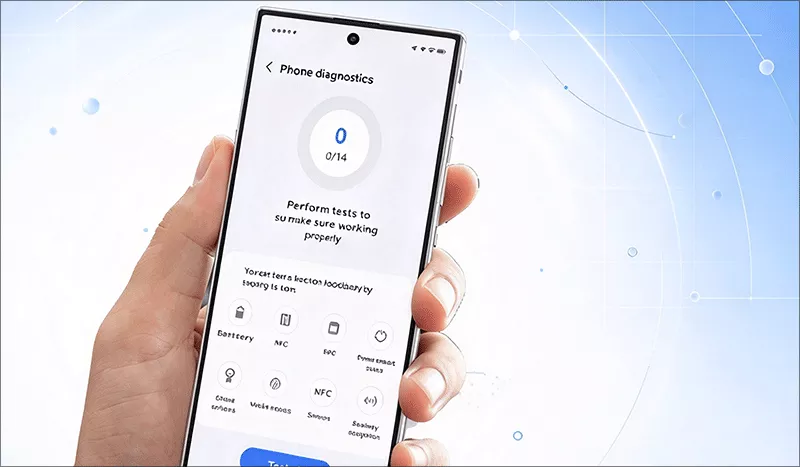
Method 3: Run Samsung Members Diagnostics
The Samsung Members app can test your phone for restart-related problems and may point to the cause. Open the Samsung Members app (install it from Galaxy Store or Google Play if you do not have it). Then choose Phone diagnostics. Run the available tests, including the battery and software checks, and follow any recommendation shown.
Method 4: Update Your Software and Apps
Samsung and app developers release patches for stability bugs, so an update can end the restarts.
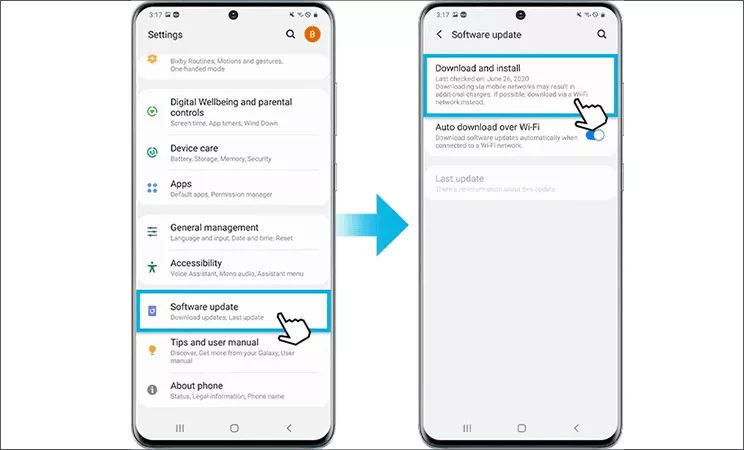
Step 1: Go to Settings > Software update > Download and install and install any available update.
Step 2: Open the Google Play Store, tap your profile icon, choose Manage apps & device, and update all apps.
Step 3: Check Galaxy Store for Samsung app updates too.
Method 5: Boot Into Safe Mode to Find a Bad App
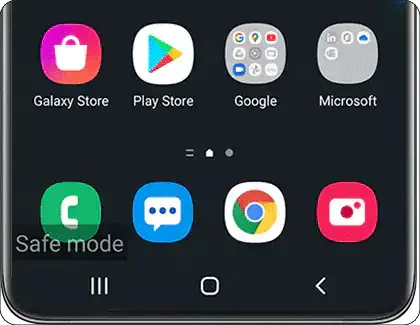
Safe Mode loads Android with third-party apps disabled. If the phone stops restarting there, an app you installed is the culprit.
Step 1: Press and hold the Side (Power) button, then touch and hold Power off.
Step 2: Tap the green Safe mode check mark. Your phone restarts and shows Safe mode at the bottom of the screen.
Step 3: Use the phone normally for a while. If it no longer restarts, go to Settings > Apps and uninstall the most recently added apps one at a time. Restart the phone normally to leave Safe Mode.
Method 6: Free Up Storage, Cool the Phone and Check Accessories
Resource and power problems cause a surprising share of random reboots.
Free up storage: aim to keep several gigabytes free. Delete unused apps, move photos to the cloud and clear large files.
Let it cool down: remove the case, close heavy apps and avoid charging in direct sunlight or while gaming.
Try a different cable and charger: use a certified one and check that the charging port is free of lint or dust.
Remove the SD card and SIM temporarily: a damaged card or tray can trigger restarts. Reinsert them one at a time to test.
Method 7: Wipe the Cache Partition
This clears system cache files without touching your personal data, which helps when restarts began after an update.
Step 1: Power off the phone.
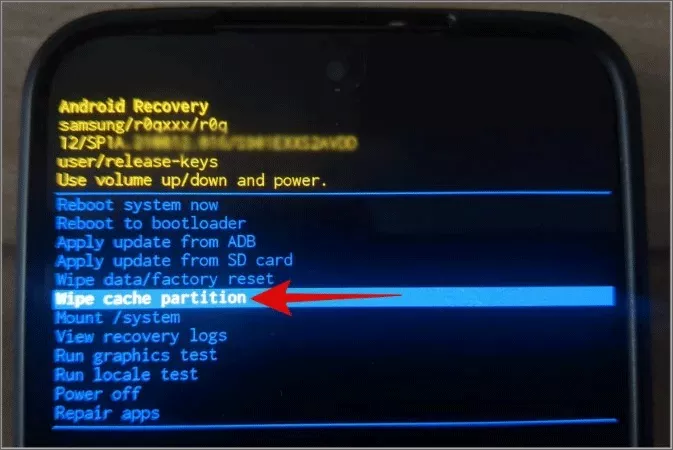
Step 2: Connect it to a computer with a USB cable, then hold Volume Up and the Side button until the Samsung logo appears. On older models, hold Volume Up + Power (and Bixby if your phone has the button). Release when the Recovery menu appears.
Step 3: Use Volume Down to highlight Wipe cache partition and press the Side button to select it.
Step 4: Confirm, wait for it to finish, then choose Reboot system now. Do not select Wipe data/factory reset by mistake. That option erases the phone.
Method 8: Repair the Android System with Android Repair Genius
If the restarts continue after the fixes above, the cause is often corrupted system files or a firmware problem that settings cannot reach. A dedicated Android system repair tool can reinstall clean firmware for your exact model. iSunshare Android Repair Geniusis built for this kind of Samsung software fault, including repeated restarts, boot loops and apps that keep crashing.
Step 1: Download and install Android Repair Genius on a Windows computer and connect your phone with a good USB cable.
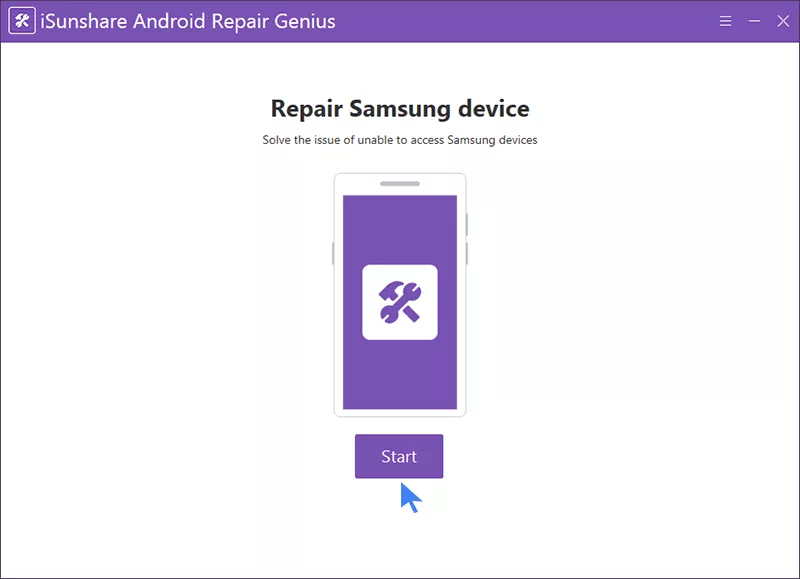
Step 2: Launch Android Repair Genius and click the Start button.
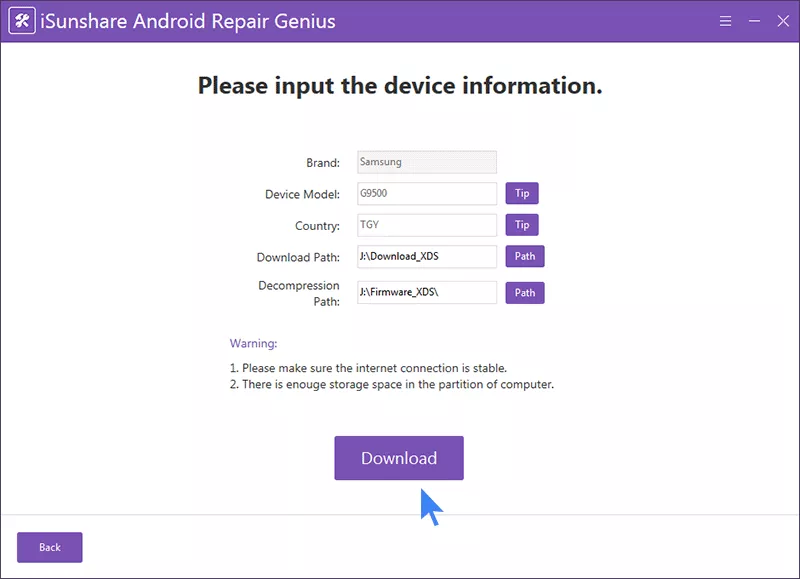
Step 3: Confirm your device details, such as brand, model name and country or carrier, so the correct firmware package is selected.
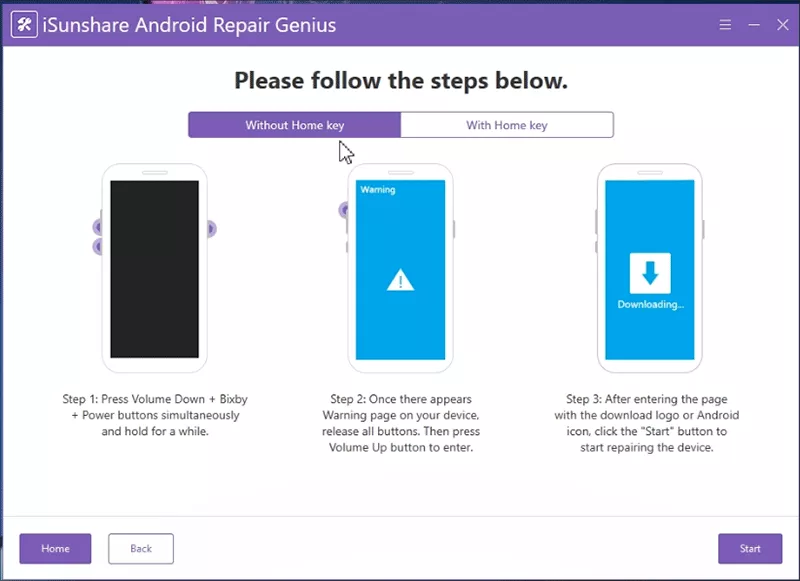
Step 4: Follow the on-screen guides to make your Samsung phone into Download Mode. On most recent Galaxy models, power off, hold Volume Up and Volume Down together while plugging in the USB cable, then press Volume Up to continue.
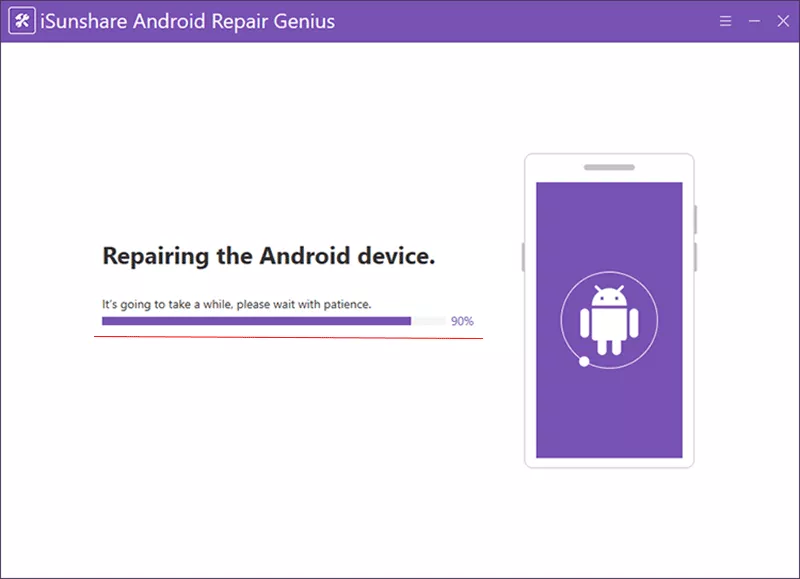
Step 5: Afterwards, hit the Start button. Let the program download the firmware package and start the repair. When the repair finishes, the phone restarts automatically. Set it up again and check whether the restarts have stopped.
Method 9: Factory Reset as a Last Resort
If nothing else works and you do not want to use a repair tool, a factory reset can clear a deep software fault. It wipes all your Samsung phone data and settings.
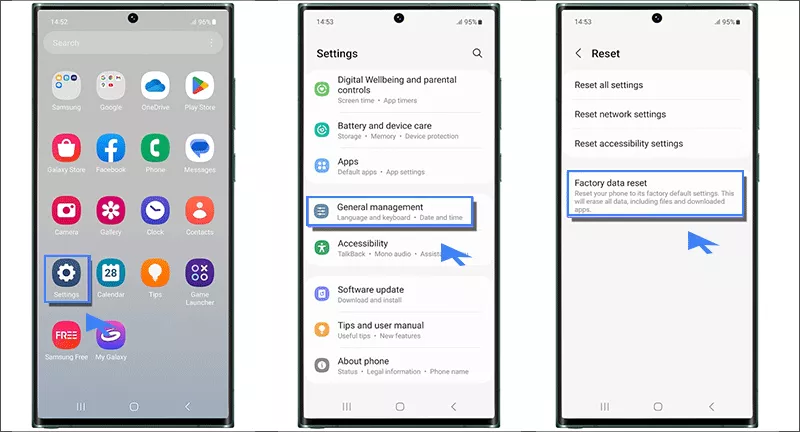
Step 1: Open Settings > General management > Reset.
Step 2: Choose Factory data reset and pay attention to warning text.
Step 3: Confirm it and after the phone reboots, set it up as new and restore your backup gradually, installing apps in small batches to spot any app that brings the problem back.
Troubleshooting: Match Your Symptom to a Fix
What You Notice
Likely Cause
What to Try
Restarts at the same time every day or night
Auto restart schedule
Method 2
Restarts when you open one app or game
Faulty or outdated app
Method 5, then update or uninstall the app (Method 4)
Started right after a software update
Buggy update or corrupted cache
Method 7, then Method 8
Restarts while charging or when the phone is hot
Charger, cable, heat, or battery
Method 6
Restarts over and over and never reaches the home screen
Boot loop from system file corruption
Method 7, then Method 8
Restarts after a drop or water exposure
Hardware damage
Samsung service center
Still restarts in Safe Mode and after a reset
Failing battery or motherboard
Samsung service center
FAQs on Samsung Phone Keeps Restarting
Q1: Why does my Samsung phone keep restarting by itself?
The most common causes are a scheduled Auto restart setting, a faulty or incompatible app, outdated or buggy software, a corrupted system cache, low storage or overheating, and charging or battery problems. You can check the above methods in this article to fix your Samsung phone.
Q2: Does a factory reset stop the Samsung phone from restarting?
A factory reset often fixes restarts caused by software, but it erases the data on your phone and will not fix a hardware fault such as a failing battery.
Q3: Why does my Samsung restart when charging?
A damaged cable, a non-certified charger or a dirty charging port can interrupt power and trigger a reboot. Heat is another common factor. Try a different cable and charger, remove the case and check the port for lint before assuming the battery is at fault.
Q4: How can I fix a Samsung that keeps restarting without losing data?
Force restart, Auto restart, Safe Mode, software updates and wiping the cache partition do not erase your personal data. If those fail, a system repair tool such as Android Repair Genius can repair firmware-level problems, and you should still back up first as a precaution.
Conclusions:
A Samsung phone that keeps restarting is usually fixable. Start with a force restart, check the Auto restart setting, then update the software and use Safe Mode to catch a bad app. If the problem persists, wipe the cache partition and use a system repair tool such as Android Repair Genius before you consider a factory reset. If the phone is still unstable after all that, hardware is the likely cause and a Samsung service center is the right next step.