We use cookies for personalizing content and ads and providing social media features. Your usage information on our website will be used for social media, advertising, and traffic analytics, or shared with our partners. Clicking "Accept" means you agree to use our cookies .
Samsung Smart Switch is normally a smooth way to move contacts, photos, messages, and settings onto a new Galaxy device. When it stalls, crashes, or refuses to connect, it's usually one of a handful of known causes — and most of them have a simple, non-destructive fix. If you've already tried the basics and the phone itself is acting unstable, the problem may be with the Android system rather than the app, which is where a system repair tool comes in.
Smart Switch failures generally trace back to one of these causes: an unstable USB or Wi-Fi connection, insufficient storage on the receiving device, mismatched software versions, a faulty cable, an outdated Smart Switch app, or a corrupted app cache. Less commonly, the issue sits deeper — in the phone's Android system itself — which is why some fixes work for one person and not another.
Common Fixes to Fix Samsung Smart Switch Not Working
1. Switch the USB Connection Mode to File Transfer
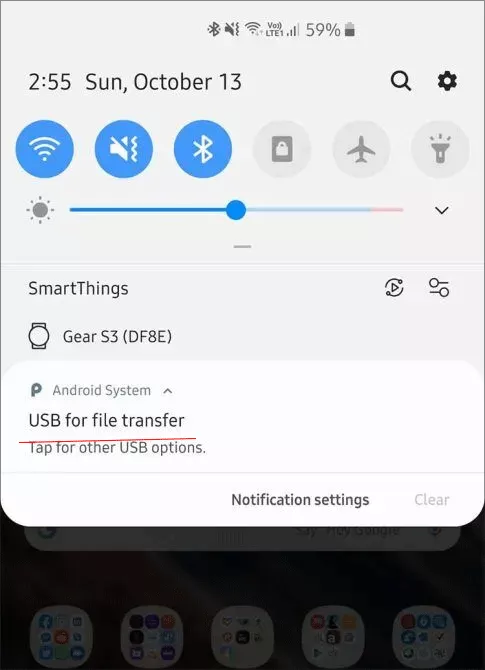
On Android, USB connections often default to "Charge only." Connect the phone to your computer, swipe down from the top of the screen, tap the USB notification, and choose "Transferring files" (MTP). If the option doesn't appear, unplug and reconnect the cable, or check Settings > Developer Options > Default USB configuration.
2. Try a Different Cable, Port, or Adapter
A worn or non-data USB cable is one of the most common causes of "not connecting" errors. Use the original cable if possible, plug directly into a rear USB port on a desktop rather than a hub, and confirm you're using the correct adapter (USB-OTG for older cables, or a direct USB-C to USB-C/Lightning cable where supported).
3. Confirm Device Compatibility
Smart Switch requires Android 4.3 or later, or iOS 12.0 or later, on the source device, and the destination device must be a Samsung Galaxy phone or tablet. If either device is running an older OS, update it before retrying.
4. Free Up Storage on the Receiving Device
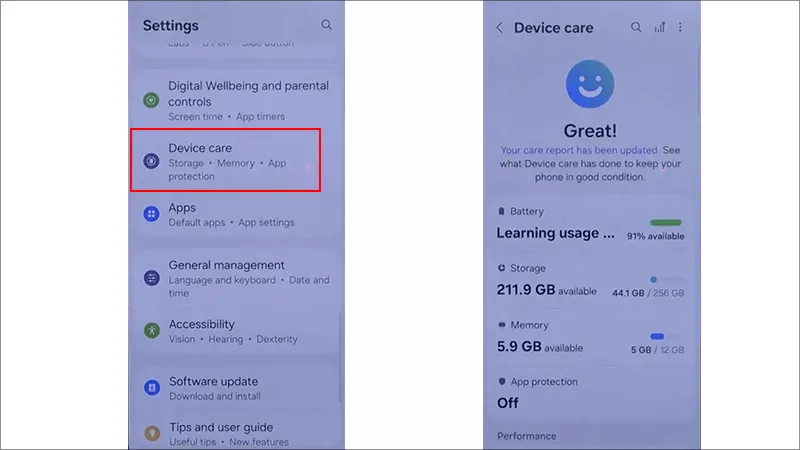
Go to Settings > Storage on the new device and confirm there's enough free space for the incoming data. If space is tight, delete unused apps or media first, or transfer in smaller batches.
5. Use a Stable Network, or Switch to a Wired Transfer
Wireless transfers are sensitive to Wi-Fi drops, especially with large photo or video libraries. Keep both devices close together and on the same network, or switch to a wired transfer for large amounts of data — it's generally faster and less prone to interruption.
6. Update Smart Switch to the Latest Version
On Android, open Google Play, search for Smart Switch, and tap Update if available. On a computer, open Smart Switch, click More, and choose Update.
7. Clear the Smart Switch App Cache and Data
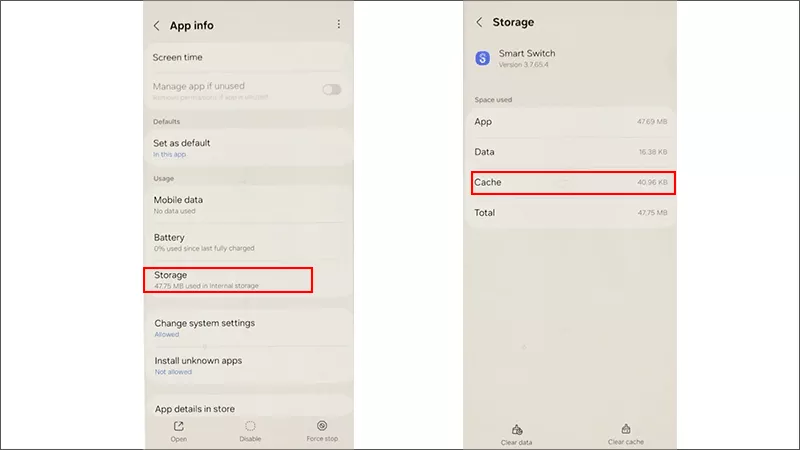
Go to Settings > Apps, find Smart Switch, tap Storage, then Clear Cache and Clear Data. Restart the app and try the transfer again.
8. Restart Both Devices
A simple restart of the phone and the computer (if using the desktop app) clear temporary glitches and is worth doing before moving on to a system-level fix.
When Smart Switch Fails Because of a Deeper System Problem
If you've worked through the fixes above and Smart Switch still won't connect — or the phone itself is crashing, freezing, stuck at the Samsung logo, or restarting on its own — the app isn't really the problem. These are signs of a corrupted system file or firmware conflict on the Samsung device, and no amount of cache-clearing will resolve that. This is where a dedicated Android system repair tool is the more direct fix.
iSunshare Android Repair Genius repairs common Samsung system issues — boot loops, black or frozen screens, apps that crash repeatedly, and devices that won't start normally — by resetting the affected system files without requiring a full factory reset.
Step 1: Download and install iSunshare Android Repair Genius on your Windows computer, then launch it.
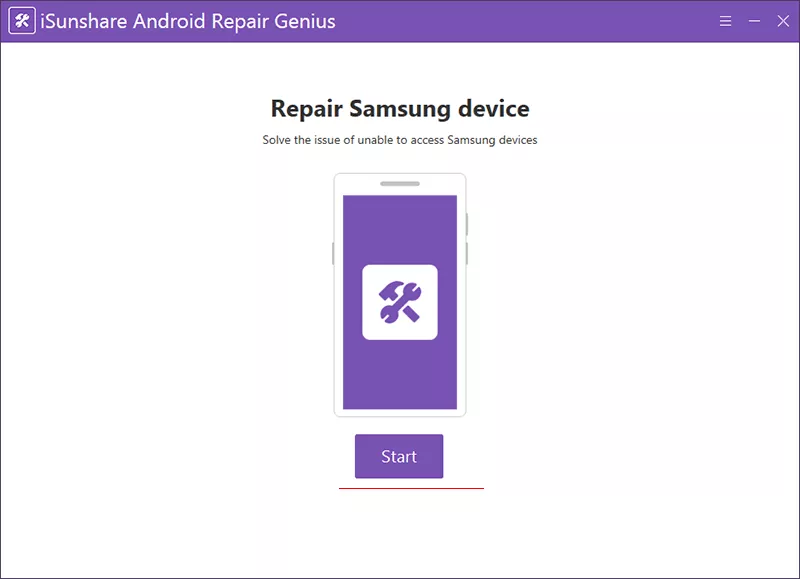
Step 2: Connect your Samsung phone via USB and hit the Start button.
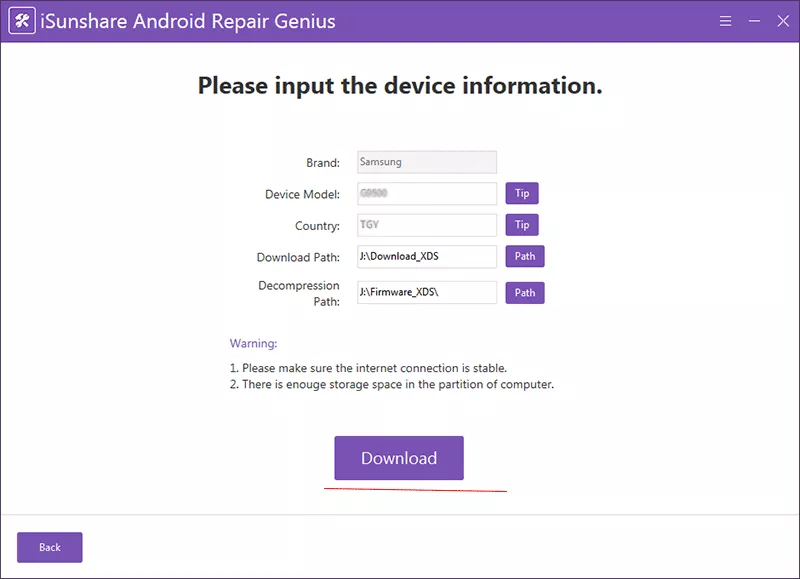
Step 3: Confirm your device model and download path. Then click the Download button.
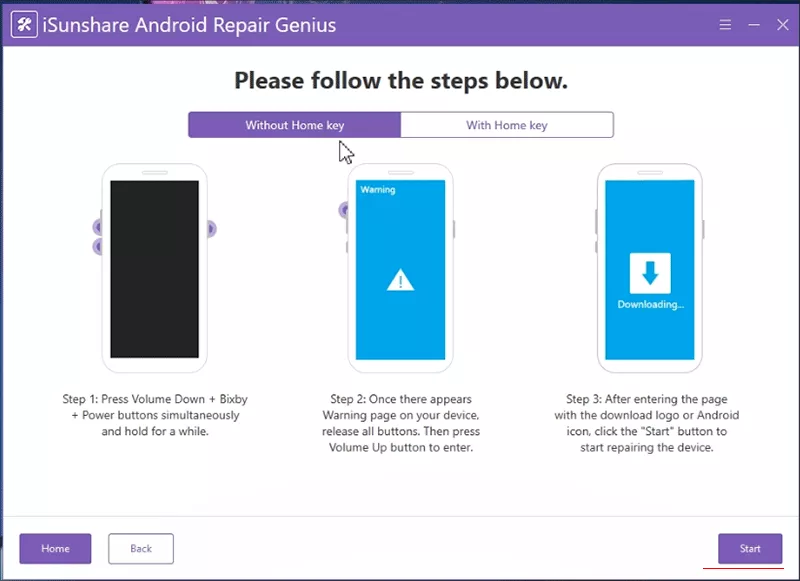
Step 4: Follow the on-screen steps to put the phone into Download Mod. After that, click the Start button on the software interface. Wait for the process to finish — the phone will restart automatically once complete.
Once the system is stable again, re-run Smart Switch to complete your original transfer or backup.
Troubleshooting Issue in Samsung Smart Switch
Symptom
Likely Cause
Fix
Smart Switch won't detect the device
USB mode set to "Charge only"
Switch to file transfer (MTP) mode.
"Not compatible" error
OS version too old on source or target device
Update Android/iOS, or update Smart Switch.
Transfer freezes or gets stuck
Large data volume, or unstable connection
Split into smaller batches; switch to wired transfer.
App crashes repeatedly
Corrupted app cache or data
Clear Smart Switch cache/data; reinstall if needed.
"Backup Data Not Found"
Corrupted backup or wrong storage path
Recheck backup location; create a new backup.
Phone stuck at Samsung logo after a failed transfer
Interrupted system files / boot loop
Repair with iSunshare Android Repair Genius (Standard Repair).
FAQs on Samsung Smart Switch Not Working
Q1: Why does Samsung Smart Switch keep failing even after I clear the cache?
If clearing the cache, updating the app, and switching USB modes don't help, the problem usually isn't Smart Switch itself — it's a deeper issue with the phone's Android system, such as corrupted system files or a firmware conflict. In that case, a dedicated system repair tool like iSunshare Android Repair Genius addresses the root cause rather than the symptom.
Q2: Is it safe to use a system repair tool if Smart Switch just isn't connecting?
Try the common fixes first (cable, USB mode, storage space, compatibility). Reach for a system repair tool only if the phone also shows signs of a deeper issue — repeated crashes, freezing, or getting stuck on the boot logo — since that point to the Android system itself rather than a simple connection problem.
Q3: What if my Samsung phone won't turn on after a failed Smart Switch transfer?
This is usually a sign the transfer was interrupted mid-process and affected system files, rather than Smart Switch's fault directly. iSunshare Android Repair Genius can fix the Android OS errors within simple clicks.
Conclusion
Most Smart Switch failures come down to something simple — a bad cable, the wrong USB mode, low storage, or an outdated app — and the fixes above resolve the majority of cases in minutes. But if the phone itself is crashing, freezing, or stuck at the boot logo, the problem isn't Smart Switch — it's the Android system underneath it. That's where iSunshare Android Repair Genius comes in: it repairs the system directly, so you can get the phone stable and let Smart Switch finish the transfer.