We use cookies for personalizing content and ads and providing social media features. Your usage information on our website will be used for social media, advertising, and traffic analytics, or shared with our partners. Clicking "Accept" means you agree to use our cookies .
Seagate external hard drives are reliable, but eventually you may need to wipe one clean — to fix corruption, remove a virus, resolve slow performance, or prepare the drive for resale. Unlike a phone, most Seagate external drives don't have a physical "factory reset" mechanism. What people usually mean by "resetting" a Seagate drive is a clean format that erases all data and restores the drive to an out-of-box state. This guide covers exactly how to do that safely on Windows and Mac, plus the one Seagate device family that does have a true hardware reset.
Part 1: Does a Seagate External Hard Drive Have a Factory Reset Button?
For the vast majority of Seagate external drives — Backup Plus, Expansion, One Touch, Portable, Basic — no. These are plug-and-play storage devices with no onboard settings menu, so there's no physical button or firmware option that restores them to a factory state the way a router or phone can be reset.
The exception is the Seagate Central, a network-attached storage (NAS) device with its own web-based admin interface and a genuine "Clear All" reset option. If you have a Seagate Central rather than a portable USB drive, skip to the dedicated section near the end of this article.
For every other Seagate external drive, "resetting to factory settings" means performing a full format, which is exactly what the steps below walk through.
Part 2: Back Up Your Data First (Non-Destructive)
Before you erase anything, move the files you want to keep somewhere else — another drive, a second partition, or cloud storage. This is the only non-destructive step in the whole process, so it's worth doing carefully.
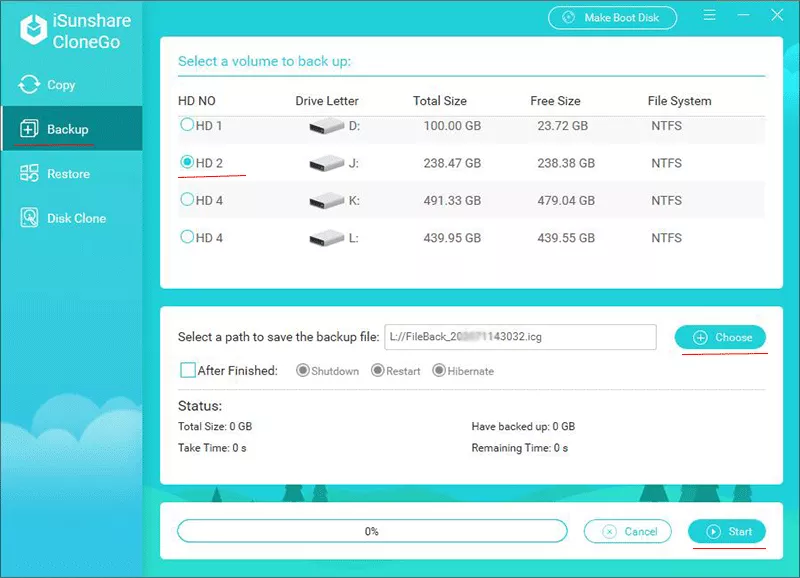
If you'd rather not drag-and-drop files manually, a dedicated backup tool can create a full image of the drive or copy specific partitions in a few clicks. For example, iSunshare CloneGo lets you back up an entire disk or selected partitions from your Seagate drive to another location before you format, and restore from that backup later if needed.
Step 1: Run CloneGo and click Backup from the left panel.
Step 2: Select the Seagate drive (or the specific partition) you want to preserve.
Step 3: Choose a destination — a different drive, not the Seagate drive itself.
Step 4: Run the backup and confirm it completed before moving to the format step.
If you don't have anything important stored on the drive, or you've already backed it up, skip ahead to Part 3.
Part 3: Reset (Format) a Seagate External Hard Drive on Windows
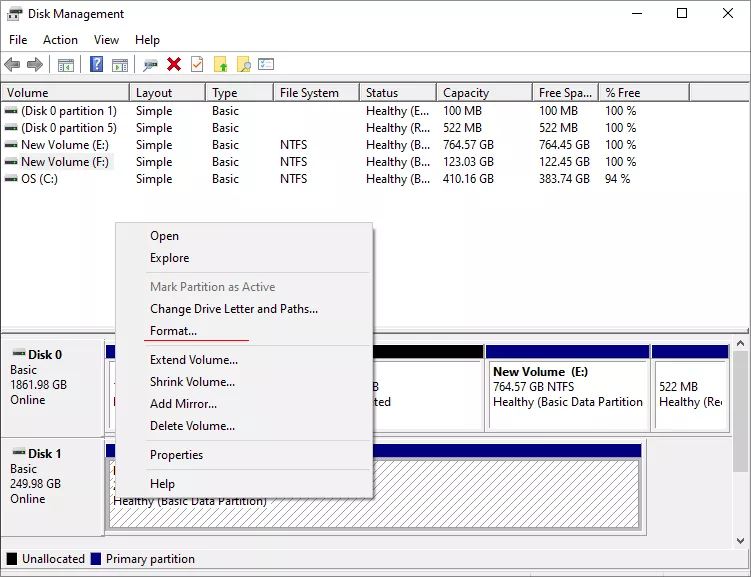
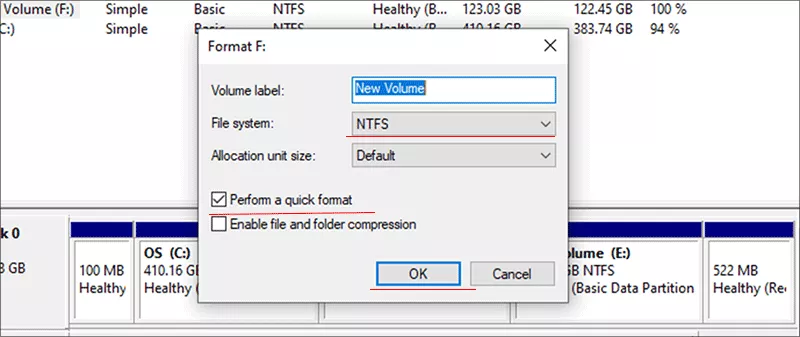
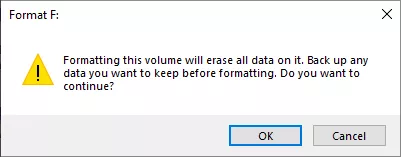
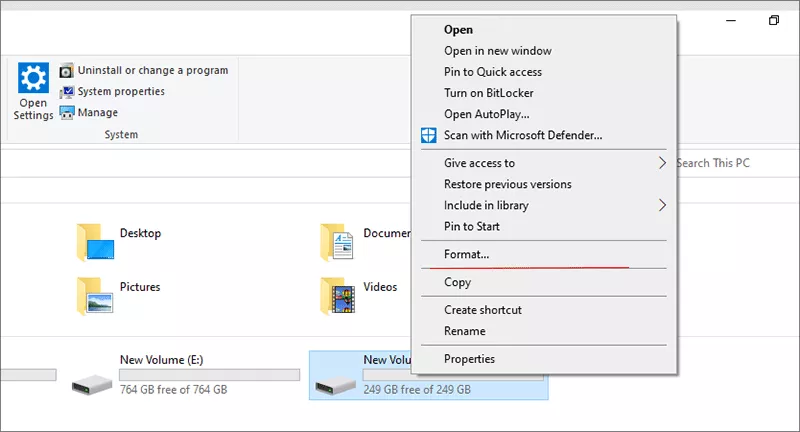
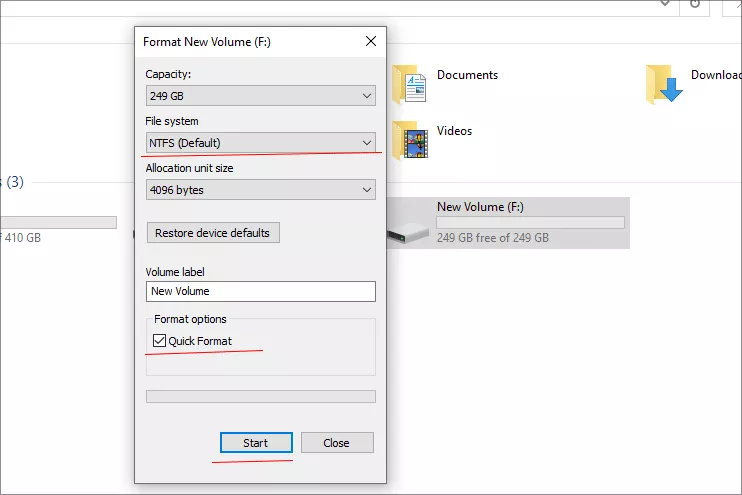
Windows' built-in Disk Management tool can fully erase and reformat a Seagate drive without any third-party software.
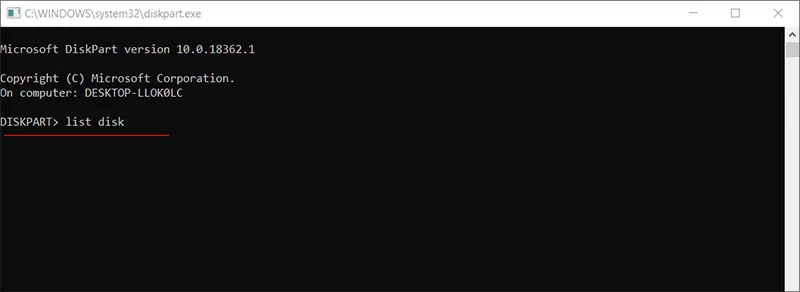
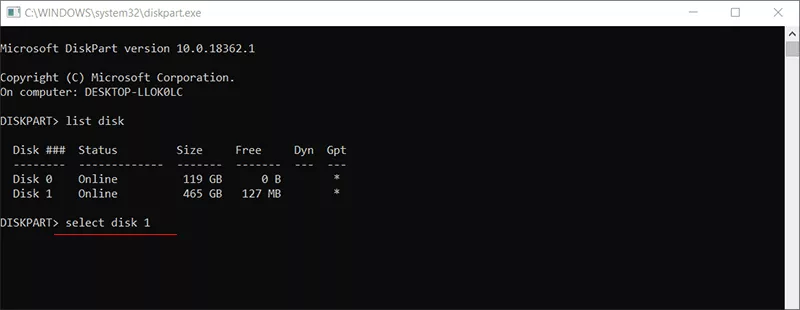
Step 2: Input diskpart to open diskpart utility. Then execute list disk to check all drives in your computer.
Step 3: Execute select disk X (replace the letter X with the disk number of the Seagate disk).
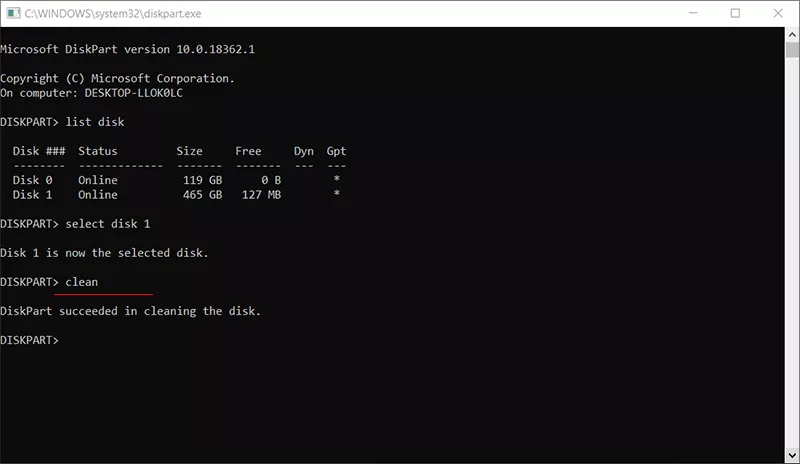
Step 4: After the disk is selected, you can run the command line: clean to erase all data in the Seagate disk.
Part 4: Reset (Format) a Seagate External Hard Drive on Mac with Disk Utility
Step 1: Connect the Seagate drive to your Mac. Open Disk Utility (Applications > Utilities > Disk Utility).
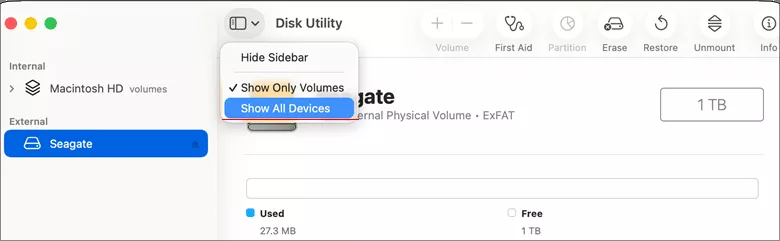
Step 2: Click View in the toolbar and choose Show All Devices so you can see the physical Seagate external drive, not just its volume.
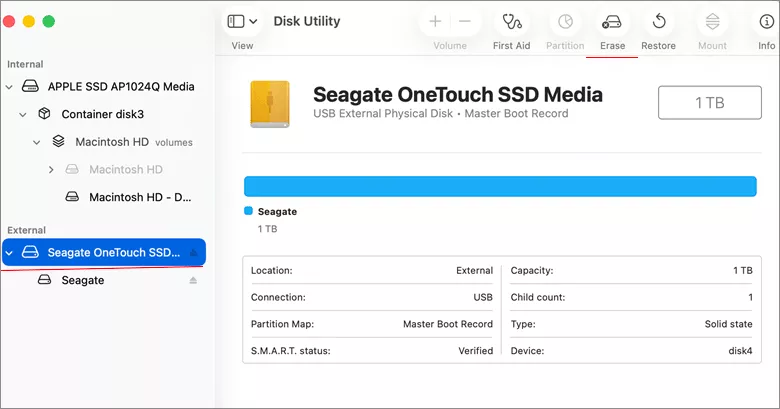
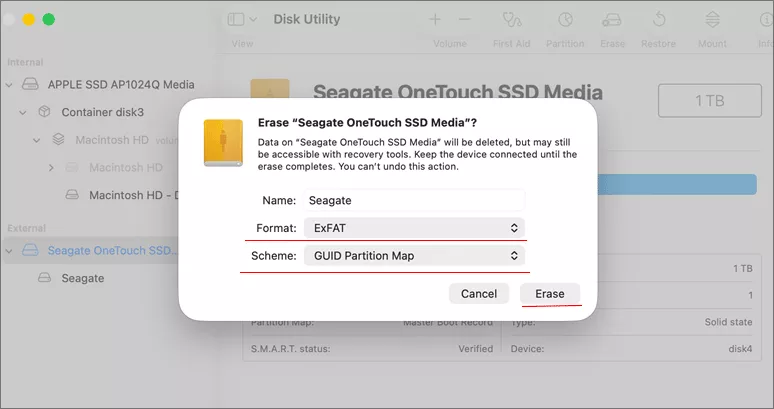
Step 3: Select the top-level Seagate device, then click Erase.
Step 4: Choose a file system — APFS or Mac OS Extended for Mac-only use, or exFAT for cross-platform compatibility with Windows. Click Erase and confirm. macOS will wipe the drive and remount it as a blank volume.
If Disk Utility shows the drive as greyed out or unavailable, unmount any open volumes on it first, or try a different USB port — see the troubleshooting table below.
Part 5: Resetting the Seagate Central (NAS) to Factory Settings
The Seagate Central is the one Seagate external storage device with a genuine software-based factory reset, separate from a plain format:
Step 1: On a computer connected to the same local network, open the Seagate Central web management dashboard. (If the device does not appear in network shares, browse to http://Seagate XXXXXX where XXXXXX is the last six characters of the MAC address printed on the device bottom label.)
Step 2: Log in with your admin credentials and navigate to the Settings tab.
Step 3: Click the System category and hit Clear All to performs a full factory reset. This operation is data destructive and erases everything stored on the NAS.
Step 4: Follow the on screen wizard to finish the initial setup process.
Note:
The physical RESET button on the device bottom behaves like the web UI Restore option: it resets configuration only and does NOT erase stored data.
Part 6: Troubleshooting Common Issues in Resetting Seagate Drive
Issue
Likely Cause
Fix
Seagate drive won't format / "Windows was unable to complete the format"
Bad sectors, write-protection, or a corrupted partition table
Try Diskpart's clean command from an elevated Command Prompt, or check the drive for write-protection in Disk Management first.
Drive shows as RAW instead of NTFS/exFAT
File system corruption, often from an unsafe disconnect
Reformat via Disk Management; if you need the existing data first, recover it with data recovery software before formatting.
Disk Utility greyed out on Mac
A mounted volume on the drive is in use, or the drive is connected through an unsupported adapter
Unmount any open volumes, quit apps using the drive, or connect directly via USB instead of through a hub.
Drive not detected at all
Faulty cable/port, driver issue, or drive failure
Test a different USB port and cable, check Device Manager for driver errors, and try the drive on a second computer to isolate the cause.
Format completes but drive still shows old free space
Windows/File Explorer cache not refreshed
Safely eject and reconnect the drive, or restart File Explorer.
Part 7: FAQs on Seagate External Drive Reset
Q1: Does resetting a Seagate external hard drive delete everything?
Yes. Both a format and a Seagate Central "Clear All" reset erase all data on the drive. Back up anything you want to keep first.
Q2: Can I reset a Seagate external hard drive without a computer?
Not for standard portable Seagate drives — they require a computer's Disk Management or Disk Utility to format. Only the Seagate Central NAS has a standalone reset accessible from its own web dashboard.
Q3: What file system should I choose when resetting a Seagate drive?
Use exFAT if you move the drive between Windows and Mac. Use NTFS for Windows-only use with large individual files. Use APFS or Mac OS Extended for Mac-only use.
Q4: Is there a Seagate factory reset tool I should download?
For standard external drives, no special Seagate tool is required — the OS's built-in Disk Management or Disk Utility is sufficient. Third-party wipe utilities are only necessary if you need a secure multi-pass erase before disposing of or selling the drive.
Conclusion
Resetting a Seagate external hard drive almost always comes down to a full format rather than a hardware reset — Disk Management on Windows and Disk Utility on Mac handle it natively, with no extra software needed. The one exception is the Seagate Central, which has an actual factory-reset option in its web dashboard.
Whichever path applies to your drive, the sequence that keeps you safe is the same: confirm you're authorized to wipe the drive, back up anything you want to keep, then format. Skipping the backup step is the single most common regret people have after a reset, so treat it as mandatory rather than optional, even if it adds a few extra minutes.