We use cookies for personalizing content and ads and providing social media features. Your usage information on our website will be used for social media, advertising, and traffic analytics, or shared with our partners. Clicking "Accept" means you agree to use our cookies .
Forgetting your iPhone passcode can be frustrating, especially when multiple wrong attempts can lead to your device being disabled. Many iPhone users wonder: how many attempts to unlock iPhone are allowed before the phone locks them out completely? Let's break it down step by step and also cover how to unlock iPhone after too many attempts quickly.
Apple has built strict security measures to protect your data. If someone repeatedly enters the wrong passcode, the iPhone gradually increases the lockout time. If your iPhone is in iOS 15.1 or older, it will show iPhone Disabled message on the screen with the lockout time. For the iPhone in iOS 15.2 and later, you can see the iPhone Unavailable screen with the lockout time. You can check the number of wrong attempts and lockout time in the below image.
So, to answer directly: how many times can you try a passcode on iPhone? You get up to 10 chances before the device completely locks you out.
What Happens After Too Many Wrong Attempts?
If you enter the wrong passcode 10 times in a row, your iPhone in iOS 15.1 or older will display "iPhone is Disabled. Connect to iTunes" (or Finder on macOS); for the iPhone in iOS 15.2 and later, you can see the iPhone Unavailable with the emergency call button. If the Erase Data option is enabled on Settings > Face ID & Passcode, the iPhone will erase itself after 10 failed passcode attempts. Generally, you can no longer access your phone without restoring it after too many wrong attempts.
How to Unlock iPhone after Too Many Attempts
If you've been locked out, don't panic. There are many effective ways to help you unlock the iPhone.
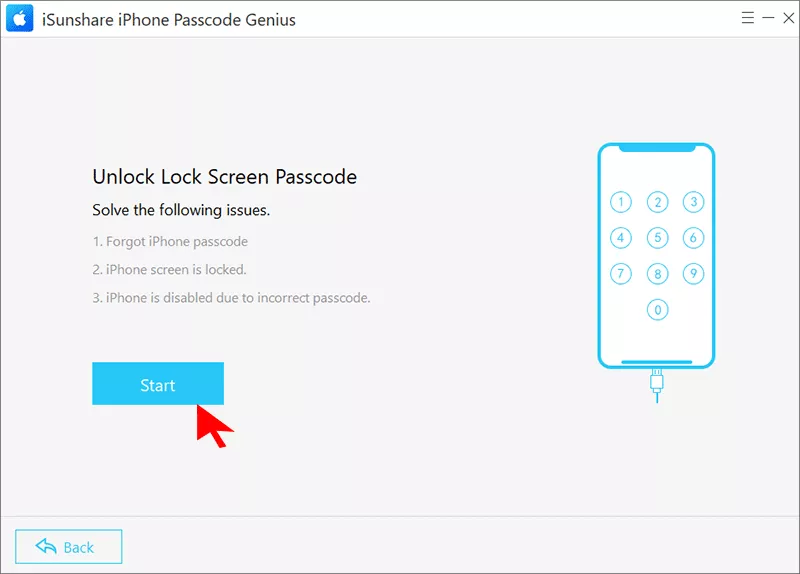
What if you failed to find the correct passcode after too many attempts on iPhone lock screen? Is there any way to unlock the locked iPhone when forgot the passcode? Yes, of course. The professional iPhone passcode unlocker can help you. iSunshare iPhone Passcode Genius is recommended here to unlock locked iPhone after multiple tries directly. You can easily unlock the iPhone disabled/Unavailable in simple clicks.
iSunshare Reliable iPhone iPad Unlocker
Remove various screen locks on iPhone
Unlock disabled or unavailable iPhone without passcode
Support all iPhone models in different iOS versions
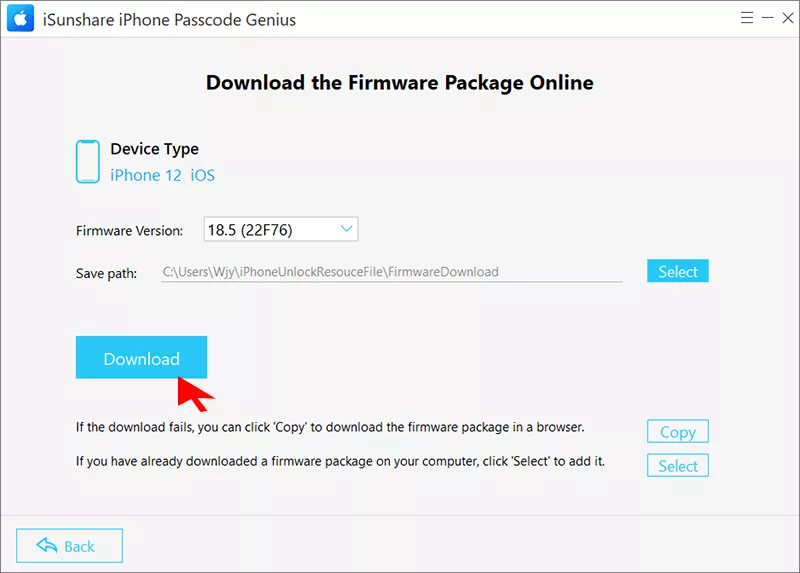
Step 3: Check your iPhone details and hit the Download button.
Step 4: After the download is complete, hit the Unlock button to unlock your iPhone. Minutes later, you can see the successful message on the software.
Way 2: Use iTunes or Finder
As is mentioned in iOS 15.1 version after failed passcode attempts on iPhone screen, you can connect the iPhone to iTunes/Finder to reset the iPhone. Thus, no matter which iOS version your iPhone is, iTunes/Finder can be a powerful tool to restore your iPhone to factory settings.
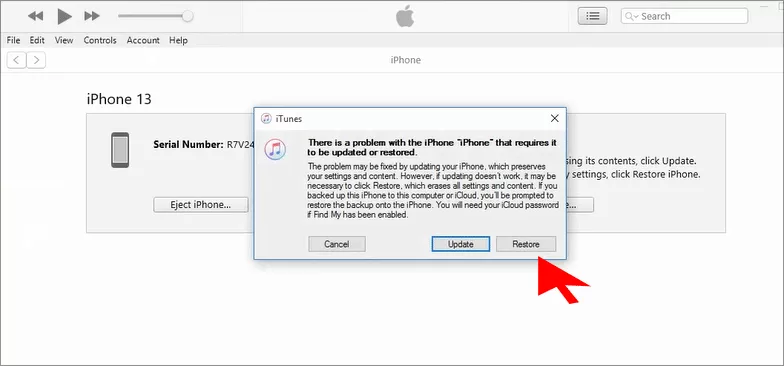
Step 2: Run iTunes/Finder and you can see the prompt. Click Restore button on the prompt to continue.
Step 3: Hit Restore iPhone to reset the iPhone to factory settings. After the process ends, you can set the iPhone up again.
Way 3: Use iCloud (Find My iPhone)
iCloud Find My iPhone feature can help you regain access to the iPhone if you cannot unlock an iPhone after too many wrong passcode attempts. Ensure you can successfully unlock the iPhone; the locked iPhone should meet the following requirements: Find My iPhone has been activated on the locked iPhone and the locked iPhone is connected to the stable network. Besides, you should know the Apple ID account and password which is applied to the locked iPhone.
Step 1: Go to icloud.com and log in with your Apple ID.
Step 2: Select Find My and choose the locked iPhone from All Devices drop-down menu.
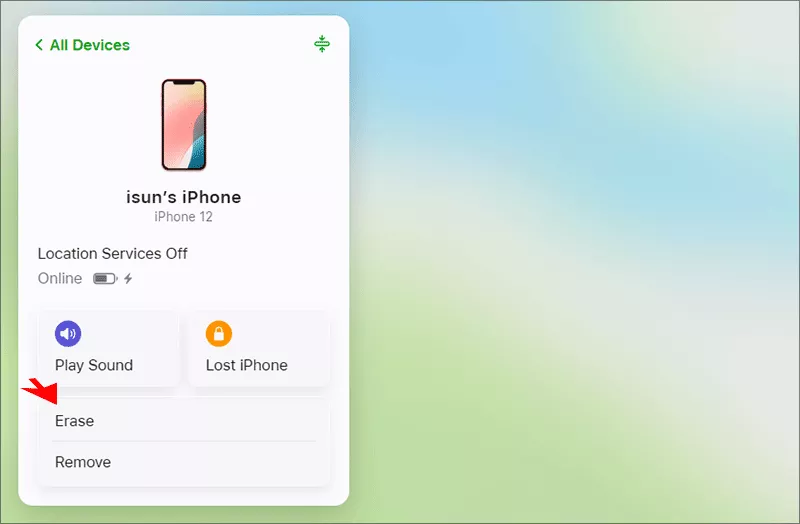
Step 3: Click Erase option. Then follow the onscreen instructions to reset your iPhone and remove the screen passcode.
FAQs About iPhone Passcode Attempts
Q1: How many attempts to unlock iPhone before it erases everything?
10 attempts are allowed to test the iPhone passcode. After that, your iPhone will erase itself if the Erase Data is turned on.
Q2: Can I unlock my iPhone without erasing data after too many attempts?
Unfortunately, no. Once locked, you must restore the device, which wipes data unless you have a backup.
Q3: How to unlock iPhone after too many wrong tries without computer?
If Find My iPhone is enabled on the locked iPhone, you can erase and unlock your iPhone from icloud.com on any device.
Summary
How many times can you put wrong passcode on iPhone? You have 10 chances before the iPhone becomes completely unavailable. After the failed attempts, you can unlock the iPhone via iPhone Passcode Genius, iTunes/Finder, and iCloud.