We use cookies for personalizing content and ads and providing social media features. Your usage information on our website will be used for social media, advertising, and traffic analytics, or shared with our partners. Clicking "Accept" means you agree to use our cookies .
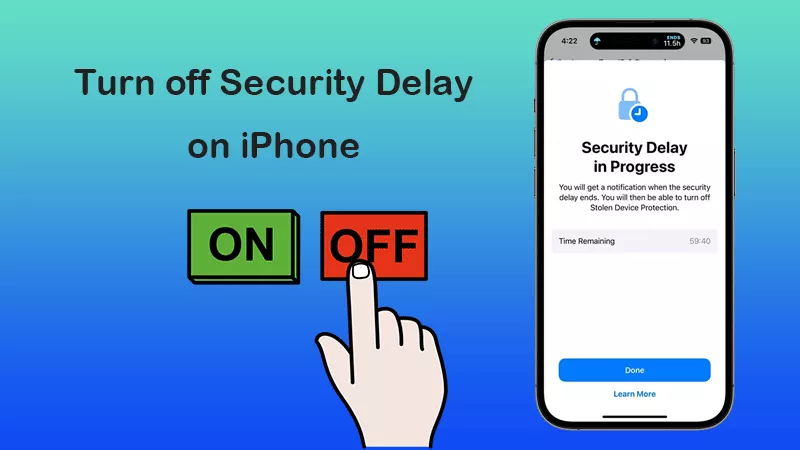
Many iPhone users complained that the security delay feature is a waste of time as it requires users to wait for at least one hour to apply the security change. Sometimes, they need to wait hours. How to turn off security delay in progress in iPhone? Is there any quick and easy way to get rid of this Stolen Device Protection? Of course, in this article, you can learn the step-by-step guide to turn off Security Delay on iPhone.
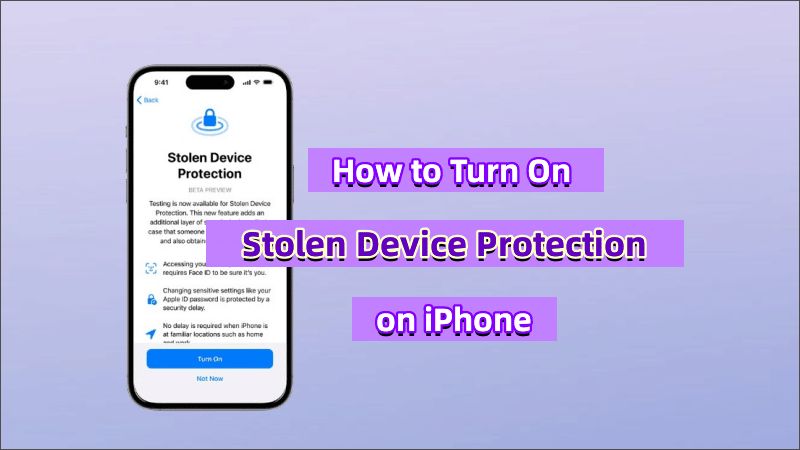
Security Delay is a required waiting period (usually 1 hour) before you can make certain high-impact changes to your iPhone when you're not in a trusted location. It's designed to protect your account in case someone steals your iPhone and tries to:
Change your Apple ID password
Remove Face ID or Touch ID
Disable Find My iPhone
Add/Remove trusted devices
Change Screen Time passcode
After initiating such actions in an untrusted location, your iPhone will enforce a Security Delay before letting you proceed.
How to Disable Security Delay on iPhone with Face ID
Since Security Delay is tied to Stolen Device Protection, you can only remove it by disabling Stolen Device Protection entirely.
Step 1: Unlock your iPhone and tap Settings > Face ID & Passcode.
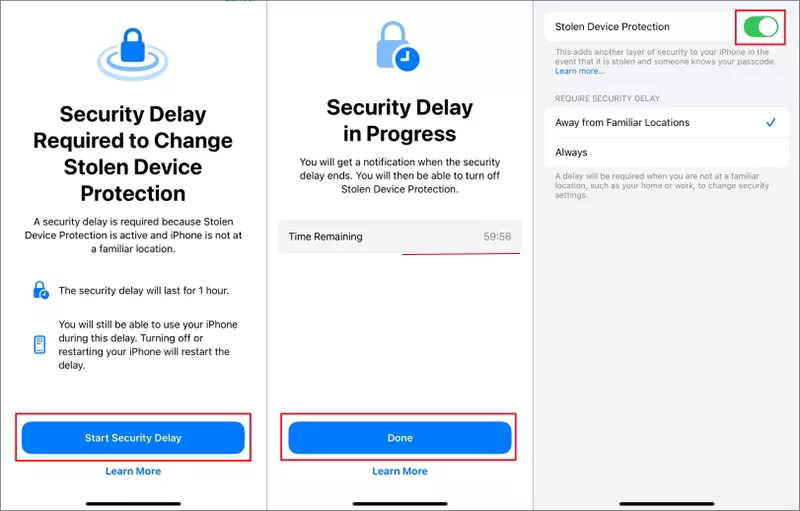
Step 2: Scroll down and tap Stolen Device Protection. Then toggle of this option.
Step 3: Soon, the Security Delay screen comes. Tap Start Security Delay and you will see the one-hour countdown. After that, just wait until the security delay ends, then you can toggle off the Stolen Device Protection with Face ID.
How to Turn off Security Delay on iPhone without Waiting and Face ID
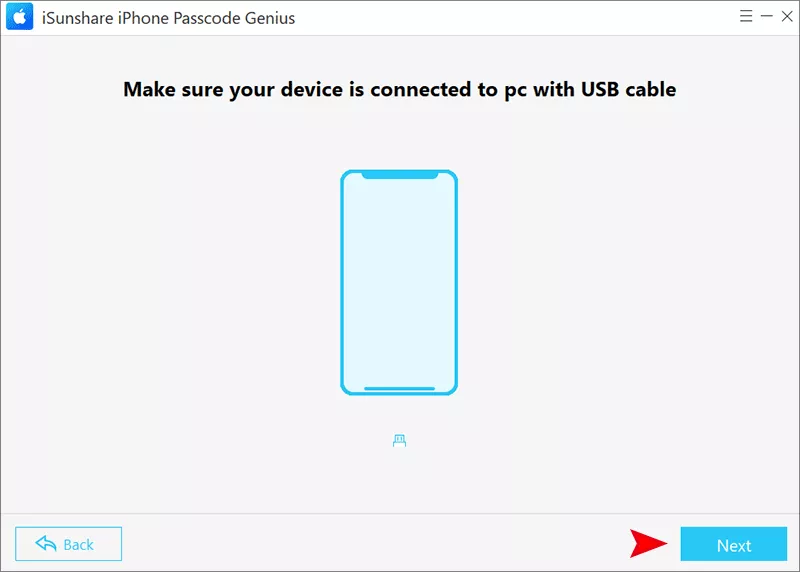
Sometimes, if you are going to turn off the security delay instantly without waiting for hours, how can you do? Is it possible to turn off the security delay without Face ID? In such case, you can use iSunshare iPhone Passcode Genius to remove lock screen Face ID, passcode or pattern lock from the iPhone. At the same time, the security delay feature will be disabled on the iPhone.
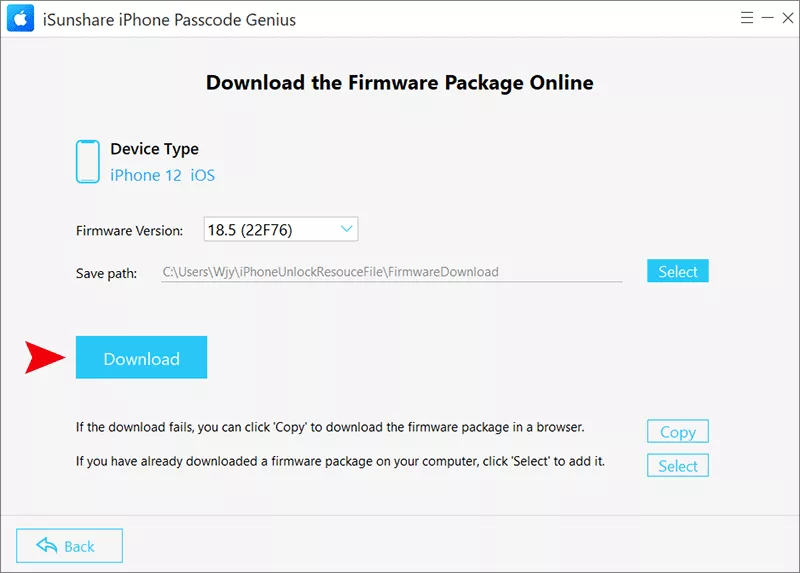
Step 3: When iPhone Passcode Genius successfully detects your iPhone model and iOS version, you can hit the Download button to get the firmware package.
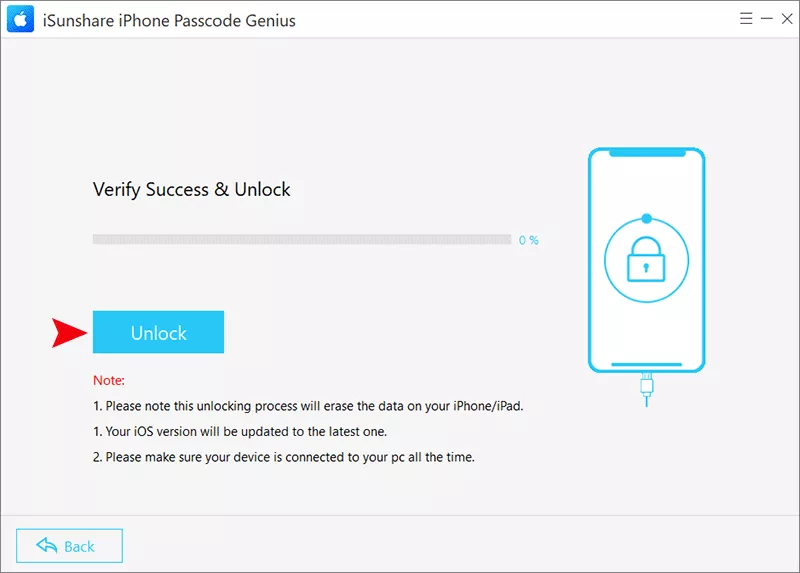
Step 4: Minutes later, hit the Unlock button in the software interface to unlock your iPhone and turn off iPhone security delay feature. Soon, you can set up the iPhone and restore the data back.
FAQs on iPhone Security Delay
Q1: Will turning off Stolen Device Protection delete anything?
No. It simply removes the delay and extra authentication steps. Your data stays intact.
Q2: Is it possible to bypass Security Delay without turning off stolen device protection?
No, you cannot do that. The security delay is linked to the stolen device protection. There's currently no override or shortcut—this is by design for theft protection.
Q3: Can I add or change a trusted location manually to end the security delay early?
No, trusted locations are determined automatically based on usage and behavior. Apple doesn't allow manual control over this list.
Conclusion
The Security Delay on iPhone is a smart safety feature—but it can be a hassle when you need to make urgent changes on the go. If you find yourself frequently inconvenienced by it and understand the risks, you can disable Stolen Device Protection entirely via your iPhone settings. Hope this guide can help you.