By Jennifer | Last Updated
Have you added Notepad shortcut to Windows 10, 11, 8 or Windows 7 desktop? It will be much convenient if it's on the desktop. Here are 2 simple skills to show you how to add Notepad shortcut to your Windows 10 desktop quickly.

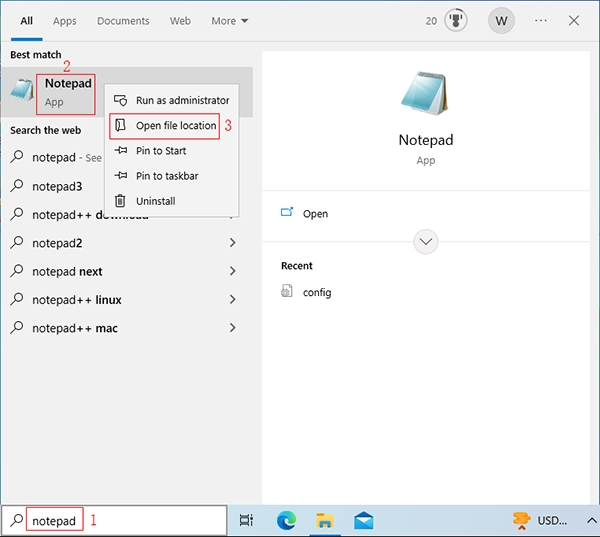
Step 1: Search notepad in the search box on taskbar, right-click Notepad and select Open file location.

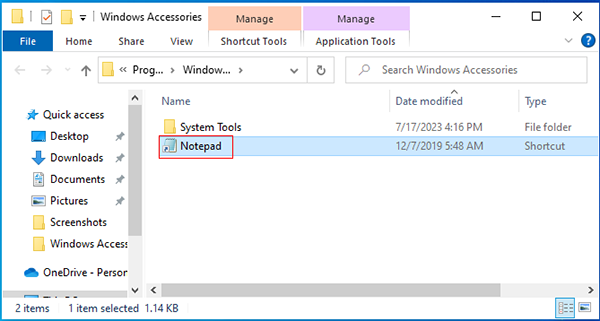
Step 2: Press Ctrl+C shortcut key to copy the Notepad, then on the desktop press Ctrl+V to paste it.

Step 1: Right-click blank area on the desktop, expand New in the menu and tap Shortcut in the options.

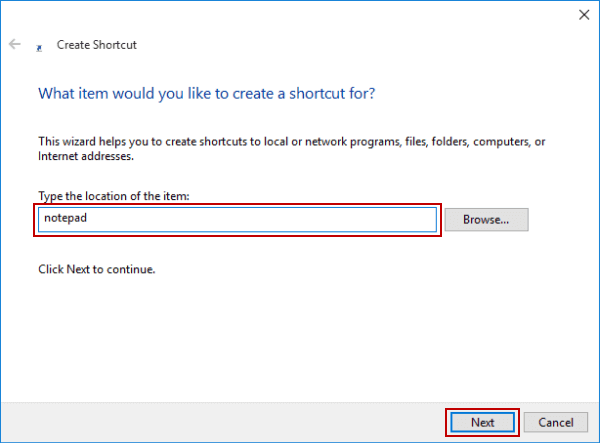
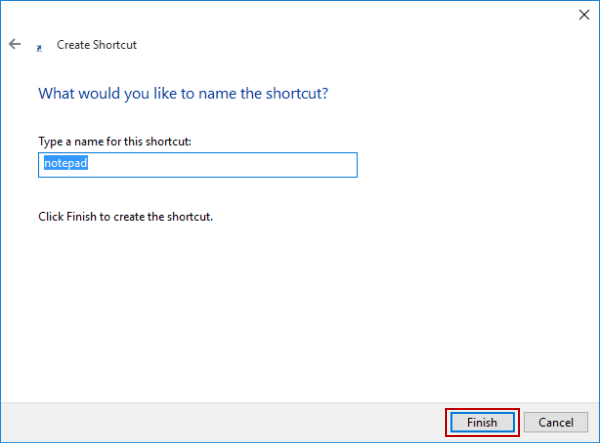
Step 2: As the Create Shortcut window appears, type notepad in the empty box and hit Next.

Step 3: Choose Finish to create the shortcut named notepad.

That's all for adding Notepad shortcut to desktop, now you can use the Notepad on your Windows 10 desktop conveniently.
Related Articles:
How to Reset Windows 10 Forgotten Password
How to Bypass Windows 10 Password Login with/without Password
Easy Guide to Reset Windows 10 Admin Password Like an Expert
4 Tips to Change Windows 10 Password without Knowing Current Password
Can't Sign into Microsoft Account Windows 10 | Account Locked/Blocked