Windows 10 2 Ways to Pin Programs to Start Menu on Windows 10

2 Ways to Pin Programs to Start Menu on Windows 10

By Jennifer | Last Updated

How can you quickly access the programs you use most frequently on your Windows 10 PC? Pinning them to the Start Menu could be a good choice, and this article illustrates two simple methods to realize it for your reference.

Way 1: Pin a program to Start Menu via the program itself.

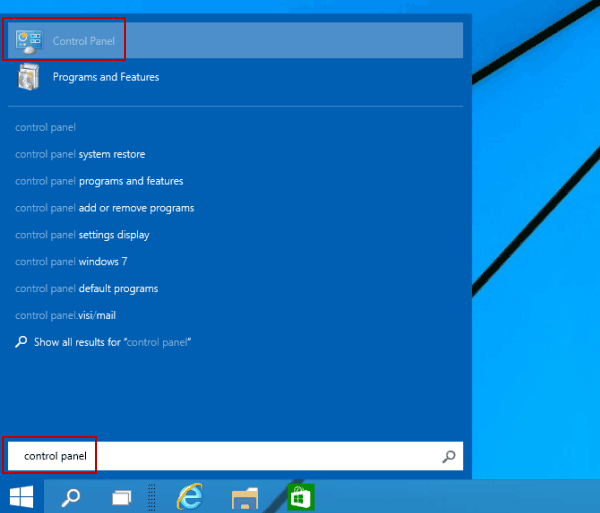
Step 1: Press Windows+F to open the search box in Start Menu, type a program name (e.g. control panel) in the empty box and find it from the result.

search for a program

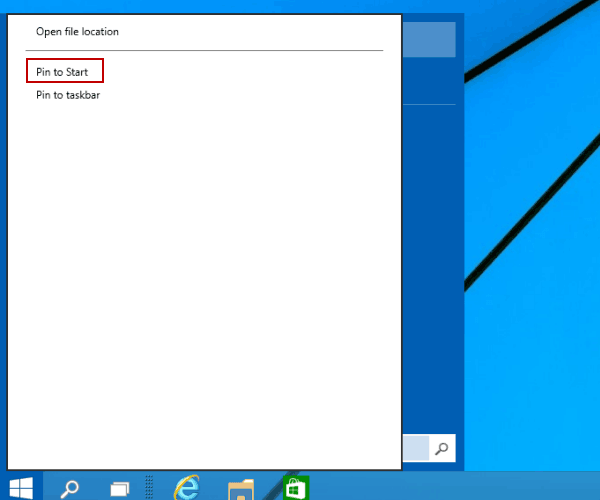
Step 2: Right-click the program and select Pin to Start in the pop-up list.

right click program and tap Pin

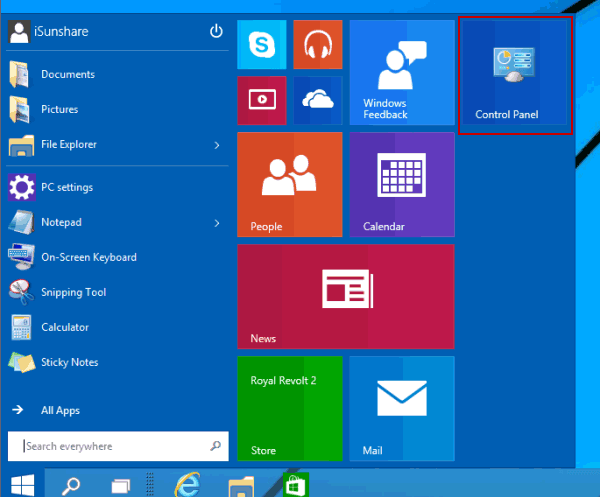
As the following picture shows, the program has been pinned to the Start Menu.

program pinned to start menu

Way 2: Pin via Start Menu Search or All Apps.

Step 1: Hit the Start button on desktop to access Start Menu.

Step 2: Go to the list of all apps and choose the program you want to pin.

Step 3: Right-click the app and choose Pin to Start.

select Pin to Start

Related Articles: