By Jennifer | Last Updated
The Start Menu in Windows 10 is your hub for accessing apps, settings, files, and power options. This article mainly tells you the two simple methods to open Windows 10 Start Menu.
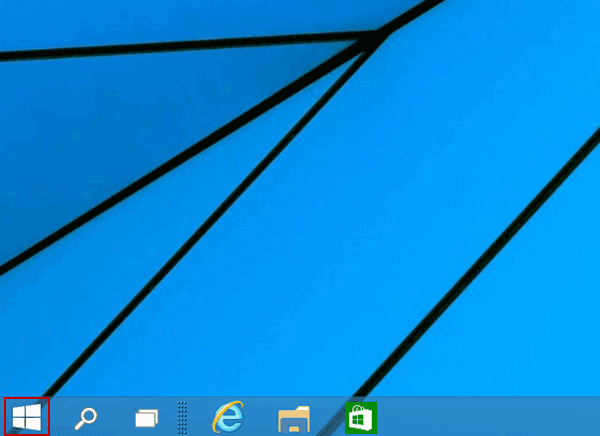
Locate the Start button (Windows logo) at the bottom-left corner of your screen. Click it with your mouse or tap it on a touch device.

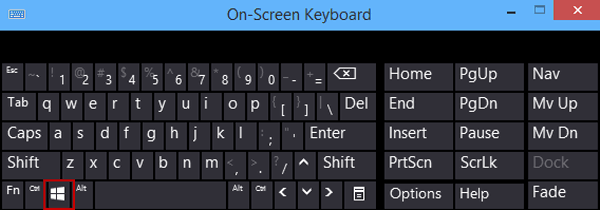
The most popular and fastest way to open the Start Menu: Press the Windows Logo Key (as exhibited in the picture below) to open the menu instantly.

Q1: What if my Windows key isn't working to open the Start Menu?
If the Windows key doesn't work, try restarting Windows Explorer or booting into Safe Mode. You can also troubleshoot using sfc /scannow and DISM /Online /Cleanup-Image /RestoreHealth to repair corrupted files.
Q2: How to open start menu from run command?
You can open command prompt and execute the command line: taskkill /f /im StartMenuExperienceHost.exe to restart the Start menu.
Q3: Is there any keyboard shortcut to open Start menu?
You can press the Ctrl + Esc keys to quickly open Start Menu on Windows 10.
Related Articles:
How to Reset Windows 10 Forgotten Password
How to Bypass Windows 10 Password Login with/without Password
Easy Guide to Reset Windows 10 Admin Password Like an Expert
4 Tips to Change Windows 10 Password without Knowing Current Password
Can't Sign into Microsoft Account Windows 10 | Account Locked/Blocked