We use cookies for personalizing content and ads and providing social media features. Your usage information on our website will be used for social media, advertising, and traffic analytics, or shared with our partners. Clicking "Accept" means you agree to use our cookies .
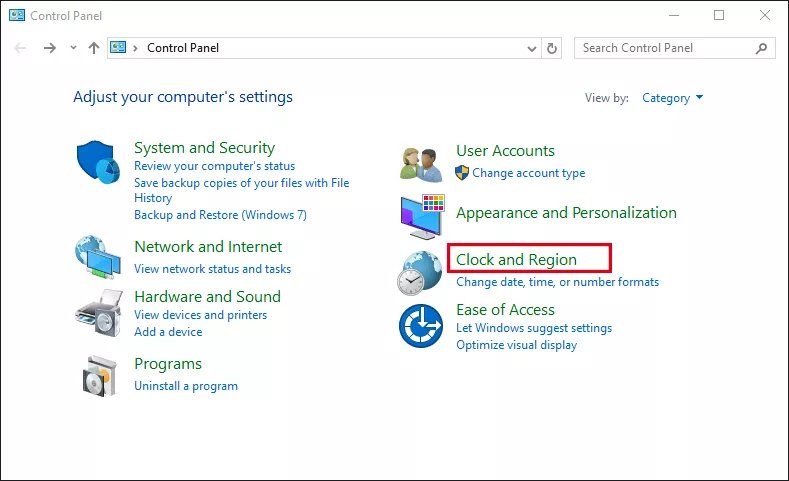
Windows 10 lets you adjust your system's date and time either manually or automatically. Below are two reliable methods to do so, plus options for time zones and daylight savings.
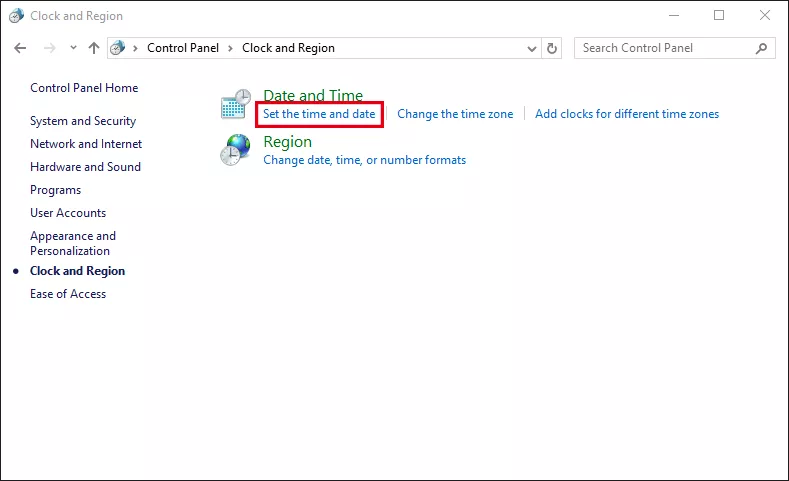
Step 2: Click Set the time and date option to proceed.
Step 3: Click the Change date and time option to adjust the date and time on your computer.
Here, you can also click Change time zone button to set the time zone. Besides, you can control whether to turn on or off automatically adjust clock for Daylight Saving Time.
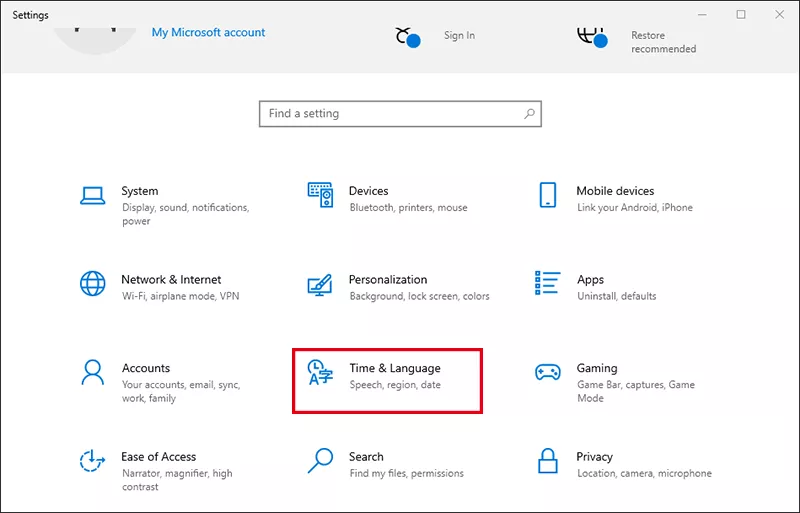
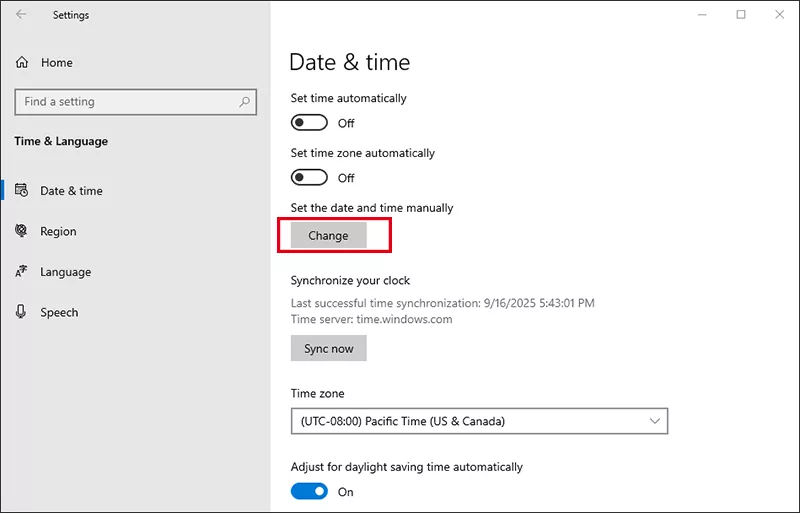
Step 2: After turning off the Set time automatically option, click Change blow Change date and time option.
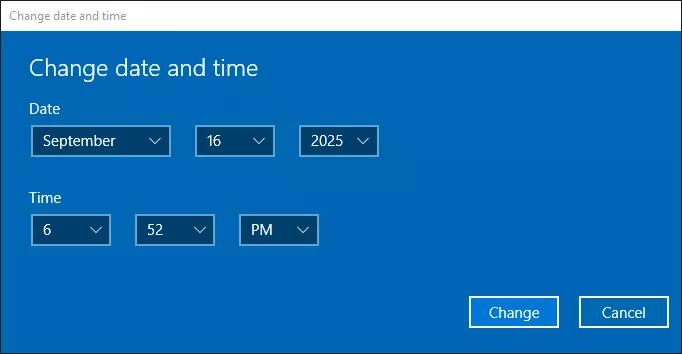
Step 3: Modify date and time, and tap Change to bring the changes into effect.
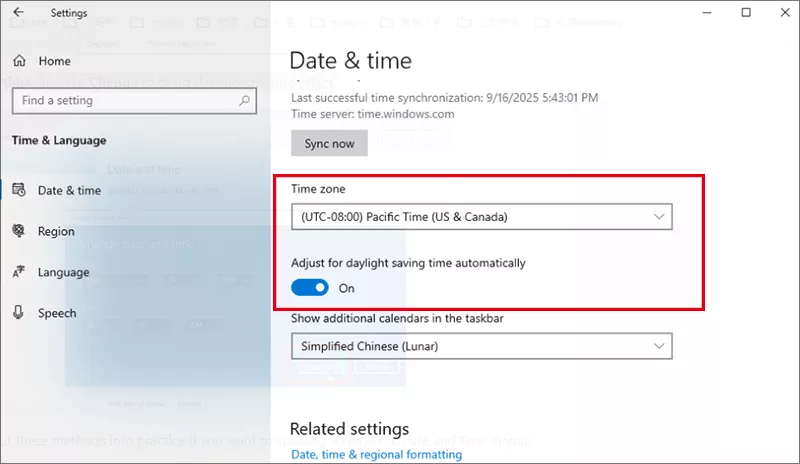
You can also customize the time zone and daylight saving time in Date & Time window.
FAQs on Date and Time Settings in Windows 10
Q1: Why can't I change the date/time even in manual mode?
Possible causes: Time is being controlled by system policy, you're using a device in a domain or managed by organization, or clock sync service overrides manual changes.
Also, if Set time automatically is On, manual changes often get overwritten. Turn that off first.
Q2: Can I adjust daylight savings time automatically?
Yes. Both above two ways can help you. There is an option to adjust for daylight saving time automatically (if applicable in your region) below Time Zone settings.
Q3: What to do if your system keeps reverting back to wrong date/time?
You need to check whether the time zone is correct. Besides, make sure your computer is connected to the Internet.