We use cookies for personalizing content and ads and providing social media features. Your usage information on our website will be used for social media, advertising, and traffic analytics, or shared with our partners. Clicking "Accept" means you agree to use our cookies .
As we all know, copy and paste is one of the most frequently used feature in Windows 10. It is very convenient and time-saving for us to use the keyboard shortcut of Ctrl+C to copy contents and texts on the clipboard and use Ctrl+V to paste them. Have ever cleared your clipboard? If you haven't, there muse be many copied contents left on your clipboard. However, for privacy or security purposes, sometimes you may have the need to delete the clipboard history or just clear certain items from it. Here you will learn how to clear clipboard on Windows 10 with 4 easy and effective methods.
The most direct and simplest way to clear Windows 10 clipboard is to use the Clipboard tab from Settings. You can choose to clear all the clipboard history including or excluding the pinned items. Follow the below steps to empty clipboard in Windows 10.
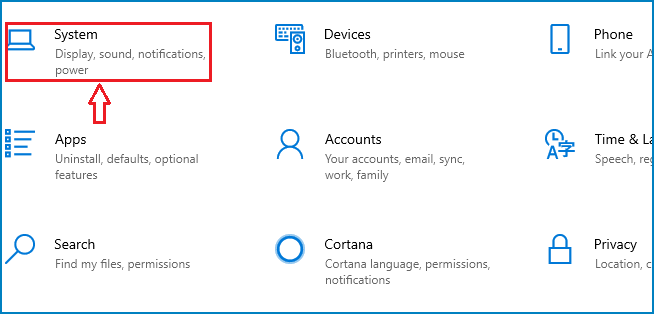
Step 1: Click the Windows icon on the bottom left corner of your interface, select Settings and open it, and then choose System from the list.
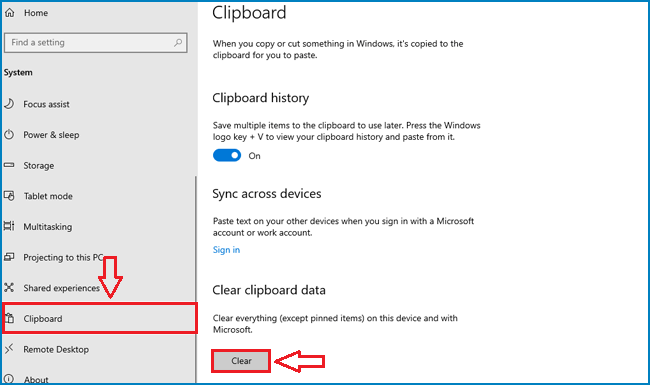
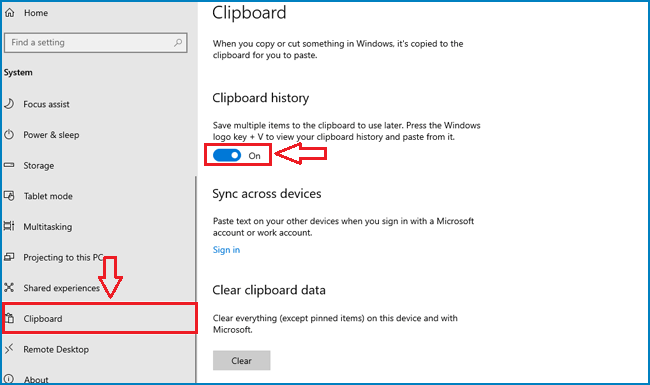
Step 2: Go to Clipboard on the left pane.
Step 3: And then on the right pane, you can choose to clear all clipboard history either excluding pinned items or including pinned items.
In order to clear all clipboard history excluding pinned items, under the section of Clear clipboard data, click the Clear button.
In order to clear all clipboard history including pinned items, under the section of Clipboard history, click the slider to turn off the toggle switch.
Method 2: Clear Clipboard via Command Prompt
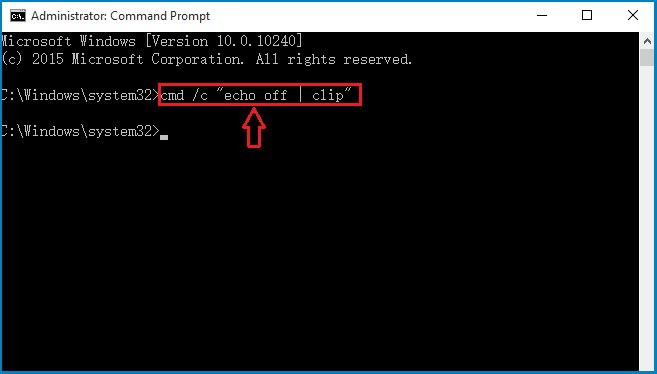
You can also clear clipboard history on Windows 10 by running a command via Command Prompt.
Step 1: Open your Command Prompt.
Step 2: Enter cmd /c "echo off | clip" into the Command Prompt and press Enter to run it.
Step 3: Close the Command Prompt after you have done.
Method 3: Clear Clipboard by Creating a Shortcut
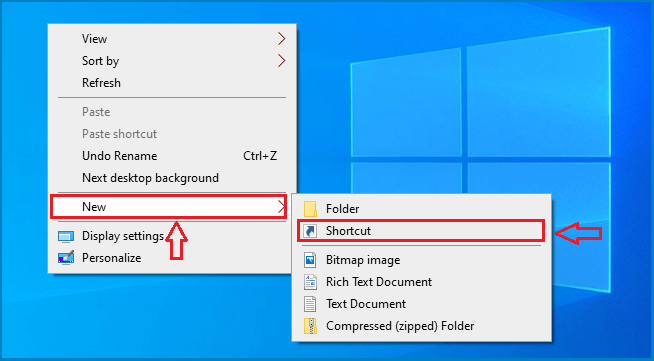
You can create a shortcut in order to let Windows 10 empty clipboard. Then next time when you need to quickly clear the clipboard, you can run the shortcut.
Step 1: Right click an empty space and click New>Shortcut.
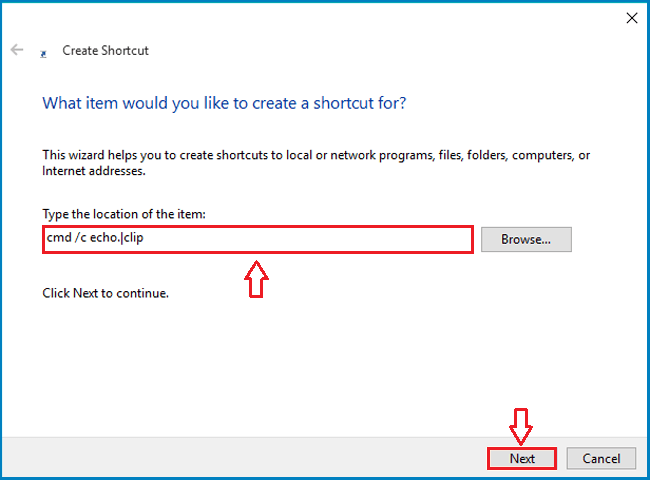
Step 2: Enter cmd /c echo.|clip in the Type the location of the item field and click Next to continue.
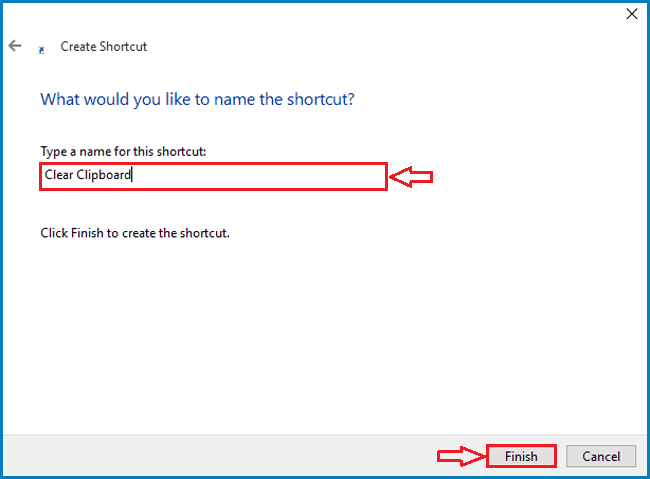
Step 3: Type a name for this shortcut and then click Finish.
And then you will find that the shortcut is added to your desktop. Next time when you need to clear the clipboard, you can double click it to achieve this.
Method 4: Clear Clipboard Using Windows+V
Another way recommended to you to delete clipboard on Windows 10 is to use the keyboard of Windows+V. It is an efficient way which you can use to both clear clipboard history items individually and clear all the clipboard history data except pinned items.
Step 1: Press the Windows +V keys to open the clipboard pane where you can see a list of texts and images that you have copied before.
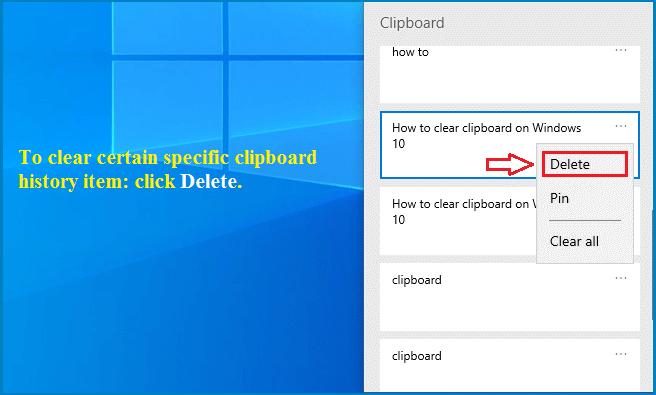
Step 2: To clear specific clipboard history items individually, scroll down to look for the item that you want to delete, click the three horizontal dots behind each item and then click the Delete button to clear it.
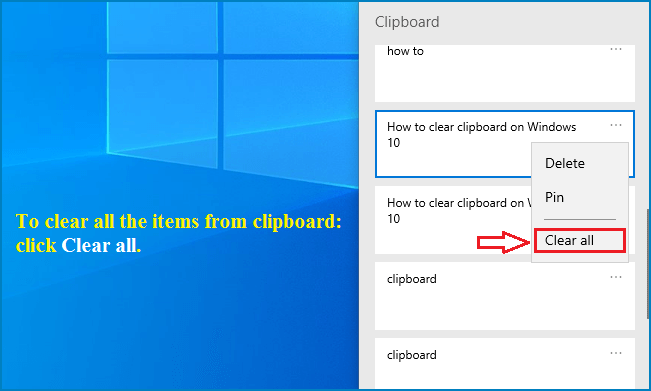
Step 3: To delete all the items from the clipboard, you can click Clear All.
And then you will be noticed Your clipboard is empty.
FAQs on Windows 10 Clipboard Clear
Q1: What's the difference between "Clear" in Settings and "echo | clip"?
Settings removes all saved clipboard history (excluding pinned), while echo | clip only sets the current clipboard content to blank.
Q2: Does pressing Windows + V store the items permanently?
No—clipboard history is cleared on restart unless items are pinned. You can delete unpinned items anytime.
Q3: Will scheduled clearing interfere with my workflow?
No—as long as it runs in the background. It wipes the clipboard periodically (e.g., every 30 minutes) to maintain privacy.
Conclusions
By following these four methods (plus automation), you can effectively manage and secure your clipboard data—keeping your copy-and-paste actions private and controlled.