logo
Windows 10 4 Ways to Open Ease of Access Center in Windows 10

4 Ways to Open Ease of Access Center in Windows 10

By Michael | Last Updated

The Ease of Access Center provides essential accessibility tools—like Narrator, Magnifier, On-screen Keyboard, and Sticky Keys—within a centralized control panel. It's vital for users needing visual, hearing, or motor assistance. If you don't know where Ease of Access Center is in Windows 10 computer, you can use the following 4 methods to turn it on.

Way 1: Open it by searching.

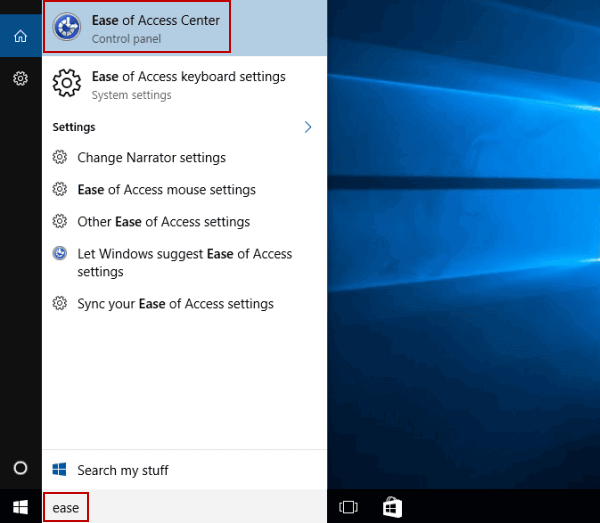
Type ease in the search box on taskbar, and choose Ease of Access Center from the result. It just works on Windows 10 older version.

open ease of access center by search

Way 2: Turn it on using keyboard shortcut.

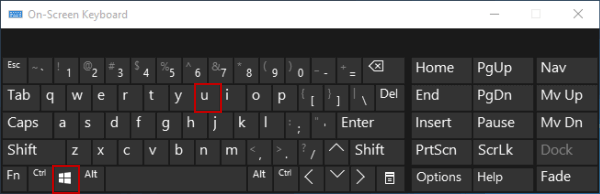
Press Windows+U on the keyboard. This is the fastest method and works across all Windows versions.

open ease of access center by keyboard shortcut

Way 3: Open it in Control Panel.

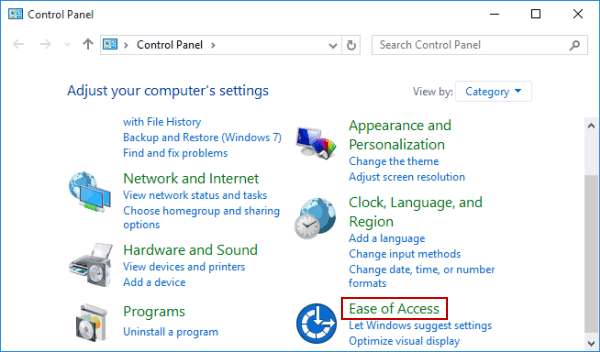
Step 1: Enter Control Panel.

Step 2: Click Ease of Access.

open ease of access center in control panel

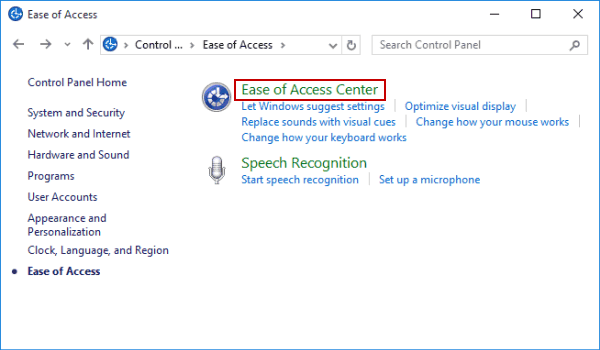
Step 3: Select Ease of Access Center.

click ease of access center

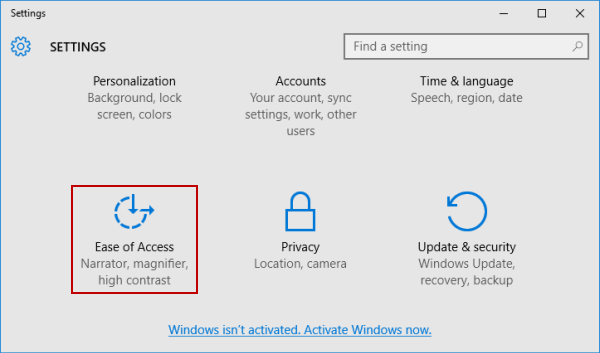
Way 4: Turn it on in Settings.

Step 1: Get into Settings.

Step 2: Choose Ease of Access.

open ease of access center in settings

Related Articles: