By Hally | Last Updated
System locale controls how Windows handles non-Unicode (ANSI) text—crucial for correctly displaying characters in legacy or non-Unicode apps (especially those using Shift-JIS, GBK, etc.). Follow this step-by-step guide to update your system locale without impacting your display language.
System locale defines which code pages and bitmap fonts are used by non-Unicode programs. If running legacy apps in Japanese, Chinese, or Russian, using the matching locale ensures correct character rendering—otherwise, text may appear garbled.
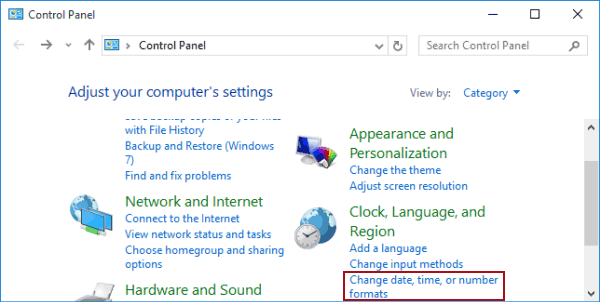
Step 1: Get into Control Panel.
Step 2: Tap Change date, time, or number formats to move on.

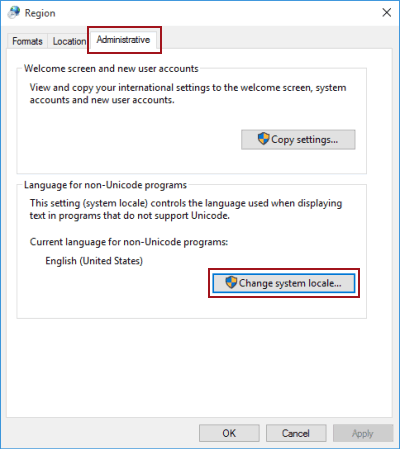
Step 3: As the Region dialog appears, choose Administrative and click Change system locale.

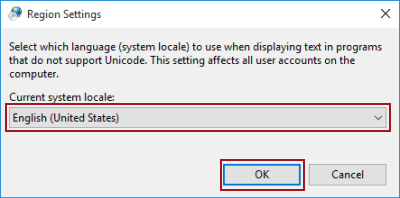
Step 4: Select a new system locale and tap OK.

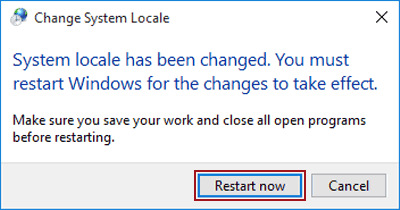
Step 5: Hit Restart now to make the setting effective.

Note:
Related Articles:
How to Reset Windows 10 Forgotten Password
How to Bypass Windows 10 Password Login with/without Password
Easy Guide to Reset Windows 10 Admin Password Like an Expert
4 Tips to Change Windows 10 Password without Knowing Current Password
Can't Sign into Microsoft Account Windows 10 | Account Locked/Blocked