We use cookies for personalizing content and ads and providing social media features. Your usage information on our website will be used for social media, advertising, and traffic analytics, or shared with our partners. Clicking "Accept" means you agree to use our cookies .
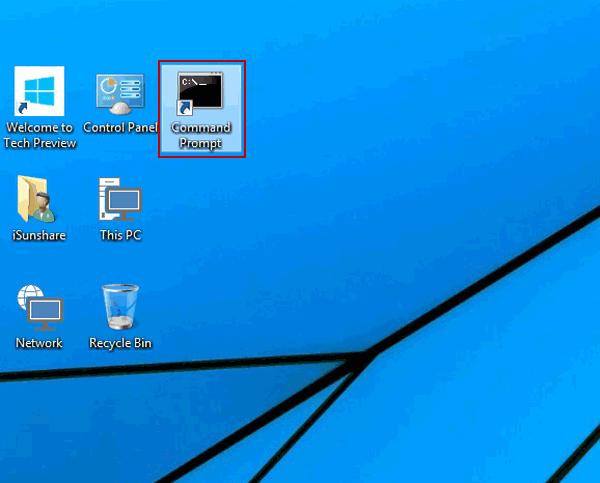
How can you create a Command Prompt shortcut (see the following picture) on the desktop of Windows 10 computer? The article introduces two simple methods to do the trick.
Video guide on how to create Command Prompt shortcut on desktop in Windows 10:
How to create Command Prompt shortcut on Windows 10 desktop:
Way 1: Send the Command Prompt shortcut to the desktop.
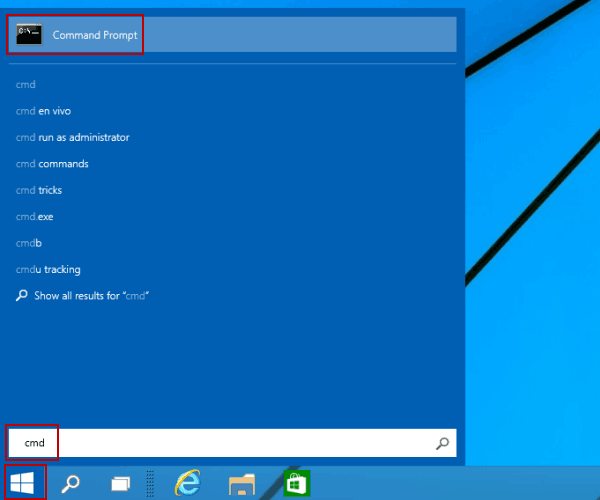
Step 1: Find Command Prompt.
Click the bottom-left Start button, type cmd in the search box and locate Command Prompt in the results.
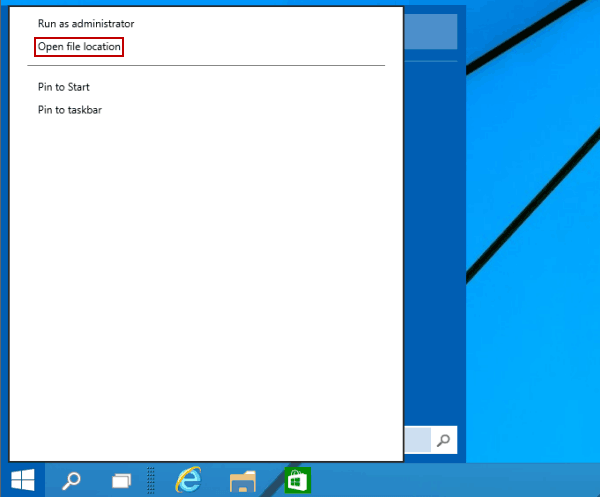
Step 2: Open its file location.
Right-tap Command Prompt and select Open file location.
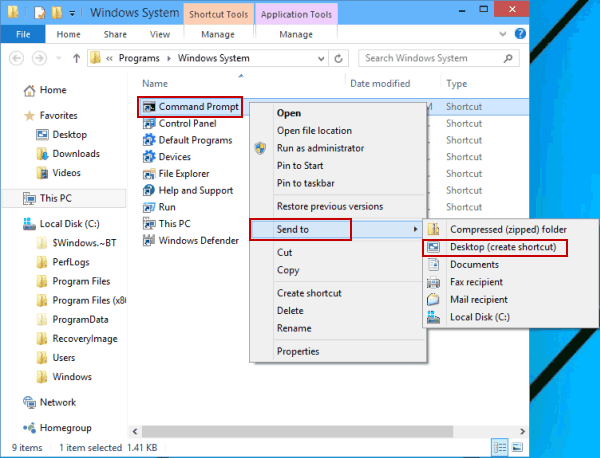
Step 3: Send the Command Prompt shortcut to desktop.
Right-click the Command Prompt shortcut, point at Send to in the context menu, and choose Desktop (create shortcut) in the sub-list.
Way 2: Manually create a Command Prompt shortcut.
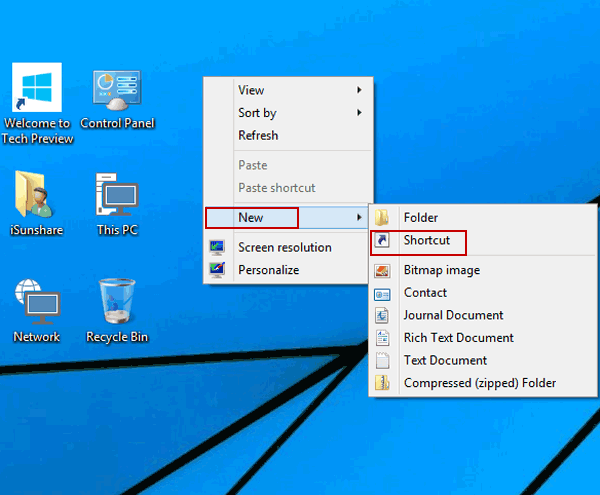
Step 1: Open a new shortcut on the desktop.
Right-tap desktop, point at New in the menu and select Shortcut.
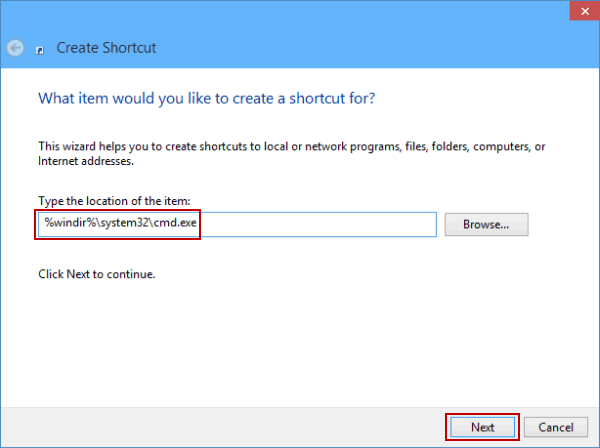
Step 2: Input the location of Command Prompt and move on.
Type %windir%\system32\cmd.exe in the empty box, and tap Next.
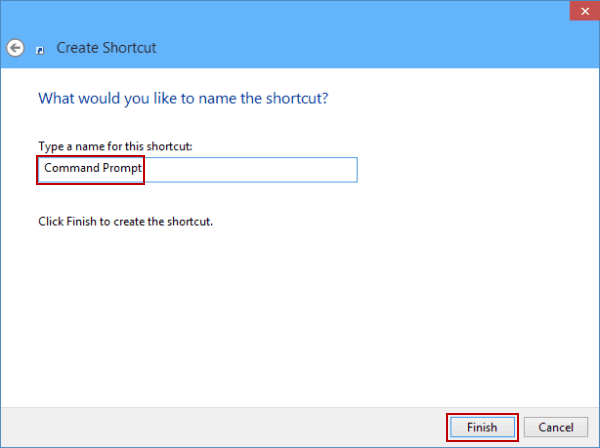
Step 3: Name the shortcut and finish creating it.
Type Command Prompt as the shortcut's name, and click Finish.