By Michael | Last Updated
Need to run Command Prompt (CMD) in Windows 10? Whether you're managing system tasks or just exploring command-line tools, here are four straightforward ways to launch it—either as a standard user or with admin privileges.
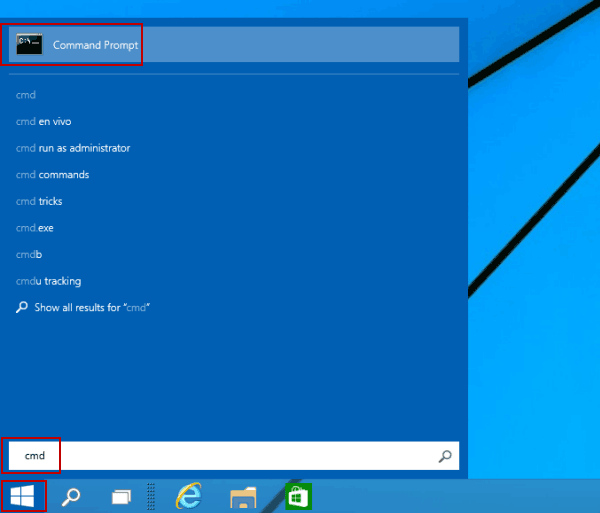
Click the lower-left Start button to open the Start Menu, input cmd in the empty box and tap Command Prompt in the results.

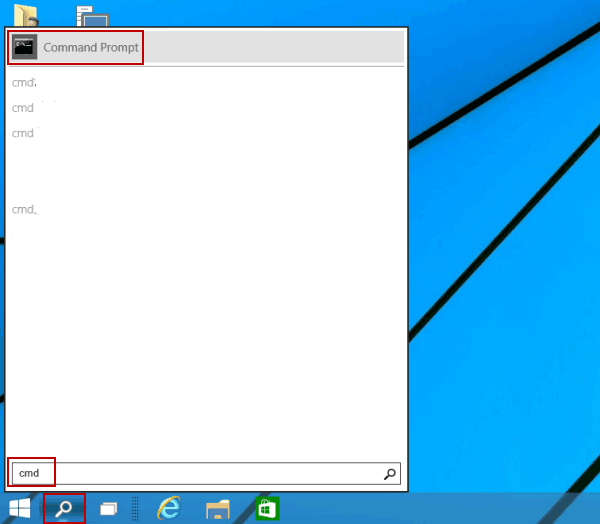
Tap the Search button on the taskbar, type cmd in the search box and choose Command Prompt on the top.

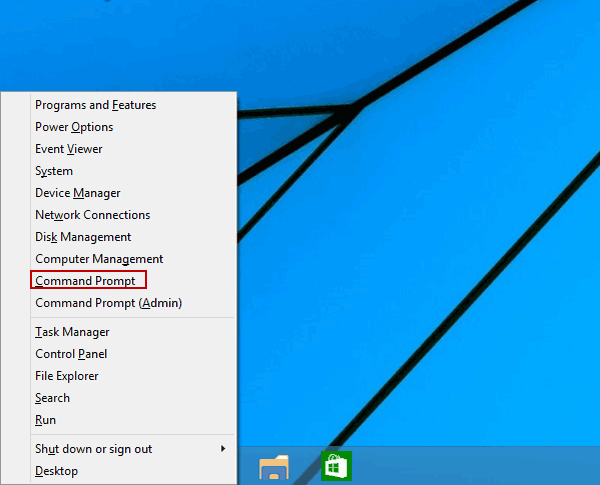
Press Windows+X, or right-click the bottom-left corner to open the menu, and then select Command Prompt on it.

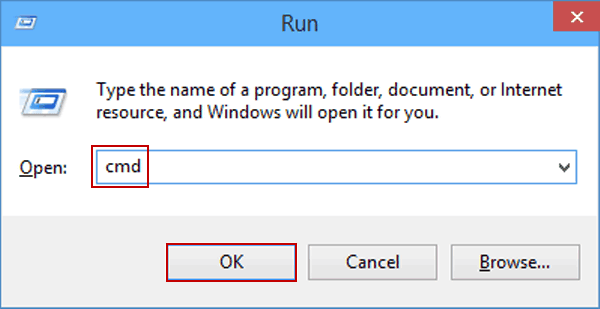
Open the Run dialog using Windows+R hotkeys, enter cmd and tap OK. After that, you will get the command prompt window and execute command lines.

Related Articles:
How to Reset Windows 10 Forgotten Password
How to Bypass Windows 10 Password Login with/without Password
Easy Guide to Reset Windows 10 Admin Password Like an Expert
4 Tips to Change Windows 10 Password without Knowing Current Password
Can't Sign into Microsoft Account Windows 10 | Account Locked/Blocked