We use cookies for personalizing content and ads and providing social media features. Your usage information on our website will be used for social media, advertising, and traffic analytics, or shared with our partners. Clicking "Accept" means you agree to use our cookies .
Task Scheduler is a tool included in Windows 10/11 that allows predefined actions to be performed automatically when certain conditions are met. Using this tool, you can automate a variety of tasks, including starting apps, running specific commands or executing scripts at specified dates and times, or when specific conditions are met using triggers. In this post, we will show you by example how to create, edit and delete a scheduled task via CMD in Windows 10/11 and how the respective tasks appear in the Task Scheduler.
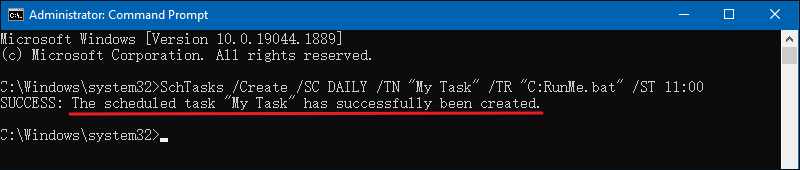
We can use the following options to create a scheduled task.
/Create: Indicates that you want to create a new automatic task.
/SC: Indicates the schedule of the task. The available options include MINUTE, HOURLY, DAILY, WEEKLY, MONTHLY, ONCE, ONSTART, ONLOGON, ONIDLE, and ONEVENT.
/TN: Indicates the name and location of the task that you want to modify.
/TR: Indicates the location and name of the task you want to run. You can choose an application or a custom script.
/ST: Indicates the new time to run the automated routine.
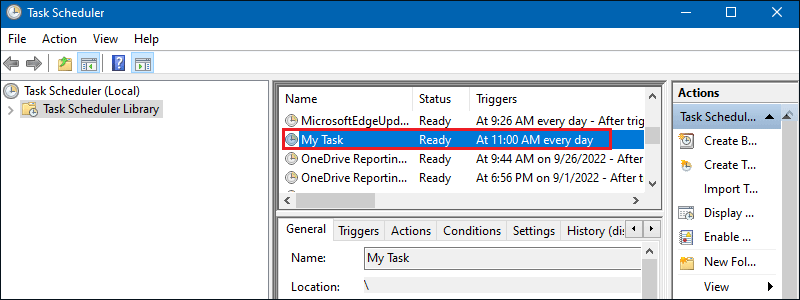
The newly created task is displayed in the Task Scheduler as follows.
2: Edit scheduled tasks
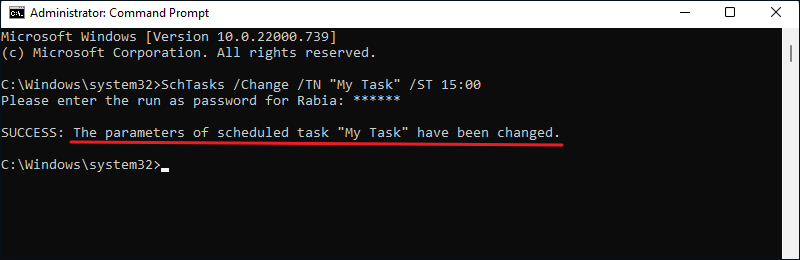
/Change: Indicates that you want to edit an existing task.
If you would like to change "My Tasks" to run at 3:00 PM. You can enter the following command.
SchTasks /Change /TN "My Task" /ST 15:00
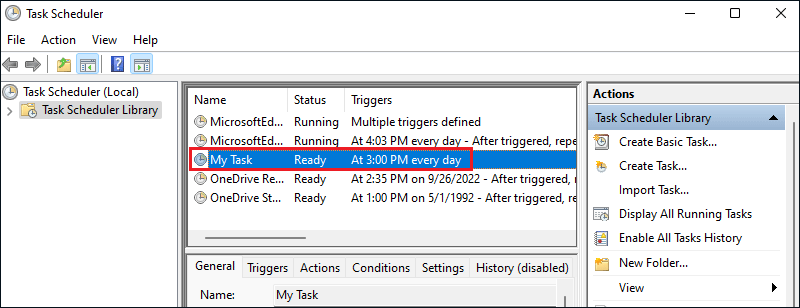
The tasks changed in the Task Scheduler are displayed as follows.
3: Delete scheduled tasks
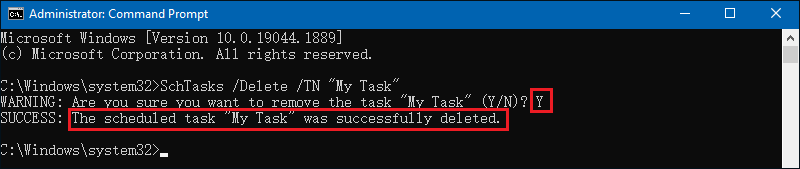
/Delete: Indicates that you want to delete an existing task.
If you want to delete the newly created task, you can type the following command and press Enter, type Y in the pop-up warning and press Enter, this will successfully delete the task you just created.