By Achilles Hill | Last Updated
The Favorites bar—also known as the bookmarks bar—is the toolbar under the address bar that gives you quick access to your favorite URLs. Here's how to control when and how it appears in Microsoft Edge.
Step 1: Open Microsoft Edge. Click the Settings and more menu (...) in the top-right corner. Then choose Settings to open.
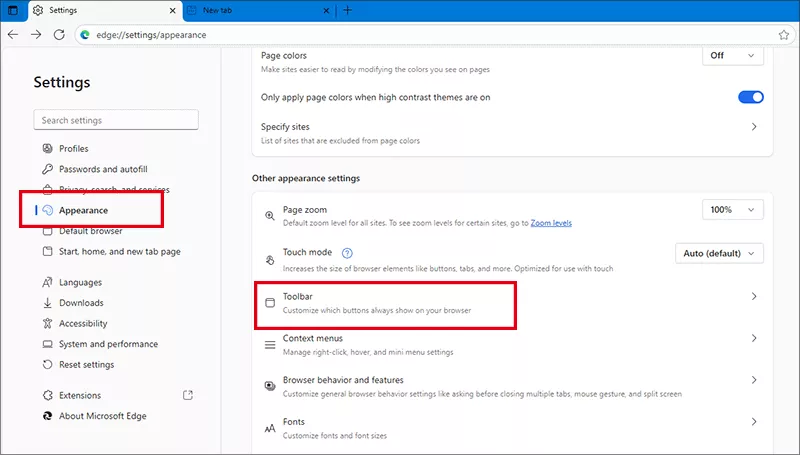
Step 2: On the Settings window, hit Appearance on the sidebar. After that, select Toolbar under Other appearance settings section.

Step 3: Find the Favorites bar setting, you can choose to hide or show the Favorite bar from the drop-down menu:

Simply press Ctrl + Shift + B to toggle the display of the Favorites bar—on or off—as a quick one-step solution.
Related Articles:
How to Reset Windows 10 Forgotten Password
How to Bypass Windows 10 Password Login with/without Password
Easy Guide to Reset Windows 10 Admin Password Like an Expert
4 Tips to Change Windows 10 Password without Knowing Current Password
Can't Sign into Microsoft Account Windows 10 | Account Locked/Blocked