By Michael | Last Updated
Microsoft Defender SmartScreen helps protect you by checking websites and downloads against a database of unsafe or unverified content. Here you can learn how to enable or disable SmartScreen Filter in Microsoft Edge to prevent malicious sites and downloads.
Step 1: Open Microsoft Edge. Then click the Settings and more icon on the top right corner.
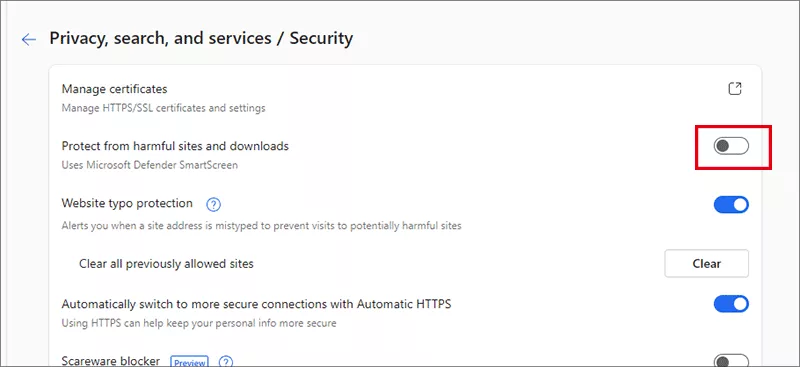
Step 2: Hit the Privacy, search, and services option on the left side. After that, click the Security option on the right panel.

Step 3: Now you can toggle on or off the switch behind Protect from harmful sites and downloads field.

You can also turn on SmartScreen for Microsoft Edge via Windows Security settings.
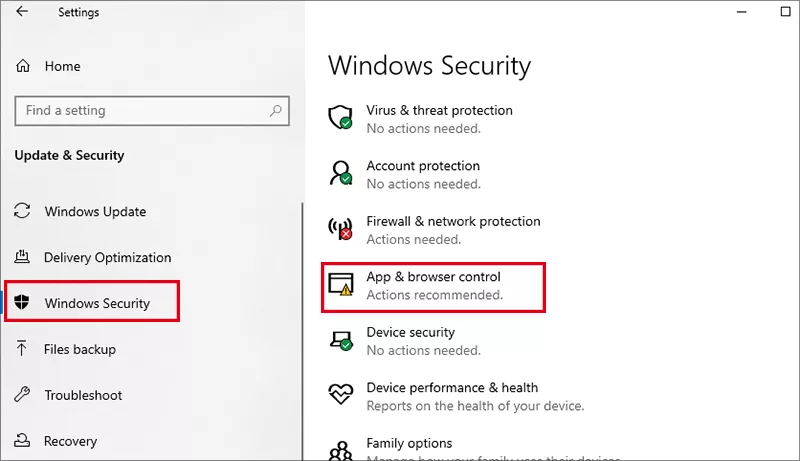
Step 1: Open Settings and choose Update & Security.
Step 2: Hit Windows Security on the sidebar. After that, click App & browser control.

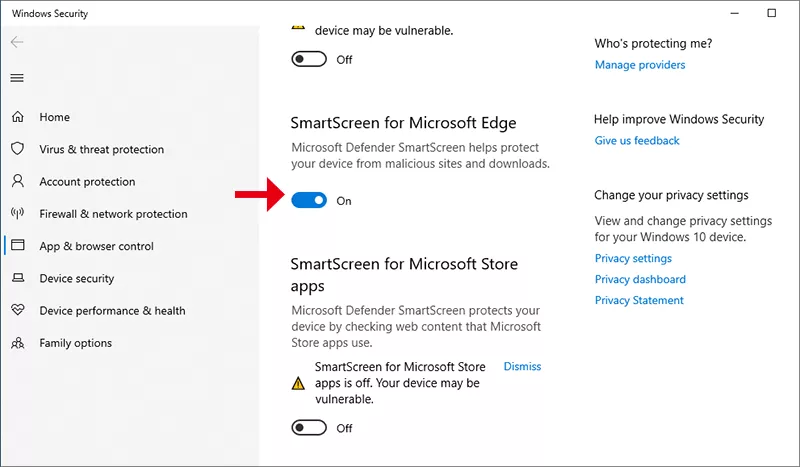
Step 3: Finally, you can enable or disable SmartScreen for Microsoft Edge by toggling on the switch under SmartScreen for Microsoft Edge section.

Related Articles:
How to Reset Windows 10 Forgotten Password
How to Bypass Windows 10 Password Login with/without Password
Easy Guide to Reset Windows 10 Admin Password Like an Expert
4 Tips to Change Windows 10 Password without Knowing Current Password
Can't Sign into Microsoft Account Windows 10 | Account Locked/Blocked