We use cookies for personalizing content and ads and providing social media features. Your usage information on our website will be used for social media, advertising, and traffic analytics, or shared with our partners. Clicking "Accept" means you agree to use our cookies .
Task Scheduler has a feature called "Display a Message". By using the Task Scheduler, you can make it to display a simple pop-up reminder and get a timely message using pop-up windows. Here I will guide you step by step on how to display popup message with task scheduler in Windows 10/11.
Steps to display popup message with task scheduler in Windows 10/11:
Step 1: Type Task Scheduler in the Start menu bar and click Open.
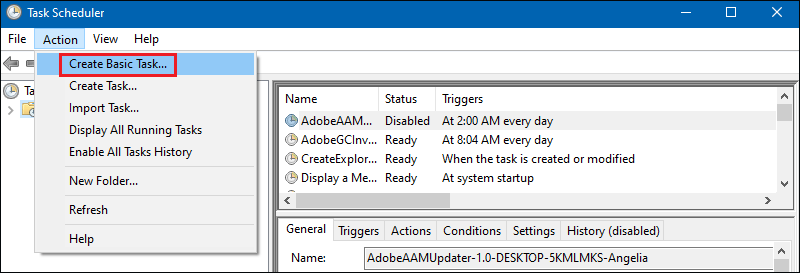
Step 2: In the Action tab, selecting Create Basic Task.
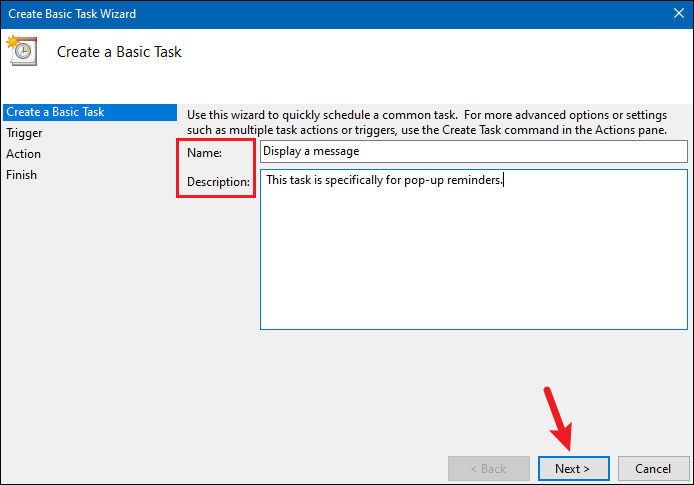
Step 3: Enter the Name and Description for this new task and click Next to continue.
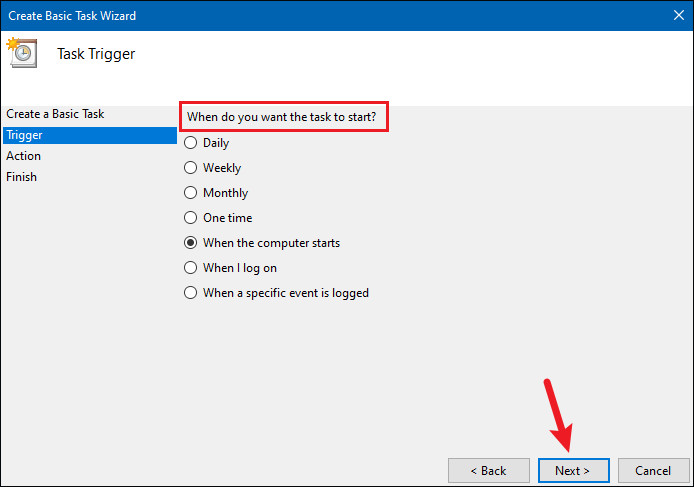
Step 4: Select when do you want the task to start. For example, I selected "When the computer starts" option. You can select any trigger you want. Then click Next to continue.
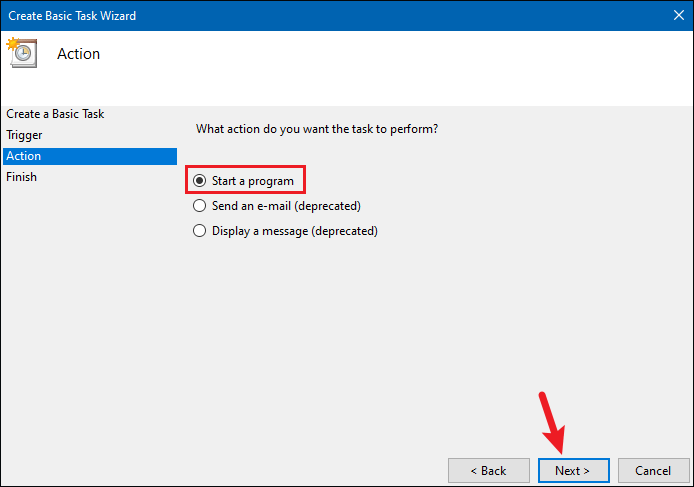
Step 5: Select Start a program and click Next to move on.
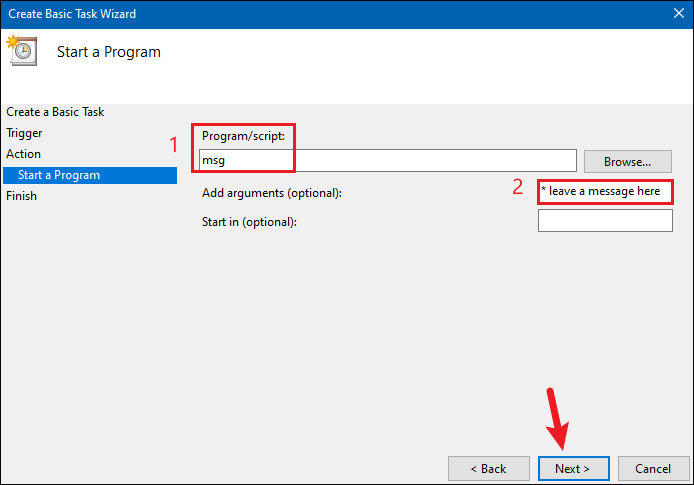
Step 6: In Start a Program Window, fill in the blank fields as below. Click Next to continue.
Program/Script — msg
Arguments — * Replace_With_Your_Message
Note:
You should replace "Replace_With_Your_Message" with your actual message and don't remove * in front of the message in the Add arguments field.
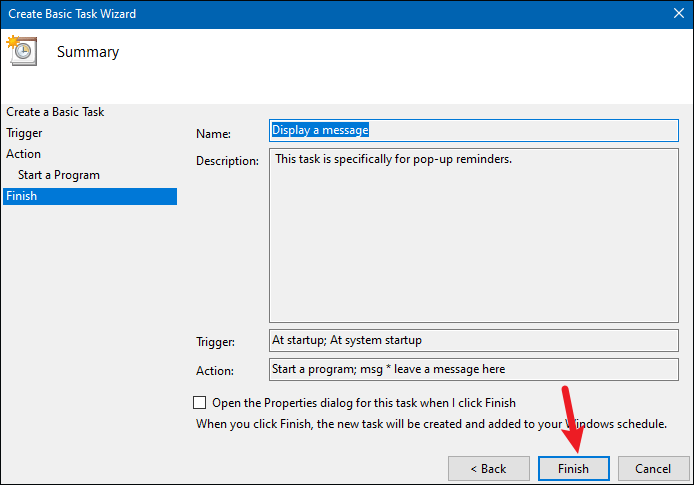
Step 7: In the Summary window, click Finish button to finalize the task creation process.
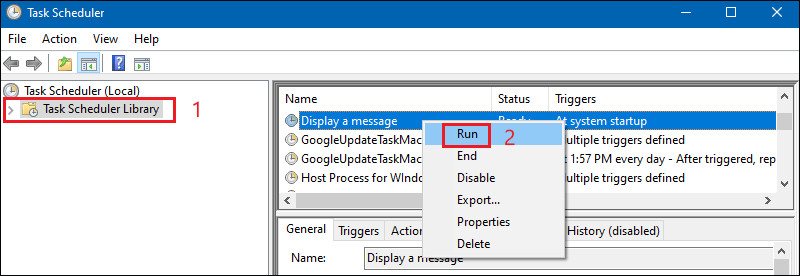
Step 8: After creating a task, you can check if it is ready to run. First select the Task Scheduler Library option in the left panel, then find the task you just created in the middle panel, right click it and select Run.
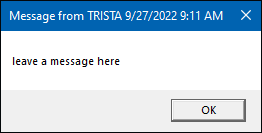
Step 9: If it runs properly, you can see a pop-up window with your message.