We use cookies for personalizing content and ads and providing social media features. Your usage information on our website will be used for social media, advertising, and traffic analytics, or shared with our partners. Clicking "Accept" means you agree to use our cookies .
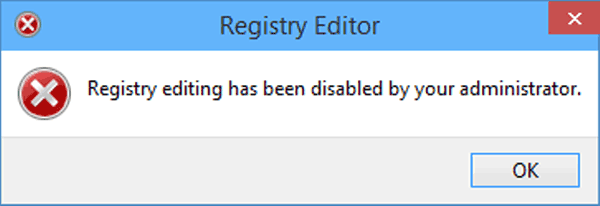
If you can't open Registry Editor on Windows 10 computer, a dialog box will show up, with a message explaining that registry editing has been disabled by the administrator, as exhibited in the following picture. FYI, such a problem can be worked out easily by adopting the method illustrated below.
What does this message mean? It usually means either: A group policy has disabled it; The registry key controlling access has been set; Or a malicious tweak (or malware) caused the change. Here's how to fix it safely.
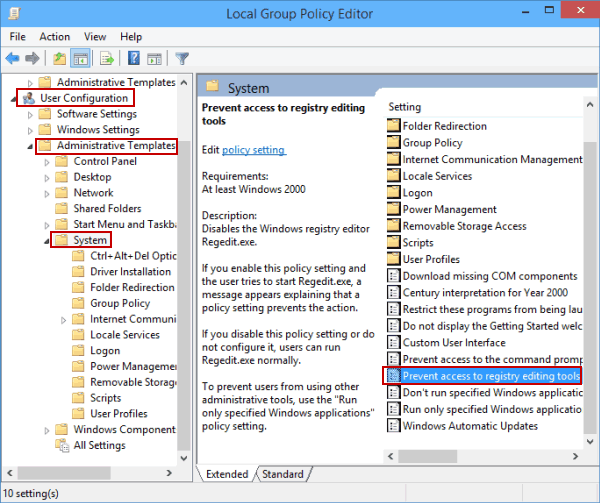
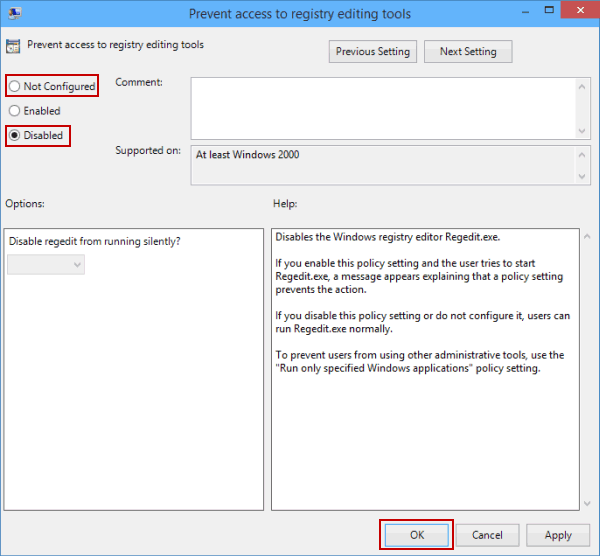
Method 1: Use Local Group Policy Editor (Pro / Enterprise / Education)
Sometimes malware creates a fake regedit.com to override regedit.exe. You need to check C:\Windows or C:\Windows\System32 for suspicious .com files.
Besides, use your antivirus or full antivirus scan.