We use cookies for personalizing content and ads and providing social media features. Your usage information on our website will be used for social media, advertising, and traffic analytics, or shared with our partners. Clicking "Accept" means you agree to use our cookies .
Video guide on how to turn on Registry Editor in Windows 10:
Way 1: Open the Registry Editor in Start Menu.
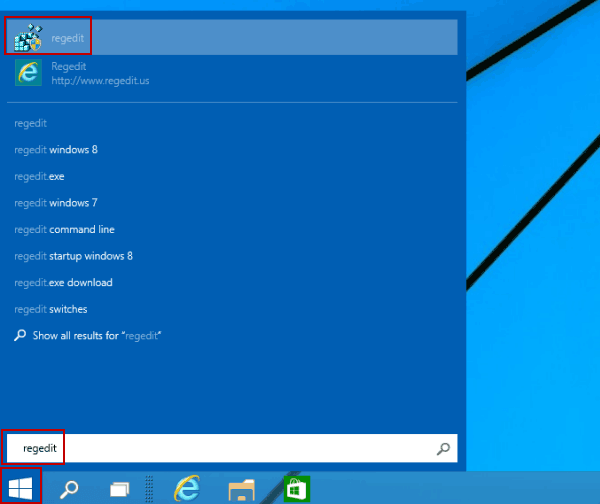
Step 1: Click the Start button on the bottom-left corner, type regedit in the empty search box and tap regedit in the results.
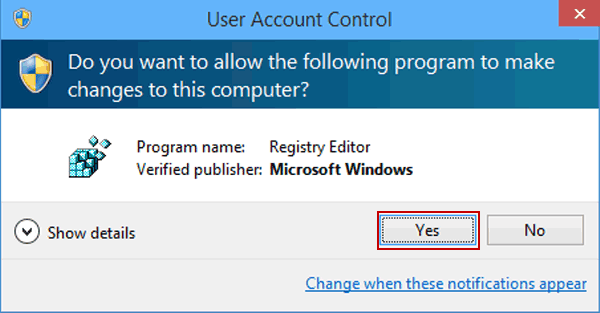
Step 2: Select Yes in the User Account Control dialog.
Tip: Remember this step is a must-do procedure before you successfully turn on the Registry Editor. And it won't be repeatedly described in the four methods below.
Way 2: Turn on Registry Editor via Run.
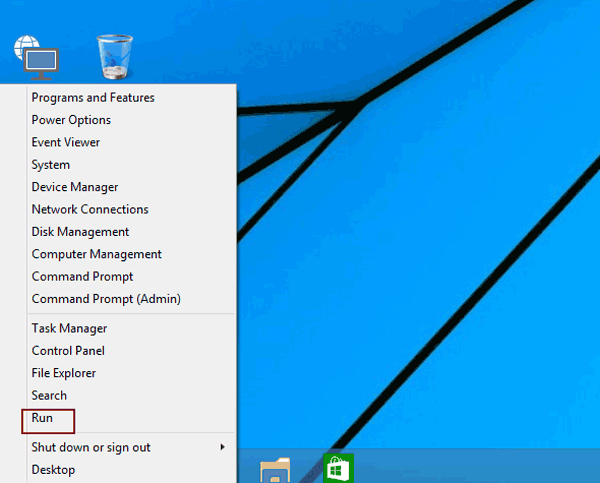
Step 1: Right-tap the lower-left corner and choose Run in the Quick Access Menu.
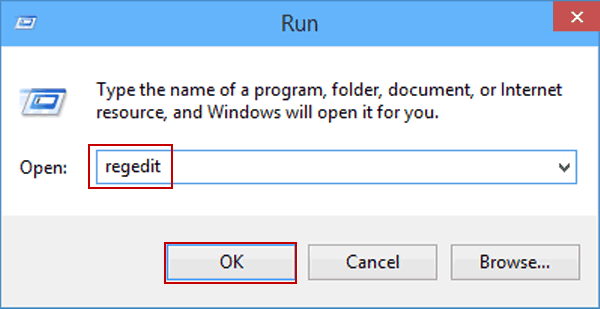
Step 2: Type regedit and tap OK in the Run dialog.
Way 3: Open Registry Editor through Command Prompt.
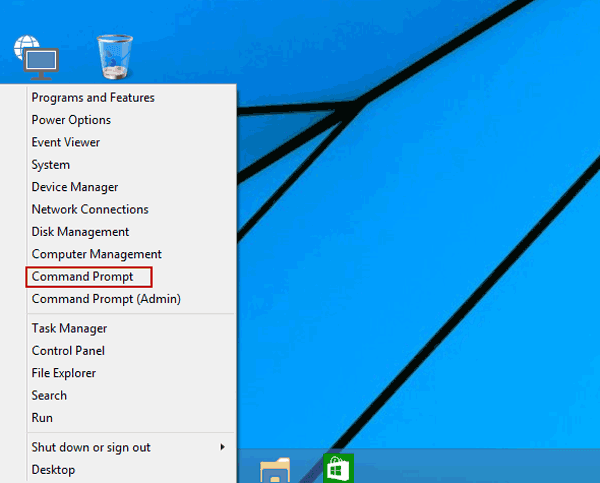
Step 1: Press Windows+X, and choose Command Prompt in the menu.
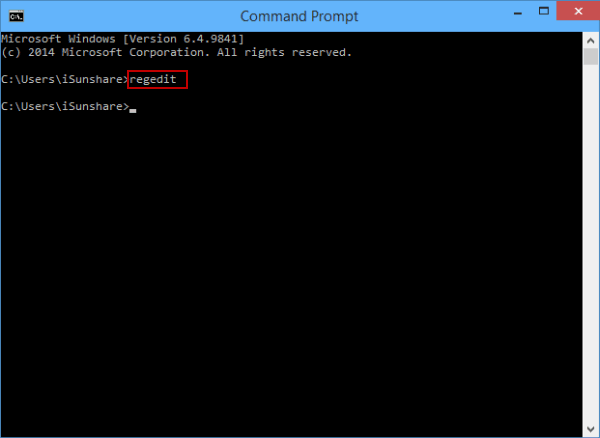
Step 2: Type regedit in the Command Prompt window and press Enter.
Way 4: Turn Registry Editor on through Windows PowerShell.
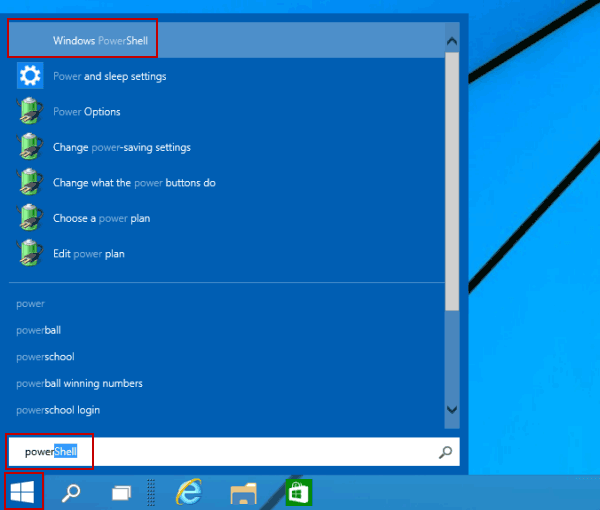
Step 1: Tap the Start button, enter power in the search box and click Windows PowerShell in the results.
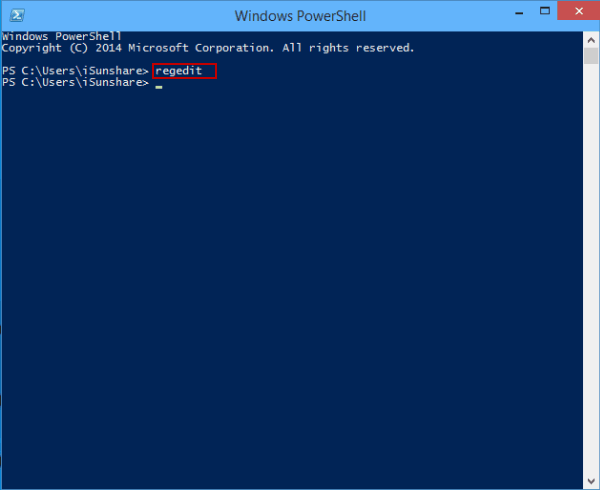
Step 2: Input regedit and hit Enter.
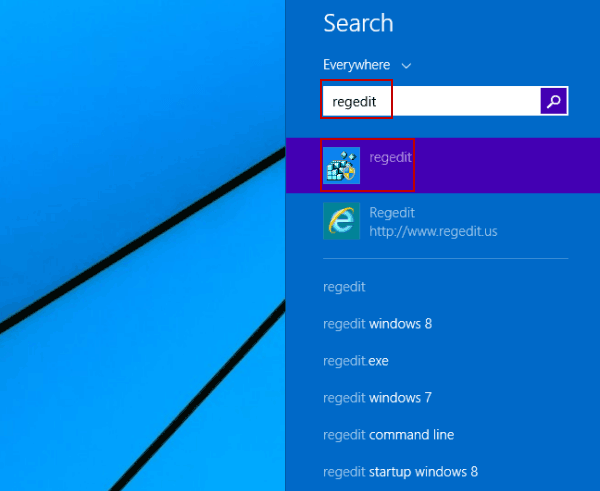
Way 5: Open the program by Search.
Step 1: Press Windows+C to open Charms Menu, and choose Search on it.
Step 2: Enter regedit and click regedit on the Search bar.