We use cookies for personalizing content and ads and providing social media features. Your usage information on our website will be used for social media, advertising, and traffic analytics, or shared with our partners. Clicking "Accept" means you agree to use our cookies .
Android USB drivers allow a Windows computer to communicate with an Android phone or tablet through a USB connection. They help Windows recognize connected devices and enable functions such as file transfers, Android debugging, and firmware management. In this guide, you can find official Android USB driver download sources for popular Android device, learn how to install or update drivers on Windows 11 and Windows 10.
Note:
There is no universal USB driver that works for every Android device and every connection mode. Choose the driver provided by your device manufacturer whenever possible.
1. Android USB Driver Downloads for Different Brands
The easiest way to get the correct Android USB driver is to download it from your phone manufacturer's official website. This helps you avoid outdated, modified, or potentially unsafe driver packages from third-party download websites.
The following table lists official driver resources and support pages for popular Android manufacturers.
Not every manufacturer provides a separate USB driver installer for every device. Some phones use Windows' built-in MTP drivers for file transfers, while others require an OEM driver for ADB or specialized connection modes.
Google provides a USB driver for connecting supported Google Android devices to Windows computers for ADB debugging. You can download the Google USB Driver in two ways:
2. Agree to Google's terms and download the ZIP package.
3. Extract the downloaded file to a folder on your computer.
4. Install the driver through Windows Device Manager.
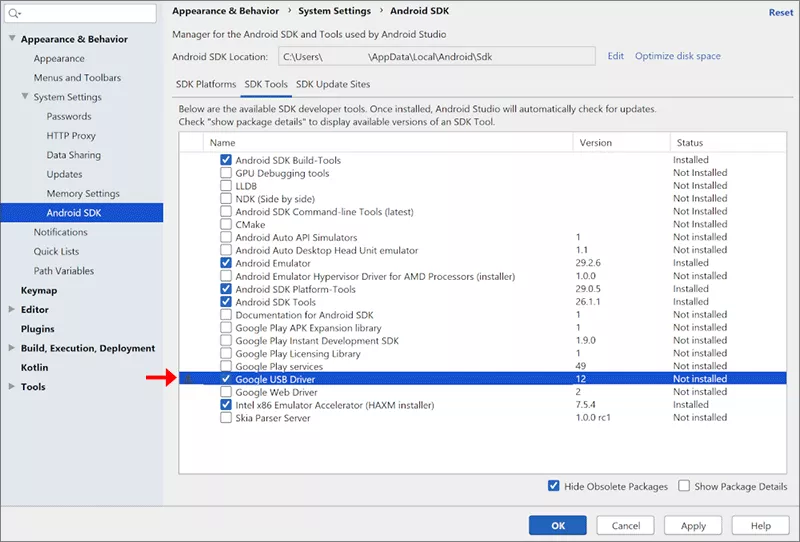
Option 2. Install through Android Studio
1. Open Android Studio, choose Tools> SDK Manager.
2. Select the SDK Tools tab. Find and select Google USB Driver.
The driver files are normally stored in the android_sdk\extras\google\usb_driver\ directory.
Note:
The Google USB Driver is intended for supported Google devices. For other Android brands, use the appropriate manufacturer's driver.
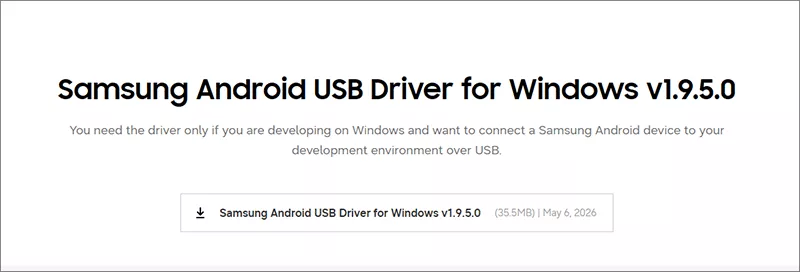
1.2 Samsung Android USB Driver
Samsung provides an official Android USB driver for Windows. It is useful when connecting a Samsung Galaxy phone or tablet to a Windows development environment for USB debugging.
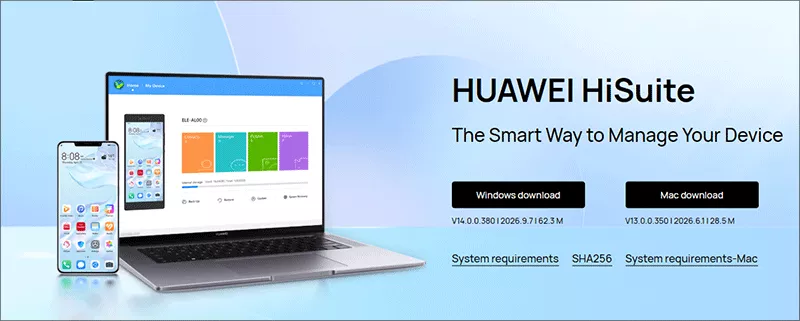
1. Download and install HiSuite on your Windows computer.
2. Connect your Huawei phone using a USB cable.
3. Unlock the phone. Select File Transfer or Photo Transfer if prompted.
4. Enable HDB in your phone's settings when required. Allow the requested connection permissions.
Huawei HiSuite supports Windows 11 and Windows 10 according to its current download page.
2. Android USB Driver vs. ADB Driver vs. Fastboot Driver vs. MTP
Before installing a driver, it is important to understand that Android USB connections can serve different purposes.
An Android phone may use different USB interfaces depending on whether you are transferring files, debugging applications, or working with the bootloader.
Connection Type
Main Purpose
What You Need
MTP
Transfer photos, videos, and other files
Windows MTP support and a compatible USB connection
ADB
Debug Android devices and execute commands
Android Platform-Tools and an appropriate USB driver
Fastboot
Communicate with a device in bootloader mode
Fastboot tools and a compatible USB interface driver
PTP
Transfer photos from an Android device
Windows-compatible photo transfer support
OEM USB Interface
Manufacturer-specific communication
The appropriate manufacturer's driver
What Is an Android USB Driver?
An Android USB driver is software that allows Windows to communicate with an Android device through a USB connection. Depending on the device and USB mode, the driver may support file transfers, debugging, device management, or other functions.
What Is an ADB Driver?
ADB stands for Android Debug Bridge. It is a command-line tool that allows a computer to communicate with an Android device.
ADB can be used to:
Install and uninstall Android applications.
Execute shell commands on an Android device.
Debug applications.
Transfer files.
Collect device logs.
Perform supported device management tasks.
ADB requires Android SDK Platform-Tools and an appropriate USB connection. Installing Platform-Tools alone does not guarantee that Windows has the correct device driver.
What Is a Fastboot Driver?
Fastboot is a tool used to communicate with an Android device while it is in bootloader or Fastboot mode. It is commonly used for supported bootloader operations, flashing system images, and other device maintenance tasks.
A phone that is recognized by ADB may not necessarily be recognized by Fastboot because these tools communicate with different USB interfaces.
3. How to Check Whether Windows Recognizes Your Android Phone
After installing the driver, you should verify that Windows can communicate with your Android device.
Connect your phone to the PC using a USB data cable. Then unlock your Android phone. Go to open the USB connection notification. Select File Transfer or MTP. After that, open File Explorer on Windows. Click This PC, your Android phone should appear under the connected devices section.
If it does not appear, try another USB port or cable and check the phone's USB connection mode.
4. FAQs About Android USB Drivers
Q1. Do I Need an Android USB Driver for Windows 11?
Not always. Windows can recognize many Android phones using built-in drivers, especially for ordinary MTP file transfers. However, you may need an OEM USB driver when using ADB debugging, Fastboot, or manufacturer-specific device management tools.
Q2. Where Can I Download Android USB Drivers?
The safest place is your phone manufacturer's official website. Google also provides an OEM USB driver directory that links to driver resources for several Android manufacturers.
Q3. What Is the Best USB Driver for Samsung Phones?
Use the official Samsung Android USB Driver when connecting a Samsung device to Windows for development and ADB debugging. For ordinary file transfers, Windows may use its built-in MTP support.
Q4. Is an ADB Driver the Same as an Android USB Driver?
No. ADB is a command-line communication tool, while a USB driver enables Windows to communicate with a particular device interface. ADB requires both the appropriate software tools and a working USB connection.
Q5. How Do I Update Android USB Drivers?
Open Device Manager, locate your Android device, right-click it, and select Update driver. You can also download a newer compatible driver from the manufacturer's official website.
Conclusion
Correct Android USB drivers are vital for connecting Android devices to Windows 10/11. Basic file transfer often works without them, but ADB, Fastboot and manufacturer tools need proper OEM drivers. Get drivers from official sites, install correctly, and test via File Explorer, Device Manager or ADB to prevent compatibility issues.
If your phone remains undetected, check the USB cable, connection mode, driver support and debugging access before suspecting hardware failure.