We use cookies for personalizing content and ads and providing social media features. Your usage information on our website will be used for social media, advertising, and traffic analytics, or shared with our partners. Clicking "Accept" means you agree to use our cookies .
Running low on storage in Windows computer? Large files and folders—like videos, ISO images, backups, or old software—can eat up space quickly. Deleting them is a simple way to free up valuable disk space and improve system performance.
In this guide, we'll show you how to find, manage, and safely delete large files or folders in Windows computer, using both built-in features and trusted tools.
Method 1: Delete Large Files or folders via File Explorer
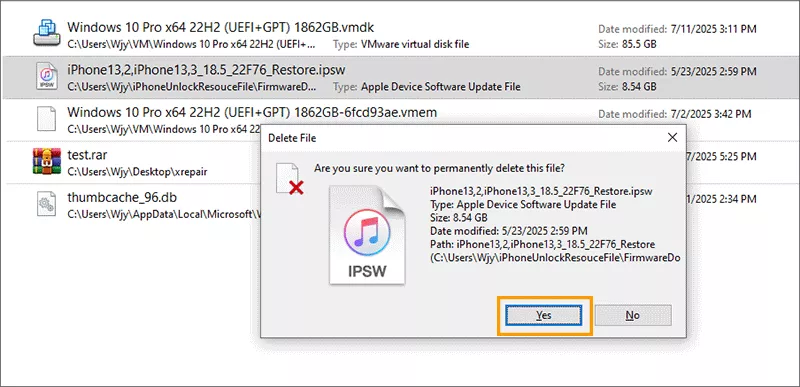
Step 1: After you find the large files in Option 1, select the large file or folder.
Step 2: Press Shift + Delete to bypass the Recycle Bin (careful: this is permanent!)
Step 3: Click Yes to confirm.
Note:
Only use Shift + Delete if you're 100% sure you no longer need the file.
Method 2: Remove Large Files or Folder via Settings
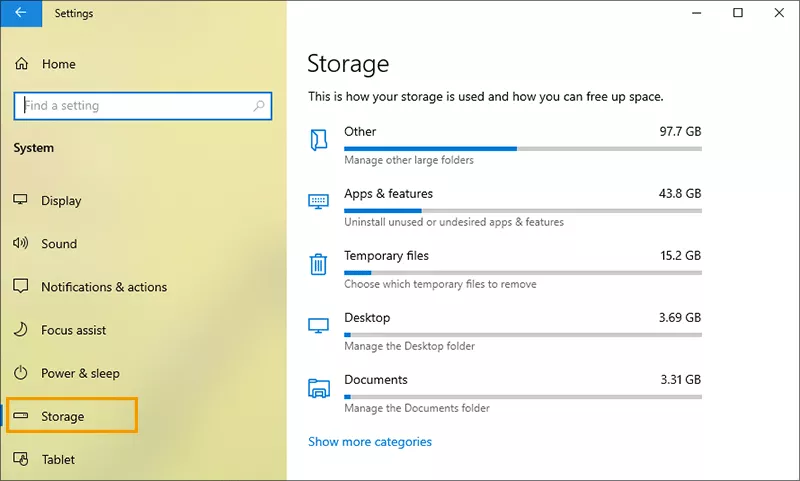
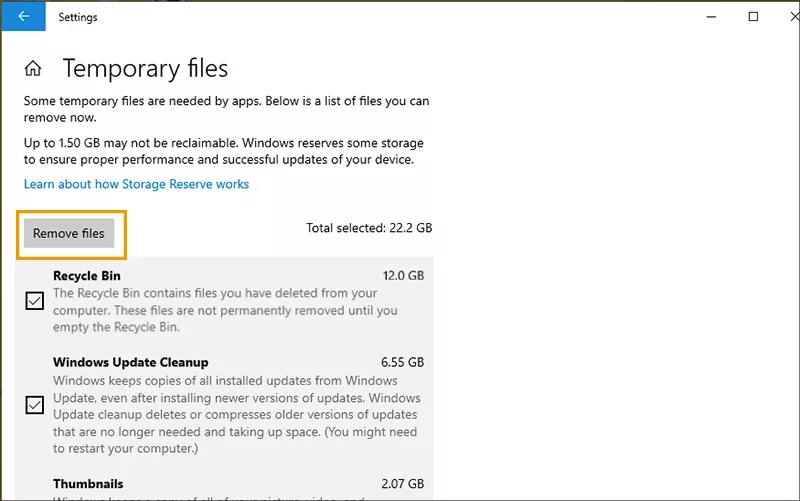
Step 1: After you locate the large files on Option 2, you can access the category to view details. Just take Temporary files as an example.
Step 2: Now you can view a list of files you can remove. Tick the checkbox and click the Remove files button.
Step 3: In no time, the selected files are removed from your computer.
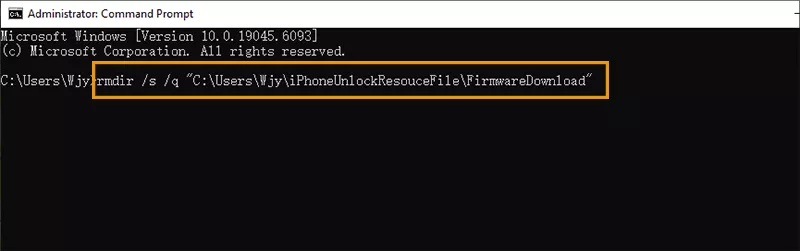
Method 3: Use Command Prompt (for stubborn folders)
If a large folder refuses to delete due to errors. You can run Command Prompt as administrator and execute the following command: rmdir /s /q "C:\Path\To\Folder". You need to replace with the actual path of the folder.
Method 4: Delete Big Files/Folders in Windows without Recovery
To delete the big files or folders securely, which means that make the deleted files/folders unrecoverable, using a third-party tool is worth considering. And here we will take iSunshare File Deletion Genius as the file eraser to show you how to securely delete big files/folders in Windows 10.
Step 1: Free download iSunshare File Deletion Genius and then install it in your Windows device.
iSunshare Reliable File Deletion Software
Securely delete big files or folders on Windows PC
Delete multiple files/folders/drives/disks at a time
Completely erase data from your computer without recovering
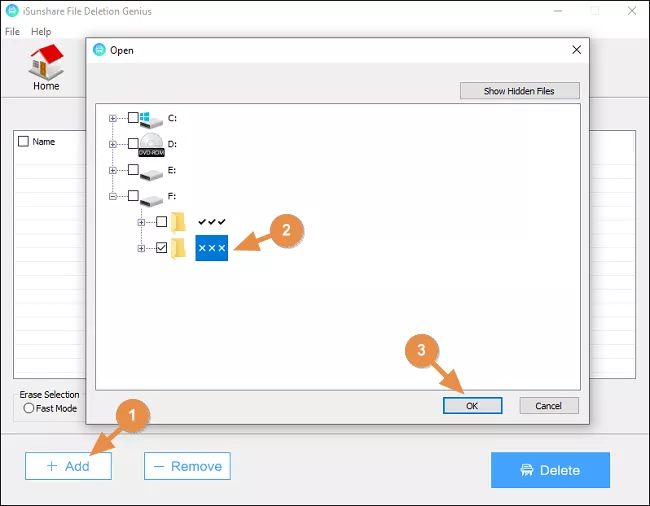
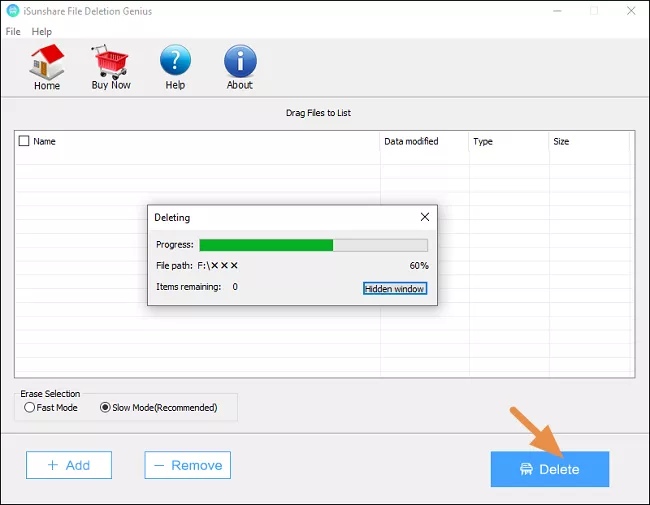
Step 2: Open the software and you can add the large file or folder into the software with the Add feature. It's also available to input the big file/folder by drag-and-drop, which is convenient when the unwanted item is in the desktop.
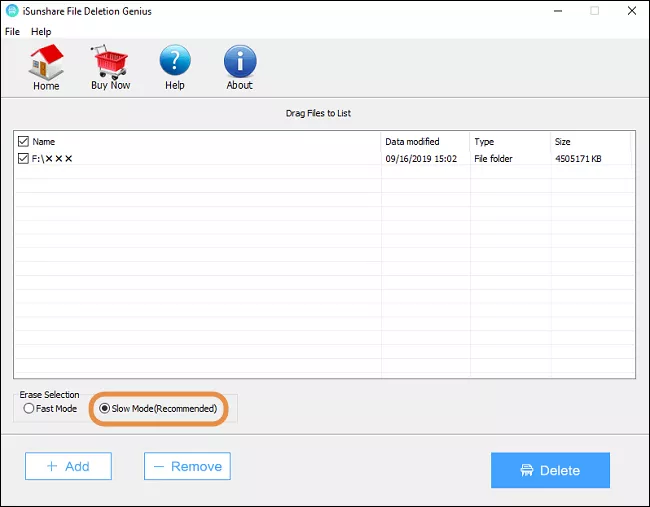
Step 3: Select the deletion mode: Fast Mode or Slow Mode. Both of them can delete the large file permanently, so you can choose the one you prefer.
Step 4: After that, just hit the Delete button to begin forever erasing your big file/folder. Note: The deleted files/folders cannot be recovered with any way or tool!
FAQs on Deleting Large Files in Windows
Q1: Is it safe to use Shift + Delete to remove large files?
Yes, but use it carefully. It will completely remove the file, without sending to the Recycle Bin. Only use it when you're sure you won't need the file again.
Q2: Why can't I delete some large folders?
Some folders may be in use by Windows or protected by permissions. Use Command Prompt (rmdir /s /q) or restart your PC in Safe Mode to remove them.
Q3: How can I fast check the large files on the computer?
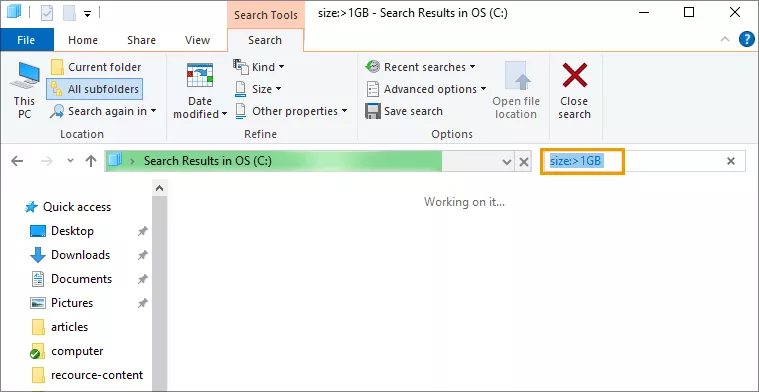
You can use File Explorer and type size:>1GB in the search bar to find files over 1GB.
Conclusion
It is a fast way to reclaim space and speed up your PC to delete large files or folders in Windows 11/10/8/7 computer. With the above methods, you can easily find and remove gigabytes of unnecessary data—just be sure to delete safely!