We use cookies for personalizing content and ads and providing social media features. Your usage information on our website will be used for social media, advertising, and traffic analytics, or shared with our partners. Clicking "Accept" means you agree to use our cookies .
Locked out of your iPhone 17 and can't remember the passcode? You're not alone. Whether you've tried too many wrong guesses and now see "iPhone unavailable" screen, or you simply can't recall a passcode you set months ago, there are several ways to get back in.
This guide covers every working method — with and without a computer, with and without losing your data — so you can choose the one that fits your situation.
Can I unlock my iPhone 17 without losing any data if I never made a backup?
Unfortunately, no. Apple encrypts the iPhone with your passcode, so there is no backdoor or workaround that bypasses encryption while keeping data intact. If no backup exists, the data cannot be recovered after a reset.
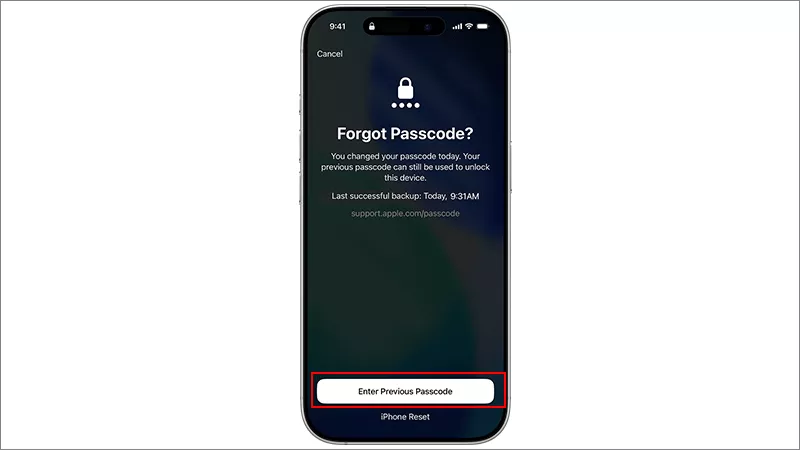
There is one exception: If you recently changed your passcode and your iPhone is running iOS 17 or later, Apple may allow you to use your previous passcode within a limited time (72 hours) to reset the new one.
Method 1: Use Face ID First (Quickest Check)
On iPhone 17 models, Face ID is the primary biometric authentication method. If Face ID succeeds, you can access your device immediately. If Face ID is unavailable or fails repeatedly, you will need to enter your passcode.
On your iPhone 17/17 Pro/17 Pro Max, glance at the screen to trigger Face ID. If Face ID fails 5 times, or after a restart, the passcode is required. Then you can try other methods.
Method 2: Unlock iPhone 17 Without a Computer
Starting with iOS 15.2, Apple introduced a built-in recovery option directly on the device. If your iPhone has been connected to cellular or Wi-Fi, you can erase it straight from the lock screen —no computer needed.
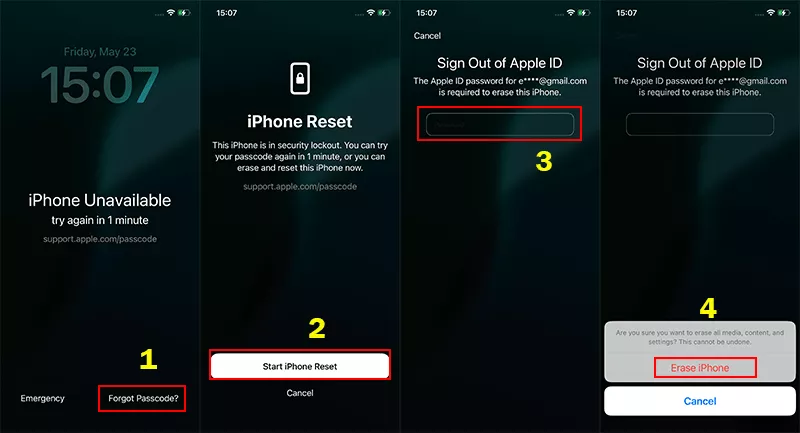
Step 1: On the Enter passcode screen, enter the wrong passcode until you see iPhone Unavailable.
Step 2: Tap Forgot Passcode in the bottom corner (appears after several failed attempts.)
Step 3: Select Start iPhone Reset and enter your Apple ID password.
Step 4: Tap Erase iPhone and confirm it. Then iPhone will erase itself and restart. During setup, sign in with your Apple ID and choose Restore from iCloud Backup. If you have an iCloud backup available, you can restore your data after the reset and recover most of your information.
Note:
This requires the iPhone to be connected to the internet. If it's fully offline, proceed to Method 4.
Method 3: Unlock iPhone 17 Using iCloud (Find My)
For iPhone users who have "Find My iPhone" turned on and remember their Apple ID password, they can access iCloud Find My to erase the locked iPhone 17 and regain access.
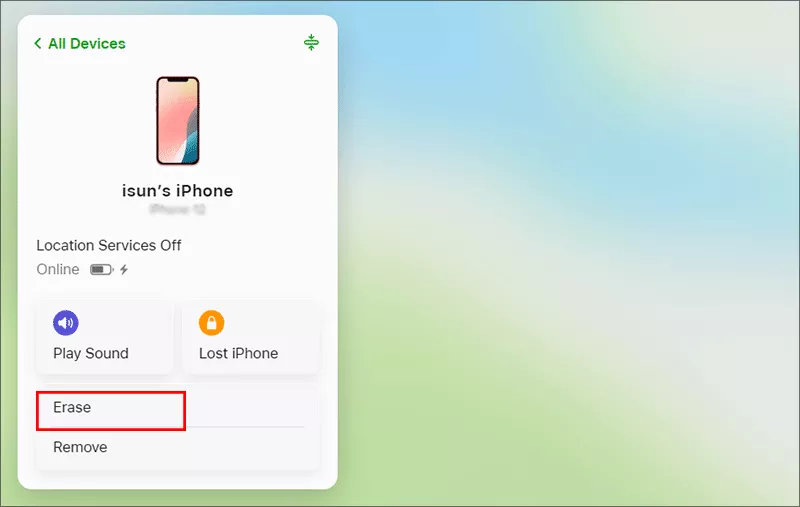
Step 1: On any browser or another device, go to https://www.icloud.com/find and sign in with your Apple ID and password.
Step 2: Click All Devices at the top and select your iPhone 17 from the list.
Step 3: Click Erase and confirm the action. Soon, your iPhone will be wiped and reset remotely. Once the erase completes, set up your iPhone as new or restore from an iCloud backup during setup.
Note:
1. Find My must have been enabled before you forgot the passcode. If it was off, this method won't work.
2. There should be internet connection in your iPhone 17 when using this method.
Method 4: Unlock iPhone 17 in Recovery Mode
If your iPhone is offline or the Forgot Passcode option is unavailable, Recovery Mode is the most reliable solution.
Step 1: Get Finder on your Mac, or iTunes on Windows 10 PC, Apple Devices on Windows 11.
Step 2: Press and quickly release the Volume up button, then do the same to Volume down button. Keep pressing the Side button until you see the Recovery Mode screen (a cable + laptop icon).
Step 3: Use a USB-C cable to connect the iPhone to your computer.
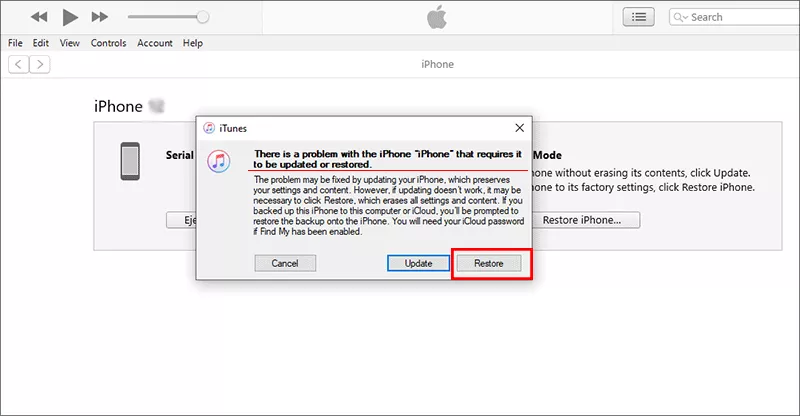
Step 4: Open Finder/iTunes/Apple Devices on your computer. Soon, the Prompt comes with the message: There is a problem with the iPhone that requires it to be updated or restored.
Step 5: Click Restore to erase and reinstall iOS. Once complete, set up your iPhone and restore from backup.
Method 5: Unlock iPhone 17 with iSunshare iPhone Passcode Genius
iPhone 17 locked out and can’t remember the passcode? You can use the iSunshare iPhone Passcode Genius to unlock iPhone 17 when forgot passcode. This iPhone unlocker is available on Windows and Mac computer, which enables users to remove the screen lock, screen time limits, MDM locks and iTunes backup encryption.
iSunshare Reliable iPhone iPad Unlocker
Unlock iPhone without passcode and Face ID.
Bypass iPhone 17 unavailable screen without Apple ID.
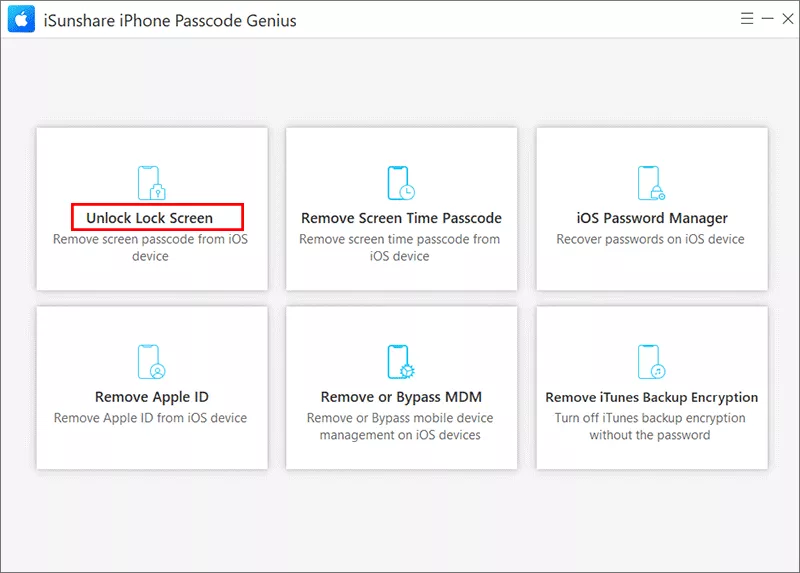
Step 1: Run iSunshare iPhone Passcode Genius and choose Unlock Screen Lock on the main interface.
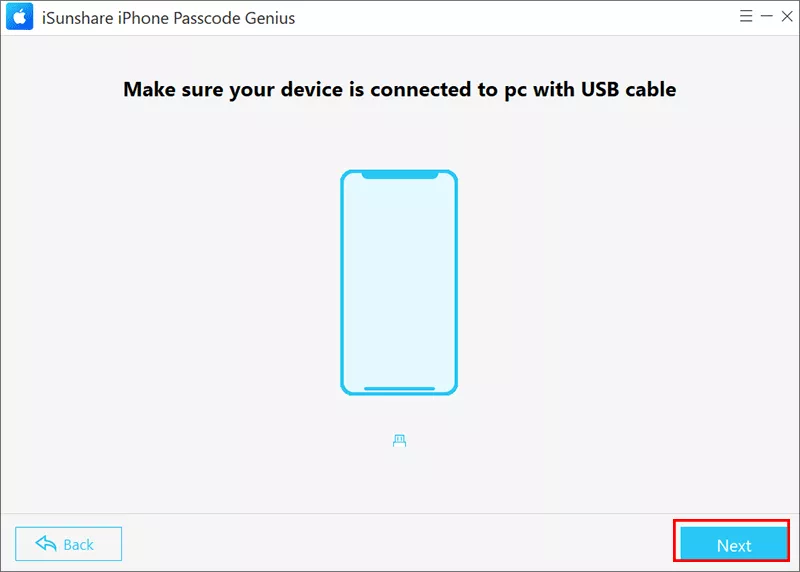
Step 2: Get your iPhone connected to the computer. Go back to the software interface, click the Start button and then the Next button.
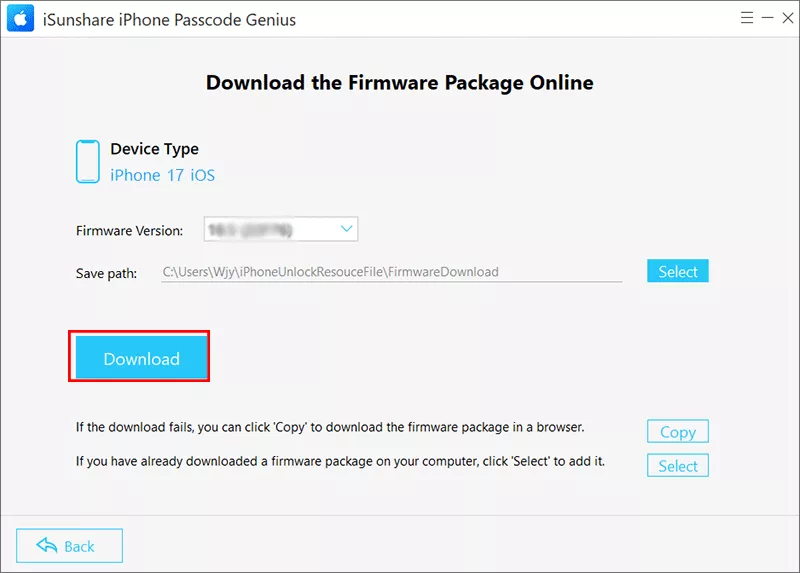
Step 3: When your iPhone 17 info shows on the software interface, click Download to get the firmware package. If not, put your iPhone into recovery mode and repeat the operation.
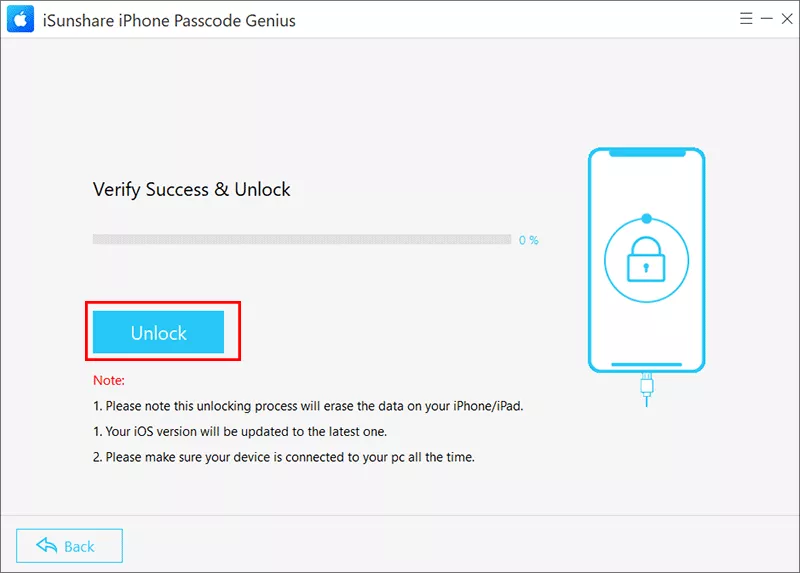
Step 4: After the firmware is verified automatically, you can click the Unlock button to remove the iPhone 17 screen lock.
FAQs on iPhone 17 Unlocking
Q1: Will Activation Lock be removed after iPhone 17 is unlocking?
No. If Find My was enabled, you'll still need the Apple Account credentials associated with the device during setup. This security feature helps prevent unauthorized use of lost or stolen iPhones.
Q2: How to check if you have an iCloud backup before unlocking the phone?
On another Apple device signed in with the same Apple Account, go to Settings > [Your Name] > iCloud > iCloud Backup to check backup details.
Q3: How many incorrect passcode attempts can I make?
The iPhone gradually increases lockout times after repeated incorrect attempts. The lockout period increases progressively after multiple incorrect passcode attempts. The exact waiting times may vary depending on the iOS version. Check details: How Many Attempts to Unlock iPhone.
Conclusion
If you forgot your iPhone 17 passcode, the best recovery method depends on your situation. Users with internet access can reset the device directly from the lock screen or through Find My. If the iPhone is offline, Recovery Mode remains a reliable option. After the reset, you can restore your data from an available iCloud or computer backup. For users who prefer a simplified process, dedicated iPhone unlocking software, such as iPhone Passcode Genius, can also help remove the screen lock and regain access to the device.