We use cookies for personalizing content and ads and providing social media features. Your usage information on our website will be used for social media, advertising, and traffic analytics, or shared with our partners. Clicking "Accept" means you agree to use our cookies .
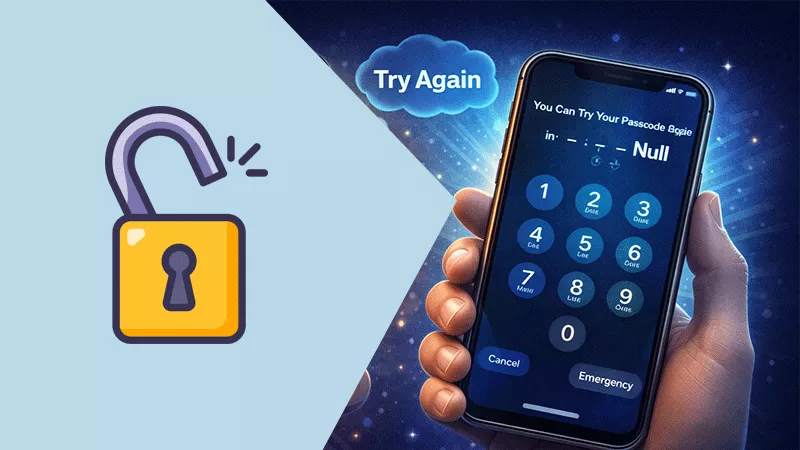
If you recently tried unlocking your Apple iPhone and saw the message "You can try your passcode again in null", you might feel confused or worried. Normally, when too many incorrect passcode attempts are made, the phone displays a lockout timer such as "Try again in 1 minute" or "Try again in 15 minutes."
However, when the message shows "null", it indicates a small software glitch where the device cannot properly display the remaining wait time. While this may look unusual, it is usually not a serious problem and can often be resolved with a few simple steps. In this guide, we'll explain what the message means, why it appears, and how you can fix it safely.
What Does You Can Try Your Passcode Again in Null Mean
The word "null" generally means "no value" in programming terms. When this message appears on the lock screen, it usually means the system failed to load the correct countdown time. Instead of displaying the remaining wait time, the system shows a placeholder value. In simple terms, the phone still has a timer running, but the screen cannot display the correct number.
Why This Message Appears
Several factors can cause the "null" message to appear.
1. Temporary Software Glitch
A small bug in the operating system can sometimes prevent the lockout timer from displaying correctly. Minor system errors are common and often disappear after a restart.
2. System Lag or Freeze
If the device becomes temporarily unresponsive, the lock screen may fail to refresh properly. This can result in incorrect or missing text values.
3. Interrupted System Processes
Background processes responsible for updating the lock screen might stop responding briefly. When this happens, the timer value may appear as "null". Background processes responsible for updating the lock screen might stop responding briefly. When this happens, the timer value may appear as "null".
4. Software Update Issues
After installing or partially installing a system update, some users notice temporary glitches in lock screen messages.
How to Fix "You Can Try Your Passcode Again in Null"
Fortunately, this issue can often be resolved using basic troubleshooting methods.
1. Wait for the Lock Timer to Expire
Even though the display shows "null", the timer usually continues running in the background. Waiting a few minutes may allow the lock screen to refresh normally. After the timer finishes, you should be able to enter your passcode again.
2. Restart Your iPhone
Restarting the device can refresh the operating system and remove temporary glitches.
To restart newer iPhones: Press the Volume Up button, press the Volume Down button, then keep pressing the side button until you see the Apple Logo. Once the phone restarts, check if the message disappears.
3. Update Your iPhone Software
Keeping your iPhone updated helps fix bugs and improves system stability. To update your device: Open Settings, tap General and select Software Update. If a new version of iOS is available, install it to fix potential bugs.
4. Use Recovery Mode if the Phone Is Locked
If too many incorrect passcode attempts were made, the phone might eventually become fully disabled. In that case, you may need to restore the device using a computer through tools like iTunes or Finder on a Mac. Keep in mind that restoring the phone may erase its data unless you have a backup.
5. Unlock the iPhone via iPhone Passcode Genius
When you forgot the passcode, the iPhone will become unavailable. In this situation, you can try the iSunshare iPhone Passcode Genius to unlock the iPhone. This software supports both Windows and Mac version. It is easy to unlock the iPhone in any model.
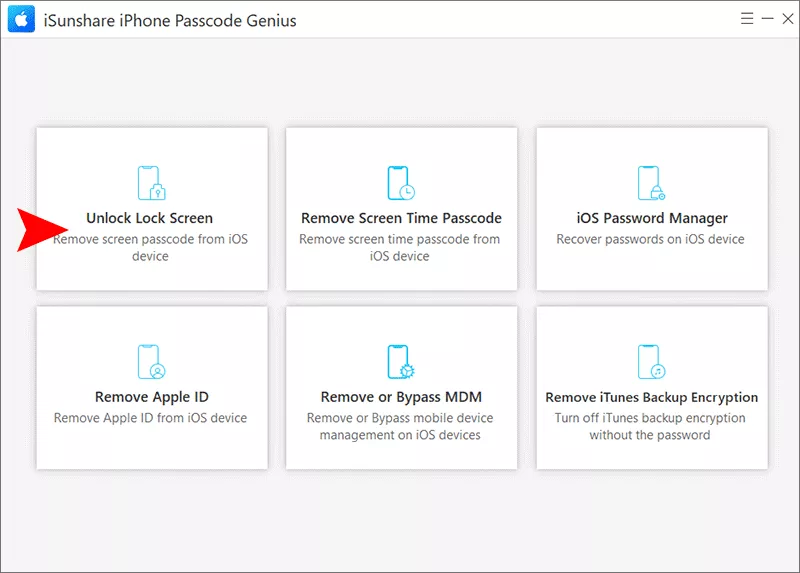
Step 1: Open iPhone Passcode Genius and get your iPhone connected. In the software home interface, click Unlock Lock Screen to continue.
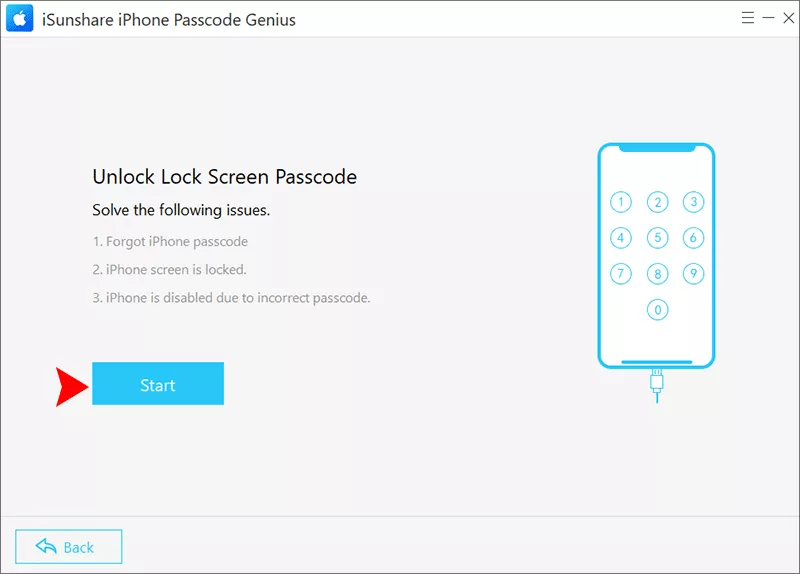
Step 2: Click the Start and then the Next button to load your iPhone details.
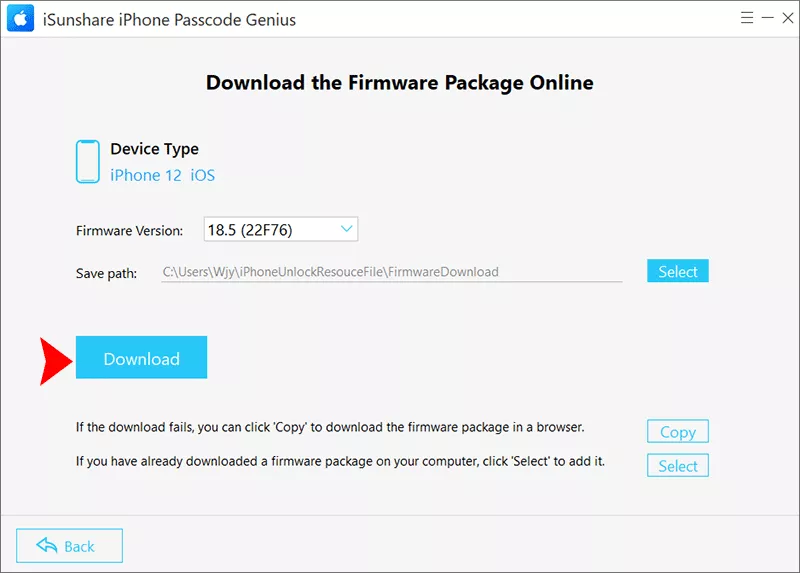
Step 3: Now you can check the iOS version in your iPhone. After that, click the Download button to get the firmware package.
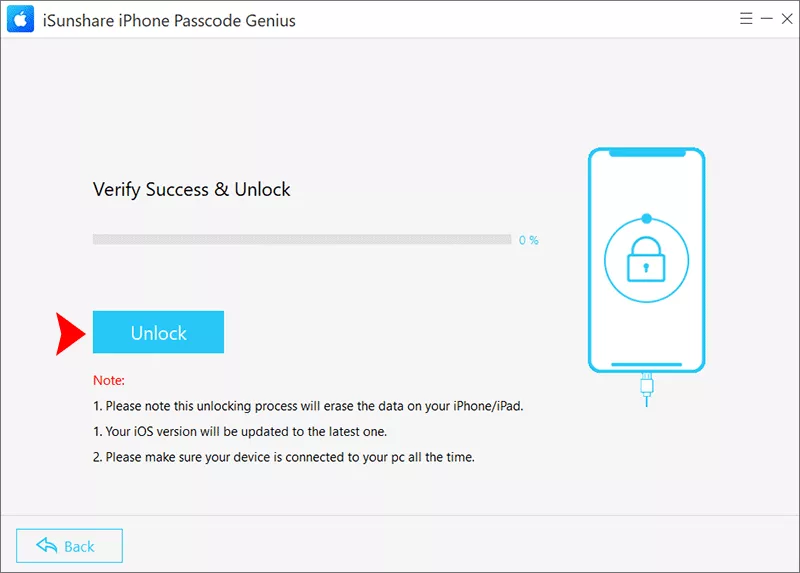
Step 4: Finally, click the Unlock button to erase your iPhone.
FAQs on Try Your Passcode Again in Null
1. Is the "null" message dangerous?
No. The message usually indicates a display glitch, not a serious hardware problem.
2. Will my iPhone unlock automatically?
The phone will not unlock automatically, but you should be able to enter your passcode again after the timer expires.
3. Does this mean my iPhone is hacked?
No. This message is typically caused by a software bug or system delay, not unauthorized access.
Conclusion
Seeing the message “You can try your passcode again in null” on an Apple iPhone can look confusing, but it is usually caused by a minor glitch in iOS. The system simply fails to display the lockout timer correctly. In most cases, waiting for the timer to expire or restarting the device will resolve the issue. With a few simple troubleshooting steps, your iPhone should return to normal operation quickly.