2 Methods to Change Taskbar Location on Windows 10/11
By Michael | Last Updated August 13, 2025
If you want to change the location of the taskbar on your computer desktop, you can adopt the two ways illustrated in this article.
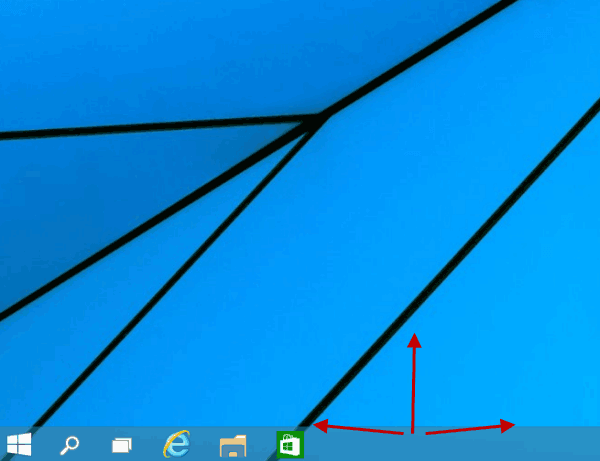
Method 1: Change the taskbar location by use of mouse or finger.
Click the taskbar and drag it to the top, the left or the right on the desktop. But first of all, you should make sure the taskbar is unlocked.
Method 2: Change taskbar location in Taskbar settings.
Step 1: Right-click the blank area on the taskbar, and select Taskbar settings in the menu.
Step 2: In the Taskbar settings window, Go to Taskbar location on screen section, choose Left , Right or Top in the drop-down list.
After that, the change will be applied in no time.
FAQs on Taskbar Location in Windows 10
Q1: Is there any shortcut key to change Taskbar location in Windows 10?
No, there is no simple shortcut key to change the Taskbar location.
Q2: Why won't the taskbar move when I drag it?
Make sure Lock the taskbar is unchecked first.
Q3: Can I move the taskbar to the top?
Yes, both methods let you place the taskbar on the top edge of your screen.
Related Articles :